
ILEBYGO H18
ILEBYGO H18 Mini Wireless Keyboard Touchpad Combo User Manual
Model: H18 | Brand: ILEBYGO
1. Introduzione
This manual provides detailed instructions for the ILEBYGO H18 2.4Ghz Mini Wireless Keyboard Touchpad Combo. This device combines a QWERTY keyboard with a multi-touch touchpad, offering versatile control for various smart devices. Please read this manual thoroughly before use to ensure proper operation and longevity of your device.
2. Ciò chì hè in a scatula
- 1 x ILEBYGO H18 2.4G Mini Wireless Keyboard (Batteries included)
- 1 x Ricevitore USB
- 1 x Cavu di carica USB
- 1 x Manuale d'utilizatore
3. Produttu Finituview
The ILEBYGO H18 features a compact design with a large touchpad area that doubles as a keyboard. Key indicators and control buttons are strategically placed for ease of use.
3.1 Disposizione Dispositiu

Figure 1: ILEBYGO H18 device dimensions and top view.
3.2 Indicatori è Buttons
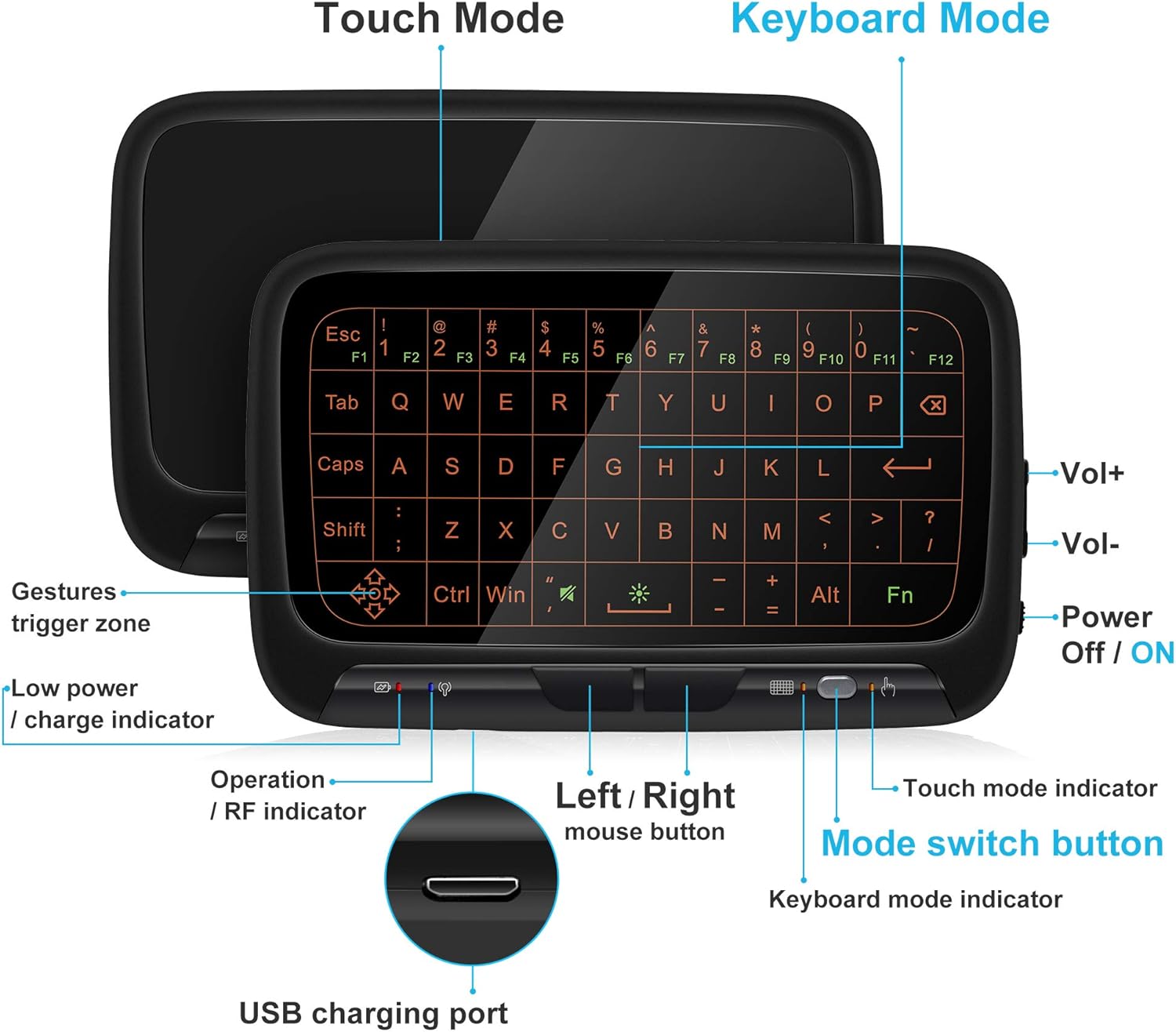
Figura 2: Fronte view of the ILEBYGO H18 with labeled indicators and buttons.
- Portu di Ricarica USB: Per carricà u dispusitivu.
- Low Power / Charge Indicator: Mostra u statu di a bateria.
- Operation / RF Indicator: Indica u statu di cunnessione.
- Left / Right Mouse Buttons: Physical buttons for mouse clicks.
- Pulsante di cambiamentu di modu: Toggles between Touchpad Mode and Keyboard Mode.
- Touch Mode Indicator: Lights up when in Touchpad Mode.
- Keyboard Mode Indicator: Lights up when in Keyboard Mode.
- Volume Controls (Vol+ / Vol-): Ajusta l'output audio.
- Power Off / ON Switch: Accende o spegne u dispusitivu.
4. Setup
4.1 Caricà u dispusitivu
- Connect the provided USB charging cable to the micro USB port on the device.
- Cunnette l'altra estremità di u cavu à una fonte d'alimentazione USB (per esempiu, una porta USB di l'urdinatore, un adattatore USB per a presa murale).
- The Low Power / Charge Indicator will illuminate during charging. It will change or turn off when fully charged.

Figure 3: Charging the ILEBYGO H18.
4.2 Cunnessu à un Dispositivu
- Locate the USB receiver included in the package.
- Insert the USB receiver into an available USB port on your target device (e.g., Android TV Box, Projector, HTPC, PC, Laptop).
- Turn on the ILEBYGO H18 by sliding the Power Off / ON switch to the "ON" position.
- The Operation / RF Indicator will blink, then turn solid blue once a connection is established.

Figure 4: Connecting the ILEBYGO H18 via USB receiver.
5. Operating Instructions
5.1 Switching Between Touchpad and Keyboard Modes
Press u Pulsante di cambiamentu di modu (located near the right mouse button) to toggle between Touchpad Mode and Keyboard Mode. The corresponding indicator light will illuminate to show the active mode.

Figure 5: Switching between Keyboard and Touchpad Modes.
5.2 Touchpad Mode Gestures
The touchpad supports various multi-touch gestures for intuitive navigation:

Figure 6: Touchpad gesture guide.
- Tap unicu: Cliccate nant'à u mouse.
- Toccu à dui dite: Cliccate cù u dirittu di u mouse.
- Single Finger Drag: Mouse movement.
- Two-Finger Drag: Scorri u screnu.
- Pizzicu à dui dite: Zoom in / out.
- Scorrimentu à trè dite: Switch applications or access multitasking view.
5.3 Keyboard Mode
In Keyboard Mode, the touchpad area illuminates to display a full QWERTY keyboard layout. You can type by tapping on the virtual keys. The keyboard supports standard functions like Shift, Ctrl, Alt, and Windows key combinations.
5.4 Ajuste di retroilluminazione
The keyboard features a 3-level adjustable backlight. To adjust the backlight brightness, press the Fn key and the backlight adjustment key (often indicated by a sun icon or similar) simultaneously or in sequence, depending on the specific model's implementation.

Figure 7: Adjusting keyboard backlight.
6. Mantenimentu
- Mantene u dispusitivu pulito sguassendu cù un pannu suave è seccu.
- Evite d'espone u dispusitivu à temperature estreme, umidità o luce diretta di u sole.
- Ùn pruvate micca di smuntà l'apparechju, postu chì questu annullerà a garanzia.
- Caricate u dispusitivu regularmente per mantene a salute di a batteria, ancu s'ellu ùn hè micca adupratu spessu.
7. Risoluzione di prublemi
7.1 U dispusitivu ùn risponde micca
- Assicuratevi chì u dispusitivu hè alimentatu.
- Check if the USB receiver is securely plugged into the host device.
- Verify the device battery is charged. Recharge if the low power indicator is active.
- Try plugging the USB receiver into a different USB port on the host device.
7.2 A retroilluminazione ùn funziona micca
- Ensure the device is in Keyboard Mode.
- Press the Fn key and the backlight adjustment key to cycle through brightness levels or turn it on.
7.3 Touchpad Sensitivity Issues
- Ensure the device is in Touchpad Mode.
- Clean the touchpad surface to remove any dirt or oils that might affect sensitivity.
8. Specificazioni
| Feature | Detail |
|---|---|
| Marca | ILEBYGO |
| Numero di mudellu | H18 |
| Tecnulugia di cunnessione | 2.4Ghz senza filu (ricevitore USB) |
| Disposizione di tastiera | QWERTY |
| Funzioni spiciali | 3-Level Backlit, Rechargeable, Touchpad Mode, Keyboard Mode |
| Batteria | Batteria Li-ion 300mAh integrata |
| Dimensioni di u produttu | 5.6"L x 3.6"L x 0.7"A |
| Pesu di l'articulu | 0.13 liri |
| Dispositivi compatibles | Laptop, PC, Projector, Android TV Box, IPTV, HTPC |
9. Garanzia è Supportu
ILEBYGO provides a 12-month warranty for this product. For any issues, questions, or support needs, please contact our customer service. Refer to the contact information provided with your purchase or visit the official ILEBYGO websitu.
Note: The warranty does not cover damage caused by misuse, accidents, or unauthorized modifications.
10. Video di u produttu
Video 1: Fine ufficialeview of the ILEBYGO 2.4Ghz Mini Wireless Keyboard Touchpad Combo, demonstrating its features and functionality.