
Introduzione
Thank you for choosing the Acer GPHDS1100T Over-Ear Headset. This manual provides essential information for setting up, operating, and maintaining your headset. Designed for comfort and clear communication, this headset features an omnidirectional microphone, 94 dB sensitivity, and a 3.5 mm jack for plug-and-play connectivity across various devices.

Figura 1: Acer GPHDS1100T Over-Ear Headset. This image shows the headset from a front-angled perspective, highlighting the over-ear design and the Acer logo on the earcup.
Cuntenutu di u pacchettu
Assicuratevi chì tutti l'articuli sianu presenti in u pacchettu:
- Acer GPHDS1100T Over-Ear Headset (with integrated cable)
Istituisci
- Cunnette l'auriculare: Locate the 3.5 mm audio jack on your computer, laptop, tablet, or smartphone. Insert the headset's 3.5 mm plug firmly into the audio jack. This headset is designed for plug-and-play functionality, requiring no additional drivers for basic operation.
- Aghjustate a fascia: Gently extend or retract the headband slides on both sides of the headset until the earcups rest comfortably over your ears.
- Posiziona u microfonu: The headset features a flexible, omnidirectional microphone. Adjust the microphone boom so that the microphone is positioned approximately 2-3 centimeters (1 inch) from your mouth for optimal voice clarity.
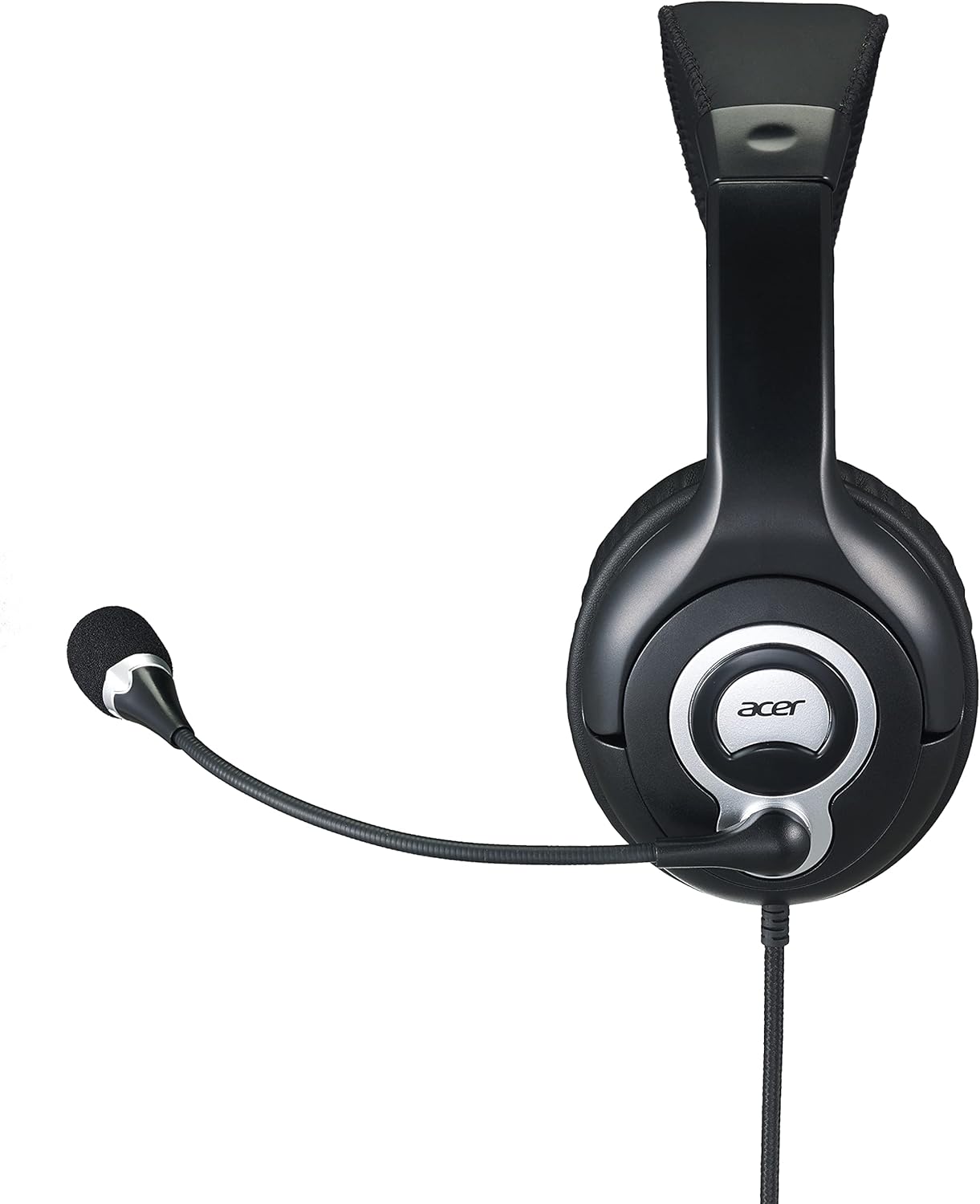
Figura 2: Latu view of the Acer GPHDS1100T headset with the microphone extended, illustrating proper microphone positioning.
Istruzzioni di funziunamentu
Riproduzione audio
Once connected, your headset should automatically be recognized by your device. You can then play audio from any application. Adjust the volume using your device's system volume controls.
L'usu di u microfonu
The omnidirectional microphone is suitable for voice calls, online meetings, and gaming. Ensure the microphone is enabled in your device's sound settings if you experience issues. Some applications may have their own microphone volume settings.
Touch Control (If Applicable)
While the specifications mention "Touch Control," specific functions are device-dependent. Refer to your device's audio settings or application documentation for details on how touch controls might interact with your system. Common touch controls on headsets may include volume adjustment or microphone mute/unmute.
Mantenimentu
- Pulizia: Use a soft, dry cloth to wipe the earcups and headband. For the leather material, a slightly damp Un pannu pò esse adupratu, seguitatu da un pannu asciuttu. Evitate i prudutti chimichi aggressivi o i detergenti abrasivi.
- Conservazione: Store the headset in a clean, dry place away from extreme temperatures and direct sunlight. Avoid tangling the cable.
- Cura di u cable: Do not pull the cable forcefully or bend it sharply. This can damage the internal wiring. The cable is retractable, so ensure it retracts smoothly without kinks.

Figura 3: Top view of the Acer GPHDS1100T headset, showing the headband and earcup design, useful for understanding cleaning areas.
Risoluzione di prublemi
| Prublemu | Causa Possibile | Soluzione |
|---|---|---|
| Nisun sonu da l'auriculare |
|
|
| U microfonu ùn funziona micca |
|
|
| Qualità audio povera |
|
|
Specificazioni
| Marca | acer |
| Numero di mudellu | GP.HDS11.00T |
| Posizionamentu di l'arechja | Over Ear |
| Tecnulugia di cunnessione | Wired |
| Jack per cuffie | Jack da 3.5 mm |
| Tipu di microfonu | Omnidirezionale |
| Sensibilità | 94 dB |
| Risposta di Frequency | 20 Hz - 20 kHz |
| Lunghezza di u cable | 2.4 m |
| Controlu di u rumore | Cancellazione attiva di u rumore |
| Tipu di cuntrollu | Touch Control |
| Materiale | Pelle (auricolari) |
| Dispositivi compatibles | Laptops, Desktops, Tablets, Telephones, Smart Speaker, Television, Cellphones |

Figura 4: Angulu view of the Acer GPHDS1100T headset, showcasing the overall design and the flexible microphone.
Garanzia è Supportu
Per infurmazioni nantu à a garanzia è l'assistenza tecnica, vi pregu di cunsultà u situ ufficiale Acer. websitu o cuntattate u vostru rivenditore. Cunservate a vostra ricevuta d'acquistu per e richieste di garanzia.
Optional protection plans may be available for extended coverage. Please check with your retailer for details on available plans.