
Baseus 9-in-1 USB-C Docking Station
Baseus 9-in-1 USB-C Docking Station User Manual
Model: B0B1PT5FVM
Product Overview
The Baseus 9-in-1 USB-C Docking Station is a versatile multi-port adapter designed to expand the connectivity of your USB-C enabled devices. It provides a comprehensive solution for connecting external displays, network cables, USB peripherals, and memory cards, all while delivering power to your host device.

Image: The Baseus 9-in-1 USB-C Docking Station, showcasing its compact design and multiple ports including USB-A, HDMI, Ethernet, and card reader slots, with connected cables and memory cards.
Funzioni chjave:
- Uscita di Doppiu Monitor: Supports up to 4K@120Hz for single display and dual 4K@30Hz for extended or mirrored displays via two HDMI ports.
- gigabit ethernet: Provides a stable and fast 1000Mbps wired network connection.
- Fornitura di energia (PD): Offers up to 85W power passthrough to charge your laptop while using the hub (requires a 100W power adapter, as the hub consumes 15W).
- Trasferimentu di dati à alta velocità: Equipped with two USB 3.0 ports (up to 5Gbps) and one USB 2.0 port (up to 60MB/s) for connecting various peripherals.
- Lettore di carte SD / TF: Integrated slots for SD and TF cards with data transfer speeds up to 104MB/s.

Image: A detailed diagram illustrating the various ports of the Baseus 9-in-1 docking station, including PD (100W), HDMI 1 (4K@120Hz), HDMI 2 (4K@30Hz), TF (104MB/s), SD (104MB/s), USB 2.0 (60MB/s), and two USB 3.0 (500MB/s) ports.
Guida di installazione
- Cunnette si à u dispusitivu ospitante: Plug the integrated USB-C cable of the docking station into the USB-C port of your laptop, tablet, or smartphone. Ensure your device's USB-C port supports video output (DisplayPort Alternate Mode) and Power Delivery for full functionality.
- Cunnessione elettrica (opzionale ma cunsigliata): For stable operation and to charge your host device, connect a USB-C power adapter (up to 100W recommended) to the PD (Power Delivery) port on the docking station. The hub itself consumes 15W, so an 85W output will be delivered to your device with a 100W input.
- Cunnette i schermi esterni:
- For single display, connect an HDMI cable from your monitor to HDMI 1 port for up to 4K@120Hz resolution.
- For dual displays, connect two HDMI cables from your monitors to both HDMI 1 and HDMI 2 ports. Resolutions will vary based on your host device's capabilities (e.g., dual 4K@30Hz).

Image: A laptop connected to the Baseus docking station, which in turn is connected to two external monitors, demonstrating the dual monitor 4K output capability.
- Connect to Wired Network: Insert an Ethernet cable into the RJ45 port on the docking station for a stable 1000Mbps wired internet connection.

Image: The Baseus docking station connected to a laptop, with an Ethernet cable plugged into the hub, illustrating the stable Gigabit Ethernet connection.
- Cunnette i periferichi USB: Plug your USB devices (e.g., keyboard, mouse, external hard drive, USB flash drive) into the available USB 3.0 or USB 2.0 ports.
- Inserite e carte di memoria: Insert your SD or TF (MicroSD) cards into the corresponding slots for data transfer.
Istruzzioni di funziunamentu
Once connected, the Baseus 9-in-1 USB-C Docking Station operates largely plug-and-play. Your operating system should automatically detect and configure the connected devices.
Configurazione di Visualizazione:
- Windows: Right-click on your desktop, select "Display settings," and arrange your monitors. You can choose to extend, duplicate, or show only on one display.
- macOS: Go to "System Preferences" > "Displays" > "Arrangement" to configure your external monitors.
Power Delivery Functionality:
The PD port allows your laptop to receive power through the docking station. Ensure your power adapter is connected to the PD port on the hub and is of sufficient wattage (e.g., 100W) to provide 85W to your laptop after the hub's self-consumption.

Image: An illustration demonstrating the power delivery function of the Baseus docking station, showing a 100W input from a power adapter and an 85W output to the connected laptop, with a note about the hub's 15W self-consumption.
Trasferimentu di dati:
Utilize the USB 3.0 ports for high-speed data transfer (up to 5Gbps) for devices like external hard drives. The USB 2.0 port is suitable for lower-speed peripherals such as keyboards and mice. The SD/TF card reader supports fast transfers up to 104MB/s.
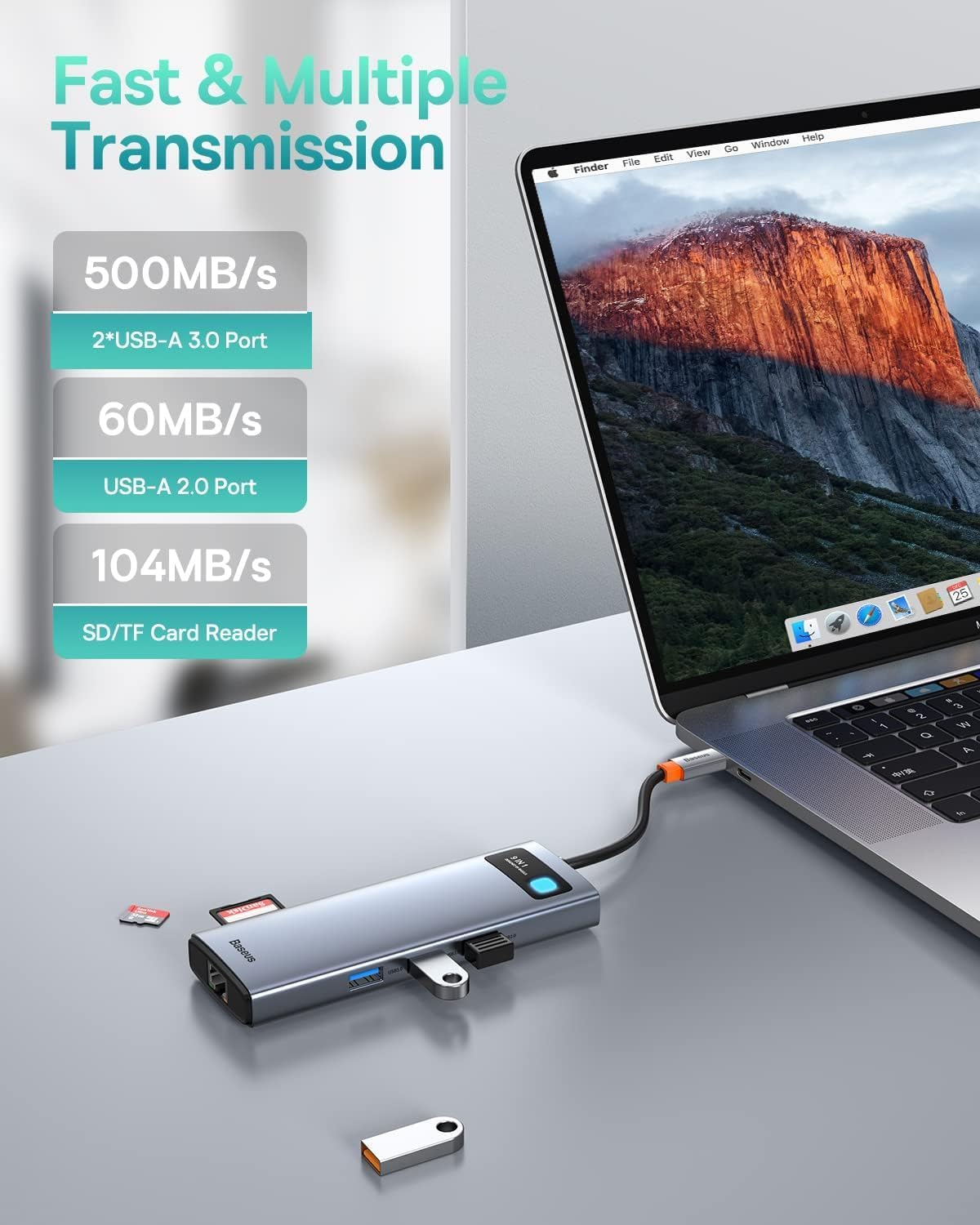
Image: The Baseus docking station connected to a laptop, with various USB devices and an SD card inserted, highlighting the fast and multiple transmission capabilities of the USB-A ports and SD/TF card reader.
Mantenimentu
- Pulizia: Use a soft, dry cloth to clean the surface of the docking station. Avoid using liquid cleaners or aerosols.
- Conservazione: Conservate l'apparechju in un locu frescu è asciuttu, luntanu da a luce diretta di u sole è da temperature estreme.
- Trattamentu: Avoid dropping or subjecting the docking station to strong impacts. Do not attempt to disassemble or modify the device.
- Gestione di Cable: Ensure cables are not excessively bent or tangled to prevent damage to the ports or internal wiring.
Risoluzione di prublemi
| Prublemu | Causa Possibile | Soluzione |
|---|---|---|
| Nisuna visualizazione nant'à u monitor esternu. |
|
|
| Nisuna cunnessione internet via Ethernet. |
|
|
| Dispositivi USB micca ricunnisciuti. |
|
|
| Velocità di trasferimentu di dati lente. |
|
|
Specificazioni
| Feature | Detail |
|---|---|
| Mudellu | 9-in-1 USB-C Docking Station (B0B1PT5FVM) |
| Marca | Baseus |
| Dimensioni di u produttu | 5.31 x 1.93 x 0.63 inch |
| Pesu di l'articulu | 5.3 once |
| Interfaccia Hardware | MicroSD, USB Type C, Ethernet, HDMI, USB 3.0, USB 2.0, Secure Digital Card |
| Uscita HDMI 1 | Up to 4K@120Hz (Single Display) |
| Uscita HDMI 2 | Up to 4K@30Hz (Single Display) |
| Doppia uscita HDMI | Up to 4K@30Hz + 4K@30Hz (Dependent on host device capabilities) |
| Port Ethernet | Gigabit Ethernet 1000 Mbps |
| Portu USB-C PD | Max 85W Power Delivery (100W input required, 15W for hub self-consumption) |
| Porti USB 3.0 | 2 ports, up to 5Gbps data transfer speed |
| Port USB 2.0 | 1 port, up to 60MB/s data transfer speed |
| Lettore di schede SD/TF | Supports up to 104MB/s data transfer speed |
| Dispositivi compatibles | iPhone 15 Series, ASUS ROG Ally, Steam Deck, MacBook, MacBook Pro (2018-2021), MacBook Air (2018-2020), Mac mini (2018-2020), iPad Pro/Air (2018/2020), iPad mini 6, Dell XPS, Dell Latitude, Lenovo Yoga, Thinkpad, Microsoft Surface series, Samsung Galaxy phones/tablets, HP Spectre, Elitebook, Envy, ASUS Zenbook, Acer Aspire. |
Garanzia è Supportu
Per infurmazioni dettagliate nantu à a garanzia è l'assistenza à i clienti, vi pregu di cunsultà u situ ufficiale di Baseus. websitu o cuntattate direttamente u so serviziu clienti. Conservate a vostra ricevuta d'acquistu per e richieste di garanzia.
Baseus Ufficiale Websitu: www.baseus.com
Ask a question about this manual
Ask about setup, troubleshooting, compatibility, parts, safety, or missing instructions. Manuals+ will review the question and use this page’s manual context to help answer it.