
1. Introduzione
Thank you for choosing the Baseus AeQur G10 TWS Earphones. This manual provides detailed instructions on how to set up, operate, maintain, and troubleshoot your new earphones. Please read this manual thoroughly before using the product to ensure optimal performance and longevity.
2. Cuntenutu di u pacchettu
Carefully unpack the box and ensure all items listed below are present and in good condition. If any items are missing or damaged, please contact your retailer.
- Baseus AeQur G10 TWS Earphones (Left and Right)
- Casu di carica
- USB-A/USB-C Wireless Dongle
- Cavu di carica USB-C
- Parechje dimensioni di punte per l'arechje
- Manuale d'uso (stu documentu)

Image 2.1: Complete package contents of the Baseus AeQur G10 TWS Earphones.
3. Produttu Finituview
Familiarize yourself with the components of your Baseus AeQur G10 TWS Earphones.
Cuffie 3.1
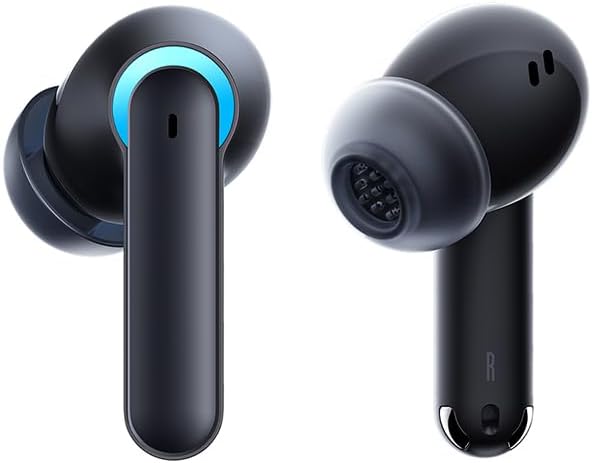
Image 3.1: Left and Right Baseus AeQur G10 Earphones. Each earphone features a touch control area, microphone, and charging contacts.
3.2 Casu di Carica

Image 3.2: Baseus AeQur G10 Earphones in their charging case with the lid open. The case has charging slots for each earphone and an LED indicator for battery status.
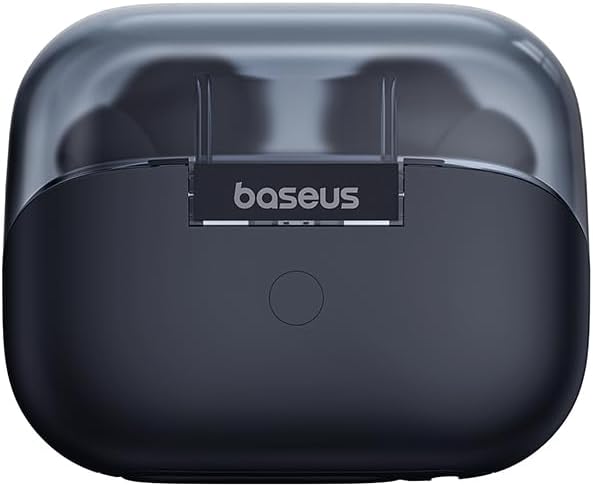
Image 3.3: Posteriore view of the Baseus AeQur G10 charging case, displaying the Baseus brand logo and a USB-C charging port (not explicitly visible but implied by common design).
3.3 USB-A/USB-C Wireless Dongle
The included wireless dongle allows for low-latency connection to various devices, including PCs, laptops, gaming consoles, and mobile devices.

Image 3.4: Compatibility diagram for the Baseus AeQur G10, illustrating connections to Type-C Androids & Tablets, Type-C/USB-A PCs & Laptops, PS5/PS4/Switch, Steam Deck, and VR devices.
4. Setup
4.1 Carica iniziale
- Pone i dui cuffie in u casu di carica.
- Connect the USB-C charging cable to the charging port on the case and the other end to a USB power source (e.g., computer USB port, wall adapter).
- The LED indicator on the case will show charging status. A full charge typically takes approximately 1.5 hours for the earphones and 2 hours for the case.
4.2 Accoppiamentu cù i dispusitivi Bluetooth
- Assicuratevi chì l'auricolari sianu in a custodia di carica è chì a custodia abbia una carica sufficiente.
- Open the charging case lid. The earphones will automatically enter pairing mode (indicated by a flashing LED on the earphones or case).
- Nant'à u vostru apparechju (smartphone, tableta, laptop), attivate Bluetooth è cercate novi apparechji.
- Select "Baseus AeQur G10" from the list of available devices.
- Una volta cunnessu, l'indicatore LED smetterà di lampeggià è sentirete un tonu di cunferma.
4.3 Connecting via USB Wireless Dongle
- Insert the USB-A or USB-C end of the wireless dongle into the corresponding port on your device (PC, laptop, gaming console).
- Ensure the earphones are in the charging case and the lid is open.
- The earphones will automatically attempt to connect to the dongle. The dongle's LED indicator will show connection status.
- Once connected, the LED on the dongle will become solid, and you will hear a confirmation tone from the earphones.
5. Operating Instructions
5.1 Power On/Off
- Power On: Open the charging case lid, or take the earphones out of the case. They will power on automatically.
- Spegnimentu: Place the earphones back into the charging case and close the lid. They will power off automatically and begin charging.
5.2 Purtà l'auricolari
- Identify the 'L' (left) and 'R' (right) markings on each earphone.
- Gently insert the earphones into your ear canals.
- Rotate them slightly to find a comfortable and secure fit. Choose the appropriate ear tip size for optimal sound quality and comfort.
5.3 Touch Controls
The Baseus AeQur G10 earphones feature touch-sensitive controls on each earbud. The specific functions may vary slightly depending on the device and application.
| Azzione | Funzione |
|---|---|
| Toccu unicu (L/R) | Riproduce / Pause musica, Risponde / Finisce a chjama |
| Doppiu Toccu (L) | Pista Precedente |
| Doppiu Toccu (R) | Next Track |
| Triplu Toccu (L/R) | Attivà l'Assistente Vocale |
| Pressu longu (L/R, 2s) | Reject Call |
| Pressu longu (L/R, 3s) | Toggle Gaming/Music Mode (if applicable) |
6. Mantenimentu
6.1 Pulizia
- Aduprate un pannu dolce, asciuttu è senza pelu per pulisce l'auricolari è a custodia di ricarica.
- For earwax or debris in the ear tips, gently remove the ear tips and clean them with a cotton swab lightly dampened with rubbing alcohol. Ensure they are completely dry before reattaching.
- Ùn aduprate micca detergenti abrasivi, solventi o spray aerosol.
6.2 Storage
- Conservate sempre l'auricolari in a so custodia di ricarica quandu ùn sò micca in usu per prutegeli è manteneli carichi.
- Conservà in un locu frescu è asciuttu, luntanu da temperature estreme è da a luce diretta di u sole.
6.3 Cura di a batteria
- Caricate l'auricolari è a custodia regularmente, ancu s'elli ùn sò micca aduprati spessu, per mantene a salute di a batteria.
- Evitate di scaricà cumpletamente e batterie per periodi prolungati.
7. Risoluzione di prublemi
If you encounter issues with your Baseus AeQur G10 earphones, refer to the following common solutions:
7.1 Nisun sonu o cunnessione intermittente
- Ensure earphones are charged and properly connected to your device (Bluetooth or dongle).
- Verificate u livellu di vulume sia nantu à l'auricolari sia nantu à u vostru dispositivu cunnessu.
- Avvicinatevi à u vostru apparechju per evità interferenze o prublemi di portata.
- Try disconnecting and re-connecting the earphones.
- For Bluetooth, forget the device on your phone and re-pair.
- For dongle, unplug and re-plug the dongle.
7.2 Auricolari chì ùn si caricanu micca
- Assicuratevi chì u cavu di carica sia cunnessu currettamente à a custodia è à a fonte di alimentazione.
- Verificate chì a fonte di alimentazione sia attiva.
- Pulite i cuntatti di carica sia nantu à l'auricolari sia in l'internu di a custodia cù un tampone di cuttone asciuttu.
- Pruvate un altru cavu di carica o adattatore di corrente.
7.3 Only One Earphone Working
- Place both earphones back into the charging case, close the lid, wait a few seconds, then open the lid and take them out again.
- Assicuratevi chì tramindui l'auricolari sianu carichi.
- Pruvate à resettà l'auricolari (vede u manuale di u fabricatore) websitu per struzzioni specifiche di reset se necessariu).
8. Specificazioni
Key technical specifications for the Baseus AeQur G10 TWS Earphones:
| Feature | Specificazione |
|---|---|
| Nome di mudellu | A00055400111-00 |
| Marca | Baseus |
| Culore | Neru |
| Posizionamentu di l'arechja | In l'arechja |
| Fattore di forma | In l'arechja |
| Tecnulugia di cunnessione | Wireless (Bluetooth) |
| Tecnulugia di cumunicazione wireless | Bluetooth |
| Batterie | 1 batterie Lithium Ion necessarie (incluse) |
| Dimensioni di u produttu | 10 x 5 x 1.27 cm |
| Pesu di l'articulu | 220 g |
| U fabricatore | Baseus |
| Usi specifichi | Viaghjà |
9. Garanzia è Support
Baseus products are designed and manufactured to the highest quality standards. For information regarding warranty coverage, technical support, or service, please refer to the warranty card included with your product or visit the official Baseus websitu. Conservate a vostra prova d'acquistu per e richieste di garanzia.
For further assistance, you may contact Baseus customer support through their official channels.