
1. Introduzione è Compatibilità
This manual provides detailed instructions for the installation, operation, and maintenance of your Surakey Android 13 Car Stereo Radio. Please read this manual thoroughly before installation and use to ensure proper function and safety.
Nota impurtante di cumpatibilità: This car stereo is designed for Dodge Ram 1500 and 3500 models from 2013 to 2019. Before purchasing or installing, it is crucial to verify compatibility with your specific vehicle's year and model. We recommend carefully measuring your dashboard and comparing it with the product dimensions. If uncertain, please provide a complete image of the plugs on the back of your center console and the on-board main unit to your supplier for confirmation and to determine if any additional wiring harnesses or adapters are required.

Figure 1.1: Dashboard compatibility examples. Ensure your vehicle's dashboard matches the compatible design for proper fitment.
2. Produttu Finituview è cumpunenti inclusi
The Surakey Android 13 Car Stereo Radio features a 9.7-inch touch screen, offering advanced navigation, entertainment, and connectivity options for your vehicle.
2.1 Caratteristiche principali:
- 9.7-inch HD 2.5D Tempered Glass Mirror Touch Screen
- Sistema Operativu Android 13
- Wireless & Wired Apple CarPlay and Android Auto
- Navigazione GPS integrata
- Integrated Wi-Fi Connectivity
- Bluetooth with A2DP, Hands-Free Calling, and Phone Book
- FM/RDS Radio Tuner
- DSP Function for High-Fidelity Audio
- Support for AHD Backup Camera Input
- Cumpatibilità di u cuntrollu di u volante
- Double USB Interface
- Multi-language Support (up to 40 national languages)
2.2 Cuntenutu di u pacchettu:
Verificate chì tutti i cumpunenti seguenti sò inclusi in u vostru pacchettu:
- Surakey Android Car Stereo Unit
- Cavu di putenza
- Cavi d'entrata/uscita RCA
- Cavi USB (x2)
- Cavu d'ingressu di a camera
- Cavu adattatore radio
- Antenna GPS
- Manuale d'istruzzioni
- External Microphone ('Wheat head')
- Box Canbus
- Car Compass

Figura 2.1: Dimensioni di u pruduttu è accessori inclusi.
3. Setup è Installazione
Professional installation is highly recommended for this product. Incorrect wiring or installation can damage the unit or your vehicle's electrical system. Always disconnect the vehicle's battery before beginning installation.
3.1 Verificazione prima di l'installazione:
- Assicuratevi chì l'accensione di u veiculu sia spenta è chì a batteria sia scollegata.
- Confirm dashboard compatibility and dimensions.
- Identify all existing wiring harnesses in your vehicle.
3.2 Cunnessioni di cablaggio:
Refer to the wiring diagram provided in the included instruction manual for specific connections. General connections include:
- Cablaghjolu: Cunnette si à i fili di putenza, di terra è di l'accessori di u veiculu.
- Ingressu/Uscita RCA: Per esterni amplificatori, subwoofers o uscita video.
- Cavi USB: Connect to the unit for media playback, phone charging, and CarPlay/Android Auto (wired).
- Input camera: Connect your AHD backup camera here.
- Cavu adattatore radio: Connect to the vehicle's antenna.
- Antenna GPS: Muntate in un locu chjaru view di u celu per una ricezione ottimale di u signale.
- Microfonu Esternu: Plug in for improved hands-free call quality.
- Canbus Box: Connect as per vehicle-specific instructions for steering wheel controls and other vehicle data integration.

Figura 3.1: Posteriore view of the car stereo unit with wiring connections.
3.3 Post-Installation:
- Ricunnette a batteria di u veiculu.
- Turn on the ignition and power on the stereo.
- Perform initial setup and test all functions (radio, Bluetooth, GPS, etc.).
4. Operating Instructions
This section details the primary functions and how to operate your Surakey Android 13 Car Stereo.
4.1 Power On/Off and Basic Interface:
- Press u buttone di putenza per accende o spegne l'unità.
- The 9.7-inch capacitive touch screen allows for easy navigation through the Android interface.
4.2 Apple CarPlay & Android Auto:
The unit supports both wireless and wired Apple CarPlay (for iOS devices) and Android Auto (for Android devices).
- Per Apple CarPlay: Connect your iPhone via Bluetooth for wireless connection or via USB for wired connection. Use the ZLINK APP on the stereo. This integrates your iOS device for navigation, calls, messages, and music.
- Per Android Auto: Connect your Android phone via Bluetooth for wireless connection or via USB for wired connection. Ensure the Android Auto APP is installed on your phone. This integrates your Android device for navigation, calls, messages, and music.

Figure 4.1: Apple CarPlay connection example.
4.3 GPS Navigation:
The unit comes with built-in offline maps. For online navigation, connect to Wi-Fi to use Google Maps or other navigation applications downloaded from the Play Store.
4.4 Wi-Fi Connectivity:
Connect the stereo to a Wi-Fi hotspot (e.g., from your smartphone) to access online features, download apps, and use online maps.
4.5 Funziunalità Bluetooth:
Pair your smartphone via Bluetooth for hands-free calling, Bluetooth music streaming (A2DP), and automatic phonebook loading.
Radio 4.6 FM/RDS:
Access the FM radio tuner. The RDS function displays station information where available. You can save up to 18 preset stations.
4.7 Steering Wheel Controls:
If properly connected via the Canbus box, you can control various functions of the stereo directly from your vehicle's steering wheel controls for convenience and safety.
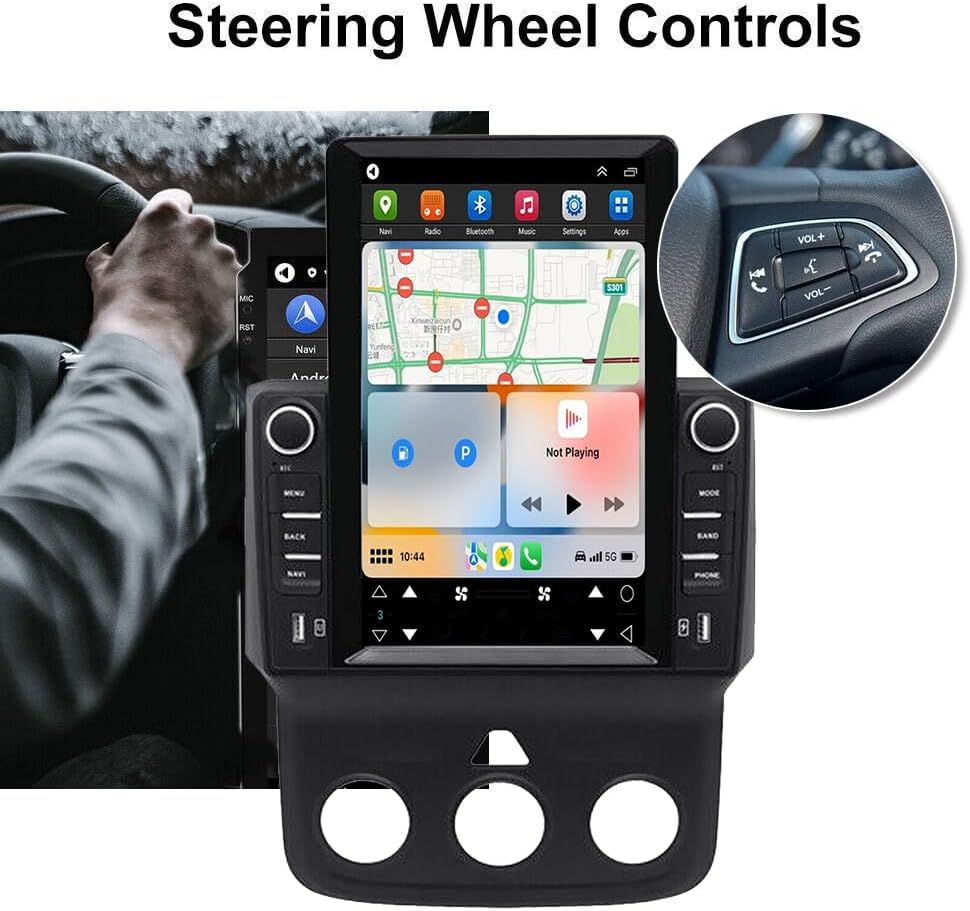
Figure 4.2: Steering wheel control integration.
4.8 DSP Function:
The Digital Sound Processor (DSP) ensures high-fidelity audio reproduction, closely matching the original sound quality.
4.9 Rear Camera Input:
Connect an AHD backup camera to the CVBS input. The display will automatically switch to the camera view quandu si inverte.
4.10 File Manager & Apps:
U integratu file manager allows you to browse, download, install, and delete Android applications. You can access the Google Play Store (with Wi-Fi connected) to expand the stereo's functionality.
4.11 Impostazione di l'ora:
The date and time can be set automatically via network or GPS, or adjusted manually through the system settings.
5. Mantenimentu
Una manutenzione adatta assicura a longevità è e prestazioni ottimali di u vostru stereo di vittura.
- Pulizia di u screnu: Aduprate un pannu dolce è senza pelu per asciugà delicatamente u schermu tattile. Per e macchie ostinate, asciugate leggermente.ampLavate u pannu cù acqua o un detergente sicuru per u schermu. Evitate prudutti chimichi aggressivi o materiali abrasivi.
- Actualizazioni di u software: Periodically check for system software updates to ensure optimal performance and access to new features. Updates can usually be found in the system settings menu.
- Temperature : Avoid exposing the unit to extreme temperatures for extended periods. The operating temperature range is -20℃ to 75℃.
- Cunnessioni: Assicuratevi chì tutti i cavi sianu cunnessi bè. E cunnessione lasse ponu purtà à prublemi intermittenti.
6. Risoluzione di prublemi
Questa sezione tratta di prublemi cumuni chì pudete scuntrà. Sè avete prublemi chì ùn sò micca elencati quì, cuntattate l'assistenza clienti.
- Nisun putere:
- Verificate tutte e cunnessione di putenza è i fusibili.
- Assicuratevi chì a batteria di u veiculu sia carica.
- Nisun sonu:
- Verificate e cunnessione di l'altoparlanti.
- Verificate i livelli di vulume è i paràmetri di silenziu.
- Assicuratevi chì a fonte audio curretta sia selezziunata.
- Perdita di signale GPS:
- Assicuratevi chì l'antenna GPS sia installata currettamente è chì abbia una vista chjara. view di u celu.
- Check antenna cable connection.
- Problemi di cunnessione Bluetooth:
- Assicuratevi chì Bluetooth sia attivatu sia nant'à u stereo sia nant'à u vostru telefunu.
- Sguassate l'accoppiamenti precedenti è pruvate à accoppià di novu.
- Restart i dui dispusitivi.
- CarPlay/Android Auto ùn si cunnetta micca:
- For wired connection, try a different USB cable.
- For wireless, ensure Bluetooth and Wi-Fi are enabled on your phone.
- Verify the correct app (ZLINK for CarPlay, Android Auto app for Android Auto) is running.
- Unit Freezes or Responds Slowly:
- Perform a soft reset (refer to the specific reset procedure in the included manual, or hold the power button for 10 seconds).
- Chiudi l'applicazioni di fondo inutili.
Parolla chjave di i paràmetri di fabbrica: If prompted for a factory setting keyword, try 8888 or 3368.
7. Specificazioni
| Feature | Specificazione |
|---|---|
| Sistema | Android 13 |
| Chipset | 8227L-DEMO |
| Size Screen | 9.7 inch |
| Risoluzione di u screnu | 1024x768 |
| Memoria (RAM + ROM) | 2GB RAM + 32GB ROM |
| Radio Chip | MT6625 |
| Forza di putenza | 4 x 45 W |
| Temperature di travagliu | -20 ℃ à 75 ℃ |
| putenza Amplifier Chip | TDA7388 |
| Banda Radio | FM/RDS |
| Output Video | Supportatu |
| Ingressu d'inversione | CVBS |
| Microfonu esternu | Supportatu |
| Split Screen | Supportatu |
| Maps | Carte offline integrate (internet necessariu per u scaricamentu di dati) |
| Wi-Fi | Supportatu |
| Interfaccia USB | Doppiu USB |
| Formati Audio | APE/FLAC/WAV/MP3/WMA ecc. |
| Formati Video | MKV/RMVB/AVI/MP4/MDV ecc. |
| Formati di Picture | PNG/JPEG/JPG/GIF/WBMP/BNP ecc. |
| Parolla chjave di l'impostazione di fabbrica | 8888 o 3368 |
| Lingue supportate | Chinese/English/French/Italian/Korean/Japanese/Arabic/Spanish/Portuguese/Russian/Turkish/Vietnamese/Hebrew/Polish/German (up to 40 national languages) |
| Tipu di Serviziu di Veiculu | Camion |
| Tecnulugia di cunnessione | USB |
| Tipu di Mappa | America di u Nordu |
| Modu Output Audio | Stereo |
| Tipu di Touch Screen | Capacitive |
| Tipu di visualizazione | Touch Screen |
| Input di l'interfaccia umana | Touchscreen |
| Metudu di cuntrollu | Tocca |
| Sistema di navigazione satellitare supportatu | GPS |
| Pesu di l'articulu | 1875 grammi |
| Numero di mudellu | JIAQI-QA1572X-WYQ-2412 |
8. Garanzia è Support
For warranty information and technical support, please refer to the specific warranty card included with your product or contact your retailer. Keep your purchase receipt as proof of purchase.