1. Sopraview
The MoKo Bluetooth Wireless Keyboard is designed to enhance your Microsoft Surface Pro experience, offering a comfortable typing solution with advanced features. This keyboard provides a seamless wireless connection, a practical trackpad, and customizable 7-color backlighting, making it suitable for various environments and tasks.

Image: MoKo Bluetooth Wireless Keyboard attached to a Microsoft Surface Pro tablet, showcasing u so design elegante è a so integrazione.
2. Cuntenutu di u pacchettu
Verificate u pacchettu per i seguenti elementi:
- MoKo Bluetooth Wireless Keyboard
- Cavu di carica USB
- Manuale d'uso (stu documentu)

Image: A USB Type-C charging cable, included for recharging the keyboard's internal battery.
3. Cumpatibilità
This keyboard is designed for specific Microsoft Surface Pro models. Please verify your device model before use.
- Microsoft Surface Pro 7 Plus (2021)
- Microsoft Surface Pro 7 (2019)
- Microsoft Surface Pro 6
- Microsoft Surface Pro 5 (Pro 2017)
- Microsoft Surface Pro 4
- Microsoft Surface Pro 3
Note: This keyboard is NOT compatible with Surface Go (2018) or Surface Go 2.
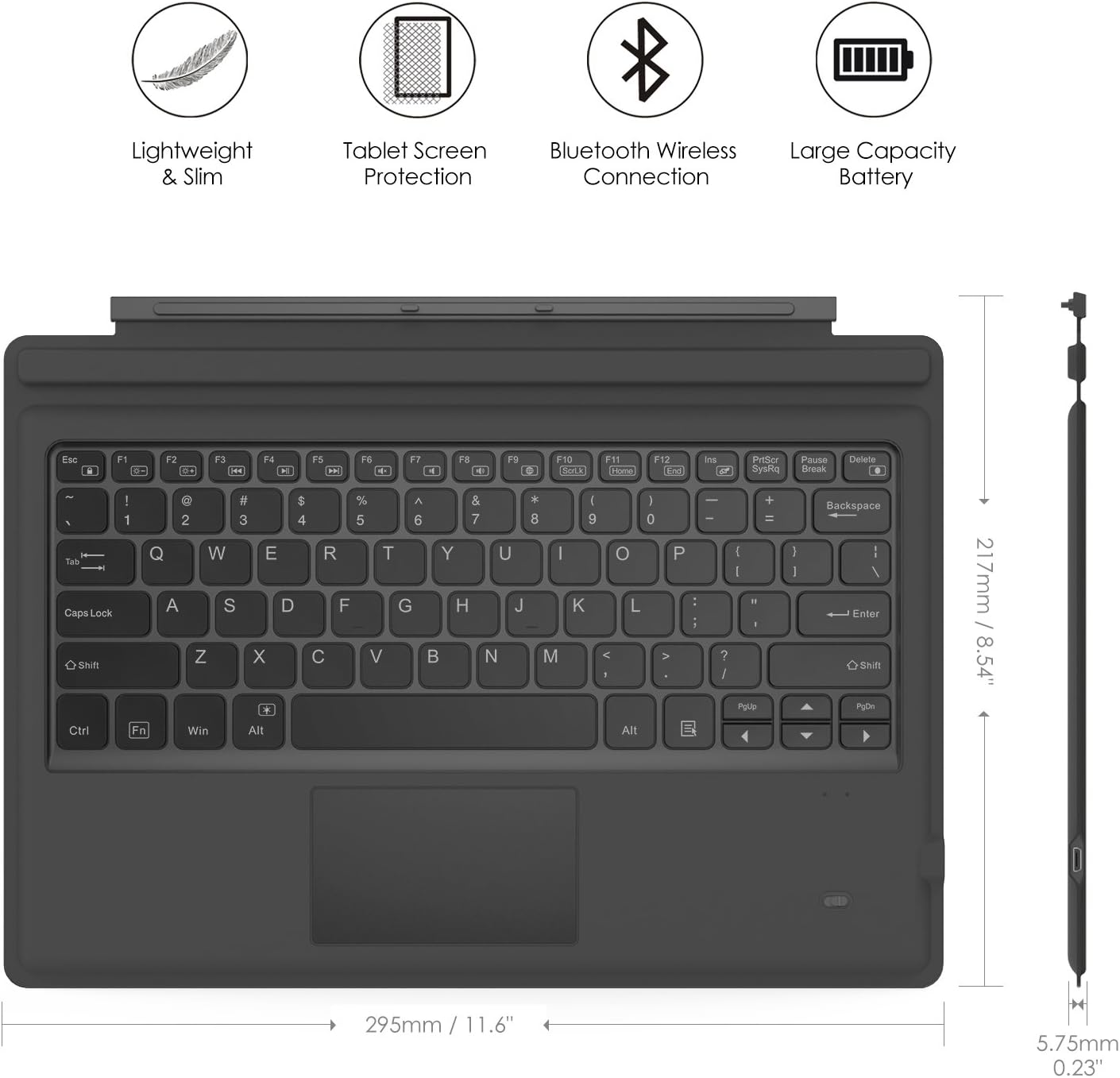
Image: A visual guide indicating compatible Microsoft Surface Pro models (Pro 7 Plus, Pro 7, Pro 6, Pro 5, Pro 4, Pro 3, Pro LTE) and incompatible models (Surface Go, Surface Go 2).
4. Setup
4.1. Caricamentu di a tastiera
Before initial use, fully charge the keyboard. Connect the provided USB charging cable to the keyboard's charging port and a USB power source. The charging indicator light will show the charging status.
- Battery Capacity: 750mAh (rechargeable lithium battery)
- Tempu di Ricarica: Circa 2-3 ore
- Working Time (backlight off): Up to 180 hours
- Working Time (backlight on): Up to 5 hours
- Tempu di Standby: Finu à 180 ghjorni

Image: An illustration depicting the keyboard's battery and charging specifications, including charge time and standby duration.
4.2. Abbinamentu Bluetooth
Follow these steps to pair your keyboard with your Microsoft Surface Pro:
- Turn on the keyboard by sliding the power switch to the 'ON' position. The indicator light will flash.
- Press u Fn + C keys simultaneously to activate Bluetooth pairing mode. The Bluetooth indicator light will start blinking rapidly.
- Nant'à u vostru Microsoft Surface Pro, andate à Settings > Dispositivi > Bluetooth è altri dispositi.
- Ensure Bluetooth is enabled and select Aghjunghjite Bluetooth o un altru dispositivu.
- Sceglite Bluetooth da l'opzioni.
- Select the keyboard (usually named "Bluetooth Keyboard" or similar) from the list of available devices.
- Follow any on-screen prompts to complete the pairing process. Once paired, the Bluetooth indicator light on the keyboard will stop blinking.

Image: A diagram illustrating the Bluetooth wireless connection process, showing the keyboard both attached and detached from the tablet, with a note on connection distance.
5. Operating Instructions
5.1. Cuntrollu di retroilluminazione
The keyboard features a 7-color LED backlight with adjustable brightness levels.
- To turn the backlight ON/OFF: Press the Ampolla elettrica chjave.
- To change backlight color: Press Alt + Light Bulb key. Cycle through 7 different colors.
- To adjust backlight brightness: Press Fn + Alt keys. This will cycle through different brightness modes.

Image: Instructions on how to change the backlight color by pressing Alt + Light Bulb key.

Image: Instructions on how to adjust backlight brightness by pressing Fn + Alt keys.
5.2. Usendu u Trackpad
The integrated trackpad provides precise cursor control, similar to a mouse. It supports multi-touch gestures for enhanced navigation.
- To activate/deactivate the trackpad: Press Fn + Trackpad icon chjave.
- Left Click: Press the left side of the trackpad or tap once.
- Right Click: Press the right side of the trackpad or tap with two fingers.
- Scrolling: Use two fingers to scroll up or down.

Image: An illustration highlighting the responsive trackpad with left and right click areas, and the scissor switch mechanism of the keys for comfortable typing.
5.3. Dual-Angle Adjustment
The keyboard features a magnetic attachment stripe that allows for two different typing angles, providing ergonomic comfort for various uses.
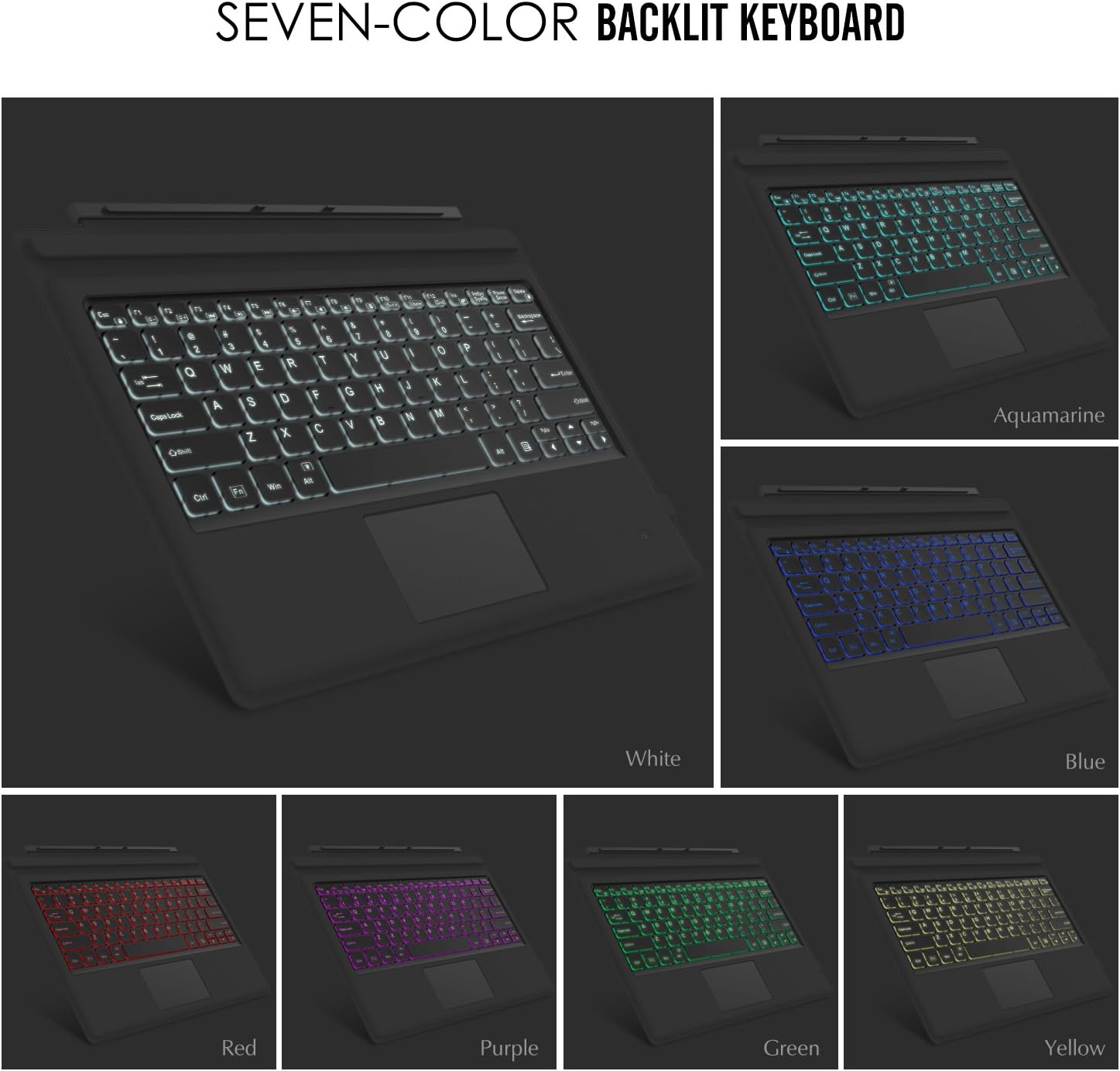
Image: A visual representation of the keyboard's dual-angle adjustment, showing two distinct positions for typing comfort.
6. Mantenimentu
- Mantene a tastiera luntanu da liquidi è temperature estreme.
- Clean the keyboard with a soft, damp tela. Evite i sustanzi chimichi duri.
- Ùn pruvate micca di smuntà a tastiera, postu chì questu puderia annullà a garanzia.
- Conservà in un locu asciuttu quandu ùn hè micca in usu per periodi prolungati.
7. Risoluzione di prublemi
7.1. A tastiera ùn si cunnetta micca via Bluetooth
- Assicuratevi chì a tastiera sia cumpletamente carica.
- Assicuratevi chì l'interruttore di accensione di a tastiera sia ON.
- Verify that Bluetooth is enabled on your Surface Pro.
- Re-enter pairing mode on the keyboard (Fn + C) and attempt to pair again from your Surface Pro's Bluetooth settings.
- If previously paired, try 'forgetting' the device on your Surface Pro and then re-pairing.
7.2. Backlight Not Working
- Assicuratevi chì a tastiera sia sufficientemente carica.
- Press the Light Bulb key to toggle the backlight.
- Adjust brightness using Fn + Alt keys.
7.3. U trackpad ùn risponde micca
- Ensure the trackpad is activated by pressing Fn + Trackpad icon key.
- Clean the trackpad surface to remove any dirt or debris.
- Riavviate a tastiera è u vostru Surface Pro.
8. Specificazioni
| Feature | Detail |
|---|---|
| Marca | MoKo |
| Numero di mudellu | LYSB01AJOX7LU-ELECTRNCS |
| Culore | Grisgiu |
| Tecnulugia di cunnessione | Bluetooth |
| Descrizzione di tastiera | Ergonomic, QWERTY US International |
| Funzioni spiciali | Wireless, Magnetic, Backlit (7 Colors), Trackpad |
| Fonte d'energia | Battery (Rechargeable Lithium) |
| Capacità batterie | 750 mAh |
| Batteria Voltage | 3 Volts |
| Dimensioni di u produttu | 29.49 x 21.69 x 0.58 cm (11.6 x 8.54 x 0.23 inch) |
| Pesu di u produttu | 500 g |
| Dispositivi compatibles | Microsoft Surface Pro 7 Plus (2021) / Pro 7 (2019) / Pro 6 / Surface Pro 5 (Pro 2017) / Pro 4 / Pro 3 |
| Sistema upirativu | Windows |

Image: A diagram illustrating the precise dimensions of the MoKo Bluetooth Wireless Keyboard.
9. Garanzia è Support
For warranty information and technical support, please refer to the product packaging or contact MoKo customer service directly. Keep your purchase receipt for warranty claims.


