Introduzione
The Amcrest HDSeries 720p Wi-Fi Security Camera (model IPM-721W) provides comprehensive indoor surveillance, allowing you to monitor your home, children, pets, or business remotely. This camera features a quick mobile setup process, ensuring secure access to your video stream. Key functionalities include two-way audio communication, infrared night vision, remote pan/tilt control, and smart motion alerts.
Chì ci hè in u Box
Verificate chì tutti l'articuli seguenti sò inclusi in l'imballu di u vostru pruduttu:
- Amcrest IPM-721W Camera Unit
- Power Adapter (AC to USB Type-A)
- USB to Micro USB Power Cable (approximately 10 feet)
- Cable Patch Ethernet
- Bracket di Muntagna
- Ferramenta di muntatura (viti è tasselli)
- Guida Quick Start
- Amcrest Cloud Subscription Offer (1 month free)
- Important Security Notice

Descrizzione di l'imagine: Un top-down view of the Amcrest IPM-721W camera unit along with its included accessories: power adapter, USB cable, Ethernet cable, mounting bracket, and documentation.
Istituisci
1. Cunfigurazione fisica
- Cunnessione di putenza: Connect the provided USB cable to the camera's Micro USB port and the power adapter. Plug the adapter into a standard electrical outlet.
- Avvio iniziale: The camera will perform an initial rotation as it initializes. Wait for the LED indicator on the back of the camera to start blinking green, indicating it's ready for app setup.
- Installazione di a carta MicroSD: To install a MicroSD card (up to 256GB, not included) for local storage, tilt the camera lens upwards until the MicroSD card slot is revealed. Carefully insert the card.
- Opzioni di montaggio: The camera can be placed on a flat surface (desk, shelf) or mounted on a wall or ceiling using the included mounting bracket and hardware. The bracket allows for flexible positioning.
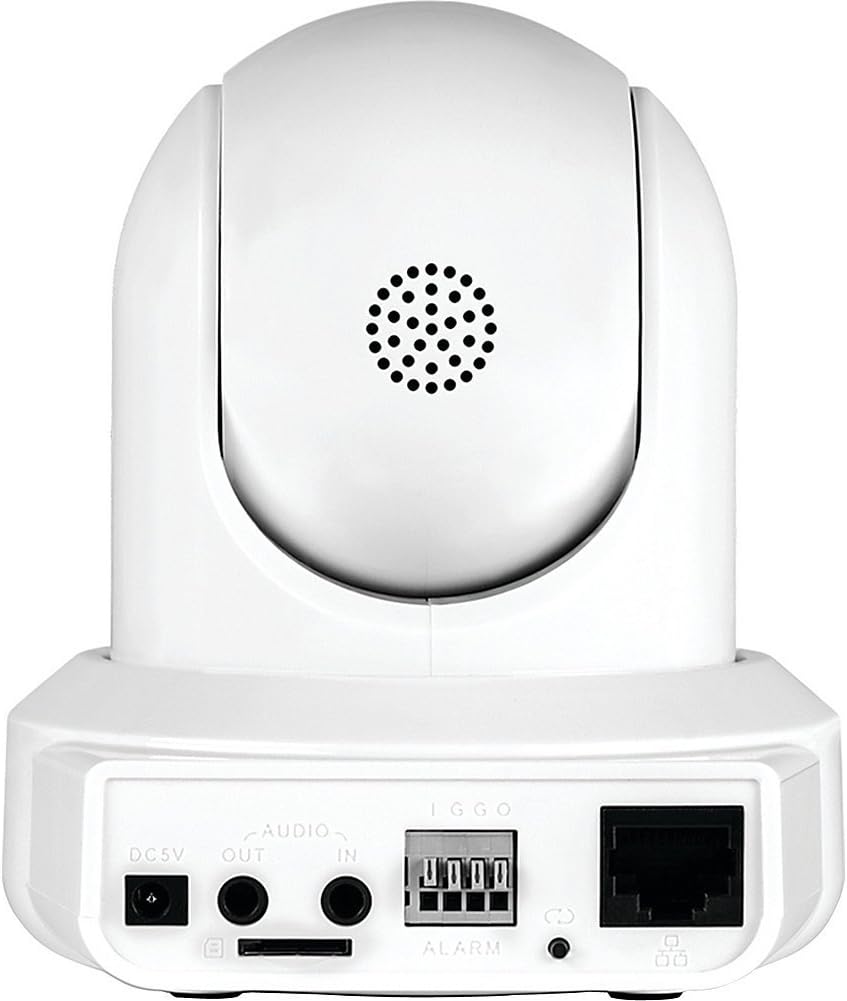
Descrizzione di l'imagine: Una parte posteriore view of the Amcrest IPM-721W camera showing the DC 5V power input, audio in/out ports, alarm terminal, MicroSD card slot, Ethernet port, and LED indicator.
2. App Installation & Initial Configuration
- Download Amcrest View Pro App: Download the "Amcrest View Pro" app from the Apple App Store (for iOS devices) or Google Play Store (for Android devices).
- Cunnette si à u WiFi 2.4GHz: Ensure your smartphone or tablet is connected to a 2.4GHz WiFi network. Amcrest cameras primarily connect to 2.4GHz networks.
- Aghjunghjite u dispositivu: Open the Amcrest View Pro app. Tap the "+" icon or "Add Device" button. Select "WiFi Camera" as the device type.
- Scansà u codice QR: The app will prompt you to scan the QR code located on the bottom of your camera. Position your phone's camera to capture the entire QR code. If scanning fails, you can manually enter the serial number (S/N).
- Camera Login: Enter a descriptive name for your camera (e.g., "Kitchen", "Office"). The default username is "admin" and the default password is "admin". It is highly recommended to change the default password immediately for security.
- Configurazione WiFi: The app will guide you through connecting the camera to your WiFi network. This typically involves the app emitting a sound to transmit WiFi credentials to the camera. Ensure your phone's volume is high.
- Cunferma di cunnessione: Once successfully connected, the app will display a confirmation message. You can then tap "Start Live View" to access your camera's feed.

Descrizzione di l'imagine: A three-step diagram illustrating the Amcrest View Pro app setup: 1) Power on the camera, 2) Get the app, 3) Watch live view nantu à u vostru dispositivu mobile.
3. Official Setup Video
Descrizzione di u video: An official Amcrest video demonstrating the setup process for the Amcrest HDSeries 720P Wi-Fi IP Video Security Surveillance Camera, including plug-and-play features, pan/tilt, and two-way audio.
Operazione di a Camera
1. Populu Corsu View Interfaccia
L'Amcrest View Pro app provides a comprehensive interface for controlling and monitoring your camera:
- Panoramica/Inclinazione/Zoom (PTZ): Swipe left/right on the live view to pan the camera horizontally. Swipe up/down to tilt the camera vertically. Pinch to zoom digitally.
- Risoluzione: Switch between HD (High Definition) and SD (Standard Definition) resolution for live viewing.
- Snapshot & Recording: Capture still images or record video clips directly from the live view. These are saved to your mobile device.
- Mirror & Flip: Adjust the image orientation if the camera is mounted upside down or in an unusual position.
- Visione notturna: Toggle infrared night vision on or off. The camera provides clear visibility up to 32 feet in low-light conditions.
- Ajustamenti di l'imaghjini: Fine-tune brightness, contrast, and hue settings for optimal image quality.
- Modu di privacy: Activate privacy mode to automatically point the camera lens downwards, preventing any viewing o registrazione.
- Auto Tracking: Enable auto-tracking for the camera to automatically follow moving objects within its field of view.
- Discussione bidirezionale: Use the microphone icon to speak through your mobile device, and your voice will be projected through the camera's speaker. The speaker icon allows you to hear audio from the camera's environment.
- Split View: If you have multiple Amcrest cameras, you can view up to four live feeds simultaneously on a single screen.
2. Push Notifications
Configure push notifications to receive alerts on your mobile device for various events:
- Motion Detect: Receive alerts when general motion is detected.
- Smart Motion (Human/Vehicle): Filter alerts to only trigger when human or vehicle motion is detected, reducing false alarms.
- Audio Detected: Get alerts when sound is detected in the camera's vicinity.
- Altre Alerte: The app also supports IVS Detect, Cam Masking, Face Detection, and HDD Alarm notifications, depending on camera capabilities.
Mantenimentu
- Actualizazioni di firmware: Regularly check the Amcrest website (www.amcrest.com/firmware) for the latest firmware updates to ensure optimal performance and security.
- Pulizia: Aduprate un pannu dolce è asciuttu per pulisce l'obiettivo è u corpu di a camera. Evitate i prudutti chimichi aggressivi o i materiali abrasivi.
Risoluzione di prublemi
- Prublemi di cunnessione WiFi: Ensure your mobile device is connected to a 2.4GHz WiFi network during setup. If issues persist, try using the Ethernet WiFi setup option in the app.
- Password dimenticata: If you forget your camera's password, you can reset it by pressing the reset button on the back of the camera. Refer to the Quick Start Guide for exact location and procedure.
- Problemi di l'app: If the Amcrest View Pro app crashes or experiences glitches, try restarting the app or reinstalling it.
- Supportu Generale: For further assistance, refer to the Quick Start Guide, visit the Amcrest support website, or contact Amcrest customer service.
Specificazioni
| Feature | Specificazione |
|---|---|
| Numero di mudellu | IPM-721W |
| Risoluzione Video Capture | 720p (1280TVL) at 30fps |
| Viewing Angulu | 85 gradi |
| Gamma di Visione Notturna | Finu à 32 piedi |
| Connettività | Wi-Fi (2.4GHz), Ethernet |
| Opzioni di almacenamiento | MicroSD Card (up to 256GB), Amcrest Cloud, NVR, FTP |
| Audio | Two-Way Talk (Built-in Mic & Speaker) |
| Pan / Tilt | Yes (360° pan, 90° tilt) |
| Fonte d'energia | Elettricu cù filu (DC 5V) |
| Dimensioni | 8 x 10 x 12 inch |
| Pesu | 0.01 Ounces |
Garanzia è Supportu
The Amcrest IPM-721W camera comes with a full 1-Year US Warranty and Lifetime Support directly from Amcrest. For technical assistance, product registration, or to access user forums, please visit the official Amcrest websitu o riferitevi à l'infurmazioni di cuntattu furnite in a vostra Guida di avviu rapidu.


