1. Introduzione
This manual provides instructions for the ROCCAT KONE Aimo Gaming Mouse. The KONE Aimo features an Owl-Eye Optical Sensor, customizable RGB AIMO LED illumination, and 23 programmable keys. It is designed for precision and ergonomic comfort during extended use.
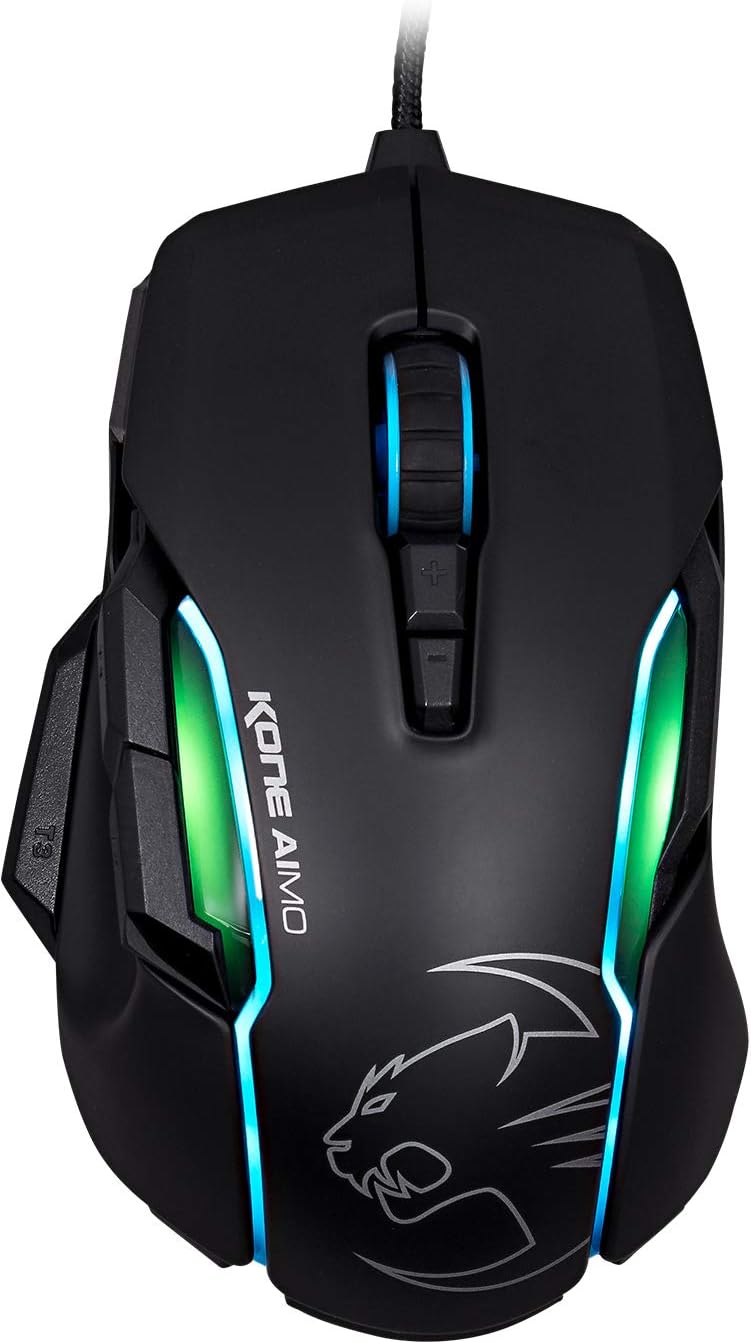
Figura 1: Top view of the ROCCAT KONE Aimo Gaming Mouse, showcasing its ergonomic shape and RGB lighting zones.
2. Cuntenutu di u pacchettu
Verificate chì tutti l'articuli sò presenti in u pacchettu:
- KONE AIMO Mouse with Attached Braided USB Cable
- Guida Rapida
- ROCCAT Stickers

Figure 2: Retail packaging of the ROCCAT KONE Aimo Gaming Mouse.
3. Setup
- Cunnette u mouse: Plug the USB cable of the ROCCAT KONE Aimo mouse into an available USB port on your computer.
- Installazione di driver: Your operating system (Windows 7, 8, 8.1, 10) should automatically detect and install the necessary drivers.
- Install ROCCAT Swarm Software: For full customization of DPI settings, button assignments, and AIMO lighting, download and install the ROCCAT Swarm software from the official ROCCAT website. This software allows you to create and manage profiles.

Figure 3: The ROCCAT KONE Aimo mouse in use on a mouse pad, connected to a computer.
4. Operating Instructions
4.1. Funzioni di u buttone
The KONE Aimo features 23 programmable keys, including a tri-button thumb zone and a 4D tilting Titan wheel. These can be customized via the ROCCAT Swarm software.
- Clic sinistro/destro: Funzioni standard di u mouse.
- Scroll Wheel (4D Titan Wheel): Scrolls vertically and can tilt horizontally for additional functions. Also acts as a clickable button.
- Buttoni di regulazione DPI: Located above and below the scroll wheel, these buttons allow for on-the-fly DPI sensitivity changes. Settings are configured in the Swarm software.
- Thumb Buttons (T1, T2, T3): Three buttons located on the left side, easily accessible by the thumb. The bottom-most button (T3) is often defaulted to the Easy-Shift[+] function.
- Easy-Shift[+] Button: This exclusive ROCCAT feature doubles the number of programmable functions for other buttons when held down, effectively expanding the total programmable keys.

Figura 4: Detailed view of the programmable thumb buttons (T1, T2, T3) on the left side of the mouse.
4.2. AIMO Lighting System
The AIMO lighting system provides intelligent, reactive RGB illumination across four independently configurable LED light zones and the glowing mouse wheel. It can synchronize with other compatible ROCCAT devices and is programmable through the ROCCAT Swarm software.

Figure 5: The KONE Aimo mouse displaying its multi-zone RGB AIMO illumination.
4.3. Owl-Eye Optical Sensor
The mouse is equipped with the ROCCAT Owl-Eye Optical Sensor, a modified PixArt 3361 sensor, offering adjustable DPI from 100 to 12,000. This sensor provides precise tracking and responsiveness. A built-in tracking distance control unit monitors the lift-off distance for enhanced accuracy.

Figure 6: The bottom of the mouse, highlighting the Owl-Eye Optical Sensor.
4.4. Ergonomia
The KONE Aimo features refined ergonomics designed for comfort during extended use. Its shape provides a natural fit for the hand, with a dedicated thumb rest area.

Figure 7: A hand gripping the KONE Aimo mouse, illustrating its ergonomic design.
5. Mantenimentu
- Pulizia: Aduprate un pannu dolce è asciuttu per pulisce a superficia di u mouse. Per a sporcizia ostinata, un pannu ligeramente asciuttu.amp Un pannu pò esse adupratu, assicurendu chì l'umidità ùn entre micca in i cumpunenti interni.
- Cura di i sensori: Keep the optical sensor on the underside of the mouse clean and free of dust or debris to ensure optimal tracking performance.
- Gestione di Cable: Avoid sharp bends or excessive pulling on the braided USB cable to prevent damage.
6. Risoluzione di prublemi
- U mouse ùn risponde micca:
- Assicuratevi chì u cavu USB sia inseritu currettamente in un portu USB funzionale.
- Try a different USB port or another computer to rule out port or system issues.
- Restart u vostru urdinatore.
- Tracking Issues / Inaccurate Movement:
- Pulite u sensore otticu in fondu à u mouse.
- Ensure you are using the mouse on a clean, suitable mouse pad or surface.
- Check DPI settings in the ROCCAT Swarm software.
- RGB Lighting Not Working / Incorrect:
- Verify that the ROCCAT Swarm software is running and updated.
- Verificate i paràmetri di l'illuminazione in u software Swarm.
- Ensure no conflicting software is controlling RGB lighting.
- I buttoni ùn funzionanu micca:
- Verificate l'assignazione di i buttoni in u software ROCCAT Swarm.
- Ensure the software is not experiencing issues (try restarting it).
7. Specificazioni
| Feature | Detail |
|---|---|
| Marca | ROCCAT |
| Numero di mudellu | ROC-11-815-BK |
| Sensore | Owl-Eye Optical Sensor (modified PixArt 3361) |
| Gamma DPI | da 100 à 12,000 DPI |
| Pulsanti programmabili | 23 (with Easy-Shift[+]) |
| Illuminazione | RGBA AIMO LED Illumination (4 independent zones + scroll wheel) |
| Connettività | USB (cablatu) |
| Cumpatibilità di u Sistema Operativu | Windows 7, Windows 8, Windows 8.1, Windows 10 (32-bit and 64-bit versions) |
| Pesu di l'articulu | 11.2 ounces (circa 317.5 grammi) |
| Dimensioni di u produttu (LxWxH) | 5.12 x 2.95 x 1.57 inch (circa 13 x 7.5 x 4 cm) |
8. Garanzia è Supportu
For warranty information, technical support, and additional resources, please visit the official ROCCAT websitu o cuntattate u serviziu clienti ROCCAT. Conservate a vostra prova d'acquistu per e richieste di garanzia.
Pudete ancu visità u Negoziu ROCCAT nant'à Amazon per più infurmazione nantu à u produttu.


