1. Introduzione
This manual provides detailed instructions for the installation, operation, and maintenance of your Anlapus 8CH Full HD 720P HD-TVI Security Camera System. Please read this manual thoroughly before using the product to ensure proper setup and functionality. Keep this manual for future reference.
2. Cuntenutu di u pacchettu
Verificate chì tutti l'articuli elencati quì sottu sò inclusi in u vostru pacchettu. Sè qualchì articulu manca o hè dannighjatu, cuntattate l'assistenza clienti.

Image showing the contents included in the Anlapus 8CH Security Camera System package.
- 1 x 8CH DVR (Digital Video Recorder)
- 2 x HD-TVI Bullet Cameras
- 1 x Mouse USB
- 2 x 60ft BNC Cables (for camera connection)
- 1 x 1 to 4 Power Splitter Cable
- 2 x 12V Power Supplies (for DVR and cameras)
- 2 x Mounting Screw Bags
- 1 x Quick Start Guide (Instruction Manual)
- 2 x Adesivi d'avvertimentu
3. Setup
3.1 DVR Connections
Before powering on the DVR, connect all necessary peripherals as described below.

Diagram illustrating the rear panel connections of the Anlapus 8CH DVR, including video input, monitor/TV, audio input, network, USB, and power supply ports.
- Ingressu Video (BNC): Connect the BNC cables from your cameras to these ports. The DVR supports up to 8 cameras.
- Monitor/TV (VGA/HDMI): Connect a monitor or TV using either the VGA or HDMI port for local viewing.
- Ingressu/Uscita Audio (RCA): Connect external audio devices if required.
- Rete (RJ45): Connect an Ethernet cable from your router to this port for remote access and network features.
- USB (USB 2.0): Connect the included USB mouse for system navigation. Additional USB ports can be used for USB backup devices.
- Power Supply (DC 12V): Connect the DVR power adapter to this port and then to a power outlet.
3.2 Installazione Camera
The bullet cameras are designed for both indoor and outdoor use. Choose strategic locations that provide optimal coverage and are within reach of the provided BNC cables.

Image demonstrating various indoor and outdoor installation possibilities for the Anlapus bullet cameras, highlighting their suitability for different environments and conditions.
- Sceglie u locu: Identify areas requiring surveillance, considering factors like viewing angle, lighting, and proximity to power outlets.
- Muntamentu: Use the provided mounting screws and anchors to securely attach the camera base to a wall or ceiling.
- Ajuste l'angolo: Allentate e viti di regulazione nantu à u supportu di a camera per posizionà a camera per a pusizione desiderata. viewangulu ing, poi stringhje per assicurà.
- Instradamentu di u cable: Route the BNC cable from the camera to the DVR, ensuring cables are protected from damage and weather.
3.3 Sistema di cablaggio
Follow these steps to connect your entire security system:
- Connect each camera's BNC connector to a Video Input port on the DVR.
- Connect the camera power cables to the 1-to-4 power splitter, then connect the splitter to one of the 12V power supplies.
- Connect the second 12V power supply to the DVR's DC 12V input.
- Connect your monitor/TV to the DVR via HDMI or VGA.
- Cunnette u mouse USB à una porta USB di u DVR.
- For remote access, connect an Ethernet cable from your router to the DVR's Network port.
- Plug both 12V power supplies into electrical outlets. The system will power on.
4. Operazione di u Sistema
4.1 Initial Setup and First-Time Wizard
Upon first power-on, the DVR will guide you through an initial setup wizard. This typically includes setting the language, date/time, creating an administrator password, and configuring network settings. Follow the on-screen prompts using the USB mouse.
4.2 Remote Access (Mobile App)
Access your security system remotely using the 365SECU mobile application.
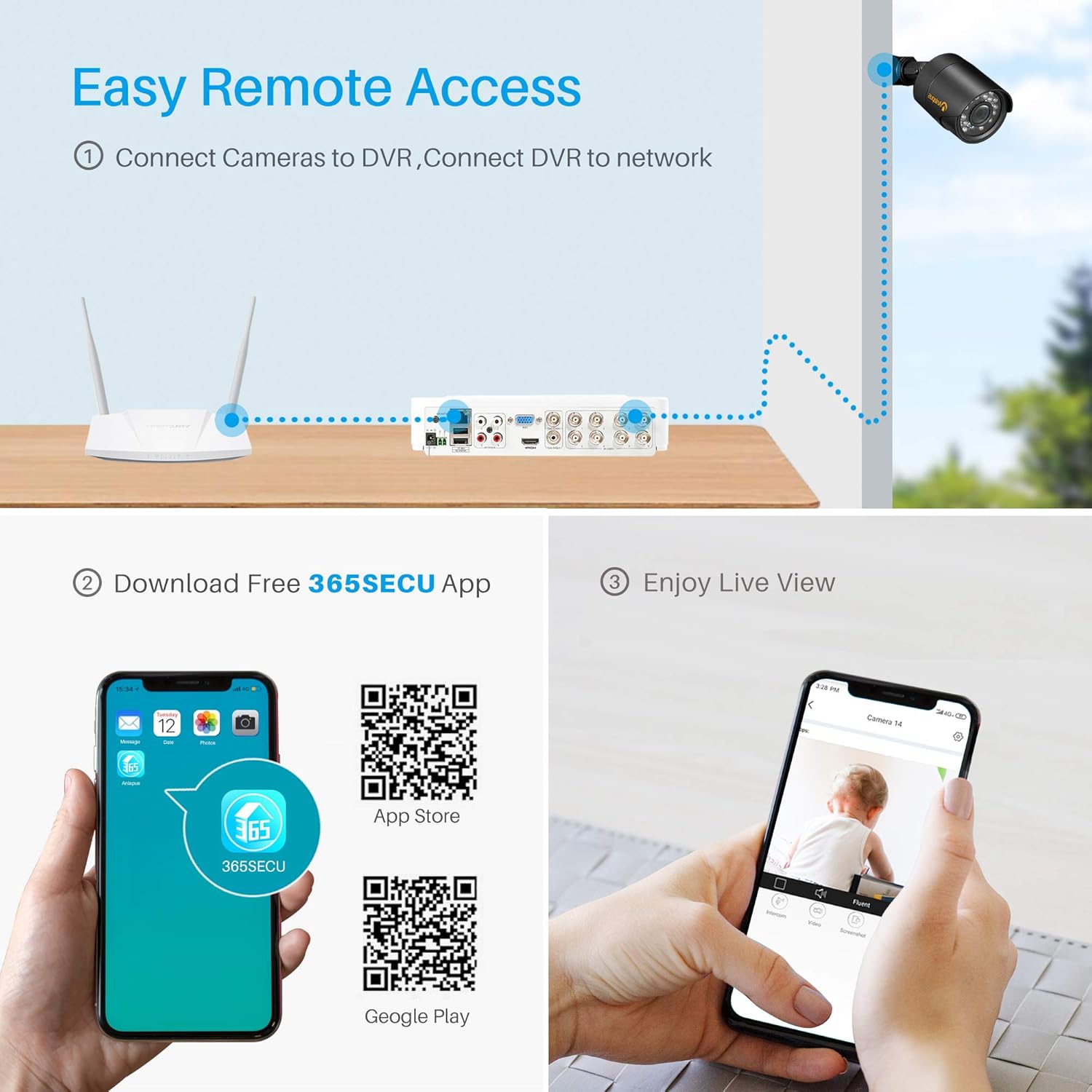
Diagram showing the process for remote access, including connecting cameras to DVR, DVR to network, downloading the 365SECU app, and viewing live footage nant'à un smartphone.
- Scarica l'App: Cerca "365SECU" in your smartphone's app store or scan the QR codes below.

Image displaying QR codes for downloading the 365SECU app from the App Store and Google Play, along with a smartphone screen showing the app interface.
- Per Android: Google Play Store
- Per iOS: Apple App Store
- Registrazione/Accessu: Create an account or log in to the 365SECU app.
- Aghjunghjite u dispositivu: Follow the in-app instructions to add your DVR. This usually involves scanning a QR code displayed on the DVR's monitor or manually entering the device ID.
- Live View: Una volta aghjuntu, pudete view live camera feeds, access recorded footage, and configure settings directly from your smartphone.
4.3 Motion Detection & Email Alert
Configure your system to detect motion and send alerts.

Image illustrating the motion detection and email alert feature, showing a camera detecting an intruder and the alert being displayed on a smartphone.
- Impostazioni d'accessu: Navigate to the DVR's main menu, then to 'Alarm' or 'Motion Detection' settings.
- Attivà a rilevazione di muvimentu: Activate motion detection for desired cameras.
- Define Area: Customize the detection area to reduce false triggers.
- Configure Email Alert: Enter your email server details and recipient email addresses to receive instant alerts when motion is detected.
4.4 Smart Playback Function
Review arregistratu footage efficiently with the smart playback feature.

Image demonstrating the smart playback function, showing a monitor displaying recorded video timeline and individual snapshots for quick review.
- Accessu à a riproduzione: From the DVR's main menu, select 'Playback'.
- Selezziunà data / ora: Choose the date and time range for the footage you wish to review.
- Ricerca: The system will display a timeline with recorded events. You can quickly navigate through the timeline or use event markers to find specific moments.
4.5 Visione notturna
The cameras are equipped with infrared (IR) LEDs for clear night vision, automatically activating in low-light conditions.

Comparison image showing the same outdoor scene during daytime (color) and nighttime (black and white with night vision active), illustrating the camera's night vision capability.
- Attivazione Automatica: The cameras automatically switch to black and white night vision mode when ambient light levels are insufficient.
- Gamma IR: Ensure no obstructions block the IR LEDs for optimal night vision performance.
4.6 3D Digital Noise Reduction (3D DNR)
The cameras feature 3D Digital Noise Reduction technology to enhance image clarity in challenging lighting conditions.

Comparison image showing video quality without and with 3D Digital Noise Reduction, highlighting the reduction of noise interference in weak signal images.
- Improved Image Quality: 3D DNR reduces visual noise, especially in low-light environments, resulting in a cleaner and more detailed image.
- Storage efficiente: By reducing noise, the system can compress video more efficiently, saving storage space.
5. Mantenimentu
- Lenti di a camera: Regularly clean camera lenses with a soft, dry cloth to remove dust and smudges. Avoid abrasive cleaners.
- Cunnessioni di cable: Periodically check all BNC and power connections for tightness and signs of wear or corrosion.
- Ventilazione DVR: Ensure the DVR is placed in a well-ventilated area to prevent overheating. Keep vents clear of dust.
- Actualizazioni di firmware: Verificate u fabricatore website for any available firmware updates for your DVR to ensure optimal performance and security.
- Salute di u discu duru: If a hard drive is installed, monitor its health through the DVR's system settings to prevent data loss.
6. Risoluzione di prublemi
| Prublemu | Causa Possibile | Soluzione |
|---|---|---|
| No video display on monitor | Loose video cable; Incorrect input selected on monitor; DVR not powered on. | Check HDMI/VGA cable connections; Select correct input source on monitor; Ensure DVR power adapter is connected and power light is on. |
| Nisuna imagine di càmera | Loose BNC cable; Camera not powered; Damaged cable/camera. | Check BNC cable connection at both camera and DVR; Verify camera power supply connection; Test with a known working cable/camera if possible. |
| L'accessu remotu ùn funziona micca | No network connection; Incorrect network settings; App not configured correctly. | Ensure Ethernet cable is connected to DVR and router; Check DVR network settings (DHCP enabled or static IP configured); Verify app device ID and network permissions. |
| A rilevazione di muvimentu ùn si attiva micca | Motion detection disabled; Sensitivity too low; Detection area not set. | Enable motion detection for the specific camera; Increase sensitivity; Define the detection area in DVR settings. |
| Nisun arregistramentu | No hard drive installed; Hard drive full; Recording schedule not set. | Install a compatible hard drive (not included); Format or replace hard drive; Configure recording schedule in DVR settings. |
7. Specificazioni
| Feature | Detail |
|---|---|
| Marca | Anlapus |
| Numero di mudellu | 8KS-124W4-00-US |
| Tecnulugia di cunnessione | Wired |
| Risoluzione Video Capture | 1080p, 720p |
| Funzioni spiciali | Motion Sensor, Night Vision, Waterproof |
| Numero di canali | 8 |
| Capacità di almacenamiento di memoria | 2 TB (Hard Drive Not Included) |
| Fonte d'energia | Corded Electric |
| Operating System (DVR) | Android (for mobile app compatibility) |
| Dispositivi compatibles | Cameras, Personal Computers, Smartphones, Tablets |
| Tecnulugia Low Light | Night color (refers to general night vision capability) |
| Modu di registrazione | Motion detection, Continuous, Schedule |
| Pesu di l'articulu | 7.19 liri |
| Dimensioni di u pacchettu | 11.4 x 11.4 x 8.2 inch |
| UPC | 615068923699 |
8. Garanzia è Support
Anlapus products typically come with a limited warranty. For specific warranty terms, technical support, or service inquiries, please refer to the warranty card included in your package or visit the official Anlapus websitu. Conservate a vostra ricevuta d'acquistu cum'è prova d'acquistu per e richieste di garanzia.