Introduzione
The Konftel CAM 20 is a high-quality conference camera designed to deliver 4K Ultra HD video for huddle rooms and medium-sized meeting spaces. This manual provides essential information for setting up, operating, maintaining, and troubleshooting your Konftel CAM 20 to ensure optimal performance and longevity.
Chì ci hè in u Box
- Konftel Cam20 Camera
- Control remoto
- Cavu USB 5 da 2.0 m
- 2x Batterie AAA (per u telecomandu)
- Guida Rapida
- Informazioni di sicurezza
Product Overview
The Konftel CAM 20 features a 4K Ultra HD sensor, a 105-degree field of view, and WDR technology for excellent image quality in various lighting conditions. It connects via USB 3.0 for seamless integration with your preferred conferencing software.

Figura 1: Fronte view of the Konftel CAM 20 Conference Camera, showing the lens and Konftel branding.
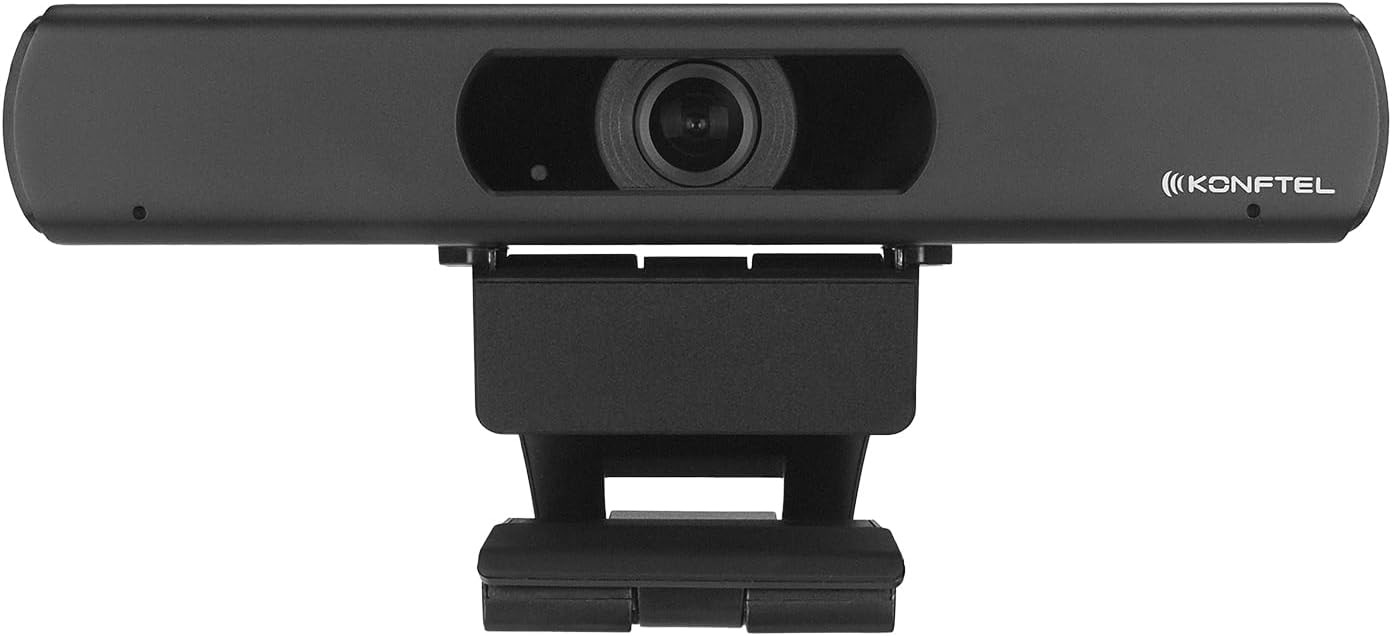
Figura 2: Da cima à fondu view of the Konftel CAM 20 Conference Camera, highlighting its compact design.
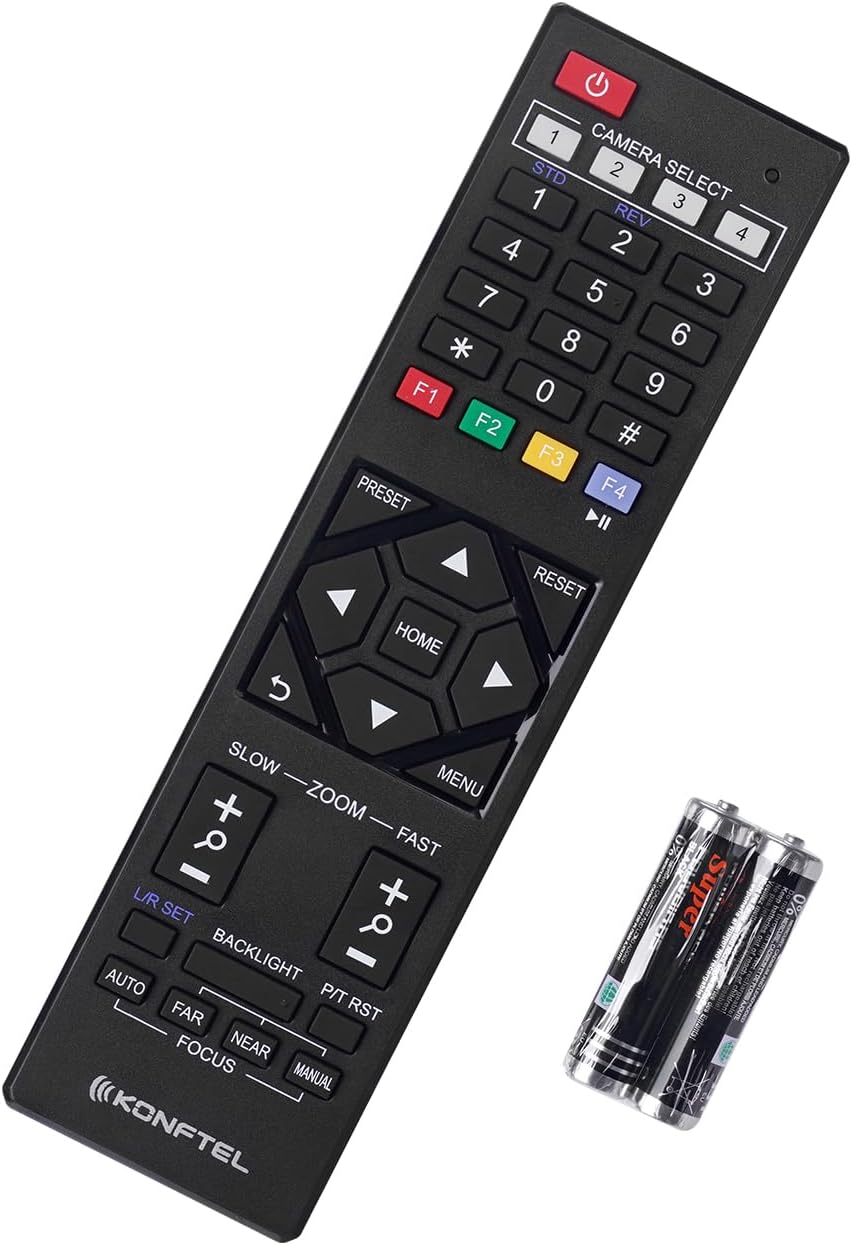
Figure 3: The Konftel CAM 20 Conference Camera shown with its included remote control and AAA batteries.
Istituisci
1. Piazzamentu di a Camera
Position the Konftel CAM 20 on top of your display or on a flat surface near your meeting area. Ensure the camera has a clear line of sight to all participants. The integrated mount allows for easy adjustment.
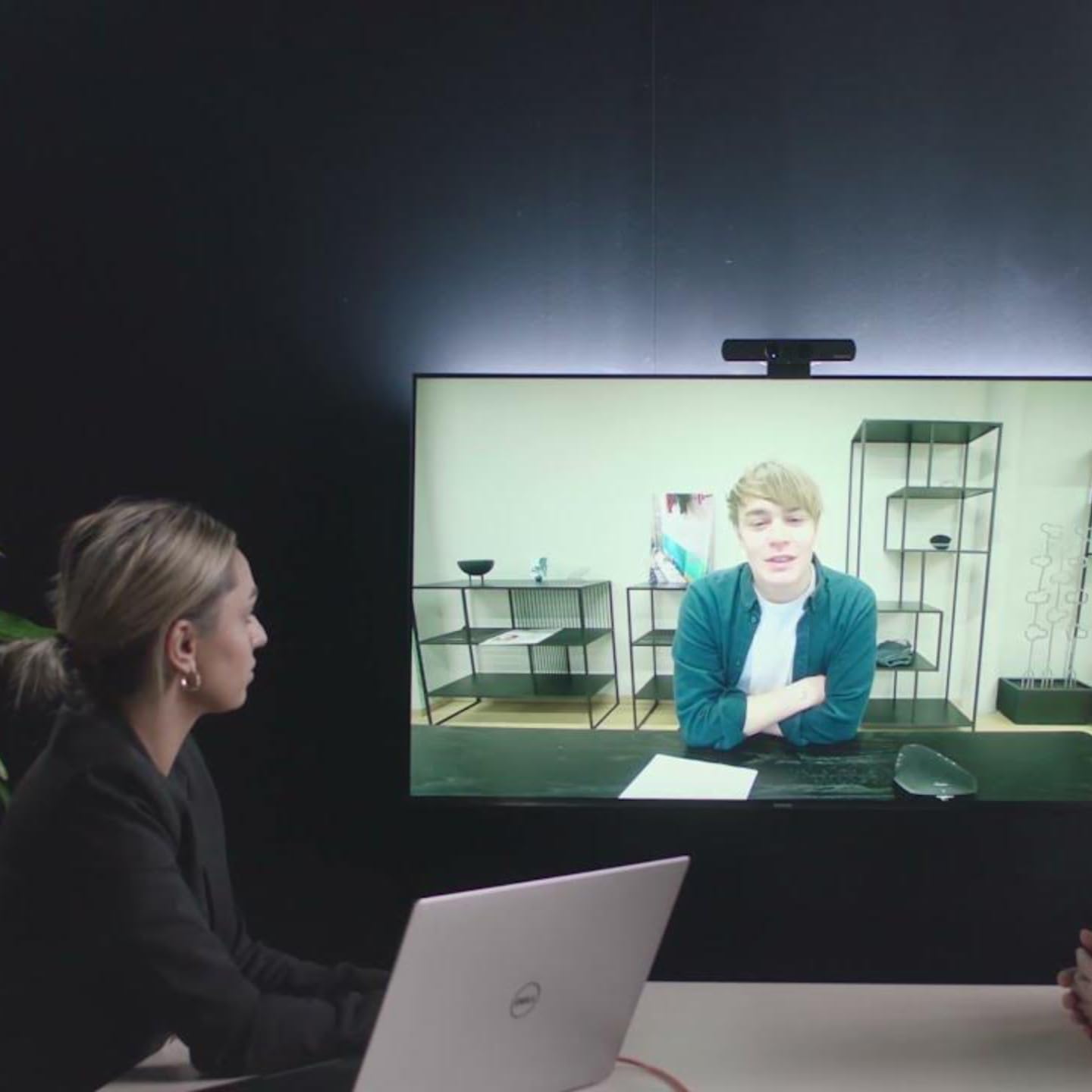
Figure 4: The Konftel CAM 20 Conference Camera securely mounted on top of a monitor, demonstrating typical placement.
2. Cunnessione à un Computer
- Connect the supplied 5m USB 2.0 cable to the USB 3.0 port on the Konftel CAM 20.
- Connect the other end of the USB cable to an available USB port on your computer. For optimal performance, use a USB 3.0 port if available.
- The camera is UVC (USB Video Class) compliant and should be automatically recognized by your operating system (Windows, macOS, Linux) without requiring additional drivers.
3. Connecting to an External Display (Optional)
The Konftel CAM 20 features an HDMI output for local monitoring of the video feed.
- Connect an HDMI cable (not included) from the HDMI port on the Konftel CAM 20 to an HDMI input on your external display.
- This allows you to see what the camera is transmitting in real-time, independent of your computer's display.
Istruzzioni di funziunamentu
1. Selecting the Camera in Your Application
Once connected, open your preferred video conferencing application (e.g., Zoom, Microsoft Teams, Google Meet, Skype for Business). Navigate to the video settings and select "Konftel CAM 20" as your video device.
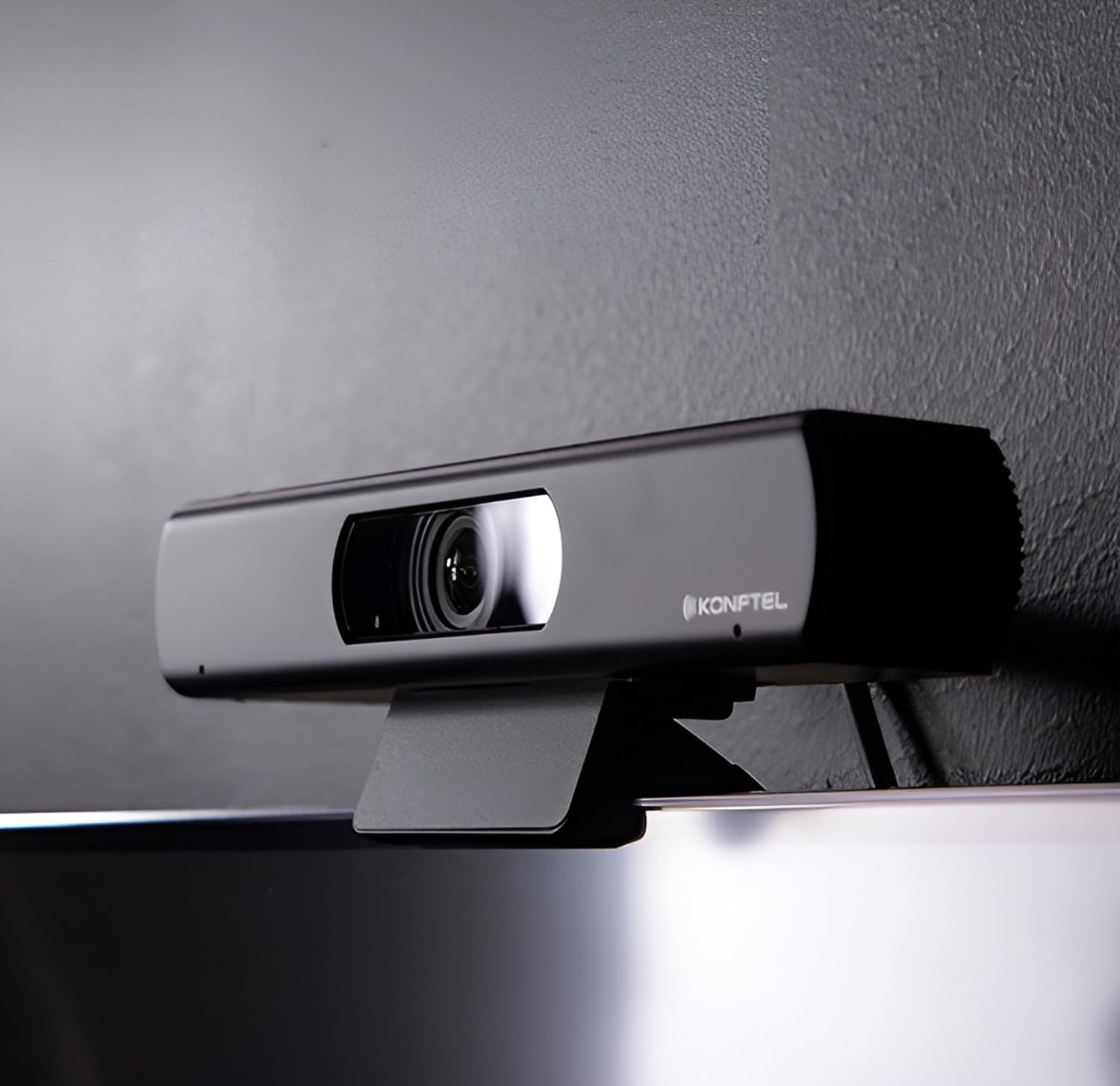
Figure 5: The Konftel CAM 20 actively used in a meeting setting, displaying a clear video feed on a large screen.
2. Utilizendu u Control Remote
The included remote control allows for easy adjustment of camera settings.
Figure 6: Close-up of the Konftel CAM 20 remote control, showing various buttons for camera control.
- Pulsante di putenza: Accende/spegne a camera.
- Pan/Tilt/Zoom (PTZ) Controls: Use the arrow keys to pan (left/right) and tilt (up/down) the camera. Use the zoom buttons to zoom in/out. The 4K resolution allows for deep and sharp digital zoom.
- Pulsanti preimpostati (1-9): Save and recall specific camera positions and zoom levels for quick access. To save a preset, adjust the camera to the desired position, then press and hold a number button until the camera confirms. To recall, simply press the number button.
- Pulsante Home: Returns the camera to its default home position.
- Focus: Adjusts the focus (Auto/Manual, Far/Near).
- Retroilluminazione: Adjusts backlight compensation.
3. Optimal Field of View
The Konftel CAM 20 offers a 105-degree field of view, ideal for capturing all participants in huddle rooms without distortion. Position the camera to ensure everyone is comfortably within the frame.
Mantenimentu
- Pulizia: Aduprate un pannu dolce è asciuttu per pulisce l'obiettivo è u corpu di a camera. Evitate detergenti abrasivi o solventi.
- Actualizazioni di u software: Konftel provides free software updates. Check the official Konftel website periodically for the latest firmware to ensure optimal performance and access to new features.
- Conservazione: Quandu ùn hè micca aduprata per periodi prolungati, cunservate a camera in un locu frescu è asciuttu, luntanu da a luce diretta di u sole è da temperature estreme.
Risoluzione di prublemi
| Prublemu | Causa Possibile | Soluzione |
|---|---|---|
| No video output / Camera not detected |
|
|
| Scarsa qualità d'imagine |
|
|
| U cuntrollu remoto ùn funziona micca |
|
|
Specificazioni
| Feature | Detail |
|---|---|
| Numero di mudellu | 931201001 |
| Risoluzione Video | 4K Ultra HD |
| Campu di View (FoV) | 105 gradi |
| Connettività | USB 3.0 (compatibile cù USB 2.0) |
| Output Video | USB, HDMI |
| Dimensioni (L x W x H) | 7.64 x 1.34 x 1.65 inch (19.4 x 3.4 x 4.2 cm) |
| Pesu | 12 ounces (340 grammi) |
| putenza | Alimentazione USB |
| OS supportatu | Windows, macOS, Linux |
| Features | WDR technology, Digital Pan-Tilt-Zoom, Remote Control, Presets |
Infurmazioni di Garanzia
Konftel products are covered by a limited warranty. For detailed warranty terms and conditions, please refer to the official Konftel website or the warranty card included with your product. Please retain your proof of purchase for warranty claims.
Typical warranty coverage includes defects in materials and workmanship under normal use. Damage resulting from misuse, accidents, unauthorized modifications, or improper installation is not covered.
Assistenza Clienti
For further assistance, technical support, or to download the latest software updates, please visit the official Konftel support websitu:
You may also contact Konftel customer service directly through the contact information provided on their websitu.


