1. Introduzione
This manual provides comprehensive instructions for the Microsoft Sculpt Ergonomic Wireless Desktop Keyboard and Wireless Mouse (Model L5V-00001). It covers setup, operation, maintenance, troubleshooting, and product specifications to ensure optimal use of your device.
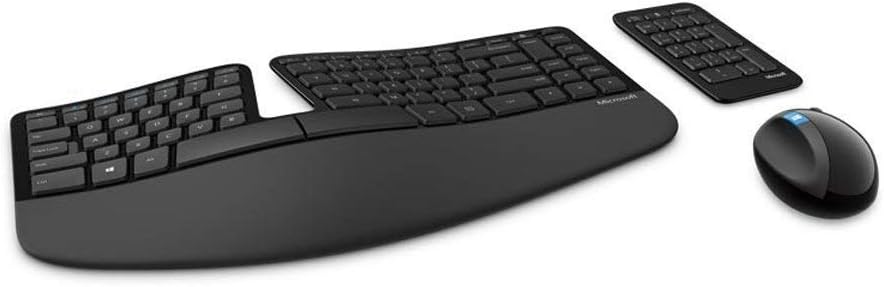
Figura 1.1: Overview of the Microsoft Sculpt Ergonomic Wireless Desktop Keyboard, Mouse, and separate Number Pad.
2. Funzioni chjave
- Poggiapolsi imbottito: Provides support and promotes a neutral wrist position, enhancing comfort during extended use.
- Cuncepimentu di chjave divisa: Helps to position wrists and forearms in a natural, relaxed posture, reducing strain.
- Disposizione di i tasti à arcu naturale: Mimics the curved shape of the fingertips, allowing for more natural and comfortable typing.
- Domed Keyboard Design: Positions wrists at a natural, relaxed angle, contributing to ergonomic comfort.
- Tastiera numerica separata: Offers greater flexibility for workspace setup, allowing you to place the number pad independently.
- Advanced Encryption Standard (AES) Technology: Designed to help protect your information by encrypting your keystrokes.

Figure 2.1: Visual representation of the ergonomic features and key components of the Sculpt Ergonomic Desktop set.
3. Setup Guide
3.1 Disimballaggio è ispezione iniziale
Carefully remove all components from the packaging. Verify that all items are present: the ergonomic keyboard, wireless mouse, separate number pad, 2 AAA batteries, and the Bluetooth USB module.
3.2 Installazione di batterie
- Locate the battery compartments on the underside of the keyboard, mouse, and number pad.
- Aprite i coperchi di a batteria.
- Insert the included AAA batteries, ensuring correct polarity (+/-).
- Chiudete bè i coperchi di a batteria.
3.3 Cunnessione à u vostru urdinatore
- Plug the Bluetooth USB module into an available USB port on your computer.
- The devices should automatically connect. If not, press the connect button on the underside of each device (keyboard, mouse, number pad) and follow any on-screen prompts.
- Allow your operating system to install any necessary drivers. This process is usually automatic.

Figura 3.1: Top view of the Sculpt Ergonomic Keyboard, showing the split keyset and natural arc design.
4. Operating Instructions
4.1 Usu di a tastiera
The Sculpt Ergonomic Keyboard is designed for comfort. Position your hands naturally on the split keyset, allowing your wrists to rest on the cushioned palm rest. The natural arc and domed design promote a relaxed typing posture. Utilize the dedicated function keys for quick access to common commands such as Calculator, Mute, Play/Pause, Volume Up, and Volume Down.
4.2 Usu di u mouse
The wireless mouse is shaped to fit comfortably in your hand, promoting a natural wrist position. It features standard left and right click buttons, a scroll wheel, and a Windows button for quick access to the Start menu or other Windows functions.
4.3 Number Pad Usage
The separate number pad can be placed anywhere on your desk for optimal flexibility. It functions as a standard numeric keypad, useful for data entry and calculations. Its independent nature allows for a more customized and comfortable workspace arrangement.
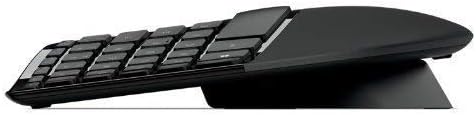
Figura 4.1: Prughjettu lateralefile of the separate number pad, illustrating its compact design.
5. Mantenimentu è Cura
5.1 Pulizia
To maintain optimal performance and hygiene, regularly clean your keyboard, mouse, and number pad. Use a soft, lint-free cloth slightly dampened with water or a mild, non-abrasive cleaner. Avoid spraying liquids directly onto the devices. For sticky keys, a specialized electronics cleaner (e.g., WD-40 electronics cleaner) can be used as per the product's instructions, applied to a cloth, not directly to the keyboard.
5.2 Sustituzione di batterie
When the devices show signs of low power (e.g., reduced responsiveness, indicator light), replace the AAA batteries. Refer to Section 3.2 for battery installation instructions. Dispose of used batteries according to local regulations.
5.3 Storage
When not in use for extended periods, store the devices in a cool, dry place away from direct sunlight and extreme temperatures. If storing for a very long time, consider removing the batteries to prevent leakage.
6. Risoluzione di prublemi
| Prublemu | Causa Possibile | Soluzione |
|---|---|---|
| Keyboard/Mouse/Number Pad not responding | Low or dead batteries; USB receiver not properly connected; Interference. | Replace batteries. Ensure USB receiver is firmly plugged into a working USB port. Try a different USB port. Move devices closer to the receiver. |
| I tasti sò appiccicati o ùn rispondenu micca | Debris under keys; Accumulation of dirt/grime. | Clean the keyboard thoroughly using compressed air or a soft brush. For persistent stickiness, use an electronics-safe cleaner applied to a cloth. |
| U cursore di u mouse hè erraticu o ùn si move micca | Dirty sensor; Unsuitable surface; Low battery. | Clean the optical sensor on the underside of the mouse. Use a mouse pad or a smooth, non-reflective surface. Replace batteries. |
| Connection issues after moving computer | Loss of pairing. | Re-pair the devices by pressing the connect button on each component and the USB receiver if applicable. Refer to your computer's Bluetooth settings for pairing options. |
7. Specificazioni
| Feature | Detail |
|---|---|
| Dimensioni di u produttu (Tastiera) | 21.9 x 10.9 x 2.9 inch (556.3 x 276.9 x 73.7 mm) |
| Pesu di l'articulu | 2.9 liri (1.32 kg) |
| Tecnulugia di cunnessione | Bluetooth, Radio Frequency (RF), USB |
| Funzione speciale | Split Keyset Design, Cushioned Palm Rest, Natural Arc, Domed Keyboard |
| Dispositivi compatibles | Computer persunale |
| Culore | Neru |
| Batterie necessarie | 2 batterie AAA (incluse) |
| Encryption | Advanced Encryption Standard (AES) 128-Bit Encryption |
Figure 7.1: Detailed dimensions for the keyboard, mouse, and number pad, along with key features.
8. Garanzia è Support
8.1 Garanzia di u Produttu
This Microsoft product comes with a limited warranty. Please refer to the warranty card included in your product packaging or visit the official Microsoft support websitu per i termini è e cundizioni di garanzia dettagliate. A garanzia copre tipicamente i difetti di materiali è di fabricazione in cundizioni d'usu nurmale.
8.2 Assistenza tecnica
For technical assistance, driver downloads, or further information, please visit the official Microsoft Support website. You can find support resources, FAQs, and contact options at support.microsoft.com. Ensure you have your product model number (L5V-00001) ready when contacting support.


