1. Introduzione
This user manual provides detailed instructions for the Waveshare Raspberry Pi 4 Model B Display Kit. It covers the assembly, setup, operation, and maintenance of your 7-inch capacitive touch LCD display kit designed for the Raspberry Pi 4. Please read this manual thoroughly before use to ensure proper functionality and to maximize your experience with the product.
2. Cuntenutu di u pacchettu
Verificate chì tutti l'articuli elencati quì sottu sò inclusi in u vostru pacchettu. Sè qualchì cumpunente manca o hè dannighjatu, cuntattate l'assistenza clienti.

Image: All components included in the Waveshare Raspberry Pi 4 Display Kit.
- 7-inch Capacitive Touch LCD
- Acrylic Case (Black/White)
- Cavu HDMI
- USB-A to Micro-USB Cable (for touch and power)
- Adattatore di putenza
- Carta Micro SD (16 GB)
- Lettore di carte Micro SD
- Screws and Standoffs for assembly
3. Produttu Finituview
The Waveshare Raspberry Pi 4 Model B Display Kit combines a high-resolution 7-inch capacitive touch screen with essential accessories, allowing you to build a compact, all-in-one computer solution with your Raspberry Pi 4.
3.1 Raspberry Pi 4 Model B Features (Raspberry Pi board sold separately)
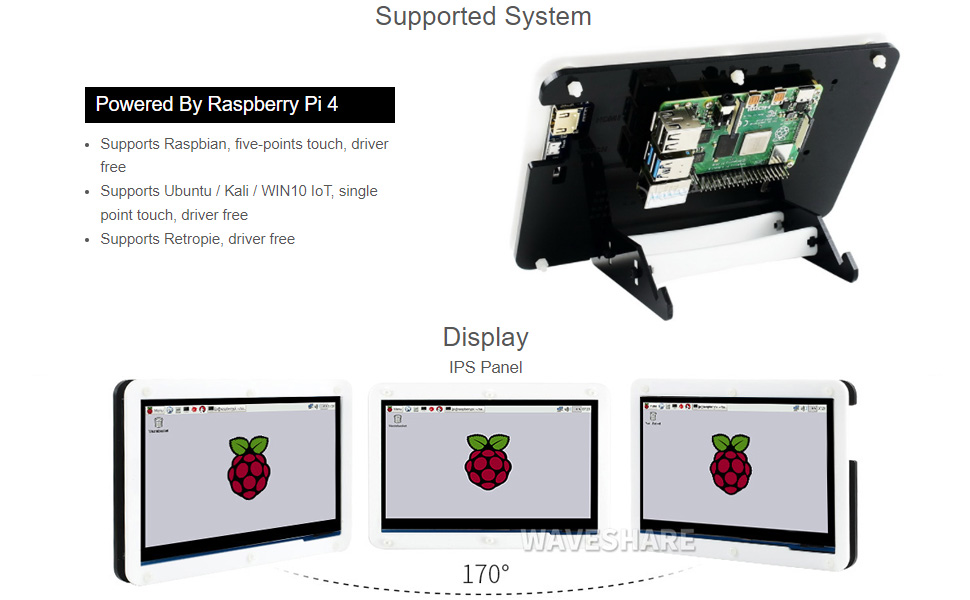
Image: Raspberry Pi 4 Model B board layout with key components labeled.
- Processore: Broadcom BCM2711, Quad core Cortex-A72 (ARM v8) 64-bit SoC @ 1.5GHz
- Memoria: LPDDR4-2400 SDRAM (available in 1GB, 2GB, 4GB, or 8GB options)
- Connettività: 2.4 GHz and 5.0 GHz IEEE 802.11ac wireless, Bluetooth 5.0, Gigabit Ethernet
- Porti USB: 2 × USB 3.0 ports, 2 × USB 2.0 ports
- Video & Sonu: 2 × micro-HDMI ports (up to 4Kp60 supported), 2-lane MIPI DSI display port, 2-lane MIPI CSI camera port, 4-pole stereo audio and composite video port
- GPIO: 40-pin GPIO header
- putenza: 5V DC via USB-C connector (minimum 3A recommended)
4. Setup Guide
Follow these steps to assemble and set up your Waveshare Raspberry Pi 4 Display Kit.
4.1 Hardware Assembly

Image: Fully assembled Waveshare Raspberry Pi 4 Display Kit.
- Prepare the Raspberry Pi: Ensure your Raspberry Pi 4 Model B board is ready.
- Mount the Raspberry Pi: Attach the Raspberry Pi 4 board to the designated mounting points on the back panel of the acrylic case using the provided screws and standoffs.
- Connect the Display: Connect the 7-inch LCD to the Raspberry Pi 4. Typically, this involves connecting the HDMI cable from the display to one of the micro-HDMI ports on the Raspberry Pi, and the USB-A to Micro-USB cable for touch functionality and power.
- Assemble the Case: Secure the front panel of the acrylic case around the display and then attach it to the back panel, enclosing the Raspberry Pi and display. Ensure all cables are properly routed and not pinched.
- Attaccà u supportu: Assemble and attach the included stand to the bottom of the case for stable positioning. The stand often allows for adjustable viewing angles (e.g., 45° or 60°).
4.2 Cunfigurazione Software
The Waveshare 7-inch capacitive touch LCD is designed for driver-free operation with several popular operating systems.
- Installazione di u Sistema Operativu: Install your preferred operating system (e.g., Raspbian, Ubuntu, Kali, WIN10 IoT, Retropie) onto the provided 16GB Micro SD card using a suitable imaging tool (e.g., Raspberry Pi Imager).
- Inserite a carta SD: Insert the prepared Micro SD card into the Raspberry Pi's Micro SD card slot.
- Power On: Connect the power adapter to the display kit. The Raspberry Pi and display should power on automatically.
- Funziunamentu senza cunduttore: For most supported systems, the display and touch functionality will work automatically without additional driver installation.
5. Operating Instructions
5.1 Funziunalità tattile

Image: User interacting with the capacitive touch screen.
- The 7-inch display features a capacitive touch panel, supporting up to five-point touch input.
- Ensure the USB touch cable is securely connected between the display and the Raspberry Pi for touch input to function.
- Touch gestures and multi-touch capabilities will depend on the operating system and applications running on your Raspberry Pi.
5.2 Sistemi Operativi Supportati
The display kit offers broad compatibility with various Raspberry Pi operating systems:
- Raspbian: Supports five-point touch, driver-free.
- Ubuntu / Kali / WIN10 IoT: Supports single-point touch, driver-free.
- Retropie: Supports driver-free operation.
6. Specificazioni
| Feature | Specificazione |
|---|---|
| Size Display | 7 inch |
| Touch Type | Capacitive, up to 5-points |
| Interfaccia | HDMI for display, USB for touch |
| Cumpatibilità | Raspberry Pi 4 Model B |
| Supportu di u Sistema Operativu | Raspbian, Ubuntu, Kali, WIN10 IoT, Retropie |
| Memory Storage Capacity (SD Card) | 16 GB |
| Pesu di l'articulu | 1.28 liri |
| Numero di mudellu | PI4B Display Acce |
| U fabricatore | Waveshare |
7. Mantenimentu
- Pulizia: Aduprate un pannu dolce è senza pelu per asciugà delicatamente u schermu. Per e macchie ostinate, asciugate leggermente.ampLavate u pannu cù acqua o un detergente sicuru per u schermu. Evitate prudutti chimichi aggressivi o materiali abrasivi.
- Conservazione: Quandu ùn hè micca in usu, cunservate u kit in un locu frescu è asciuttu, luntanu da a luce diretta di u sole è da temperature estreme.
- Trattamentu: Handle the display and Raspberry Pi board with care to avoid physical damage. Avoid applying excessive pressure to the screen.
8. Risoluzione di prublemi
8.1 Nisuna uscita di visualizazione
- Verificate u putere: Ensure the power adapter is securely connected to the display kit and plugged into a working power outlet.
- Cunnessione HDMI: Verify that the HDMI cable is firmly connected between the display and the Raspberry Pi's micro-HDMI port. Try a different micro-HDMI port if available.
- Carta SD: Confirm that the Micro SD card with a properly installed operating system is inserted correctly into the Raspberry Pi.
- Alimentazione elettrica: Ensure your Raspberry Pi is receiving adequate power (a 5V/3A USB-C power supply is recommended for Raspberry Pi 4).
8.2 A funziunalità tattile ùn funziona micca
- Cunnessione USB: Check that the USB-A to Micro-USB cable is securely connected from the display to a USB port on the Raspberry Pi.
- Supportu di u Sistema Operativu: Confirm that your operating system supports the touch functionality of this display. While most are driver-free, some configurations might require specific settings.
- Reboot: Try rebooting the Raspberry Pi.
8.3 Screen Flickering or Instability
- Alimentazione elettrica: Ensure a stable and sufficient power supply is used for both the display and the Raspberry Pi.
- Integrità di u cable: Check the HDMI and USB cables for any damage or loose connections.
9. Garanzia è Support
For warranty information, technical support, or further assistance, please refer to the official Waveshare websitu o cuntattate u vostru rivenditore. Conservate a vostra ricevuta d'acquistu cum'è prova d'acquistu per e richieste di garanzia.


