1. Introduzione
L'Apogee Duet 3 hè un'interfaccia audio USB à 2 canali cuncipita per a registrazione, u streaming è u podcasting di alta qualità nantu à i dispositivi Mac, PC è iOS. Hà funzioni di pre-amplificazione di classe mundiale.amps and onboard DSP for zero-latency recording with Apogee DSP plugins. Its ultra-compact design and bus-powered operation make it ideal for both studio and mobile use.
2. Ciò chì hè in a scatula
- Apogee Duet 3 unit
- Cavu Breakout
- Casu di viaghju
- USB Type C / Type A Cable

Image: The Apogee Duet 3, its breakout cable, and USB cables neatly packed in the included travel case.
3. Setup
The Apogee Duet 3 is designed for easy setup and portability.
3.1. Requisiti di u sistema
- Sistema Operativu: macOS 10.14 or above, Windows 10
- Interfaccia hardware: USB
- Dispositivi cumpatibili: Laptop, iOS devices (iPhone, iPad)
3.2. Connecting Your Duet 3
The Duet 3 is completely bus-powered via USB, eliminating the need for an external power cable.
- Connect the Duet 3 to your computer or iOS device using the provided USB Type C or Type A cable.
- Attach the breakout cable to the Duet 3. This cable provides XLR inputs for microphones and 1/4-inch inputs for instruments (guitars, keyboards).
- Connect your microphones, instruments, and headphones/speakers to the appropriate ports on the breakout cable.

Image: The Apogee Duet 3 connected to a laptop, showcasing its compact setup with the breakout cable managing various audio inputs.

Imagine: Un primu pianu, da cima à fondu view of the Apogee Duet 3, highlighting its main control knob and input/output indicators.

Image: The Apogee Duet 3 integrated into a desktop setup, connected to a laptop and external monitor, demonstrating its role in a recording environment.
3.3. Installazione Driver
For optimal performance, download and install the latest drivers and control software from the official Apogee website. This software allows you to manage settings, monitor levels, and access the onboard DSP features.
4. Operating the Duet 3
4.1. Crystal Clear Audio
The Duet 3 features world-class preamps with up to 65dB of gain and 48V phantom power, ensuring clean and precise capture of any audio source, even with demanding microphones. Apogee's AD/DA converters deliver pristine sound quality for both recording and playback.
4.2. Onboard DSP for Zero-Latency Recording
Utilize the onboard hardware DSP to run Apogee DSP plugins, such as the Symphony ECS Channel Strip (sold separately), directly on the interface. This allows for zero-latency recording, enabling you to monitor your sound with effects in real-time without burdening your computer's CPU.
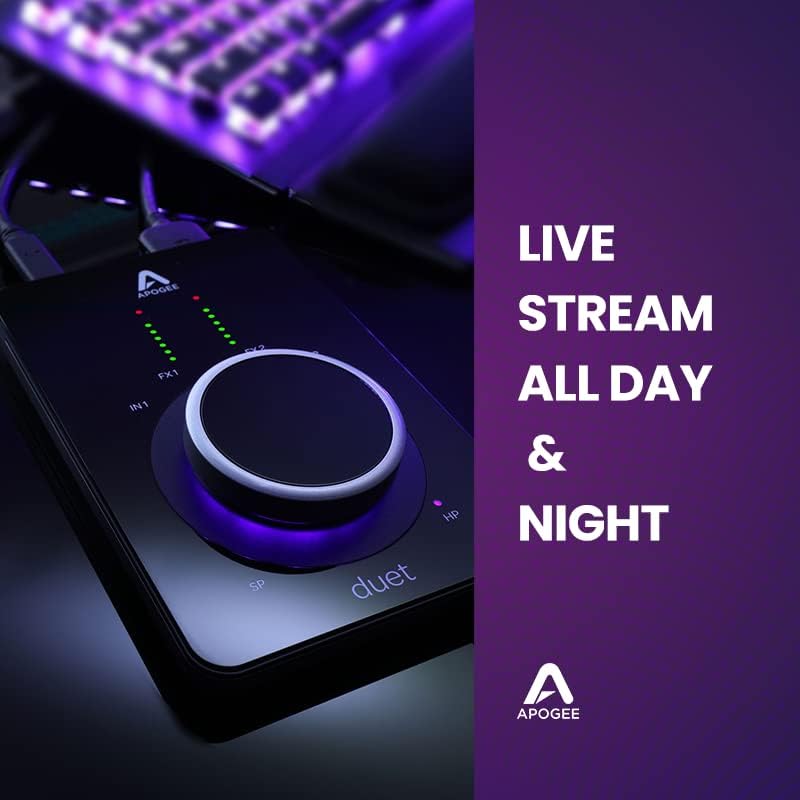
Image: The Apogee Duet 3 positioned on a desk with a microphone and headphones, illustrating a typical recording setup.
4.3. Control and Monitoring
The large control knob on the Duet 3 allows for quick adjustments of input gain, output levels, and other parameters. LED meters provide visual feedback on input and output levels.
4.4. Applicazioni Versatili
The Duet 3 is suitable for a wide range of applications:
- Recording Vocals & Instruments: Capture high-fidelity audio from microphones, guitars, and keyboards.
- Streaming in diretta: Ensure professional audio quality for your live broadcasts.
- Podcasting: Record clear and crisp dialogue.
- Mixing & Mastering: Monitor your audio with exceptional clarity.
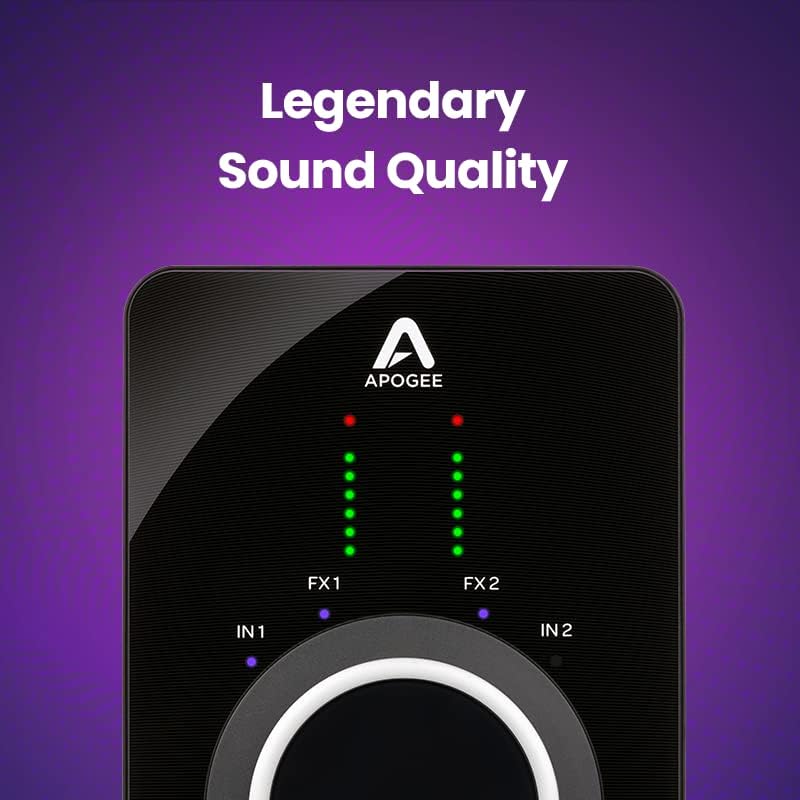
Image: A close-up of the Apogee Duet 3 with text emphasizing its "Legendary Sound Quality," highlighting its audio fidelity.

Image: The Apogee Duet 3 integrated into a professional studio setup, featuring a laptop and studio monitors, indicating its use in high-quality audio production.
4.5. Video ufficiali di u pruduttu
Explore the following official product videos from Apogee Electronics Corp. for more insights into the Duet 3's features and capabilities:
Video: B Martin | Apogee Duet 3. This video features artist B Martin discussing his experience with the Apogee Duet 3, highlighting its sound quality, portability, and zero-latency recording capabilities.
Video: Meet Duet 3. A concise introduction to the Apogee Duet 3, showcasing its design, features, and ease of use for various audio applications.
Video: India Carney & Jaime Woods | Apogee Duet 3. This video features artists India Carney and Jaime Woods using the Apogee Duet 3 for vocal recording, emphasizing its high-fidelity audio capture.
Video: TaRon Lockett | Recording Drums with Duet 3 and Hype MiC. Drummer TaRon Lockett demonstrates recording drums using the Apogee Duet 3, showcasing its input capabilities and sound clarity for percussive instruments.
Video: Sophia Gripari - "Dancing Alone" | Apogee Duet 3. Artist Sophia Gripari performs "Dancing Alone" using the Apogee Duet 3, demonstrating its suitability for vocal and instrument recording in a musical context.
5. Mantenimentu
To ensure the longevity and optimal performance of your Apogee Duet 3, follow these maintenance guidelines:
- Pulizia: Use a soft, dry, lint-free cloth to clean the exterior of the unit. Avoid abrasive cleaners or solvents.
- Conservazione: When not in use, store the Duet 3 in its provided travel case to protect it from dust, scratches, and impacts.
- Cura di u cable: Handle the breakout cable and USB cables with care to prevent damage to connectors and wiring. Avoid sharp bends or excessive pulling.
- Actualizazioni di firmware: Regularly check the Apogee website for firmware updates to ensure your device has the latest features and performance enhancements.
6. Risoluzione di prublemi
If you encounter issues with your Apogee Duet 3, consider the following troubleshooting steps:
- No Sound/Connection:
- Verify all cables (USB, breakout) are securely connected.
- Ensure the Duet 3 is recognized by your computer's operating system and chosen as the default audio device in your DAW or system settings.
- Check the volume levels on the Duet 3, your computer, and your monitoring devices (headphones/speakers).
- Restart your computer and the Duet 3.
- Problemi di latenza:
- Utilize the onboard DSP for zero-latency monitoring when recording with plugins.
- Adjust the buffer size in your DAW's audio settings. A lower buffer size reduces latency but requires more CPU power.
- Chiudete l'applicazioni inutili chì funzionanu in background per liberà risorse di sistema.
- Audio distortu:
- Check input gain levels to ensure they are not clipping (indicated by red LEDs on the Duet 3). Reduce gain if necessary.
- Ensure your microphones or instruments are properly connected and functioning.
- Test with different cables or inputs to rule out faulty connections.
- Prublemi di software / driver:
- Reinstall the latest drivers and control software from the Apogee websitu.
- Assicuratevi chì u vostru sistema operativu sia aggiornatu.
- Cunnessione intermittente:
- Pruvate un portu USB differente in u vostru urdinatore.
- Assicuratevi chì u cavu USB ùn sia micca dannighjatu.
- Sè vo aduprate un hub USB, pruvate à cunnette lu direttamente à l'urdinatore.
For further assistance, refer to the official Apogee support resources.
7. Specificazioni
| Feature | Detail |
|---|---|
| Numero di mudellu | Duetto 3 |
| Pesu di l'articulu | 2 liri |
| Dimensioni di u produttu | 10 x 7 x 3 inch |
| Numero di canali | 2 |
| Interfaccia Hardware | USB |
| Preamps | Up to 65dB gain, 48V phantom power |
| DSP | Onboard hardware DSP for zero-latency recording |
| Cumpatibilità | macOS 10.14+, Windows 10, iOS devices |
| putenza | Bus Powered (USB) |
8. Garanzia è Support
For detailed warranty information and technical support, please visit the official Apogee websitu o cuntattate u so serviziu clienti. Cunservate a vostra prova d'acquistu per e richieste di garanzia.
9. Risorse supplementari
For more information and product updates, visit the Apogee Store on Amazon.


