1. Introduzione
This manual provides detailed instructions for the installation, operation, and maintenance of the Vivotek ND9425P 16-Channel 4K UHD Network Video Recorder (NVR). This NVR is designed to manage and record video streams from up to 16 IP cameras, offering 4K UHD resolution support for high-quality surveillance. It is an integral component of a comprehensive security system, suitable for various applications requiring reliable video monitoring and recording.
Key features of the Vivotek ND9425P NVR include:
- Multimedia SoC CPU for efficient processing.
- Support for H.265, H.264, and MJPEG video codecs for flexible compression.
- Seamless recording capabilities.
- Smart Stream III optimization for bandwidth efficiency.
- Integrated PoE technology for simplified camera connectivity (when used with compatible PoE cameras).
2. Informazioni di sicurezza
Please read all safety instructions carefully before operating the device. Failure to follow these instructions may result in injury or damage to the product.
- Fonte di energia: Use only the power adapter supplied with the NVR. Ensure the power outlet provides the correct voltage.
- Ventilazione: Do not block any ventilation openings. Install the NVR in a well-ventilated area to prevent overheating.
- Ambiente: Avoid exposing the NVR to water, moisture, extreme temperatures, or direct sunlight.
- Pulizia: Scollegate l'alimentazione prima di pulisce. Aduprate un pannu asciuttu è dolce. Ùn aduprate micca detergenti liquidi o aerosol.
- Service : Ùn circate micca di serviziu stu pruduttu voi stessu. Cunsultate tutti i servizii à u persunale di serviziu qualificatu.
- Cavi: Ensure all cables are properly connected and secured to prevent tripping hazards or accidental disconnections.
3. Cuntenutu di u pacchettu
Verificate chì tutti l'articuli sò presenti in u pacchettu prima di cuntinuà cù l'installazione:
- Vivotek ND9425P 16-Channel 4K UHD NVR Unit
- Adattatore di putenza
- Mouse USB
- Guida d'installazione rapida
- Resource CD (containing full manual and software)
- Viti per l'installazione di u discu duru (s'ellu hè applicabile)
- Cavu Ethernet
Note: The package contents may vary slightly depending on the specific kit purchased. For example, some kits may include 8 x 2 MP Night Vision Dome Cameras and 8 x Ethernet Patch Cables.
4. Produttu Finituview
Questa sezione furnisce un sopraview of the Vivotek ND9425P NVR's physical components and interfaces.
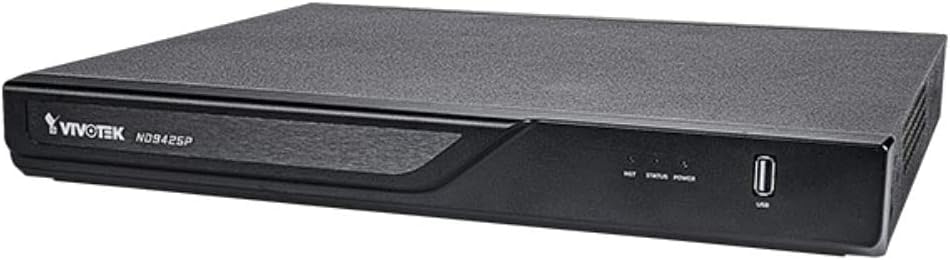
Figura 4.1: Vivotek ND9425P NVR Front Panel
The image displays the Vivotek ND9425P NVR unit, a compact black rectangular device. The front panel features the "VIVOTEK ND9425P" logo on the left, followed by three small indicator lights labeled "NET", "STATUS", and "POWER". On the far right of the front panel, there is a USB port, labeled "USB" below it. The top surface of the NVR has a textured finish.
4.1 Front Panel Indicators and Ports
- LED NET: Indica l'attività di a rete.
- LED STATUS: Indicates system status (e.g., recording, error).
- LED POWER: Indica u statu di putenza.
- Port USB: For connecting a USB mouse, keyboard, or external storage devices for backup.
4.2 Porte di u pannellu posteriore
The rear panel typically includes ports for power input, Ethernet (LAN), HDMI/VGA video output, audio input/output, and additional USB ports for peripheral connections.
5. Setup
5.1 Installazione di hardware
- Installazione di u discu duru (s'ellu ùn hè micca preinstallatu):
Unscrew the NVR cover. Carefully slide the hard drive into the bay and secure it with the provided screws. Reattach the cover.
- Cunnette e camere:
Connect your IP cameras to the NVR's PoE ports (if available) or to your network switch. Ensure all cameras are powered on and accessible on the network.
- Cunnette vi à a Rete:
Cunnette un cavu Ethernet da u portu LAN di l'NVR à u vostru router o switch di rete.
- Cunnette u Display:
Cunnette un monitor à u portu di uscita HDMI o VGA di u NVR.
- Cunnette i periferichi:
Cunnette u mouse USB à una porta USB di u NVR.
- Power On:
Cunnette l'adattatore di corrente à l'entrata di alimentazione di u NVR è dopu inseritelu in una presa di corrente. U NVR s'accenderà automaticamente.
5.2 Initial Configuration Wizard
Upon the first boot, the NVR will typically launch an initial configuration wizard. Follow the on-screen prompts to:
- Configurate a password di l'amministratore.
- Configure network settings (DHCP or Static IP).
- Cerca è aghjunghje camere IP cunnesse.
- Pone a data è l'ora.
- Inizializeghja u discu duru per a registrazione.
6. Funziunamentu di u NVR
6.1 Live View
Dopu a cunfigurazione iniziale, l'NVR mostrerà u live view di camere cunnesse. Pudete cambià trà una sola camera view è una griglia multicamera views.
6.2 Configurazione di registrazione
Access the recording settings through the main menu to configure recording schedules and modes:
- Registrazione cuntinua: Registrazioni 24 ore su 24, 7 ghjorni su 7.
- Registrazione di Rilevazione di Movimentu: Records only when motion is detected by the camera.
- Registrazione pianificata: Records during specific times of the day or week.
- Registrazione di l'avvenimentu: Records based on specific events (e.g., alarm input).
6.3 Playback and Backup
À review arregistratu footage:
- Navigate to the "Playback" section from the main menu.
- Selezziunate a(e) camera(e) desiderata(e) è l'intervallu di data/ora.
- Aduprate a cronologia per navigà trà e registrazioni.
- To back up footage, insert a USB drive into the NVR's USB port and follow the on-screen instructions for export.
6.4 Accessu Remotu
The Vivotek ND9425P NVR supports remote access via a web browser or dedicated mobile applications (e.g., VIVOCloud). Refer to the full user manual on the Resource CD for detailed instructions on setting up remote access, including port forwarding or P2P cloud services.
7. Mantenimentu
7.1 Aghjornamenti di u firmware
Verificate è installate regularmente l'aghjurnamenti di u firmware per assicurà prestazioni ottimali, sicurezza è accessu à e nuove funzionalità. L'aghjurnamenti di u firmware ponu esse tipicamente effettuati via l'NVR. web interface or through a USB drive.
7.2 Gestione di u discu duru
The NVR will automatically overwrite the oldest recordings when the hard drive is full. You can configure storage settings, check HDD health, and format the drive through the system settings.
7.3 Pulizia
Keep the NVR unit clean by gently wiping its exterior with a dry, soft cloth. Ensure ventilation openings are free from dust and obstructions.
8. Risoluzione di prublemi
| Prublemu | Causa Possibile | Soluzione |
|---|---|---|
| Nisun putere | Power cable disconnected; faulty power adapter; power outlet issue. | Check power cable connection; try a different power outlet; contact support if adapter is faulty. |
| Nisuna surtita video | HDMI/VGA cable loose; incorrect display input selected; NVR not booted. | Ensure display cable is secure; select correct input on monitor; wait for NVR to boot up. |
| Cameras Not Displaying | Network issue; camera not powered; incorrect camera IP address; camera not added to NVR. | Check network cables; ensure cameras are powered; verify camera IP settings; add cameras via NVR interface. |
| Nisuna registrazione | Hard drive not initialized; recording schedule not set; HDD full. | Initialize HDD in settings; configure recording schedule; check HDD status. |
| Remote Access Fails | Network configuration issue; port forwarding not set up; firewall blocking. | Verify network settings; configure port forwarding on router; check firewall rules. |
For more detailed troubleshooting, refer to the comprehensive user manual provided on the Resource CD or visit the VIVOTEK support websitu.
9. Specificazioni
| Feature | Detail |
|---|---|
| Numero di mudellu | ND9425P |
| U fabricatore | Vivotek USA |
| Dimensioni di u produttu | 19.69 x 19.69 x 11.02 inch |
| Pesu di l'articulu | 8.62 liri |
| Tecnulugia di cunnessione | Ethernet |
| Dispositivi compatibles | Camera |
| Capacità di almacenamiento di memoria | 64 GB (referring to internal flash/RAM, not HDD capacity) |
| Numero di canali | 16 |
| Codecs Video | H.265, H.264, MJPEG |
| Supportu di Risoluzione Massima | 4K UHD (as per product title) |
10. Garanzia è Support
For warranty information, please refer to the warranty card included with your product or visit the official VIVOTEK website. VIVOTEK provides technical support for its products. If you encounter issues that cannot be resolved using this manual or the troubleshooting section, please contact VIVOTEK customer support through their official websitu o canali di supportu designati.
Official VIVOTEK Websitu: www.vivotek.com


