1. Introduzione
This manual provides essential information for the proper setup, operation, and maintenance of your Tibuta 10-inch Android 13 Tablet. Designed for versatility, this tablet features a 10.1-inch IPS display, a Quad-core processor, 4GB RAM, 32GB internal storage (expandable), and dual cameras, making it suitable for various daily activities from entertainment to productivity.

Image: The Tibuta 10-inch Android 13 Tablet, showcasing its sleek design and the included protective case.
2. Setup
2.1 Disimballaggio è ispezione iniziale
Carefully remove all components from the packaging. Verify that the tablet and its protective case are present and undamaged. The package typically includes the tablet, a protective case, and a charging cable.

Image: The Tibuta tablet with its protective case, ready for use.
2.2 Caricamentu di a tableta
Before first use, fully charge the tablet. Connect the provided USB-C charging cable to the tablet's USB-C port and the other end to a compatible power adapter (not always included) or a computer's USB port. The battery indicator on the screen will show charging status. A full charge typically takes several hours.
2.3 Accensione / spegnimentu
- Per accende: Press and hold the Power button (located on the side) until the Tibuta logo appears on the screen.
- Per spegne: Appughjà è tene premutu u buttone d'alimentazione finu à chì appare u menu di l'opzioni di alimentazione. Selezziunate "Spegne" è cunfirmate.
- Per riavvià: Da u menù di l'opzioni di putenza, selezziunate "Restart".
2.4 Configurazione iniziale
Upon first power-on, the tablet will guide you through the initial setup process. This includes selecting your language, connecting to a Wi-Fi network, setting up your Google account, and configuring basic security settings. Follow the on-screen prompts.
2.5 Cunnessione à Wi-Fi
- Go to 'Settings' > 'Network & internet' > 'Wi-Fi'.
- Toggle Wi-Fi 'On'.
- Selezziunate a rete Wi-Fi desiderata da a lista.
- Enter the network password if prompted, then tap 'Connect'.
3. Operating Instructions
3.1 Navigazione basica
The Tibuta tablet utilizes a responsive touchscreen for navigation. Common gestures include:
- Tap: Per selezziunà un articulu o apre una applicazione.
- Swipe: To scroll through pages or lists.
- Pizzicà per Zoomà: Per zoomà in o ingrandà l'imagine o web pagine.
- Pressa Longa: Per accede à i menu cuntestuali o spustà l'icone di l'applicazioni.
3.2 Usu di a Camera
Your tablet is equipped with a 5.0MP front camera and an 8.0MP rear camera for photos and video calls.
- Aprite l'applicazione "Camera".
- Toccate l'icona di l'interruttore di a camera per alternà trà e camere anteriori è posteriori.
- Toccate u buttone di l'otturatore per piglià una foto o inizià / fermà a registrazione video.

Image: The tablet highlighting its dual camera capabilities for capturing moments.
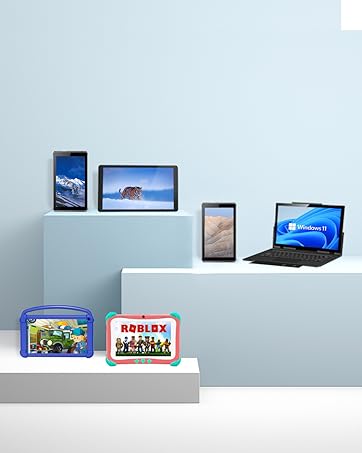
Image: The tablet being used for a video call, showcasing its front camera functionality.
3.3 Funzioni Audio
The tablet includes built-in speakers for audio playback and a 3.5mm stereo headphone jack for private listening. Volume can be adjusted using the physical volume buttons on the side of the tablet.
3.4 Storage Management
The tablet comes with 32GB of internal storage. You can expand this storage up to 128GB using a microSD card (not included). To insert a microSD card, locate the card slot on the side of the tablet and gently push the card in until it clicks into place.

Image: Illustration of the tablet's 32GB internal storage and expandability up to 128GB, ideal for saving photos and files.
3.5 Applications and Google Mobile Services (GMS)
The tablet runs on Android 13 and is GMS certified, providing full access to the Google Play Store. You can download and install a wide range of applications, including popular social media apps like Facebook, Twitter, YouTube, and TikTok.
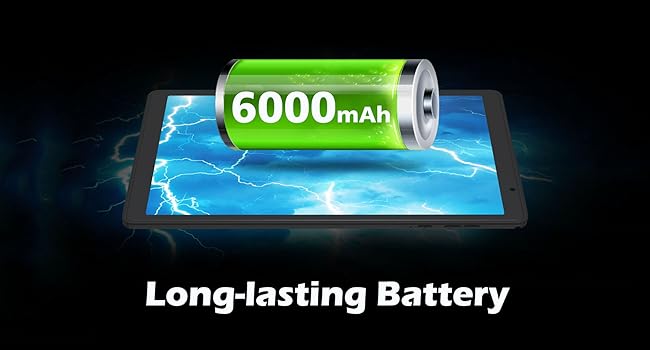
Image: The tablet displaying various GMS-certified applications, indicating broad app compatibility.
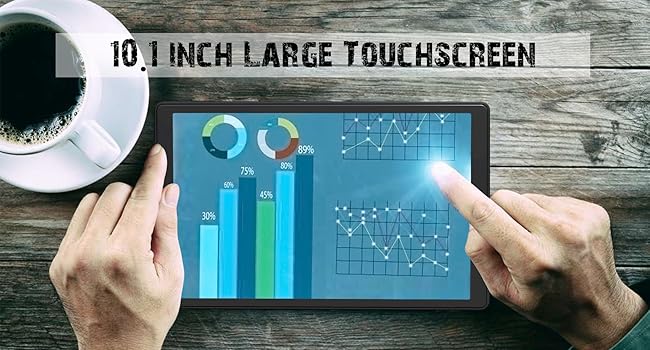
Image: The tablet in use for diverse activities such as studying, shopping, video calls, reading, and watching movies.
3.6 Durata di a bateria
The 6000mAh battery provides approximately 8 hours for video playback, 9 hours for daily use, and 10 hours for music playback. Actual battery life may vary based on usage patterns and settings.

Image: Visual representation of the tablet's large battery capacity and estimated usage times for various activities.
4. Mantenimentu
4.1 Pulizia di a Tablet
Aduprate un pannu dolce è senza pelu per pulisce u schermu è u corpu di a tableta. Per e macchie ostinate, asciugate leggermente.ampen the cloth with water or a screen-cleaning solution. Avoid using harsh chemicals or abrasive materials.
4.2 Actualizazioni di u Software
Regularly check for and install system updates to ensure optimal performance, security, and access to new features. Go to 'Settings' > 'System' > 'System update' to check for available updates.
4.3 Cura di a batteria
Per allargà a durata di vita di a batteria:
- Avoid exposing the tablet to extreme temperatures (hot or cold).
- Ùn lasciate micca chì a batteria si scarichi cumpletamente spessu.
- Use the original charging cable or a certified equivalent.
4.4 Storage Management
To maintain smooth performance, periodically manage your tablet's storage:
- Disinstalla l'applicazioni inutilizate.
- Clear cache data for apps in 'Settings' > 'Apps' > [App Name] > 'Storage & cache'.
- Trasferimentu grande files (photos, videos) to external storage or cloud services.
5. Risoluzione di prublemi
Questa sezione tratta di prublemi cumuni chì pudete scuntrà cù a vostra tableta.
5.1 U dispusitivu ùn si accende micca
- Ensure the tablet is sufficiently charged. Connect it to a power source for at least 30 minutes.
- Try a forced restart by holding the Power button for 10-15 seconds.
5.2 Prestazioni lente
- Chjude l'applicazioni in sfondate micca aduprate.
- Clear app cache and temporary files.
- Assicuratevi chì ci sia abbastanza spaziu di almacenamentu liberu.
- Restart the tablet periodically.
5.3 Prublemi di cunnessione Wi-Fi
- Toggle Wi-Fi off and on in settings.
- Riavviate u vostru router Wi-Fi.
- Scurdatevi di a rete è ricunnettetevi.
5.4 Prublemi di carica
- Check if the charging cable and adapter are securely connected.
- Pruvate un altru cavu di carica o adattatore di corrente.
- Inspect the charging port for any debris.
5.5 Reset di fabbrica
Se i prublemi persistenu, un reset di fabbrica pò risolve parechji prublemi ligati à u software. Attenzione: Questu cancellerà tutti i dati di a vostra tableta. Fate una copia di salvezza di i dati impurtanti prima di cuntinuà.
- Go to 'Settings' > 'System' > 'Reset options'.
- Selezziunate "Sguassà tutti i dati (ripristinu di fabbrica)".
- Cunfirmate a vostra decisione è seguitate l'istruzzioni nantu à u screnu.
6. Specificazioni
Key technical specifications for the Tibuta E100 Tablet:
| Feature | Specificazione |
|---|---|
| Nome di mudellu | E100 |
| Sistema upirativu | Android 13 |
| Size Screen | 10.1 inch |
| Risoluzione di u screnu | 1280 x 800 pixels (IPS) |
| Processore | Quad-core à 1.6 GHz |
| RAM | 4 GB |
| Storage internu | 32 GB |
| Storage espansibile | Finu à 128 GB (microSD) |
| Camera posteriore | 8 MP |
| Camera frontale | 5 MP |
| Capacità batterie | 6000 mAh Lithium Ion |
| Connettività wireless | 2.4G WiFi (802.11n), Bluetooth 4.2 |
| Dimensioni di u produttu (LxWxH) | 8.86 x 11.02 x 2.01 inch |

Image: A summary of the tablet's key performance specifications and features.

Image: The tablet's 10.1-inch IPS display, highlighting its high-quality visual output.
7. Garanzia è Support
For warranty information or technical support, please refer to the documentation included with your purchase or visit the official Tibuta website. You may also contact customer service through the platform where you purchased the product.


