1. Introduzione
This manual provides essential information for the safe and efficient use of your Philips 329P1H 32-inch 4K UHD LCD Monitor. This monitor features a 32-inch 4K UHD (3840 x 2160) display, an integrated USB-C docking station with power delivery, a pop-up webcam with Windows Hello™ facial recognition, and various eye-care technologies. Please read this manual thoroughly before operating the device.
2. Informazioni di sicurezza
Osservate e seguenti precauzioni di sicurezza per impedisce danni à u monitor o ferite à voi stessi:
- Ùn espone micca u monitor à a pioggia o à l'umidità.
- Ùn aprite micca u monitor casing. Affidate tutta a manutenzione à persunale qualificatu.
- Assicuratevi una ventilazione curretta intornu à u monitor.
- Aduprate solu l'adattatore di alimentazione furnitu cù u monitor.
- Evite di mette u monitor in u sole direttu o vicinu à fonti di calore.
- Clean the screen with a soft, lint-free cloth. Do not use liquid cleaners directly on the screen.
3. Cuntenutu di u pacchettu
Information regarding the exact contents of the product package is not available. Typically, a monitor package includes:
- Philips 329P1H Monitor
- Cavu di putenza
- Cavu USB-C
- Cavu HDMI (pò varià secondu a regione)
- Guida Quick Start
4. Setup
4.1 Cunfigurazione fisica
Carefully remove the monitor and its components from the packaging. Assemble the stand according to the instructions provided in the Quick Start Guide. Place the monitor on a stable, level surface.
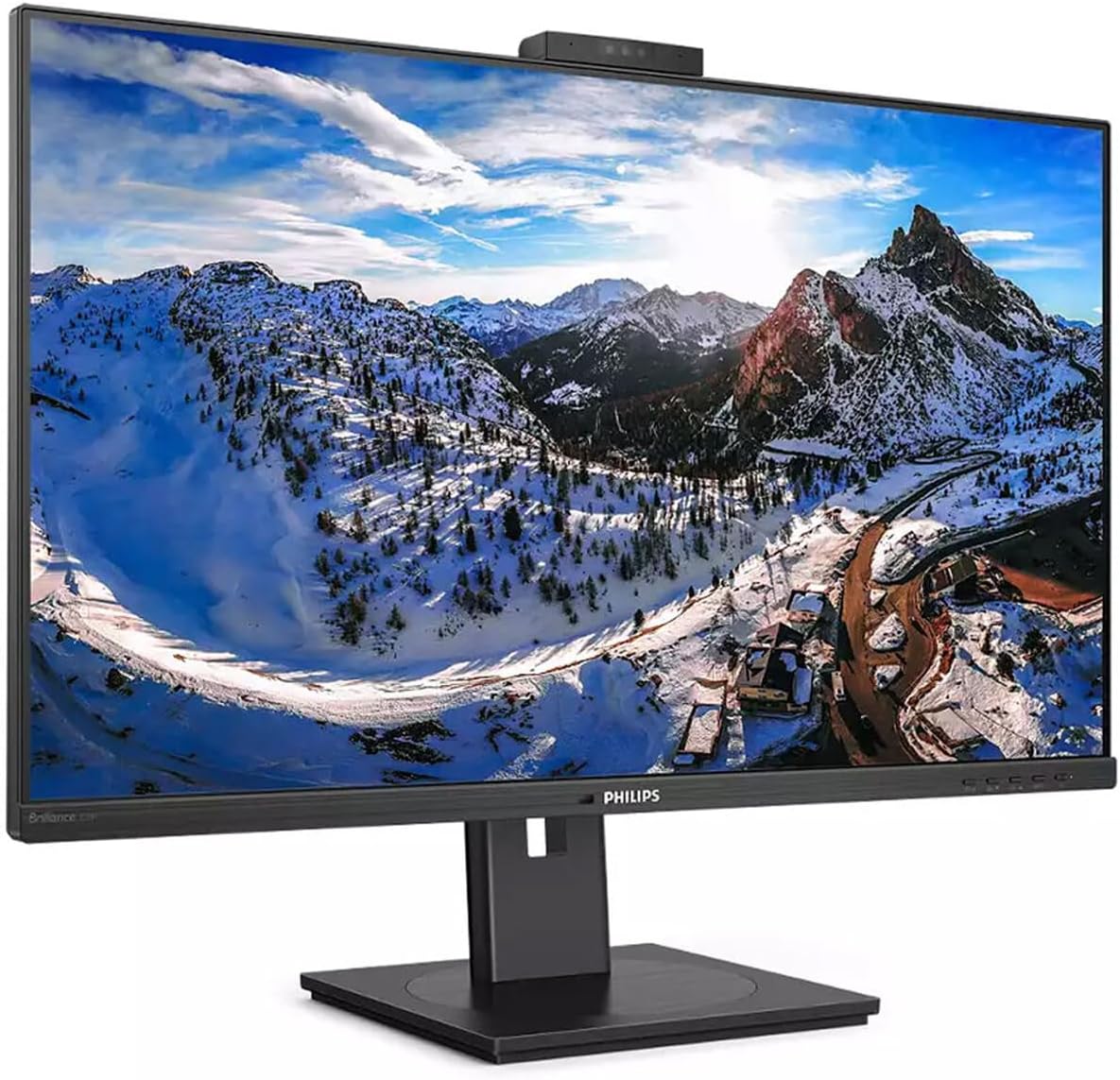
Figura 4.1: Fronte view of the Philips 329P1H Monitor.
4.2 Cavi di cunnessione
- Cunnessione di putenza: Cunnette u cavu di alimentazione à l'entrata di alimentazione di u monitor è dopu à una presa di corrente.
- Cunnessione Video: Connect a video cable (e.g., HDMI, DisplayPort, or USB-C) from your computer to the corresponding input on the monitor. For 4K UHD resolution, ensure your graphics card and cable support the required bandwidth.
- USB-C Docking: If your laptop supports USB-C with power delivery, connect the supplied USB-C cable from your laptop to the monitor's USB-C port. This single cable can provide video, data, and power charging to your laptop.
- Periferiche USB: Connect your keyboard, mouse, or other USB devices to the USB ports on the monitor.
- Cunnessione Ethernet: Connect an RJ-45 Ethernet cable from your network router/modem to the monitor's RJ-45 port for network access through the USB-C connection.
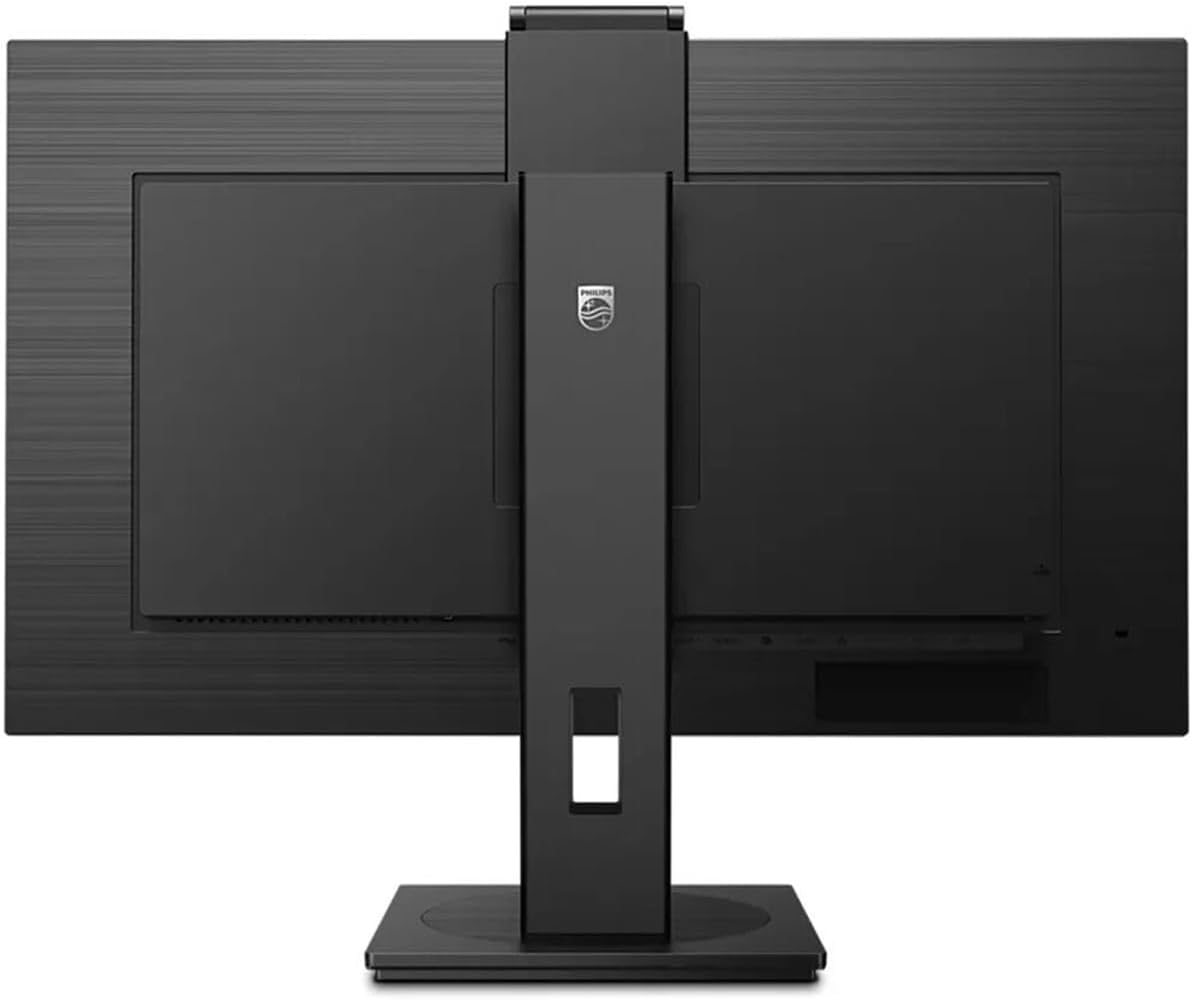
Figura 4.2: Posteriore view di u monitor cù porte d'entrata.
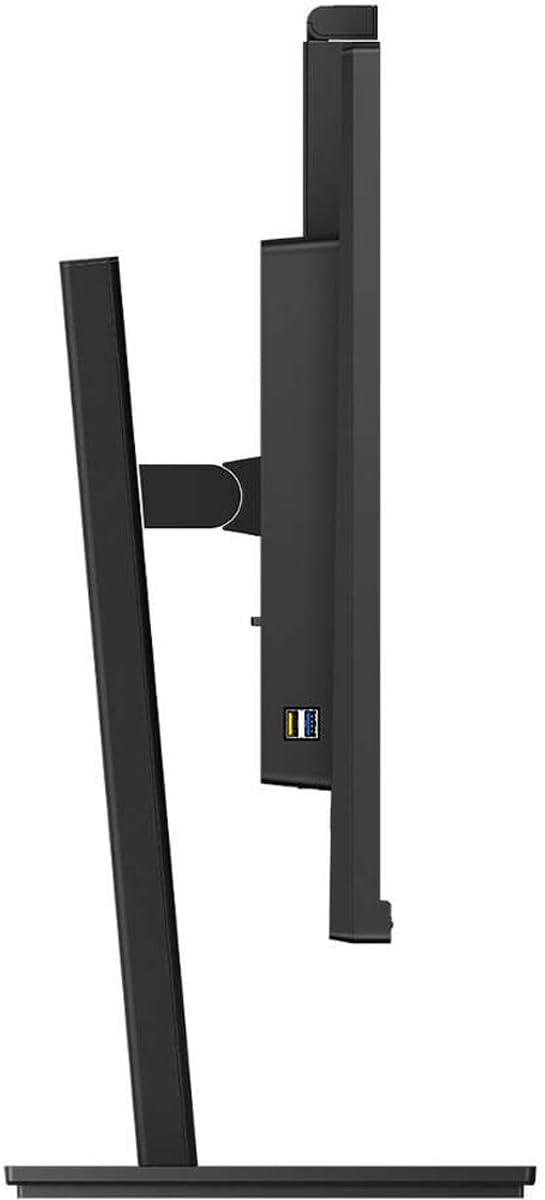
Figura 4.3: Side view showing USB ports.
4.3 Configurazione iniziale
After connecting all necessary cables, power on the monitor and your computer. The monitor should automatically detect the input signal. If not, use the monitor's On-Screen Display (OSD) menu to select the correct input source.
5. Operating Instructions
5.1 Power On/Off
Appughjà u buttone d'alimentazione situatu nantu à u monitor per accendelu o spegnelu. A luce indicatrice di l'alimentazione s'illuminarà quandu u monitor hè attivu.
5.2 USB-C Docking Functionality
The integrated USB-C docking station allows for a single-cable solution for video, data transfer, and laptop power charging (up to 90W). Connect your compatible laptop via the USB-C port on the monitor to utilize this feature. Peripherals connected to the monitor's USB ports and the RJ-45 Ethernet port will also be accessible to your laptop.
5.3 Pop-up Webcamma cù Windows Hello ™
The monitor features an innovative pop-up webcam. When needed, the webcam extends from the top of the monitor. It is equipped with advanced sensors for Windows Hello™ facial recognition, enabling secure and fast login to Windows devices. When not in use, the webcam can be securely tucked back into the monitor for privacy.
5.4 Display Technologies
- UltraClear 4K UHD (3840 x 2160): Provides highly detailed and crisp images for professional applications.
- Tecnulugia IPS: Offerte larga viewing angles (178/178 degrees) and consistent color accuracy, suitable for graphic design and professional use.
- Tecnulugia senza Flicker: Regulates brightness to reduce screen flicker, minimizing eye fatigue during extended use.
- Modu LowBlue: A software solution that reduces harmful shortwave blue light emissions, promoting eye comfort.
- PowerSensor: Detects user presence and automatically reduces monitor brightness when the user steps away, saving up to 80% energy.
- LightSensor: Adjusts picture brightness based on ambient room lighting conditions for optimal viewing and minimal power consumption.
6. Mantenimentu
6.1 Pulizia di u Monitor
Per pulisce u schermu di u monitor, asciugatelu delicatamente cù un pannu dolce è senza pelu. Per e macchie ostinate, asciugatelu delicatamente.ampen the cloth with water or a mild, non-abrasive screen cleaner. Do not spray liquids directly onto the screen. For the monitor casing, aduprate un pannu dolce è asciuttu.
6.2 Storage
If storing the monitor for an extended period, ensure it is powered off and disconnected from the power source. Store it in a cool, dry place, ideally in its original packaging to protect it from dust and physical damage.
7. Risoluzione di prublemi
Sè avete prublemi cù u vostru monitor, cunsultate e seguenti suluzioni cumuni:
| Prublemu | Causa Possibile | Soluzione |
|---|---|---|
| Nisuna maghjina nantu à u screnu | Cavu d'alimentazione scollegatu; Cavu video scollegatu o allentatu; Fonte d'ingressu incorretta selezziunata. | Verificate e cunnessione di i cavi di alimentazione è video. Assicuratevi chì a fonte d'entrata curretta sia selezziunata via u menu OSD. |
| L'imagine hè sfocata o distorta | Risoluzione incorretta; Cavu video difettuosu. | Set the display resolution to 3840 x 2160. Try a different video cable. |
| Weba camera ùn funziona micca | USB-C cable not connected or faulty; Webcam privacy setting enabled; Operating system driver issue. | Ensure the USB-C cable is securely connected and supports data transfer. Check privacy settings in your operating system. For Mac Mini users, if the camera disconnects after sleep mode, try restarting the monitor or ensuring the USB-C cable is fully functional. Update USB drivers if necessary. |
| Nisun sonu da l'altoparlanti di u monitor | Vulume troppu bassu; Uscita audio incorretta selezziunata nant'à l'urdinatore. | Ajustate u vulume di u monitor via OSD. Selezziunate u monitor cum'è u dispusitivu di output audio predefinitu in i paràmetri di sonu di u vostru urdinatore. |
8. Specificazioni
The following table outlines the key technical specifications for the Philips 329P1H monitor:
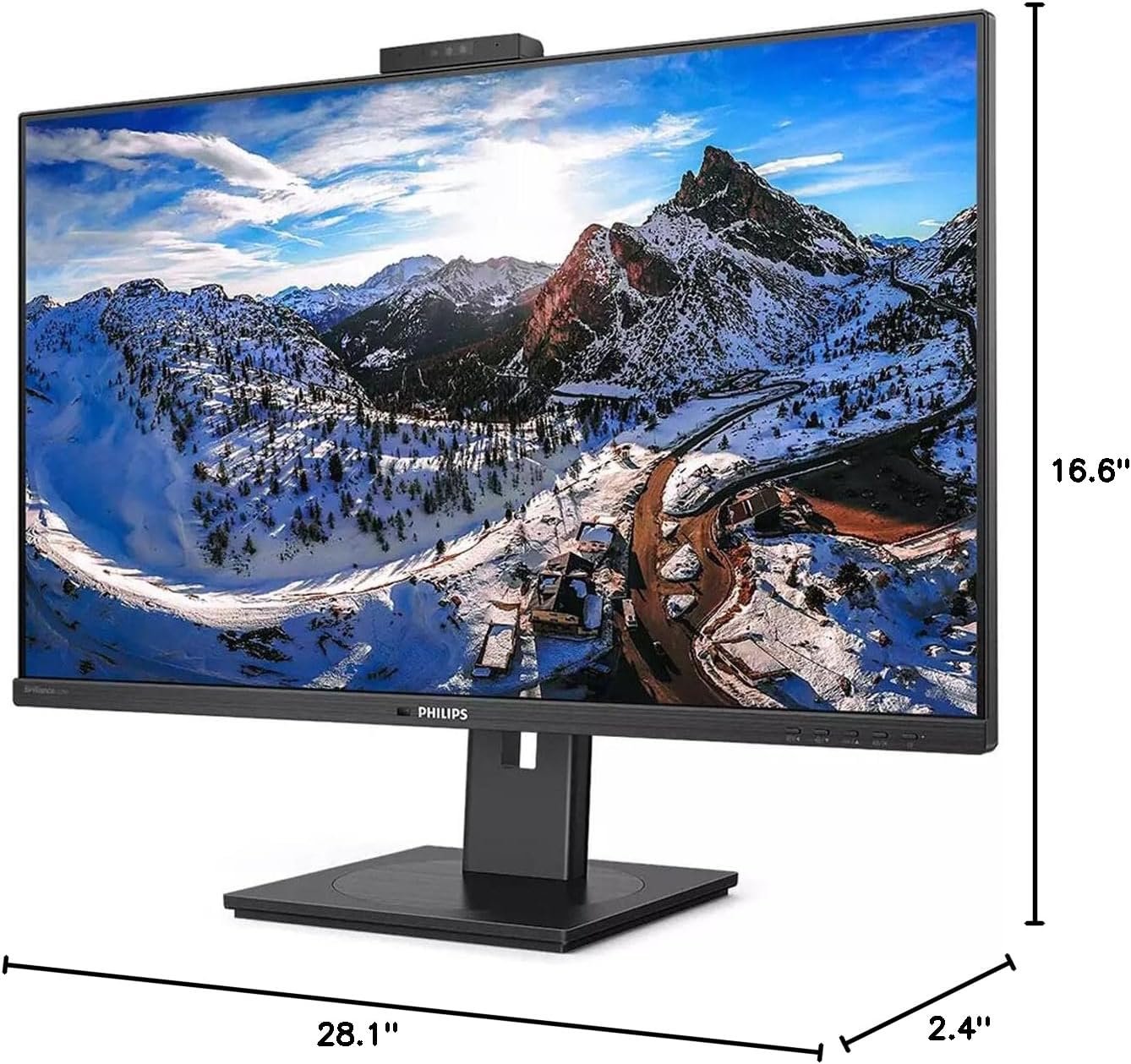
Figura 8.1: Dimensioni di u monitor.
| Feature | Specificazione |
|---|---|
| Numero di mudellu | 329P1H |
| Size Screen | 31.5 pollici (viewcapace) |
| Risoluzione massima di u schermu | 3840 x 2160 (4K UHD) |
| Rapportu d'aspettu | 16: 9 |
| Tempu di risposta | 4 ms GTG |
| Luminosità | 350 nit |
| Frequenza di rinfrescante | 75 Hz |
| Tipu di pannellu | IPS |
| Tecnulugia di retroilluminazione | WLED |
| Connettività | USB Type-C (with Power Delivery), HDMI, DisplayPort, RJ-45 Ethernet |
| Webcamma | Pop-up with Windows Hello™ |
| Pesu di l'articulu | 18.06 liri |
| Dimensioni di u produttu (LxWxH) | 2.4 x 28.1 x 16.6 inch |
| Culore | Textured Black |
9. Garanzia è Support
Per infurmazioni nantu à a garanzia è l'assistenza tecnica, vi pregu di cunsultà a carta di garanzia inclusa cù u vostru pruduttu o visitate u situ ufficiale di assistenza Philips. websitu. Conservate a vostra ricevuta d'acquistu cum'è prova d'acquistu per e richieste di garanzia.


