1. Introduzione
Grazie per l'acquistuasing the Washin WS-P323B Mobile Printer. This versatile thermal printer is designed for both label and receipt printing, offering portability and ease of use for various applications, including food display labels, expiry dates, price tags, product management, POS systems, and mobile sales. This manual provides essential information for the safe and efficient operation of your printer.
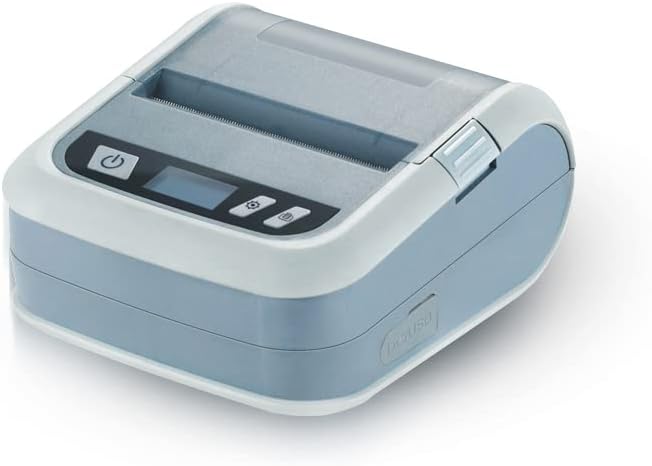
Figure 1: Washin WS-P323B Mobile Printer. This image shows the compact, light gray and white printer from a slightly elevated angle, highlighting its top paper compartment and control panel with power and menu buttons.
2. Informazioni di sicurezza
Please read all safety instructions carefully before using the printer to prevent injury or damage to the device.
- Ùn espone micca a stampante à l'acqua o à l'umidità eccessiva.
- Avoid dropping the printer or subjecting it to strong impacts.
- Use only the specified power adapter (DC 5V/2A) for charging.
- Ùn pruvate micca di smuntà o riparà a stampante da per voi. Cuntattate u persunale di serviziu qualificatu.
- Keep the printer away from heat sources and direct sunlight.
- Assicurà una ventilazione adatta durante u funziunamentu è a carica.
3. Cuntenutu di u pacchettu
Verificate chì tutti l'articuli sò presenti in u pacchettu:
- Washin WS-P323B Mobile Printer x 1
- USB-TYPE-C Cable x 1
- Test Label Paper Roll x 1
- Manuale d'usu x 1 (Stu documentu)
- Partition for paper width adjustment x 2
- Driver CD x 2
4. Setup Guide
4.1 Caricà a Batteria
Before first use, fully charge the printer's built-in 2,500 mAh Lithium Ion battery. Connect the provided USB-TYPE-C cable to the printer's charging port and plug the other end into a compatible USB power adapter (DC 5V/2A). The charging indicator light will show the charging status.

Figure 2: Long-lasting battery for portability. This image illustrates the printer's internal battery and its charging capability, emphasizing its suitability for mobile use.
4.2 Caricamentu di carta
The printer supports continuous paper, gap labels, black mark labels, and receipts. The maximum paper diameter is 50mm. For label printing, the width can be adjusted from 20mm to 80mm using the included partitions. For receipt printing, it supports 58mm and 80mm widths.
- Aprite a tappa di u compartimentu di carta.
- If printing labels, insert the appropriate partitions to match your label width.
- Place the paper roll into the compartment, ensuring the paper feeds out from the top.
- Pull a small amount of paper out past the print head.
- Close the paper compartment cover firmly.

Figure 3: Paper roll compartment and screen. This image shows the printer's open paper compartment, highlighting the partition slots for adjustable paper width and the clear display screen.
4.3 Installazione di Driver è Software
The printer supports Windows, Mac OS, and Linux for PC connections, and Bluetooth for Android and iOS devices.
- Windows: Install drivers from the included CD. BarTender Ultralite software is provided for label editing.
- MacOS: Drivers are available for download from the manufacturer's websitu.
- Android (Label Printing): Download and use the "4Barcode Edit" application.
- Android (Receipt Printing): Download and use the "Loyverse POS" application.
- iOS (Label Printing): Use the "Xprinter" application.
- iOS (Receipt Printing): Loyverse iOS version is not supported.

Figure 4: App compatibility for label and receipt printing. This image displays various mobile devices and a laptop, illustrating the printer's compatibility with different operating systems and recommended applications for both label and receipt printing.
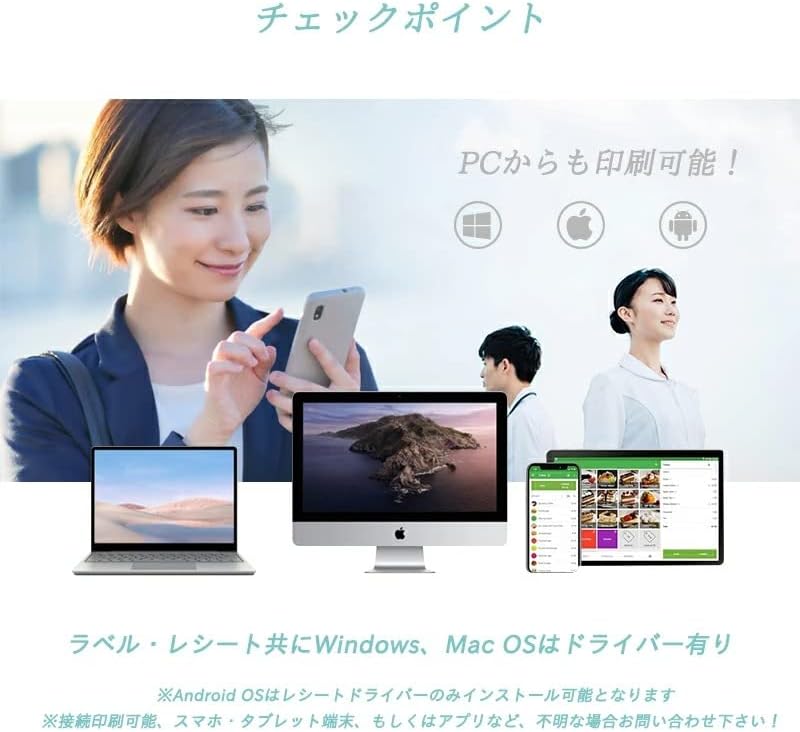
Figure 5: PC and mobile device compatibility. This image shows the printer's connectivity options, including USB for Windows and Mac OS, and Bluetooth for Android and iOS devices, emphasizing broad compatibility.
5. Operating Instructions
5.1 Accensione / spegnimentu
Mantene premutu u buttone di putenza (⏻) located on the control panel to turn the printer on or off. The display screen will illuminate upon power-on.
5.2 Cunnessu à i dispusitivi
- Bluetooth Connection (Smartphones/Tablets):
- Assicuratevi chì Bluetooth hè attivatu nantu à u vostru dispositivu mobile.
- Accende a stampante.
- Cerca available Bluetooth devices on your phone/tablet. The printer will appear as "WS-P323B" or similar.
- Pair with the printer. If prompted for a PIN, try "0000" or "1234".
- Open the compatible printing application (e.g., 4Barcode Edit, Xprinter, Loyverse) and select the printer.

Figure 6: Bluetooth connectivity for mobile devices. This image shows a person interacting with a smartphone, illustrating the wireless Bluetooth connection capability of the printer for mobile printing.
- Cunnessione USB (PC):
- Connect the USB-TYPE-C cable from the printer to your PC.
- Ensure the printer drivers are installed on your PC.
- Select the printer from your printing software or system settings.

Figure 7: Thermal head and USB port. This image provides a close-up view of the printer's thermal print head and the USB-C port, indicating its wired connectivity option.
5.3 Switching Printing Modes (Label/Receipt)
The WS-P323B can switch between label printing mode and receipt printing mode via the printer's menu.
- Preme u buttone Menu (☰) to access the main menu.
- Navigate to "Settings" then "Print settings".
- Select "Driving mode" and choose between "Hand mode (Receipt mode)" or "Label mode".
- Cunfirmà a vostra selezzione.

Figure 8: Printer buttons and menu functions. This image details the printer's control panel, showing the power, menu, and feed buttons, and explaining their functions for navigating settings like print intensity, speed, and mode switching.
5.4 Printing Applications
The printer is compatible with various applications for different printing needs:
- Stampa di l'etichetta: Ideal for food display labels, expiry dates, price tags, product management, and component display.

Figure 9: Label printing applications. This image showcases diverse scenarios where the printer can be used for label printing, including food packaging, laboratory settings, and shipping/logistics.

Figure 10: Label editing and printing app interface. This image displays screenshots of a mobile application for label editing, showing options for creating barcodes, QR codes, and customizing label content.
- Receipt Printing: Suitable for POS cash register work, delivery services, food trucks, and outside sales.
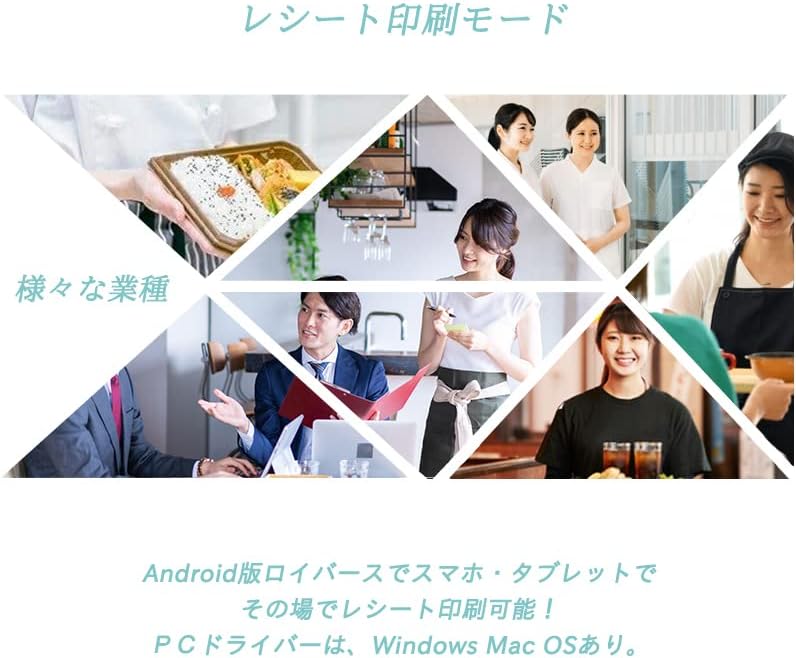
Figure 11: Receipt printing applications. This image illustrates various business environments where the printer can be used for receipt printing, such as restaurants, retail, and mobile sales.
6. Mantenimentu
6.1 Pulizia di a stampante
Regular cleaning ensures optimal performance and extends the life of your printer.
- Turn off the printer and disconnect it from power before cleaning.
- Aduprate un panno morbido e senza pelucchi leggermente dampinnaffiatu cù acqua o alcolu isopropilicu per pulisce l'esternu.
- Gently wipe the thermal print head with an alcohol swab. Allow it to dry completely before use.
- Remove any paper dust or debris from the paper path.
6.2 Cura di a batteria
- Evitate di scaricà cumpletamente a batteria spessu.
- If storing the printer for an extended period, charge the battery to about 50% and store in a cool, dry place.
- Recharge the battery every 3-6 months if not in use to prevent deep discharge.
7. Risoluzione di prublemi
| Prublemu | Causa Possibile | Soluzione |
|---|---|---|
| A stampante ùn s'accende micca. | A batteria hè bassa o scarica. | Charge the printer using the provided USB-TYPE-C cable. |
| Ùn si pò cunnette via Bluetooth. | Bluetooth is off on device; printer not in pairing mode; incorrect PIN. | Ensure Bluetooth is on. Restart printer and device. Try PIN "0000" or "1234". Check app settings. |
| Poor print quality or blank prints. | Paper loaded incorrectly; thermal head dirty; low battery; wrong paper type. | Reload paper correctly. Clean thermal head. Charge battery. Ensure thermal paper is used. |
| Stampante micca ricunnisciuta da u PC. | Drivers not installed; faulty USB cable; incorrect USB port. | Install drivers from CD or website. Try a different USB cable or port. |
| Ùn si pò cambià i modi. | Incorrect menu navigation. | Follow instructions in Section 5.3 carefully. |
Sè u prublema persiste, cuntattate l'assistenza clienti.
8. Specificazioni
| Feature | Detail |
|---|---|
| Mudellu | WS-P323B |
| Metudu di stampa | Thermal direttu |
| Larghezza di stampa | Label: 20-80 mm; Receipt: 58/80 mm |
| Paper Diameter (Roll) | Massimu 50 mm |
| Spessore di carta | 0.06 mm - 0.254 mm |
| Risoluzione | 203 DPI |
| Velocità di stampa | 70 mm/s |
| Tipu di media | Continuous paper, gap label, black mark label, receipt |
| Interfaccia | USB + Bluetooth |
| Memoria | 8 MB Flash Memory / 8 MB SDRAM |
| Processore | 32 bit CPU |
| Batteria | 2,500 mAh Lithium Ion |
| Forza di putenza | DC 5V/2A |
| Ambiente di travagliu | 0-40 ° C, 10-90% RH |
| Ambiente di almacenamiento | -40-60°C, 10-90% RH |
| Pesu | 0.237 kg (237 g) |
| Dimensioni esterne (L x W x H) | 124 x 108 x 61 mm (4.9 x 4.2 x 2.4 inch) |

Figure 12: Product dimensions diagram. This image provides a clear visual representation of the printer's length (124mm), width (108mm), and height (61mm).
9. Garanzia è Support
For warranty information and technical support, please refer to the contact details provided with your purchase documentation or visit the official Washin websitu. Conservate a vostra ricevuta di compra cum'è prova di compra.
Serviziu à i clienti: Please refer to your purchase documentation for contact information.


