Introduzione
This manual provides detailed instructions for the setup, operation, and maintenance of your Gioteck SC3 Wireless Pro Controller. Designed for use with Nintendo Switch, PC, and mobile devices, this controller features programmable back buttons, customizable RGB lighting, and changeable magnetic thumb sticks for an enhanced gaming experience.
1. Setup
1.1 Cuntenuti di u pacchettu
- Gioteck SC3 Wireless Pro Controller
- Cavu di carica USB
- Additional Magnetic Thumb Sticks (if included)
- Manuale d'uso (stu documentu)
1.2 Caricà u Controller
Before initial use, fully charge the controller. Connect the supplied USB charging cable to the controller's charging port and the other end to a USB power source (e.g., Nintendo Switch dock, PC USB port, or USB wall adapter).
- L'indicatore LED mostrarà u statu di carica.
- Una carica cumpleta dura di solitu circa 2-3 ore.
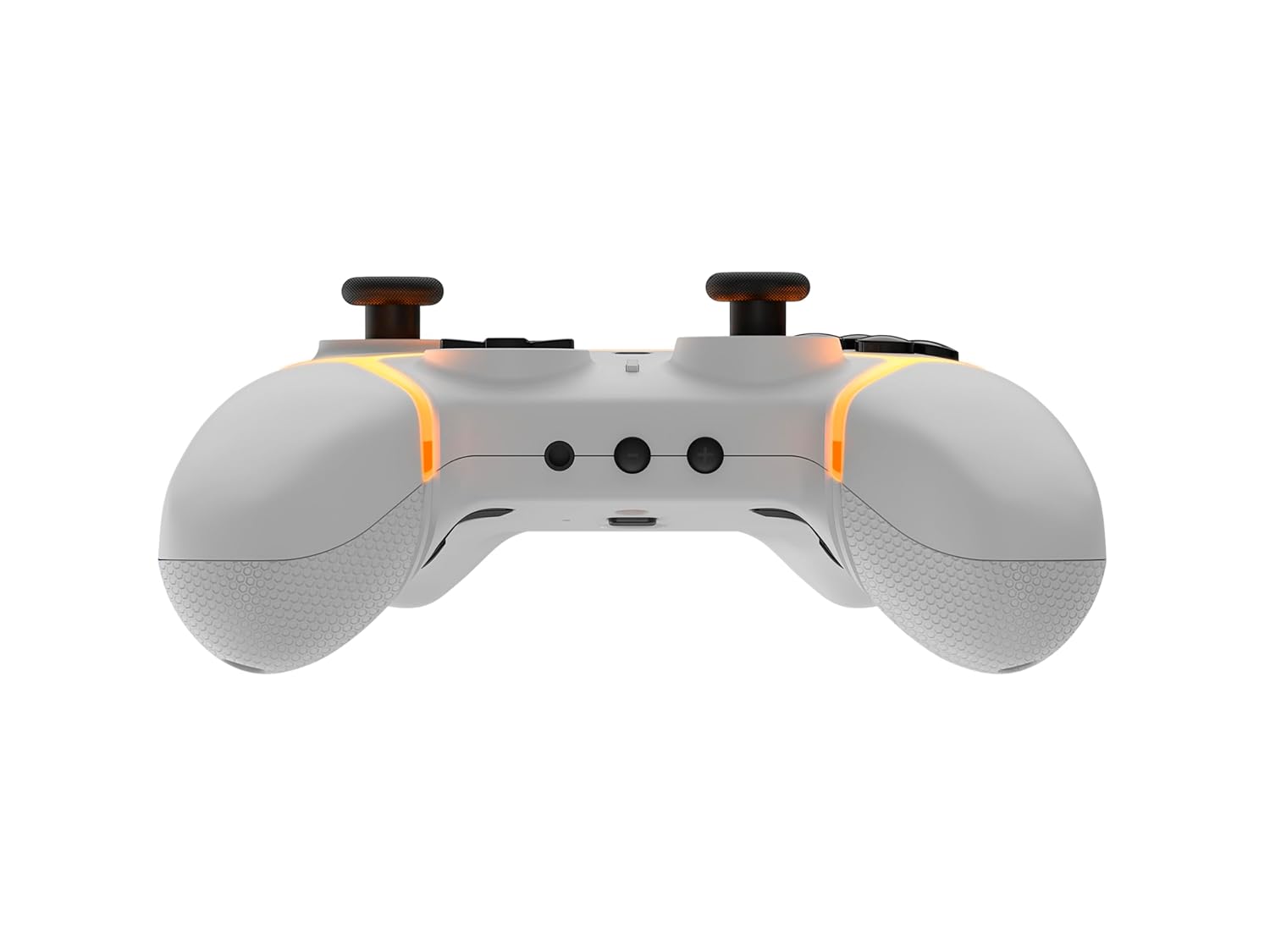
Imagine: In fondu view of the Gioteck SC3 controller, highlighting the USB-C charging port located between the two textured grips.
1.3 Accoppiamentu cù Nintendo Switch
- Da u menu HOME di Nintendo Switch, selezziunate Controllers, allora Cambia Grip / Ordine.
- On the SC3 controller, press and hold the Pulsante di accoppiamentu (usually a small button on the top or back) for a few seconds until the LED indicators begin to flash rapidly.
- Once the controller is recognized by the Switch, the player LED(s) on the controller will illuminate solid, indicating successful pairing.
- Press u Un buttone per cunfirmà.
Note: For subsequent uses, the controller should automatically reconnect to the last paired Switch console when powered on.
1.4 Connecting to PC/Mobile (Bluetooth)
- Ensure Bluetooth is enabled on your PC or mobile device.
- On the SC3 controller, press and hold the Pulsante di accoppiamentu for a few seconds until the LED indicators flash rapidly.
- On your PC/mobile device, navigate to Bluetooth settings and search for new devices.
- Select "Gioteck SC3" or similar from the list of available devices to pair.
- The controller's LED will become solid upon successful connection.
1.5 Installing Magnetic Thumb Sticks
The SC3 controller features changeable magnetic thumb sticks. To replace them:
- Gently pull the existing thumb stick straight up to remove it.
- Align the desired magnetic thumb stick with the base and gently push it down until it snaps into place.

Image: Front view of the Gioteck SC3 controller, showcasing the magnetic thumb sticks and button layout.
2. Operating Instructions
Disposizione di 2.1 buttone
The SC3 controller features a traditional button layout. Refer to the image below for button identification.

Imagine: Fronte angulata view of the Gioteck SC3 controller, displaying the full button layout including face buttons, D-pad, analog sticks, and shoulder buttons.
- Stick analogichi sinistra/destra: Per u muvimentu è u cuntrollu di a camera.
- D-Pad: Input direzionale.
- Buttoni A/B/X/Y: Buttoni d'azione.
- Buttoni L/R/ZL/ZR: Buttoni di spalla è di grilletto.
- Pulsanti +/-: Start/Select equivalents.
- Pulsante Home: Returns to the console's home menu.
- Pulsante di cattura: Face screenshots.
2.2 Pulsanti Indietro Programmabili
The SC3 controller includes programmable back buttons (M1, M2, M3, M4) for custom assignments.

Imagine: Daretu view of the Gioteck SC3 controller, clearly showing the four programmable back buttons (M1, M2, M3, M4) and textured grips.
Passi di prugrammazione:
- Appughjà è tene premutu U buttone di prugramma (refer to diagram if available, usually a small button on the back) until the LED indicator flashes.
- Press u Pulsante Back (M1, M2, M3, or M4) you wish to program. The LED will flash slowly.
- Press u Pulsante di input (e.g., A, B, X, Y, L, R, ZL, ZR, D-pad direction) you want to assign to the back button.
- Press u U buttone di prugramma again to save the assignment. The LED will stop flashing.
- Repeat for other back buttons as desired.
To clear a programmed button, follow steps 1-2, then press the Program Button again without pressing an input button.
2.3 Personalizazione di l'illuminazione RGB
The controller features customizable RGB lighting. Specific instructions for changing colors or effects are typically found in the product's quick start guide or by pressing a dedicated button combination (e.g., Function + R3).
Consult the quick start guide included with your controller for precise button combinations to adjust RGB lighting.
2.4 Cuntrolli di muvimentu
The SC3 controller supports motion controls, allowing for immersive gameplay in compatible Nintendo Switch titles. No special setup is usually required; motion controls activate automatically when supported by the game.
2.5 Audio Headset Jack
A 3.5mm audio headset jack is located on the controller for connecting compatible headsets. It includes dedicated mute and volume control buttons.
- Volume su / giù: Ajustà a surtita audio.
- Buttone Mutu: Mute/unmute microphone input.

Imagine: In cima view of the Gioteck SC3 controller, highlighting the 3.5mm audio jack, volume controls, and mute button.
3. Mantenimentu
3.1 Pulizia
Per pulisce u vostru controller, aduprate un pannu dolce è asciuttu. Per a sporcizia ostinata, asciugate leggermente.ampen the cloth with water. Avoid using harsh chemicals, abrasive cleaners, or solvents, as these can damage the controller's finish and internal components.
- Do not immerse the controller in water or any other liquid.
- Ensure all ports are dry before charging or connecting devices.
3.2 Storage
Store the controller in a cool, dry place away from direct sunlight and extreme temperatures. Avoid placing heavy objects on the controller to prevent damage.
3.3 Cura di a batteria
The controller contains a rechargeable battery. To prolong battery life:
- Evitate di scaricà cumpletamente a batteria spessu.
- Charge the controller regularly, even if not in use for extended periods (e.g., once every 3-6 months).
- Ùn espone micca u controller à temperature superiori à 60 °C (140 °F).
4. Risoluzione di prublemi
4.1 U controller ùn si cunnetta micca / ùn si accoppia micca
- Verificate a batteria: Assicuratevi chì u controller sia sufficientemente caricatu.
- Riparà: Follow the pairing instructions in Section 1.3 or 1.4.
- Interferenza: Move closer to the console/device and away from potential sources of wireless interference (e.g., Wi-Fi routers, other Bluetooth devices).
- Resettà u Controller: Locate a small reset button (often a pinhole) on the back of the controller. Use a paperclip to press and hold it for a few seconds. Then attempt to re-pair.
- Update Console/Device Software: Ensure your Nintendo Switch, PC, or mobile device's operating system is up to date.
4.2 Buttons/Sticks Not Responding
- Risincronizazione: Disconnect è ricollega u controller.
- Pulita: Assicuratevi chì ùn ci sianu detriti intornu à i buttoni o à i bastoncini.
- Test in another game/menu: Determine if the issue is specific to a game or system-wide.
- Resettà u Controller: Perform a hard reset as described above.
4.3 Motion Controls Not Working
- Cumpatibilità di u ghjocu: Verify that the game you are playing supports motion controls.
- Recalibrate: On Nintendo Switch, you can recalibrate motion controls in the system settings.
- Resettà u Controller: Eseguite un reset duru.
5. Specificazioni
| Mudellu: | Gioteck SC3 Wireless Pro Controller |
| Cumpatibilità: | Nintendo Switch (Original, Lite, OLED), PC, Mobile Devices |
| Connettività: | Bluetooth Wireless |
| Dimensioni (circa): | 2.87 x 5.35 x 6.34 inch (7.29 x 13.59 x 16.1 cm) |
| Pesu (circa): | 10.6 ounces (300 grammi) |
| Jack audio: | 3.5mm with mute and volume controls |
| Funzioni speciali: | Programmable back buttons, Magnetic thumb sticks, RGB lighting, Motion controls |
6. Garanzia infurmazione
The Gioteck SC3 Wireless Pro Controller comes with a manufacturer's warranty. For specific details regarding warranty coverage, duration, and claims process, please refer to the warranty card included with your product or visit the official Gioteck websitu.
Per piacè cunservate a vostra prova d'acquistu per scopi di garanzia.
7. Assistenza Clienti
If you encounter any issues or have questions not covered in this manual, please contact Gioteck customer support. Contact information can typically be found on the product packaging or the official Gioteck websitu.
Gioteck Official Websitu: www.gioteck.com


