1. Introduzione è Overview
The Calix GigaCenter 844E-1 is a high-performance wireless router and modem designed to provide robust and reliable internet connectivity for home and small office environments. It supports dual-band Wi-Fi (2.4GHz and 5GHz) for optimal wireless performance and includes multiple Ethernet ports for wired connections. This manual provides detailed instructions for setting up, operating, maintaining, and troubleshooting your GigaCenter 844E-1 device.
2. Caratteristiche di u produttu
- Wi-Fi à doppia banda: Supports 2.4GHz and 5GHz frequencies for flexible and high-speed wireless connections (802.11ac, 802.11n, 802.11a/g/b compatible).
- High LAN Data Rate: Capable of up to 1000 Mbps for fast wired connections.
- Porti multipli: Includes Ethernet (RJ-45) ports (4 LAN ports), USB 2.0, and RJ-11 ports for versatile connectivity.
- Integrated Modem: Functions as both a router and a modem, simplifying network setup.
- Disegnu compactu: Designed for efficient space utilization.
3. Cuntenutu di u pacchettu
Verificate chì tutti l'articuli sò presenti in u vostru pacchettu:
- Calix GigaCenter 844E-1 Wireless Router Modem
- Alimentazione di l'adattatore AC
- (Optional: Ethernet Cable, Phone Cable - may vary by package)
4. Setup Guide
Follow these steps to set up your Calix GigaCenter 844E-1:
- Posizionamentu di u dispusitivu: Place the GigaCenter 844E-1 in a central location in your home, away from obstructions and sources of interference (e.g., microwaves, cordless phones). Ensure adequate ventilation.
- Connect Power: Connect the provided AC Adapter Power Supply to the "POWER" port on the back of the GigaCenter 844E-1 and then plug the adapter into a standard electrical outlet. The Power indicator light on the front panel should illuminate.

Figura 4.1: Fronte view of the Calix GigaCenter 844E-1 showing indicator lights and the included power adapter.
- Connect to Internet Source: Connect your internet service provider's (ISP) cable or fiber optic line to the appropriate WAN/Broadband port on the GigaCenter 844E-1. This port is typically labeled "ETH-WAN" or "Broadband". The Broadband indicator light should turn solid green once a connection is established.

Figura 4.2: Side view of the GigaCenter 844E-1 highlighting the ETH-WAN, Power, and Phone ports.
- Cunnette i dispusitivi cablati (opzionale): Use standard Ethernet cables to connect computers, gaming consoles, or other network devices to the "ETHERNET 1-4" ports on the back of the GigaCenter 844E-1. The corresponding Ethernet indicator light will illuminate when a device is connected and active.

Figure 4.3: Top/back view of the GigaCenter 844E-1 displaying the USB, Reset, Ethernet (LAN), and Phone ports.
- Connect Phone Devices (Optional): If your service includes voice, connect analog phones to the "PHONE 1" or "PHONE 2" ports using RJ-11 cables.
- Cunnessione Wi-Fi iniziale:
- Locate the Wi-Fi Network Name (SSID) and Password (WPA Key) on the label usually found on the bottom or back of your GigaCenter 844E-1.
- Nant'à u vostru dispusitivu senza filu (laptop, smartphone, tablet), cercate e rete Wi-Fi dispunibili.
- Select your GigaCenter's SSID and enter the WPA Key when prompted.
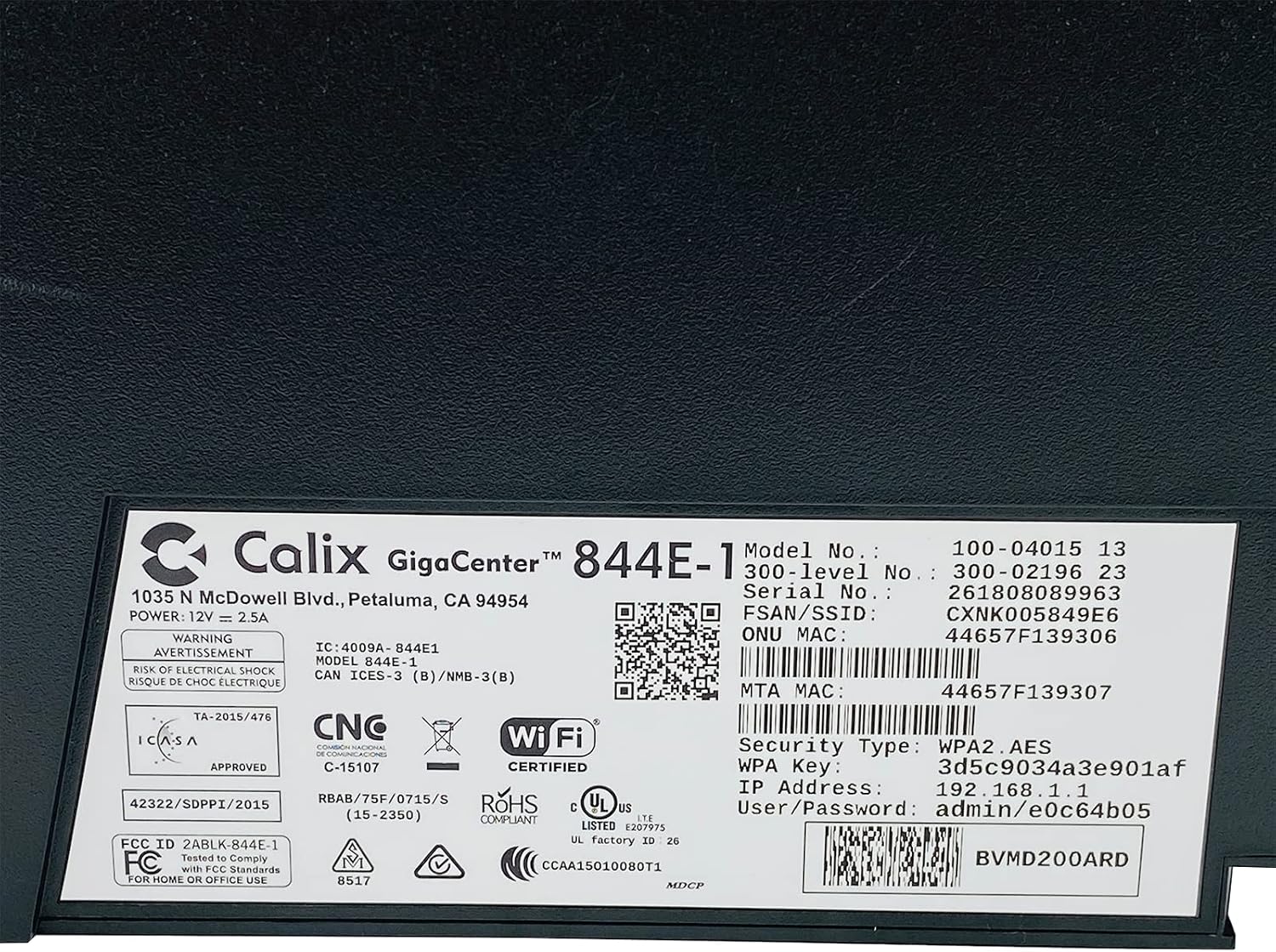
Figura 4.4: Detailed view of the bottom label, providing essential information such as model number, serial number, Wi-Fi SSID, and WPA Key for network access.
- Verificate a cunnessione: Una volta cunnessu, apre a web browser and try to access a websitu (per esempiu, www.google.com). If successful, your GigaCenter 844E-1 is set up and ready for use.
5. Operating Instructions
5.1 Indicatori luminosi
The front panel of the GigaCenter 844E-1 features several indicator lights that provide status information:
| Luce | Status | Descrizzione |
|---|---|---|
| POWER | Verde solidu | U dispusitivu hè alimentatu. |
| BANDA LARGA | Verde solidu | Internet connection is active. |
| SERVICE | Verde solidu | Service is active and provisioned. |
| 2.4 GHz WIFI | Solid Green/Flashing | 2.4 GHz Wi-Fi is active/data transfer. |
| 5 GHz WIFI | Solid Green/Flashing | 5 GHz Wi-Fi is active/data transfer. |
| ETHERNET 1-4 | Solid Green/Flashing | Wired connection active/data transfer. |
| PHONE 1-2 | Solid Green/Flashing | Phone service active/in use. |
| USB | Solid Green/Flashing | USB device connected/data transfer. |
| WPS | Flashing | Coppiu WPS in corso. |
5.2 Accessu à u Web Interfaccia
To configure advanced settings, you can access the GigaCenter's web interfaccia:
- Ensure your device is connected to the GigaCenter via Wi-Fi or Ethernet.
- apre a web browser and enter the IP Address (e.g., 192.168.1.1) found on the product label into the address bar.
- Enter the User/Password (e.g., admin/e0c64b05) from the product label when prompted.
- You can now configure settings such as Wi-Fi name, password, port forwarding, and parental controls.
6. Mantenimentu
- Pulizia: Aduprate un pannu dolce è asciuttu per pulisce l'esternu di u dispusitivu. Ùn aduprate micca detergenti liquidi o aerosoli.
- Ventilazione: Ensure the device's ventilation slots are not blocked to prevent overheating.
- Actualizazioni di firmware: Periodically check with your Internet Service Provider (ISP) for available firmware updates to ensure optimal performance and security.
- Riavvia: If you experience connectivity issues, try restarting the device by unplugging the power adapter for 10 seconds and then plugging it back in.
7. Risoluzione di prublemi
Questa sezione affronta i prublemi cumuni chì pudete scuntrà:
7.1 Nisuna cunnessione Internet
- Verificate i cavi: Ensure all cables (power, internet source, Ethernet) are securely connected.
- Indicatori luminosi: Verify that the POWER, BROADBAND, and SERVICE lights are solid green. If not, refer to Section 5.1 or contact your ISP.
- Riavvia u dispusitivu: Power cycle the GigaCenter 844E-1 by unplugging it for 10 seconds and plugging it back in.
- ISP Outage: Check with your ISP for any service outaghè in a vostra zona.
7.2 Wi-Fi Not Working or Slow
- Wi-Fi Lights: Ensure the WIFI 2.4 GHz and/or WIFI 5 GHz lights are solid green.
- Codice: Double-check that you are entering the correct Wi-Fi password (WPA Key).
- Forza di u Segnu: Move closer to the GigaCenter 844E-1 to improve signal strength.
- Interferenza: Riduce l'interferenza da altri dispositivi elettronichi.
- Ottimizazione di u Canale: Accedi à u web interface to change Wi-Fi channels if experiencing congestion.
7.3 Ùn si pò accede Web Interfaccia
- Indirizzu IP: Confirm you are using the correct IP Address (e.g., 192.168.1.1).
- Cunnessione: Ensure your device is connected to the GigaCenter's network.
- Credenziali: Verify the User/Password from the product label.
- Firewall/Antivirus: Disattivate temporaneamente qualsiasi firewall o software antivirus in u vostru urdinatore chì puderia bluccà l'accessu.
7.4 WPS Functionality
The WPS (Wi-Fi Protected Setup) button allows for easy connection of WPS-compatible devices without manually entering the password. Press the WPS button on the GigaCenter 844E-1 and then activate WPS on your client device within two minutes. The WPS light will flash during the pairing process.
8. Specificazioni
| Feature | Detail |
|---|---|
| Mudellu | GigaCenter 844E-1 (100-04015 13) |
| Marca | Calix |
| Tecnulugia di cunnessione | Wireless-Wi-Fi 802.11ac, Ethernet (RJ-45) Hub/Switch, 5G |
| Standards wireless | 802.11ac, 802.11n, 802.11a/g/b |
| Classe di banda di frequenza | Doppia banda (2.4 GHz, 5 GHz) |
| Maximum LAN Data Rate | 1000 Mbps |
| Porti | 4 x Ethernet (RJ-45), 1 x USB 2.0, 2 x RJ-11 (Phone) |
| Dispositivi compatibles | Personal Computer, Network Devices |
| Usu cunsigliatu | A casa |
| Cumpunenti inclusi | Alimentazione elettrica |
| Pesu di l'articulu | 3 liri |
9. Informazioni di sicurezza
- Ùn espone micca u dispusitivu à l'acqua o l'umidità.
- Ùn aprite micca l'apparecchiu casing. Affidate tutta a manutenzione à persunale qualificatu.
- Aduprate solu l'adattatore di alimentazione furnitu.
- Mantene u dispusitivu luntanu da fonti di calore è u sole direttu.
- Assicuratevi una ventilazione curretta per prevene u surriscaldamentu.
10. Garanzia è Support
For warranty information and technical support, please contact your Internet Service Provider (ISP) or the vendor from whom you purchased this device. The Calix GigaCenter 844E-1 is typically provided and supported by your ISP as part of your internet service package.
For general inquiries or to find more information about Calix products, you may visit the official Calix website (if available, search online for "Calix official website").


