1. Introduzione
This manual provides detailed instructions for the setup, operation, maintenance, and troubleshooting of your Steelplay Adventure Controller for Nintendo Switch. Please read this manual thoroughly before using the product to ensure optimal performance and longevity.
2. Cuntenutu di u pacchettu
- Steelplay Adventure Controller
- Cavu di carica USB
- Manuale d'uso (stu documentu)
3. Disposizione di u cuntrollore
Familiarize yourself with the buttons and features of your Steelplay Adventure Controller.

Figura 1: Fronte view of the Steelplay Adventure Controller. This image displays the controller's ergonomic design, featuring a teal main body, brown grips, and yellow accents on the analog sticks, D-pad, and face buttons. The layout includes two clickable analog sticks, a directional pad, A/B/X/Y action buttons, Home, Capture, Plus, Minus, and Turbo buttons.
- Stick analogicu sinistro: Per u muvimentu è u cuntrollu di a camera.
- Stick analogicu drittu: For camera control or specific in-game actions.
- D-Pad: Input direzionale.
- Buttoni A/B/X/Y: Buttoni d'azione.
- Buttoni L/R: Buttoni di spalla.
- Buttoni ZL/ZR: Buttoni di scattu.
- Pulsante HOME: Ritorna à u menu HOME di Nintendo Switch.
- CAPTURE Button: Piglia screenshots o videoclip.
- Buttone + (Più): Start / Pause buttone.
- - Buttone (Menu): Sceglie u buttone.
- Pulsante TURBO: For setting rapid-fire functionality (refer to operating section).
- Indicatori LED: Display connection status, player number, and charging status.
4. Setup è Connection
4.1 Carica iniziale
Before first use, fully charge the controller. Connect the USB charging cable to the controller's charging port and the other end to a USB power source (e.g., Nintendo Switch dock, USB wall adapter, computer USB port). The LED indicators will show charging status and turn off or change color when fully charged.
4.2 Accoppiamentu cù Nintendo Switch
- On your Nintendo Switch HOME Menu, select "Controllers".
- Select "Change Grip/Order".
- On the Steelplay Adventure Controller, press and hold the buttone HOME è u Buttone Y simultaneously for a few seconds until the LED indicators start flashing rapidly. This indicates the controller is in pairing mode.
- The Nintendo Switch will detect the controller. Once detected, the LED indicators on the controller will stop flashing and remain solid, indicating a successful connection.
- Press the L+R buttons on the controller as prompted by the Switch screen to finalize the connection.
Once paired, the controller will automatically connect to your Nintendo Switch when powered on and within range.
5. Funziunamentu di u Cuntrollore
5.1 Cuntrolli basi
The Steelplay Adventure Controller functions similarly to official Nintendo Switch Pro Controllers. Use the analog sticks for movement, D-pad for directional input, and A/B/X/Y buttons for in-game actions. The L/R and ZL/ZR buttons provide additional input options.
5.2 Cuntrollu di u muvimentu
The controller supports motion control functionality, allowing for immersive gameplay in compatible titles. Ensure your Nintendo Switch system software is up to date for optimal motion control performance.
5.3 Funzione TURBO
The TURBO function allows a button to be pressed repeatedly as long as it is held down, providing a rapid-fire effect.
- Per attivà TURBO: Appughjà è tene premutu buttone TURBO, then press the desired action button (e.g., A, B, X, Y, L, R, ZL, ZR). The button will now have TURBO functionality.
- Per disattivà TURBO: Appughjà è tene premutu buttone TURBO again, then press the same action button. The TURBO function for that button will be turned off.
6. Mantenimentu
6.1 Pulizia
Per pulisce u vostru controller, aduprate un pannu dolce è asciuttu. Per a sporcizia ostinata, asciugate leggermente.ampen the cloth with water and gently wipe the surface. Do not use harsh chemicals, solvents, or abrasive cleaners, as these can damage the controller's finish and internal components.
6.2 Storage
Store the controller in a cool, dry place away from direct sunlight, extreme temperatures, and high humidity. Avoid placing heavy objects on the controller to prevent damage to the buttons or casing.
6.3 Cura di a batteria
The controller contains a built-in Lithium-ion battery. To prolong battery life, avoid fully discharging the battery frequently. If storing the controller for an extended period, charge it to approximately 50% capacity every few months.
7. Risoluzione di prublemi
| Prublemu | Causa Possibile | Soluzione |
|---|---|---|
| Controller does not connect to Switch. |
|
|
| Input lag or unresponsive buttons. |
|
|
| U controller ùn si carica micca. |
|
|
8. Specificazioni
| Feature | Detail |
|---|---|
| Marca | Steelplay |
| Numero di mudellu | 3760352735322 |
| Connettività | Bluetooth (sans fil) |
| Dispositivi compatibles | Nintendo Switch |
| Culore | Multicolore (Teal, Brown, Yellow) |
| Funzioni spiciali | Wireless, Motion Control, TURBO Function |
| Pesu | 185 grammi |
| Dimensioni (L x W x H) | 16 x 11.5 x 6.3 centimetri |
| Tipu di batterie | 1 Lithium-ion (built-in) |
9. Garanzia è Support
The product packaging indicates a 5-year warranty. For specific warranty terms, conditions, and support inquiries, please refer to the official Steelplay websitu o cuntattate direttamente u so serviziu clienti. Conservate a vostra prova d'acquistu per e richieste di garanzia.
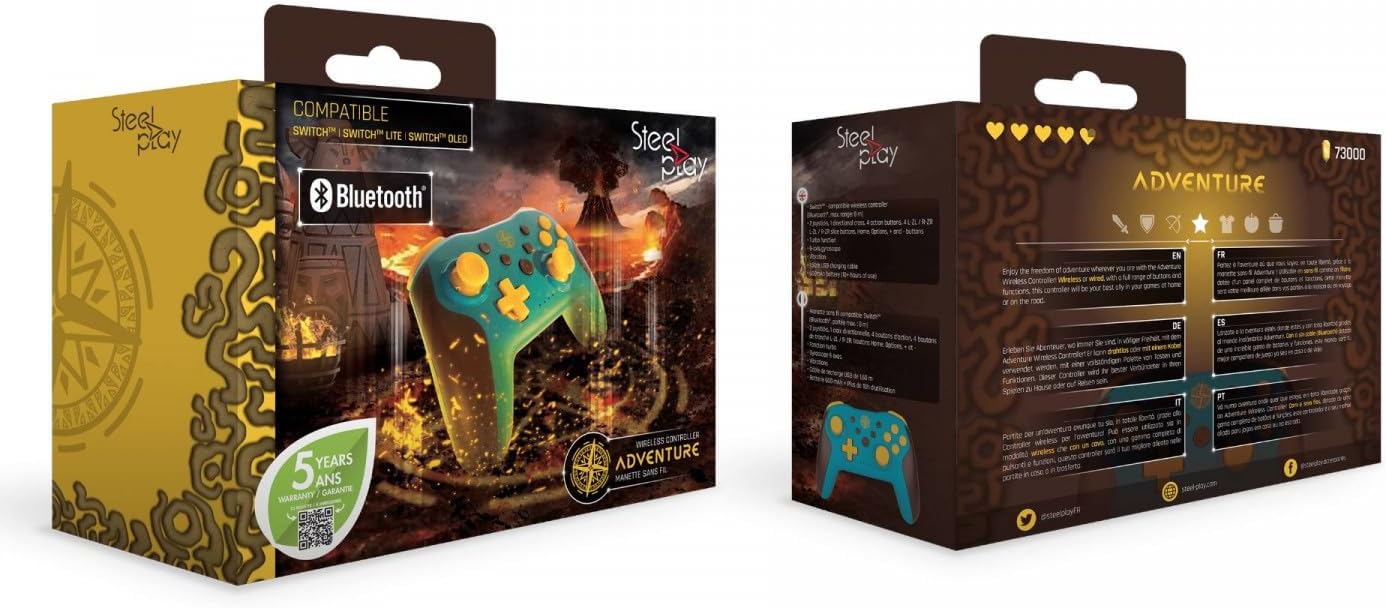
Figura 2: Packaging of the Steelplay Adventure Controller. The box prominently features the controller's design, compatibility with various Nintendo Switch models, Bluetooth logo, and a "5 years warranty" seal. The reverse side provides product information in multiple languages.


