Introduzione
Stu manuale furnisce struzzioni dettagliate per a cunfigurazione, l'usu, a manutenzione è a risoluzione di i prublemi di a vostra Macchina per Etichettà Adesivi Wireless Portatile Makeid L1. Leghjite attentamente stu manuale prima di utilizà u dispusitivu per assicurà u funziunamentu currettu è a longevità.
Chì ci hè in u Box
Verificate chì tutti i cumpunenti sò presenti in u pacchettu:
- Macchina per etichettare Makeid L1
- Rotulu di 4 metri di nastro adesivo per etichette
- Cavu di carica USB
- Manuale d'uso (stu documentu)
Product Overview
Familiarizatevi cù i cumpunenti chjave di a vostra etichettatrice Makeid L1.

Image: Overview di l'etichettatrice Makeid L1, chì mette in risaltu u buttone di accensione, u coperchio per a sustituzione di u nastro è u taglierinu integratu per etichette nitide.
- Pulsante di putenza: Situatu à u latu, adupratu per accende / spegne l'apparechju.
- Coperchio: Si apre per accede à u compartimentu di u nastro per carica è rimpiazzà i rotuli di etichette.
- Cutter integratu: Assicura tagli netti è precisi di etichette stampate.
- Slot di uscita di l'etichetta: Induve emergenu l'etichette stampate.
- Portu di carica: Porta USB per ricaricà u dispusitivu.
Istituisci
1. Charging u dispusitivu
Prima di u primu usu, assicuratevi chì l'etichettatrice sia cumpletamente carica. Cunnette u cavu di carica USB furnitu à u portu di carica di u dispusitivu è à una fonte d'alimentazione USB cumpatibile (per esempiu, u portu USB di l'urdinatore, l'adattatore murale USB). A luce indicatrice mostrerà u statu di carica (riferitevi à l'indicatori luminosi specifichi di u dispusitivu per u statu di carica cumpleta/completa).
2. Caricamentu di u nastro per etichette
U Makeid L1 supporta diverse larghezze di nastro per etichette (9 mm, 12 mm, 16 mm) è tipi (cuntinuu, fustellatu, trasparente, biancu, culuritu, à mudellu). Assicuratevi chì u nastro sia orientatu currettamente.
- Aprite u coperchio di l'etichettatrice.
- Inserite u rotulu di etichette in u compartimentu, assicurendu chì a cinta esce da u fondu è attraversu a fessura di uscita.
- Chiude a tapa in modu sicuru.
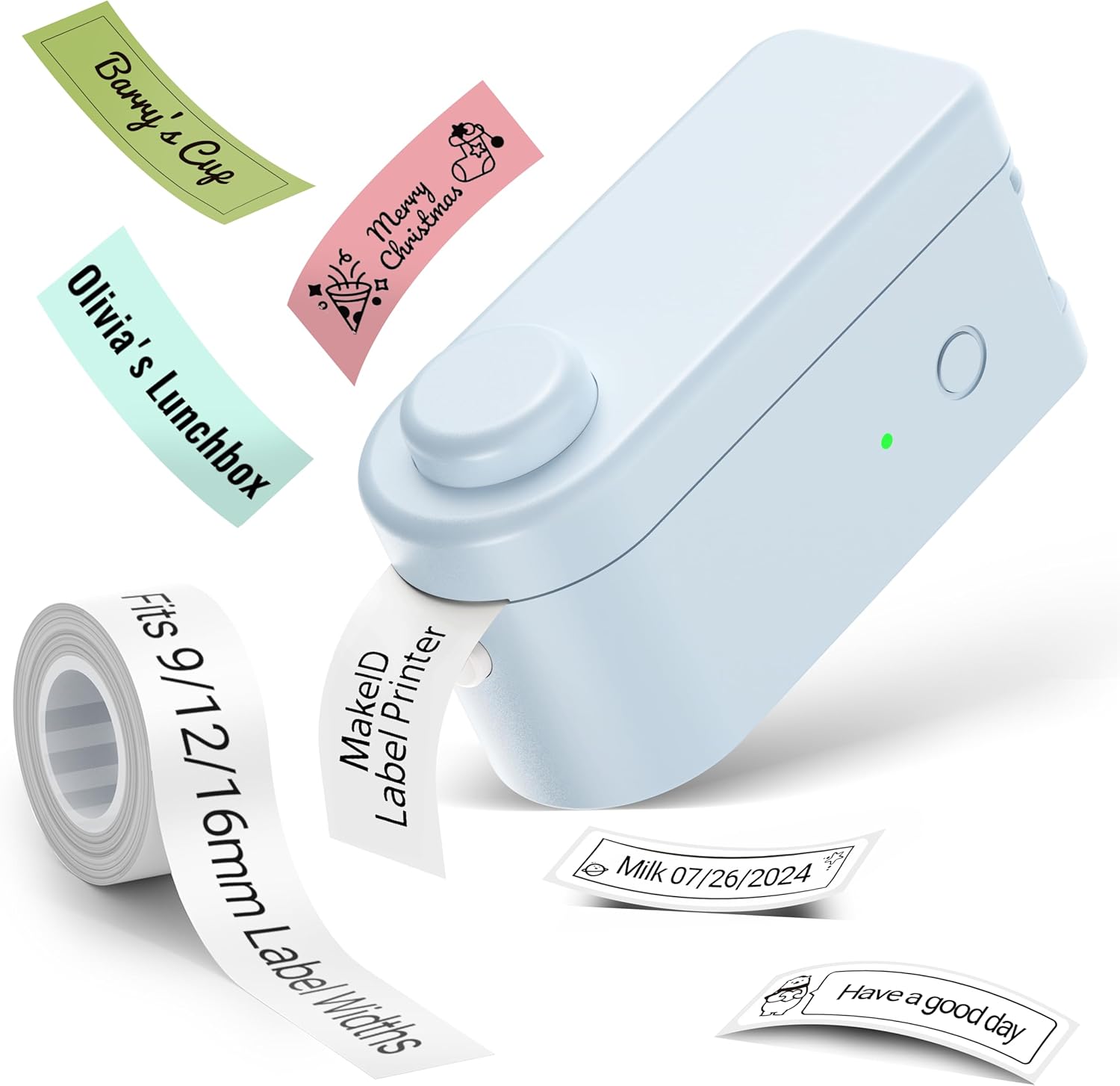
Image: L'etichettatrice Makeid L1 chì dimostra u rotulu di nastro per etichette è l'esempiu.amplezioni di etichette stampate, cumpresi i tipi continui è fustellati.
3. Scaricamentu è installazione di l'applicazione
U Makeid L1 funziona via una applicazione mobile dedicata. Cerca "MakeID-Life" nant'à l'app store di u vostru dispusitivu.

Image: Screenshots chì mostranu i buttoni "Scaricatelu da Google Play" è "Scaricatelu da l'App Store", chì indicanu induve truvà l'applicazione MakeID-Life.
4. Abbinamentu Bluetooth
L'etichettatrice si cunnetta à u vostru smartphone via Bluetooth.
- Assicuratevi chì Bluetooth hè attivatu nantu à u vostru smartphone.
- Accendete l'etichettatrice Makeid L1 appughjendu u buttone d'accensione. A luce indicatrice lampeggerà, indicendu ch'ella hè pronta per l'accoppiamentu.
- Aprite l'applicazione "MakeID-Life". L'applicazione cercherà automaticamente i dispositivi vicini.
- Selezziunate "L1" da a lista di i dispusitivi dispunibili da cunnette. Una volta cunnessu, a luce indicatrice nantu à l'etichettatrice diventerà fissa.

Image: Una guida visuale chì mostra i trè passi per a cunnessione Bluetooth: attivà u Bluetooth, selezziunà u mudellu L1 in l'app è cunfirmà a cunnessione di u dispusitivu.
Istruzzioni di funziunamentu
1. Cuncepisce a vostra etichetta
L'app "MakeID-Life" offre numerose opzioni di persunalizazione:
- Input di Testu: Scrivite u testu desideratu.
- Fonts: Sceglite trà 88 stili di caratteri diversi.
- Icone è Simbuli: Accessu à più di 600 icone è diversi simboli.
- Modelli: Aduprate più di 400 mudelli predefiniti per diversi scopi (per esempiu, cucina, ufficiu, scola).
- Bordi è Cornici: Aghjunghje bordi decorativi.
- Altre funzioni: Crea codici à barre, codici QR, tabelle, date è mudelli.
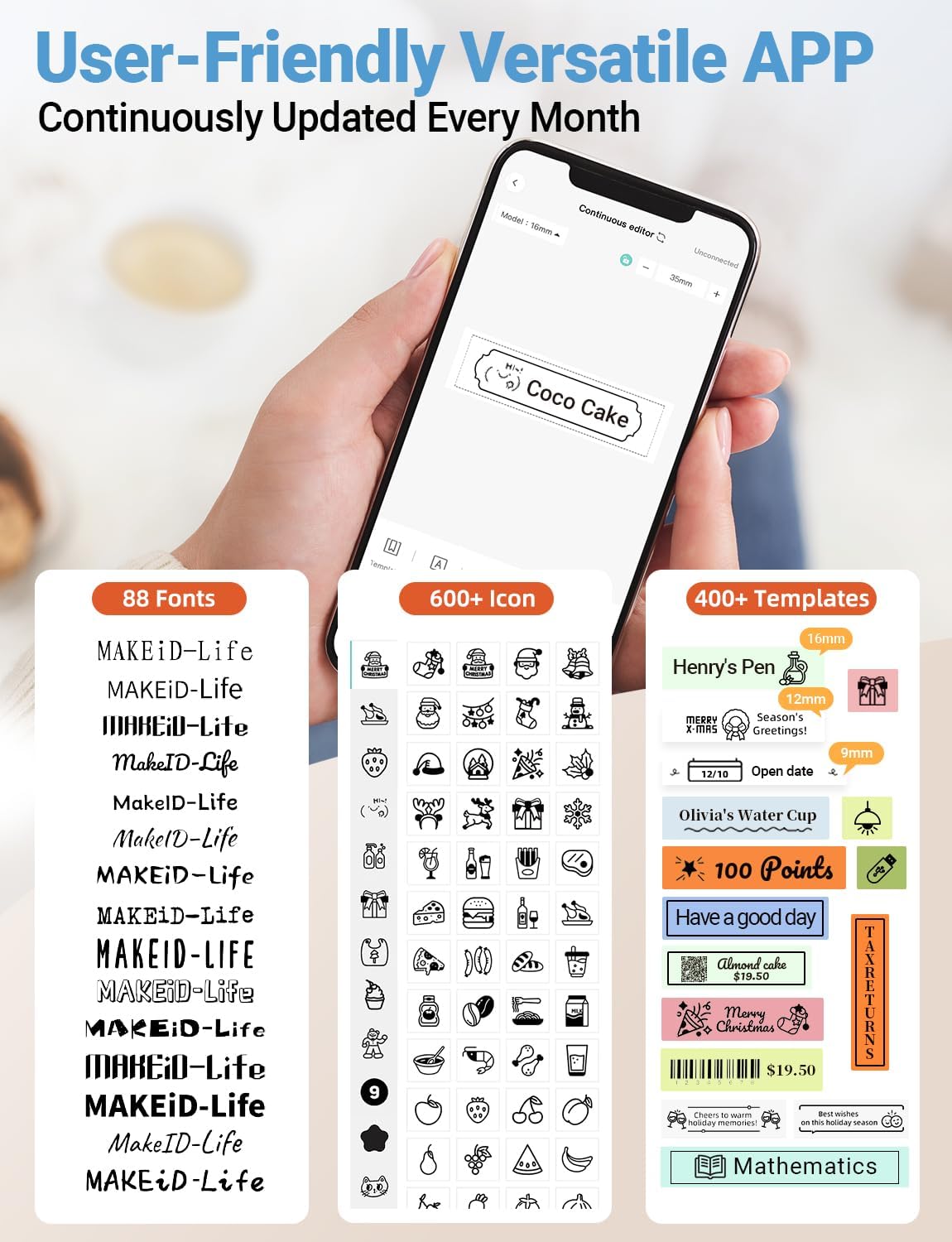
Image: Un detallatu view di l'interfaccia di l'applicazione MakeID-Life, mostraasina vasta selezzione di 88 caratteri, più di 600 icone è più di 400 mudelli dispunibili per a persunalizazione di l'etichette.
2. Printing Labels
Una volta chì u vostru disignu hè cumpletu in l'app:
- Review u vostru disignu di etichetta nantu à u screnu di l'app.
- Toccate u buttone "Stampa" in l'app.
- L'etichetta serà stampata termicamente è escerà da a fessura di uscita.
3. Taglià l'etichette
U Makeid L1 hà una taglierina integrata per bordi puliti.
- Dopu a stampa, tirate delicatamente l'etichetta in avanti.
- Appughjà u buttone di tagliu (vede u pruduttu Over)view imagine per a situazione) per taglià l'etichetta in modu nettu.

Image: Illustrazione di u taglierinu integratu di a Makeid L1, chì mostra cumu furnisce un tagliu prufessiunale è sicuru di l'etichette, eliminendu i bordi strappati è disordinati.
4. Tipi di stampa di etichette
L'L1 supporta dui tipi principali di stampa di etichette:
- Etichette continue: Ideale per lunghezze persunalizate, chì vi permette di stampà testu di qualsiasi lunghezza è di tagliallu precisamente.
- Etichette fustellate: Etichette predimensionate cù forme specifiche, perfette per l'etichettatura uniforme di articuli cum'è vasetti o files.

Image: Rappresentazione visuale di etichette continue, chì ponu esse tagliate à qualsiasi lunghezza, è etichette fustellate, chì sò preformate per applicazioni specifiche.
Mantenimentu
Pulizia di a Testa di Stampa
Per assicurà una qualità di stampa ottimale, pulite periodicamente a testina di stampa termica.
- Spegne l'etichettatrice è scollegala da a fonte di alimentazione.
- Aprite u coperchio è cacciate u nastro adesivo.
- Asciugate delicatamente a testa di stampa cù un pannu dolce è senza peluampImbulighjatu cù alcolu isopropilicu. Ùn aduprate micca acqua o detergenti abrasivi.
- Lasciate asciugà cumpletamente a testa di stampa prima di rimette u nastro è chjude u coperchio.
Storage
Conservate l'etichettatrice in un locu frescu è asciuttu, luntanu da a luce diretta di u sole è da temperature estreme. Eliminate u nastro adesivo per l'etichetta se a conservate per periodi prolungati.
Risoluzione di prublemi
Vede a tavula quì sottu per i prublemi cumuni è e so suluzioni.
| Prublemu | Causa Possibile | Soluzione |
|---|---|---|
| U dispositivu ùn accende micca. | Batteria bassa. | Caricà u dispusitivu cù u cavu USB furnitu. |
| Ùn si pò cunnette via Bluetooth. | U Bluetooth hè disattivatu nant'à u telefunu; u dispusitivu ùn hè micca in modu d'accoppiamentu; prublema cù l'app. | Assicuratevi chì u Bluetooth sia attivatu nant'à u vostru telefunu. Spegnete è riaccendete l'etichettatrice per rientre in a modalità di accoppiamentu. Riavvia l'applicazione "MakeID-Life". |
| Scarsa qualità di stampa / Stampe sbiadite. | Testa di stampa sporca; nastro di etichetta sbagliatu; batteria bassa. | Pulite a testa di stampa. Assicuratevi di utilizà un nastro termicu cumpatibile cù Makeid. Caricate u dispusitivu. |
| U nastro di l'etichette ùn si alimenta micca. | Nastro caricatu in modu incorrectu; nastro inceppatu. | Aprite u coperchio è inserite di novu u nastro adesivo currettamente, assicurenduvi chì ùn sia micca inceppatu. |
| L'etichette ùn si taglianu micca bè. | Lama di taglierina smussata o ostruita. | Assicuratevi chì ùn ci sianu detriti chì ostruiscenu u taglierinu. Se i prublemi persistenu, cuntattate l'assistenza clienti. |
Specificazioni
Specifiche tecniche dettagliate per a macchina per etichettare Makeid L1:
| Feature | Detail |
|---|---|
| Marca | Makeid |
| Nome di mudellu | L1 |
| Tecnulugia di cunnessione | Bluetooth |
| Tecnulugia di stampa | termale |
| Output Printer | Monocromu |
| Risoluzione | 203 x 203 DPI (ancu 300 x 300 DPI per altre varianti) |
| Dimensione massima di i media | 0.63 inches (16 mm) |
| Dispositivi compatibles | Smartphones (Android è iOS) |
| Metudu di cuntrollu | App |
| Interfaccia Hardware | USB |
| Fonte d'energia | 1 Batteria Lithium Ion (inclusa) |
| Dimensioni di u produttu | 3.93"P x 1.6"L x 1.96"A (10 x 4.06 x 4.98 cm) |
| Pesu di l'articulu | 4.4 once (126 grammi) |
| Funzioni spiciali | Nastri per etichette continui è pretagliati, impermeabili, resistenti à l'oliu, resistenti à l'attritu, resistenti à a luce, senza sbiadimentu, cù caratteri ricchi è motivi d'icone, portatili, senza inchiostru, senza fili, ricaricabili, funzioni di stampa creativa (codice à barre, testu, immagine, codice QR 2D, tabella, data, bordu, icona, forma, motivu, mudellu) |
Garanzia è Supportu
L'etichettatrice Makeid L1 vene cun un Garanzia à vitaPer assistenza tecnica, reclami di garanzia o ulteriore assistenza, cuntattate u serviziu clienti Makeid per mezu di u situ ufficiale Makeid. websitu o l'infurmazioni di cuntattu furnite in l'imballu di u vostru pruduttu.
Per risorse supplementari è FAQ, visitate u Negoziu Makeid nant'à Amazon.
Informazioni di sicurezza
- Ùn disassemble o tentativu di riparà u dispusitivu sè stessu.
- Mantene u dispusitivu luntanu da l'acqua è alta umidità.
- Aduprate solu nastri adesivi è cavi di ricarica originali o certificati cumpatibili.
- Mantene fora di a portata di i zitelli.
- Évitez d'exposer l'appareil à des températures extrêmes ou à la lumière directe du soleil.


