1. Setup
1.1 Disimballaggio è ispezione iniziale
Eliminate cù cura tutti i cumpunenti da l'imballu. Verificate chì tutti l'articuli sò presenti:
- Tastiera ergonomica wireless Logitech Wave Keys
- Logitech Lift Vertical Wireless Mouse
- Ricevitore USB Logi Bolt
- AA Battery (pre-installed in mouse)
- AAA Batteries (pre-installed in keyboard)
1.2 Installazione di batterie
The keyboard and mouse come with pre-installed batteries. If replacement is needed:
- For Wave Keys Keyboard: Open the battery compartment on the underside of the keyboard. Insert two AAA batteries, ensuring correct polarity. Close the compartment.
- For Lift Vertical Mouse: Open the battery compartment on the underside of the mouse. Insert one AA battery, ensuring correct polarity. Close the compartment.
Detailed diagram illustrating the features of the Logitech Lift Vertical Mouse, including its battery compartment and multi-OS compatibility.
1.3 Cunnessione di i vostri dispositivi
Your devices can connect via Bluetooth or the Logi Bolt USB receiver.
1.3.1 Cunnessione Bluetooth
- Accendete a tastiera è u mouse aduprendu i so rispettivi interruttori di alimentazione.
- Press and hold one of the Easy-Switch buttons (1, 2, or 3) on the keyboard or mouse until the LED indicator blinks rapidly, indicating pairing mode.
- On your computer or device, navigate to Bluetooth settings and select "Logitech Wave Keys" or "Logitech Lift" from the list of available devices.
- Follow any on-screen prompts to complete the pairing process. The LED will glow solid for 5 seconds when connected.
1.3.2 Logi Bolt Receiver Connection
- Cunnette u ricevitore USB Logi Bolt à una porta USB dispunibile di u vostru urdinatore.
- Turn on the keyboard and mouse. They should automatically connect to the receiver. If not, press an Easy-Switch button on the device to select an available channel (e.g., 1) and ensure the receiver is detected.
- For initial pairing with the receiver, you may need to use the Logi Options+ App to add the device.

Diagram highlighting multi-OS connectivity options for the Logitech Wave Keys keyboard, compatible with Windows, macOS, iPadOS, and iOS.
1.4 Installing Logi Options+ App
For full customization and advanced features, download and install the Logi Options+ App:
- Visit the official Logitech websitu (logitech.com/optionsplus) nant'à u vostru urdinatore.
- Download the Logi Options+ App compatible with your operating system (Windows or macOS).
- Segui l'istruzzioni nantu à u screnu per installà l'applicazione.
- Once installed, open the app to detect and customize your Wave Keys keyboard and Lift Vertical Mouse.

A user customizing their workflow using the Logi Options+ App with the Logitech Wave Keys keyboard and Lift Vertical Mouse.
2. Operazione
2.1 Usu di a tastiera
2.1.1 Ergonomic Typing Position
The Wave Keys keyboard is designed for comfort:
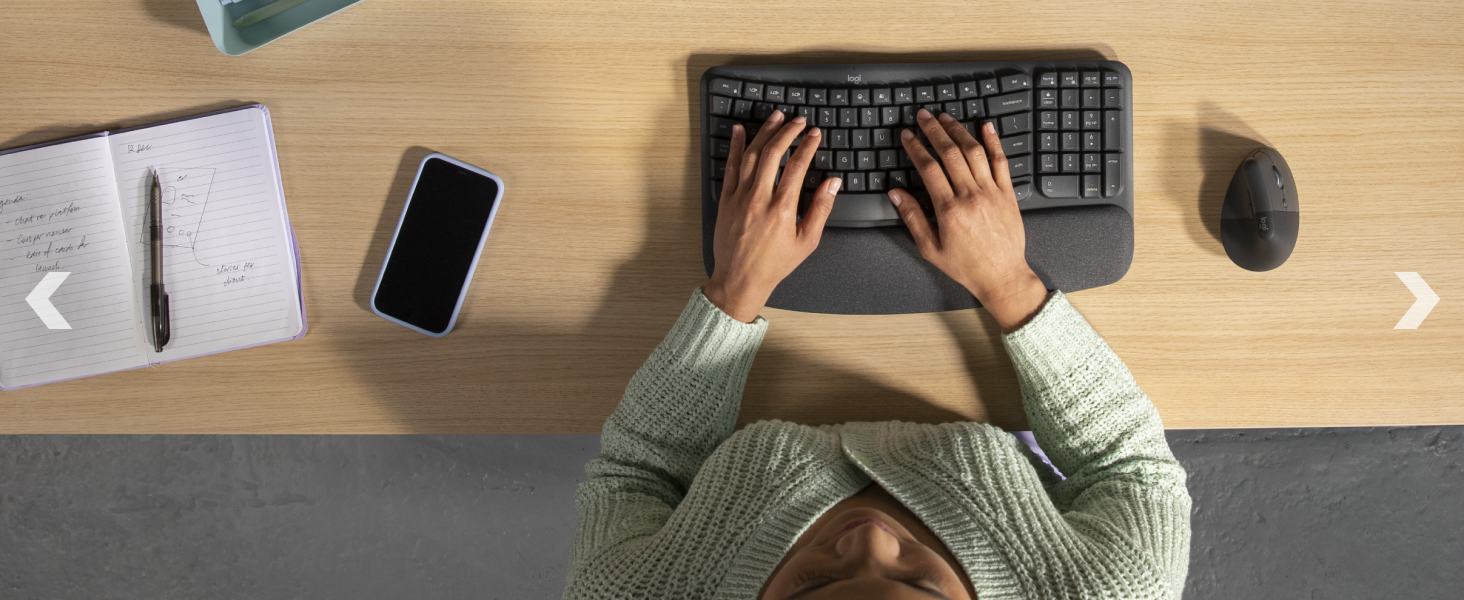
- Position your hands naturally on the wavy keyframe.
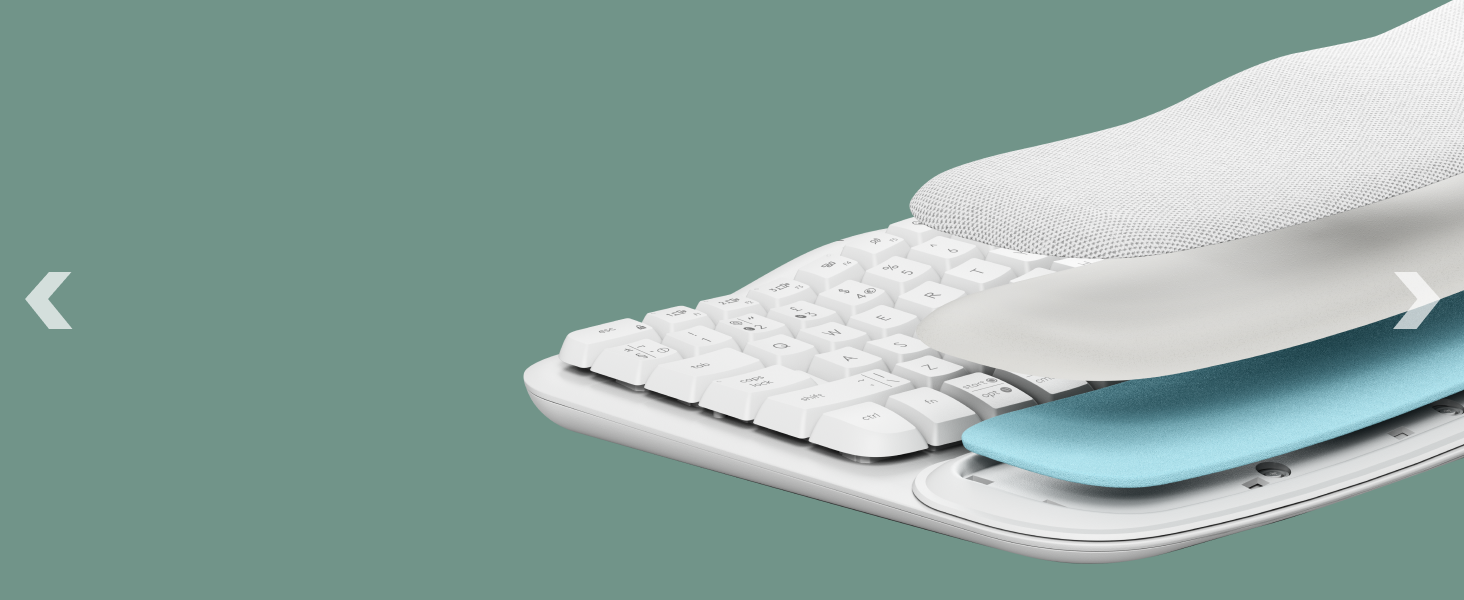
- Utilize the integrated cushioned palm rest to support your wrists, keeping them straight and relaxed.
- Adjust the tilt legs (+4°) on the underside of the keyboard for your preferred typing angle.
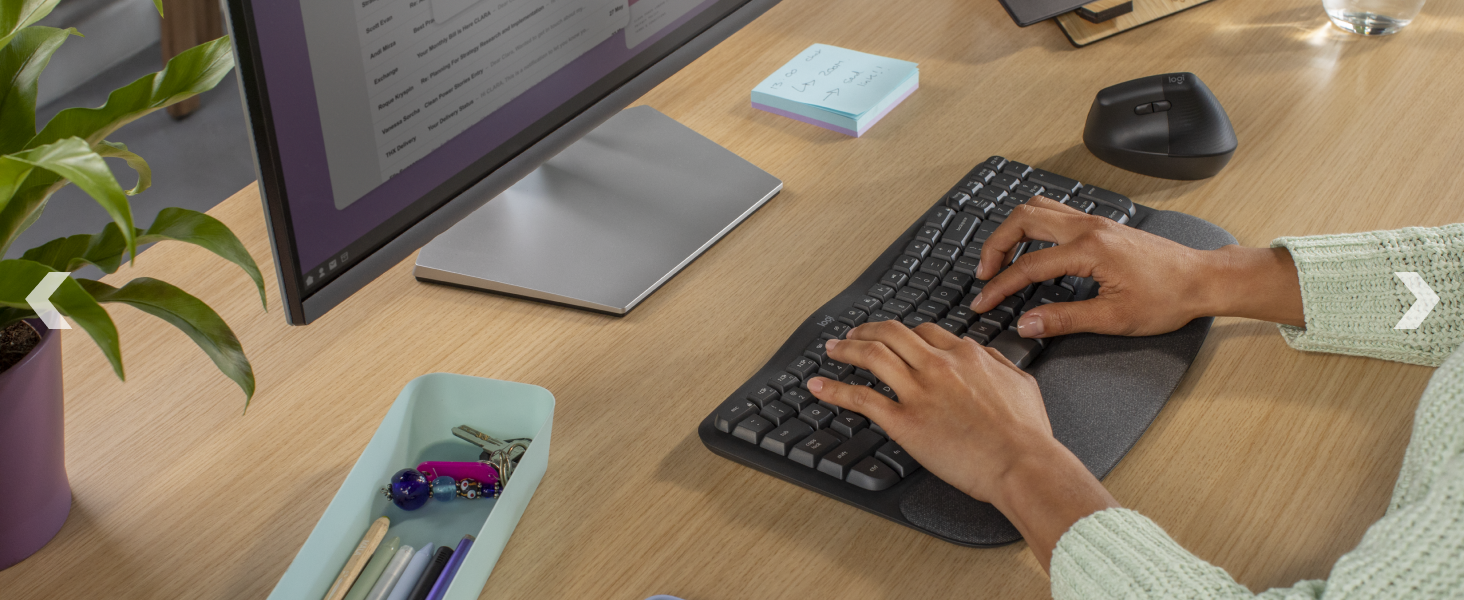
Hands comfortably positioned on the Logitech Wave Keys keyboard, demonstrating the ergonomic design with palm rest support.
2.1.2 Function Keys and Customization
- The top row of keys includes media controls and function keys (F1-F12).
- Use the Logi Options+ App to customize these keys and assign shortcuts for specific applications or actions.
2.2 Usu di u mouse
2.2.1 Ergonomic Grip
The Lift Vertical Mouse promotes a natural handshake position:
- Place your hand on the mouse so your palm rests comfortably on its vertical body.
- The 57-degree vertical angle helps reduce wrist pressure and promotes a more natural forearm posture.
- The textured grip and snug thumb rest are designed for small to medium hands.
A hand holding the Logitech Lift Vertical Mouse, demonstrating the natural handshake position facilitated by its vertical design.
2.2.2 SmartWheel and Customizable Buttons
- The SmartWheel offers precise line-by-line scrolling and switches to super-fast free-spin mode for long documents.
- The mouse features quiet clicks for a focused work environment.
- Utilize the Logi Options+ App to customize the side buttons for various functions, such as back/forward navigation or application-specific shortcuts.
2.3 Easy-Switch Functionality
Both the Wave Keys keyboard and Lift Vertical Mouse support Easy-Switch, allowing you to connect to and switch between up to three devices:
- Pair your devices with up to three different computers or operating systems using the Easy-Switch buttons (1, 2, 3).
- To switch between connected devices, simply press the corresponding Easy-Switch button on the keyboard or mouse. The LED indicator will light up for the selected channel.
3. Mantenimentu
3.1 Pulizia
To maintain your devices, follow these cleaning guidelines:
- Turn off the keyboard and mouse before cleaning.
- Aduprate un panno morbido e senza pelucchi leggermente damppulitu cù acqua o un detergente dolce è micca abrasivu.
- Evitate di spruzzà liquidi direttamente nantu à i dispusitivi.
- For keyboard keys, use compressed air to remove debris from between the keys.
3.2 Sustituzione di batterie
Replace batteries when the low battery indicator appears or performance degrades:
- Tastiera: Replace with two AAA batteries. The keyboard offers up to 3 years of battery life.
- Mouse: Replace with one AA battery. The mouse offers up to 2 years of battery life.
- Eliminate e batterie usate secondu a regulazione lucali.
4. Risoluzione di prublemi
4.1 Prublemi di cunnessione
- U dispusitivu ùn si cunnetta micca: Ensure the keyboard and mouse are turned on and fully charged or have fresh batteries. Verify that the correct Easy-Switch channel is selected.
- Fallimentu di l'accoppiamentu Bluetooth: Make sure your device's Bluetooth is enabled and the keyboard/mouse is in pairing mode (blinking LED). Try removing the device from your computer's Bluetooth list and re-pairing.
- Logi Bolt receiver issues: Ensure the receiver is securely plugged into a working USB port. Try a different USB port. Use the Logi Options+ App to re-pair the devices with the receiver if necessary.
- Interferenza: Move the devices closer to your computer or receiver. Avoid placing them near other wireless devices or large metal objects that might cause interference.
4.2 Mouse Tracking Irregularities
- Sporadic tracking or cursor disappearance (especially on Windows PC): Ensure your operating system (e.g., Windows 11) and Logitech drivers are up to date. Check for any conflicting software or background processes. Try restarting your computer.
- Unresponsive cursor: Clean the mouse sensor on the underside of the mouse. Ensure you are using the mouse on a suitable surface; reflective or uneven surfaces can affect tracking.
4.3 U dispusitivu ùn risponde micca
- Check batteries: Rimpiazzà e batterie s'elle sò basse o esaurite.
- Ciclu di putenza: Spegne u dispusitivu è poi accendelu di novu.
- Re-establish connection: Follow the connection steps in Section 1.3.
4.4 Logi Options+ App Issues
- App not detecting devices: Ensure devices are connected and turned on. Restart the Logi Options+ App and your computer.
- Personalizazioni chì ùn s'applicanu micca: Ensure the app is running in the background. Check for app updates.
5. Specificazioni
| Feature | Detail |
|---|---|
| Marca | Logitech |
| Serie | Lift Ergo |
| Cumpatibilità di u Sistema Operativu | Mac OS, Windows 7 and later, iPadOS, iOS |
| Culore | Off White |
| Fonte d'energia | Battery Powered (Keyboard: 2x AAA, Mouse: 1x AA) |
| Tecnulugia di cunnessione | Bluetooth, Ricevitore USB Logi Bolt |
| Funzioni spiciali | Ergonomic Design, Wrist Support, Easy-Switch, Customizable Keys/Buttons, SmartWheel, Quiet Clicks |
| Movement Detection Technology (Mouse) | otticu |
| Autonomia di a batteria di a tastiera | Finu à 3 anni |
| Autonomia di a batteria di u mouse | Finu à 2 anni |
| Recycled Plastic Content (Keyboard) | 46% |
| Recycled Plastic Content (Mouse) | 54% |
6. Garanzia è Support
6.1 Garanzia infurmazione
For detailed warranty information regarding your Logitech Wave Keys & Lift Vertical Mouse Ergonomic Bundle, please refer to the official Logitech website or the warranty documentation included with your product packaging. Warranty terms and conditions may vary by region.
6.2 Assistenza Clienti
If you encounter any issues or have questions not covered in this manual, please visit the official Logitech support websitu per assistenza:
- Assistenza Logitech: support.logi.com
- The Logi Options+ App also provides access to support resources and software updates.


