Introduzione
This manual provides comprehensive instructions for the HP 690 Rechargeable Wireless Mouse. It covers product features, setup procedures, operational guidelines, maintenance tips, troubleshooting solutions, and detailed specifications. Please read this manual thoroughly to ensure proper use and optimal performance of your device.

Image: The HP 690 Rechargeable Wireless Mouse being used by an individual working at a computer desk.
Istituisci
1. Caricamentu di u mouse
The HP 690 mouse offers versatile charging options: Qi wireless charging or USB-C charging. A full charge provides approximately 4 months of battery life.
- Ricarica wireless Qi: Place the mouse on a compatible Qi wireless charging pad. Ensure the mouse is positioned correctly for charging to initiate.
- Carica USB-C: Connect the provided USB-C cable to the mouse's charging port and to a USB power source.

Image: Front view of the HP 690 mouse, highlighting the USB-C charging port.
2. Powering On / Off
Locate the power switch on the underside of the mouse. Slide the switch to the 'ON' position to power on the device, and to 'OFF' to power it down.

Image: Underside of the HP 690 mouse, showing the ON/OFF power switch and the Qi charging symbol.
3. Cunnessione à i dispusitivi
The HP 690 mouse supports multi-device connectivity via Bluetooth 5.3 and Microsoft Swift Pair.
- Accoppiamento Bluetooth:
- Assicuratevi chì u mouse hè alimentatu.
- Nant'à u vostru urdinatore o dispusitivu, navigate à i paràmetri Bluetooth.
- Press and hold the Bluetooth pairing button on the mouse (refer to the diagram in the Operating section for button location) until the indicator light flashes, indicating pairing mode.
- Select "HP 690 Mouse" from the list of available Bluetooth devices on your computer/device to complete pairing.
- Microsoft Swift Pair:
- For Windows 10/11 devices, ensure Bluetooth is enabled.
- Power on the mouse and bring it close to your computer.
- A notification should appear on your screen prompting you to connect. Follow the on-screen instructions to pair instantly.
Funziunà u mouse
1. Funzioni di u buttone
The HP 690 mouse features 6 programmable buttons and a 4-D tilt wheel for enhanced productivity.

Imagine: In cima view of the HP 690 mouse, illustrating the scroll wheel, left/right click buttons, and central button.

Imagine: Latu view of the HP 690 mouse, highlighting the two programmable thumb buttons.
- Clic sinistro/destro: Funzioni standard di u mouse.
- Rotella di scorrimentu: Scroll vertically. The 4-D tilt wheel also allows for horizontal scrolling by tilting it left or right.
- Pulsanti programmabili: The mouse includes additional buttons that can be customized for specific functions or shortcuts using compatible software (e.g., HP Accessory Center).
2. DPI Sensitivity
The mouse features a 4000 DPI sensor, providing high sensitivity and precise tracking on virtually any surface. DPI settings can often be adjusted through your operating system's mouse settings or dedicated HP software for finer control over cursor speed.
Mantenimentu
1. Pulizia
To maintain optimal performance and hygiene, clean your mouse regularly.
- Aduprate un panno morbido e senza pelucchi leggermente dampfinitu cù acqua o una solu suluzione di pulizia.
- Avoid harsh chemicals, abrasive cleaners, or spraying liquids directly onto the mouse.
- Clean the optical sensor area on the underside of the mouse periodically to prevent tracking issues.
2. Cura di batterie
Per massimizà a durata di a batteria:
- Evitate di scaricà cumpletamente a batteria spessu.
- Conservate u mouse in un locu frescu è asciuttu quandu ùn hè micca adupratu per periodi prolungati.
- If not using the mouse for a long time, power it off to conserve battery.
Risoluzione di prublemi
1. U mouse ùn risponde micca
- Verificate u putere: Ensure the mouse is powered on and has sufficient battery charge.
- Ricarica: Connect the mouse via USB-C or place it on a Qi charging pad.
- Riassocià u Bluetooth: Go to your device's Bluetooth settings, remove the HP 690 mouse, and then re-pair it following the instructions in the Setup section.
- Riavvia u dispusitivu: Calchì volta, riavvià u vostru urdinatore o dispusitivu pò risolve i prublemi di cunnessione.
2. Cursor Jumps or Inaccurate Tracking
- Pulite sensore: Assicuratevi chì u sensore otticu sottu à u mouse sia pulitu è senza detriti.
- Verificazione di a superficia: Use the mouse on a clean, non-reflective, and uniform surface. While the mouse tracks on virtually any surface, some highly reflective or uneven surfaces may affect performance.
- Impostazioni DPI: Adjust the DPI sensitivity through your operating system's mouse settings.
3. Buttons Not Working
- Verificazione di u software: Sè i buttoni programmabili ùn funzionanu micca cum'è previstu, verificate u software HP Accessory Center per una cunfigurazione curretta.
- Reboot: Riavviate u vostru urdinatore è u mouse.
Specificazioni
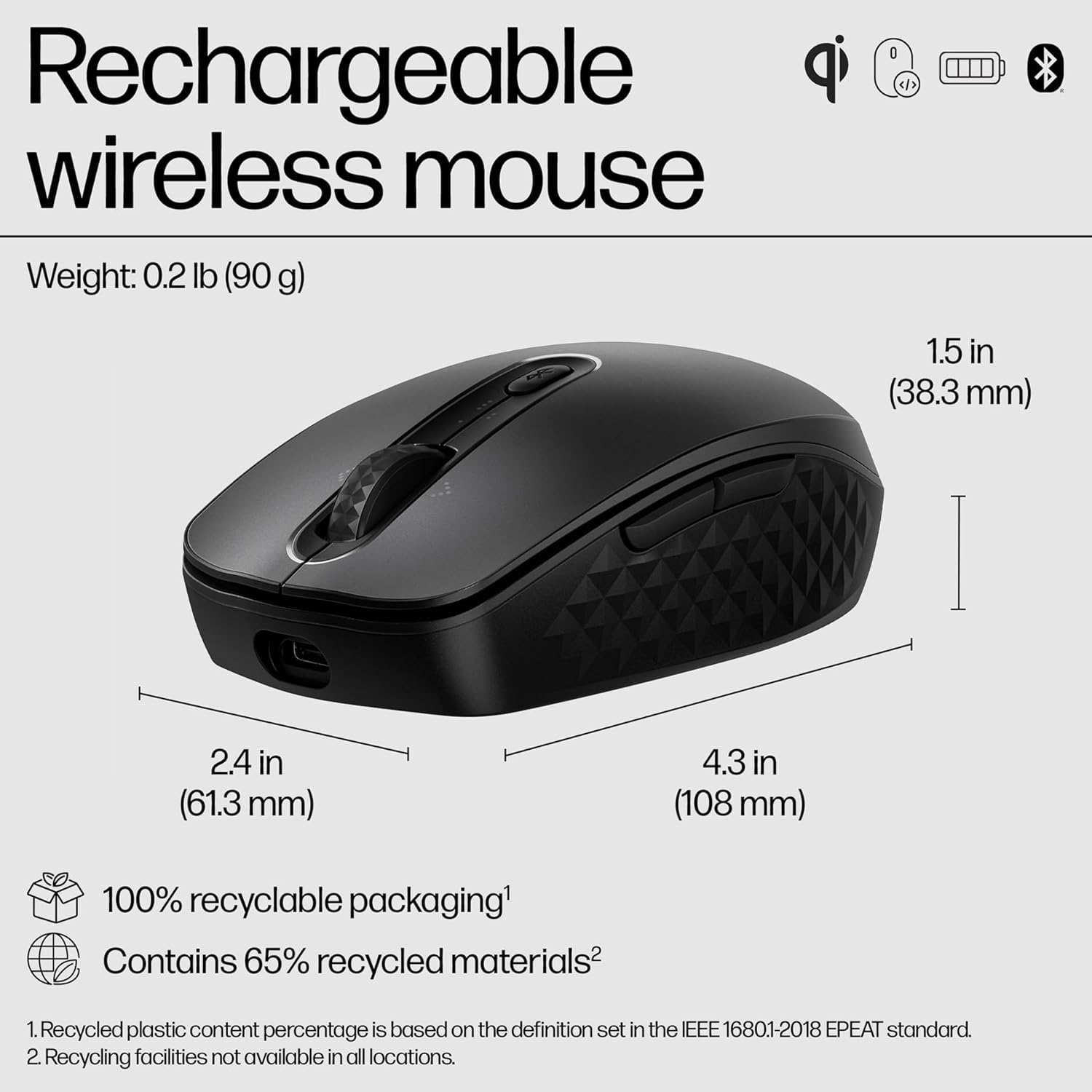
Image: Diagram illustrating the dimensions (4.3 in length, 2.4 in width, 1.5 in height) and environmental features of the HP 690 mouse.
| Feature | Detail |
|---|---|
| Nome di mudellu | HP 690 Rechargeable Wireless Mouse |
| Connettività | Bluetooth 5.3 (Multi-device), Microsoft Swift Pair |
| Carica | Qi Wireless Charging, USB-C Charging |
| Sensibilità DPI | Up to 4000 DPI (Multi-surface tracking) |
| Bottoni | 6 Pulsanti Programmable |
| Rotella di scorrimentu | 4-D Tilt Wheel |
| A vita di a batteria | Finu à 4 mesi (circa) |
| Pesu | 0.2 lb (90 g) |
| Dimensioni (LxPxH) | 4.3 x 2.4 x 1.5 inch (108 x 61.3 x 38.3 mm) |
| Encryption | AES 128 bit |
| Materiali riciclati | Contains 65% recycled materials |
| Imballaggio | Imballaggio 100% riciclabile |
Garanzia è Supportu
The HP 690 Rechargeable Wireless Mouse is manufactured by HP. For specific warranty details, please refer to the warranty card included with your product or visit the official HP support website. HP provides customer support for product inquiries, technical assistance, and warranty claims.
For further assistance, please visit the official HP support page: www.hp.com/support