Introduzione
Welcome to the user manual for your Tibuta Smartpad A40 tablet. This guide provides essential information on setting up, operating, maintaining, and troubleshooting your device. The Smartpad A40 is designed for versatile use, featuring a large 10.1-inch display, a powerful quad-core processor, and the Android 14 operating system.

Image: The Tibuta Smartpad A40 tablet, shown with its protective case, highlighting its Android 14 operating system and 6GB RAM + 64GB ROM configuration.
Guida di installazione
1. Unboxing è Inspection Initial
Carefully remove all components from the packaging. Ensure the tablet, protective case, charging cable, and power adapter are present. Inspect the tablet for any physical damage.

Image: The Tibuta Smartpad A40 tablet with its included case and headphones, illustrating its core features such as Android 14, IPS display, memory, battery capacity, and camera specifications.
2. Charging the Tablet
Before first use, fully charge the tablet. Connect the Type-C charging cable to the tablet's charging port and the other end to the power adapter. Plug the adapter into a wall outlet. The charging indicator will show the charging status.

Image: The Tibuta Smartpad A40 tablet connected to a Type-C charger, emphasizing its 5000mAh battery capacity and estimated usage times for video playback and overall endurance.
3. Powering On / Off
- Per accende: Press and hold the Power button located on the side of the tablet until the Tibuta logo appears.
- Per spegne: Appughjà è tene premutu u buttone d'alimentazione finu à chì appare u menu di l'opzioni di alimentazione. Selezziunate "Spegne" è cunfirmate.
- Per riavvià: Da u menù di l'opzioni di putenza, selezziunate "Restart" è cunfirmate.
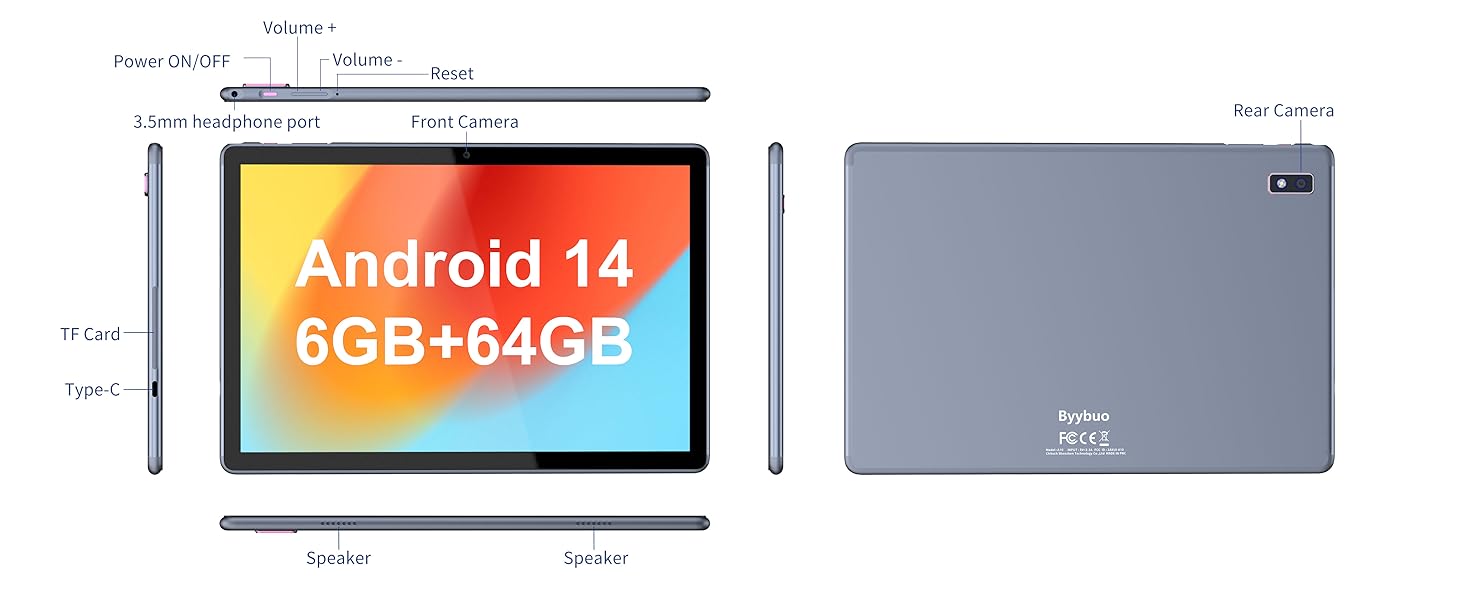
Image: A detailed diagram illustrating the physical layout of the Tibuta Smartpad A40, including the positions of its buttons, ports, and cameras for easy identification.
4. Assistant Setup iniziale
Upon first power-on, the tablet will guide you through the initial setup process. Follow the on-screen prompts to:
- Sceglite a vostra lingua.
- Cunnette vi à una reta Wi-Fi.
- Cunnettatevi cù u vostru contu Google o create un novu.
- Cunfigurà u bloccu di u screnu (PIN, mudellu, password).
- Review è accettà i termini è e cundizioni.
Operating Your Tibuta Smartpad A40
1. Navigation and Touchscreen Gestures
The Smartpad A40 features a responsive multi-touch display. Common gestures include:
- Tap: Per selezziunà un articulu o apre una applicazione.
- Tap & Hold: Per accede à i menu cuntestuali o spustà l'icone.
- Swipe: To scroll through pages or navigate between screens.
- Pizzicà per Zoomà: Per zoomà in o ingrandisce l'imagine è web pagine.
2. Display and Audio
Experience vibrant visuals on the 10.1-inch IPS HD display with a resolution of 1280 x 800 pixels. The tablet also features an eye protection mode to reduce strain during prolonged use. Enjoy clear audio through the integrated dual high-fidelity speakers.

Image: The Tibuta Smartpad A40 tablet showcasing its IPS Full HD display and dual speakers, emphasizing its 10.1-inch screen size, 1280x800 IPS resolution, eye protection mode, and high-fidelity audio output.
3. Performance and Operating System
Powered by a robust Quad-Core processor and running on Android 14, the Smartpad A40 delivers smooth performance for multitasking, gaming, and streaming. The Android 14 system ensures access to the latest features and security updates.

Image: The Tibuta Smartpad A40 tablet showcasing its Android 14 operating system and GMS certification, with various application icons visible on the screen.
4. Archiviazione è memoria
The tablet comes with 6GB of RAM (2GB + 4GB virtual) and 64GB of internal storage, providing ample space for your applications, photos, videos, and documents. Storage can be expanded up to 128GB using a microSD card (not included).

Image: The Tibuta Smartpad A40 tablet highlighting its 6GB RAM and 64GB internal storage, along with the option to expand storage up to 128GB via a microSD card.
5. Cameras
Capture moments with the tablet's dual cameras: a 5 MP front camera for video calls and selfies, and an 8 MP rear camera for photos and videos.

Image: Demonstrates the Tibuta Smartpad A40's camera capabilities, featuring a 5.0 MP front camera for HD video and an 8.0 MP rear camera with autofocus for capturing photos.
6. Connectivity
The Smartpad A40 supports Wi-Fi (802.11ac) for fast internet access and Bluetooth for connecting to wireless peripherals like headphones and speakers.
7. Versatile Use Cases
The Tibuta Smartpad A40 is designed for a wide range of activities, from entertainment to productivity. Its portability makes it ideal for on-the-go use, while its features support various daily needs.

Image: Illustrates the diverse applications of the Tibuta Smartpad A40, including watching videos, assisting with daily tasks, and serving as a tablet for both children and seniors.
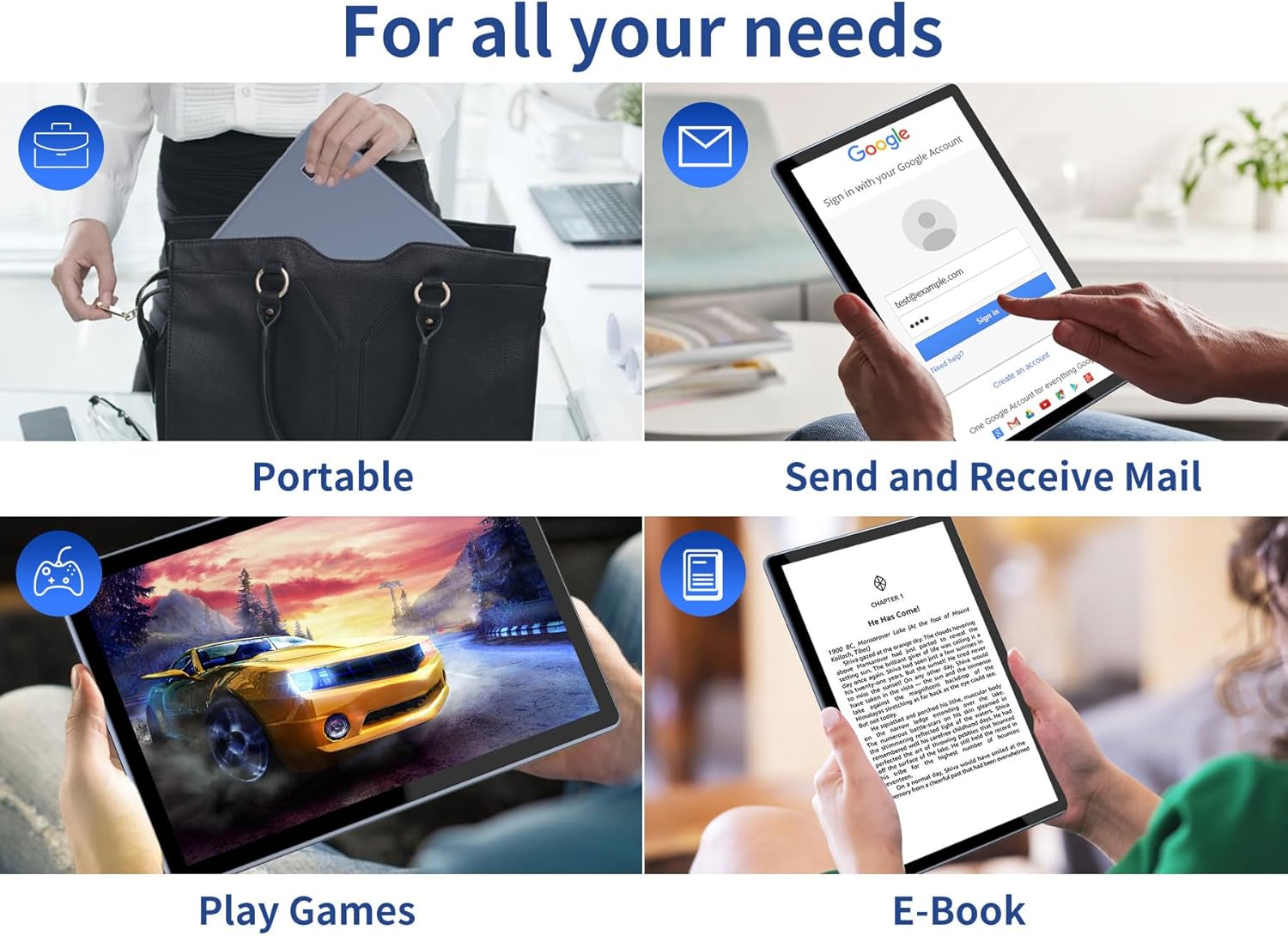
Image: Depicts the versatility of the Tibuta Smartpad A40 for various user needs, including portability, email communication, gaming, and e-book reading.
Mantenimentu
1. Cleaning Your Tablet
Use a soft, lint-free cloth to clean the screen and body of the tablet. For stubborn smudges, slightly dampLavate u pannu cù acqua o un detergente per schermi. Evitate l'usu di prudutti chimichi aggressivi o materiali abrasivi.
2. Updates Software
Regularly check for and install system updates to ensure your tablet has the latest features, security patches, and performance improvements. Go to Impostazioni > Sistema > Aghjurnamentu di u sistema per verificà l'aghjurnamenti.
3. Cura di batterie
Per prolongà a vita di a bateria:
- Evite temperature estreme.
- Ùn lasciate micca chì a batteria si scarichi cumpletamente prima di ricaricàla frequentemente.
- Scollegate u caricatore una volta chì a batteria hè piena.
4. Storage Management
Periodicamente riview your installed applications and files. Disinstalla l'applicazioni inutilizate è elimina quelle inutili files to free up storage space and maintain optimal performance. Utilize the microSD card slot for additional storage if needed.
Risoluzione di prublemi
| Prublemu | Causa Possibile | Soluzione |
|---|---|---|
| A tableta ùn s'accende micca. | Low battery; system crash. | Charge the tablet for at least 30 minutes. Press and hold the Power button for 10-15 seconds to force restart. If unresponsive, locate the small reset pinhole (refer to diagram in Setup Guide) and gently press it with a paperclip. |
| Prublemi di cunnessione Wi-Fi. | Incorrect password; router issue; tablet Wi-Fi off. | Ensure Wi-Fi is enabled in Settings. Re-enter Wi-Fi password. Restart your Wi-Fi router. Forget the network and reconnect. |
| Prestazione lenta. | Troppu app in esecuzione; pocu almacenamentu; software obsoletu. | Close background apps. Clear cache. Uninstall unused apps. Check for system updates. Restart the tablet. |
| L'applicazioni si bloccanu o si bloccanu. | App bug; insufficient resources. | Force close the app (Settings > Apps > [App Name] > Force Stop). Clear app cache/data. Reinstall the app. Ensure system is updated. |
Specificazioni
| Feature | Detail |
|---|---|
| Marca | Tibuta |
| Numero di mudellu | A40 |
| Sistema upirativu | Android 14 (Android 13 listed in some specs, but product title indicates 14) |
| Size Screen | 10.1 inch |
| Risoluzione di u screnu | 1280 x 800 Pixels (IPS HD) |
| Marca di processore | Allwinner (Quad-Core) |
| Dimensione di a RAM installata | 6 GB (2+4GB) |
| Capacità di almacenamiento di memoria | 64 GB |
| Storage espansibile | Micro SD (finu à 128 GB) |
| Camera frontale | 5 MP |
| Camera posteriore | 8 MP |
| Capacità batterie | 5000 mAh |
| Connettività | Wi-Fi (802.11ac), Bluetooth |
| Portu di carica | Tipu-C |
| Dimensioni di l'articulu (L x W x H) | 25.8 x 15.8 x 2 cm |
| Pesu di l'articulu | 1.16 kilogrammi |
Garanzia è Supportu
Infurmazioni di Garanzia
Specific warranty details for the Tibuta Smartpad A40 are typically provided with your purchase documentation or on the product packaging. Please refer to these resources for information regarding warranty period, coverage, and terms. In general, manufacturer warranties cover defects in materials and workmanship under normal use.
Assistenza Clienti
For technical assistance, troubleshooting beyond this manual, or warranty claims, please contact Tibuta customer support through the following channels:
- Riferitevi à l'infurmazioni di cuntattu furnite nantu à l'imballu di u vostru pruduttu.
- Visit the official Tibuta websitu per risorse di supportu, FAQ è moduli di cuntattu.
- If purchased through an online retailer, their customer service portal may also offer support or direct you to the manufacturer.


