1. Introduzione
This manual provides detailed instructions for the installation, operation, and maintenance of your autoabc 12.3 Inch Wireless CarPlay/Android Auto Multimedia Linux Touchscreen. This device is designed to enhance your in-car experience by integrating modern connectivity features while retaining your vehicle's original functionalities.
2. Cumpatibilità
This product is compatible with specific Mercedes Benz models equipped with NTG5.0, NTG5.1, and NTG5.2 systems. Please verify your vehicle's system before installation.
- Mercedes Benz GLC Class X253 (2015-2018)
- Mercedes Benz GLA Class X156 (2016-2018)
- Mercedes Benz CLA Class C117 (2016-2018)
- Mercedes Benz A Class (2016-2018)
- Mercedes Benz C Class W205 (C180, C200, C220, C250, C320, C43 AMG, C63 AMG, C63 GLS, C650)
Nota impurtante:
Stu dispusitivu hè micca cumpatibile with NTG4.0, NTG4.5, or NTG4.7 systems. Please ensure your original car system matches the compatible versions. If unsure, consult a professional or contact customer support.

Image: Compatibility chart for Mercedes Benz NTG systems. The image displays examples of NTG5.0/5.1/5.2 as compatible and NTG4.5/4.7 and NTG4.0 as incompatible, with corresponding screen visuals.
3. Produttu Finituview è Features
The autoabc 12.3 Inch Multimedia Linux Touchscreen upgrades your vehicle's display with a high-definition screen and integrated smart features.
- CarPlay senza filu/Android Auto: Seamlessly integrate your smartphone for navigation, calls, messages, and music via voice assistant.
- HD 12.3 Inch Screen: Features a 1920x720 resolution LED display for an enhanced visual experience. Supports screen projection for photos and videos.
- Original Car Function Retention: Maintains all original vehicle functions, including radio, booster, joystick controls, rear view camera, and display of speed, fuel level, oil pressure, and safety warnings.
- Funzionalità di a camera: Supports factory original reverse camera parking radar, aftermarket reverse cameras, and 360-degree cameras. Includes support for front view camera DVR (CVBS input).

Image: Comparison of the car's dashboard before and after installing the autoabc 12.3-inch touchscreen, highlighting the larger display and new interface.

Image: Four-panel display showing the screen's capabilities with CarPlay, Android Auto, Airplay, and Autolink, demonstrating smartphone integration.

Image: Illustration of the camera functions, including front camera view, parking assist lines, and a 360-degree overhead view of a car, indicating support for various camera systems.

Image: Six panels demonstrating the retention of original car functions: car system, CD/DVD player, steering wheel control, horn speaker sound output, reversing camera, and iDrive rotation button.
4. Setup è Installazione
Installation of this unit typically involves replacing the original screen and connecting the provided cables. While designed for ease of installation, professional assistance is recommended if you are unfamiliar with car electronics.
4.1. Verificazione prima di l'installazione
- Confirm your vehicle's NTG system version (NTG5.0, NTG5.1, or NTG5.2).
- Assicuratevi chì tutti i cumpunenti elencati in a sezzione "Ciò chì hè in a scatula" sianu presenti.
- Scollegate a batteria di u veiculu prima di inizià l'installazione.
4.2. General Installation Steps (Consult a professional or installation video for detailed steps)
- Carefully remove the original car screen and trim panels.
- Connect the provided power cable and LVDS/USB cable to the new unit and the vehicle's wiring harness.
- If applicable, install the bracket for the new screen.
- Route all cables neatly to avoid interference.
- Mount the new 12.3-inch touchscreen in place.
- Reconnect the vehicle's battery and test all functions before reassembling the trim.
Attenzione:
If you are unsure about the installation process, it is highly recommended to seek assistance from a qualified car workshop or refer to official installation videos provided by the manufacturer.
5. Operating Instructions
5.1. Cambiamentu trà sistemi
The unit allows seamless switching between the new Linux system and the original car system.
- To access the Linux system (CarPlay, Android Auto, AirPlay, Autolink), select the corresponding icon on the main interface.
- To return to the original car system, select the "Original car" icon or use the designated button/control as per your vehicle's original setup.
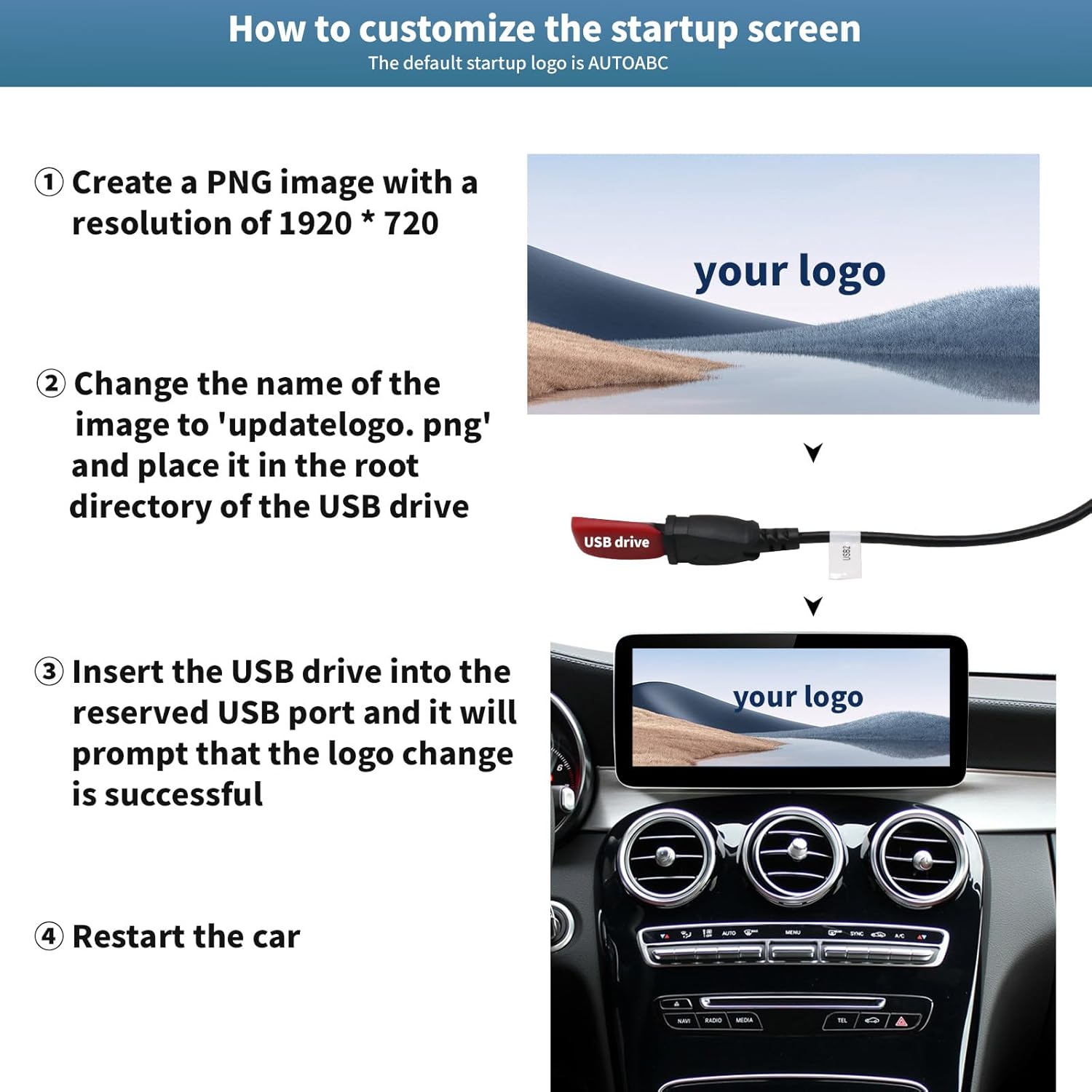
Image: Flowchart illustrating the process of switching between the new Linux system interface (showing CarPlay, Android Auto, AirPlay, Autolink icons) and the original car system interface (showing radio frequencies).
5.2. CarPlay senza filu / Android Auto
Per aduprà Wireless CarPlay o Android Auto:
- Assicuratevi chì Bluetooth hè attivatu nantu à u vostru smartphone.
- On the car screen, navigate to the CarPlay or Android Auto section.
- Cerca and connect to the device's Bluetooth name from your phone's Bluetooth settings.
- Follow any on-screen prompts on both your phone and the car display to establish the connection.
Once connected, you can access navigation, phone contacts, email, notifications, and music directly on the touchscreen.
5.3. Funzioni di a Camera
U sistema mostra automaticamente a parte posteriore view when the vehicle is in reverse gear. You can also access front camera or 360-degree camera views if installed and configured.
5.4. Metodi di cuntrollu
The system supports multiple control methods:
- Touchscreen: Directly interact with the 12.3-inch display.
- Original Joystick Controls: Utilize your vehicle's existing joystick or rotary controller.
- Cuntrolli di u volante: Use your steering wheel buttons for audio control and other functions.
6. persunalizazione
6.1. Customizing the Startup Screen Logo
You can personalize the startup screen with a custom logo.
- Create a PNG image with a resolution of 1920 x 720 pixels.
- Rename the image file à 'updatelogo.png'.
- Pone questu file in the root directory of a USB drive.
- Insert the USB drive into the reserved USB port on the unit. The system will prompt you when the logo change is successful.
- Restart the car to apply the new startup logo.

Image: Step-by-step visual guide on how to customize the startup screen logo using a USB drive with a 1920x720 PNG image named 'updatelogo.png'.
7. Product Information è Specifications
7.1. Ciò chì hè in a scatula
- autoabc 12.3 Inch Multimedia Linux Touchscreen
- Cavu di putenza
- LVDS/USB Cable
- Bracket (for specific models, if required)
- Manuale d'uso (stu documentu)

Image: Display of the product components: the main screen unit (front and back views), power cable, LVDS/USB cable, and mounting bracket.
7.2. Specifiche tecniche
- Numero di mudellu: AR-X123
- Dimensione di u screnu: 12.3 inch
- Risoluzione: 1920 x 720 HD LED
- Sistema Operativu: Linux
- Connettività: Wireless CarPlay, Android Auto, AirPlay, Autolink, Bluetooth, USB
- Modu Audio Output: Stereo
- Configurazione di u Canale Surround Sound: 4.0
- Video Encoding Support: H.264, H.265/HEVC, VP9, AV1, MPEG-4
- Pesu di l'articulu: 2.2 liri
- Produttore: autoabc
8. Mantenimentu
To ensure the longevity and optimal performance of your autoabc touchscreen, follow these maintenance guidelines:
- Pulizia: Aduprate un pannu dolce è senza pelu per pulisce u schermu. Per e macchie ostinate, asciugate leggermente.ampLavate u pannu cù acqua o un detergente sicuru per u schermu. Evitate prudutti chimichi aggressivi o materiali abrasivi.
- Temperature : Avoid exposing the unit to extreme temperatures for extended periods.
- Actualizazioni di u software: Verificate periodicamente u fabbricante website or contact support for any available software updates to ensure optimal performance and compatibility.
- Cunnessioni di cable: Ensure all cables remain securely connected. Avoid pulling on cables forcefully.
9. Risoluzione di prublemi
If you encounter issues with your autoabc touchscreen, refer to the following common troubleshooting steps:
- Nisun putere:
- Verificate tutte e cunnessione di i cavi di alimentazione per assicurassi ch'elli sianu sicuri.
- Verify the vehicle's battery is properly connected and charged.
- Check relevant fuses in your vehicle's fuse box.
- Nisun sonu:
- Ensure the volume on both the unit and your vehicle's original audio system is turned up.
- Confirm the audio input source is correctly selected (e.g., AUX, Bluetooth).
- If using Bluetooth, ensure your phone is properly paired and connected.
- CarPlay/Android Auto ùn si cunnetta micca:
- Assicuratevi chì Bluetooth è Wi-Fi sò attivati in u vostru smartphone.
- Scurdatevi di u dispusitivu da i paràmetri Bluetooth di u vostru telefunu è riaccoppiatelu.
- Restart both your phone and the car's multimedia system.
- Check for any software updates for your phone's operating system or the car unit.
- U schermu ùn risponde micca à u toccu:
- Ripigliate l'unità.
- Assicuratevi chì u schermu sia pulitu è senza detriti.
- Funzioni originali di a vittura chì ùn funzionanu micca:
- Verify all original wiring harness connections are correctly made.
- Ensure the unit is properly switched to the "Original car" system mode.
If these steps do not resolve the issue, please contact autoabc customer support for further assistance.
10. Garanzia è Support
autoabc provides a one-year global warranty for this product, covering manufacturing defects and malfunctions under normal use. Additionally, lifetime technical service support is available.
- Periudu di garanzia: 1 annu da a data di compra.
- Assistenza tecnica: Lifetime online technical support via Amazon email.
For any questions, problems, or technical assistance, please contact autoabc customer support through Amazon's messaging system. Please have your product model number (AR-X123) and purchase details ready when contacting support.

Image: Graphic detailing customer support availability, including 24-hour response, 60-day return policy, 12-month replacement, and lifetime technical support.


