Product Overview
The ProtoArc EM11 NL is a rechargeable wireless vertical mouse designed for ergonomic comfort and multi-device connectivity. It supports both Bluetooth 5.0 and 2.4GHz USB-A connections, allowing seamless switching between up to three devices.
Funzioni chjave
- Cuncepimentu Verticale Ergonomicu: Positions your hand in a natural handshake grip (58° angle) to reduce wrist and forearm strain.
- Connettività multi-dispositivu: Connects to up to three devices simultaneously via dual Bluetooth 5.0 and one 2.4GHz USB-A receiver.
- Batteria ricaricabile: Built-in 500mAh Li-Ion battery, rechargeable via the included Type-C cable.
- DPI réglable : Three DPI levels (1000/1600/2400) for precise tracking.
- Clic silenziosu: Silent left and right mouse buttons for a focused work environment.
- Cumpatibilità: Windows 8 or higher, Mac OS X 10.12 or higher, and Android 4.3 or higher.
Cuntenutu di u pacchettu
- 1 x ProtoArc Rechargeable Bluetooth Ergonomic Mouse
- 1 x 2.4G USB-A Receiver
- 1 x Type-C Charging Cable (for charging only)
- 1 x Manuale d'utilizatore

Image: Contents of the ProtoArc EM11 NL package, including the mouse, USB-A receiver, Type-C charging cable, and user manual.
Istituisci
1. Caricamentu di u mouse
Before first use, or when the low-battery indicator lights up, connect the mouse to a power source using the provided Type-C charging cable. The Type-C cable is for charging only and does not transmit data.

Image: The ProtoArc EM11 NL mouse being charged via its Type-C port. The image highlights 100 hours of using time, 200 days of standby time, and 2 hours of charging time.
2. Connecting via 2.4GHz USB-A Receiver
- Locate the 2.4G USB-A receiver, usually stored in a compartment on the underside of the mouse.
- Cunnette u ricevitore USB-A à una porta USB-A dispunibile di u vostru urdinatore.
- Accende u mouse cù l'interruttore di putenza situatu in u fondu.
- Switch the connection mode to 2.4G using the switch button on the bottom of the mouse. The 2.4G indicator light will illuminate.
- Your computer should automatically detect the mouse.
3. Connecting via Bluetooth
U mouse supporta duie cunnessione Bluetooth (BT1 è BT2).
- Accende u mouse cù l'interruttore di putenza in u fondu.
- Press the switch button on the bottom of the mouse to select either BT1 or BT2 mode. The corresponding Bluetooth indicator light will flash slowly.
- To enter pairing mode, press and hold the switch button for 3-5 seconds until the selected Bluetooth indicator light flashes rapidly.
- On your device (computer, laptop, tablet), go to Bluetooth settings and search for "ProtoArc EM11 NL".
- Selezziunate u mouse da accoppià. Una volta cunnessu, a luce indicatrice smetterà di lampeggià.
- Repeat these steps for a second Bluetooth device using the other Bluetooth channel (BT1 or BT2).

Image: The bottom of the ProtoArc EM11 NL mouse, illustrating the 2.4G USB-A receiver, power switch, and the switch button for selecting 2.4G, BT1, or BT2 connection modes.

Image: The ProtoArc EM11 NL mouse wirelessly connected to a desktop computer, a laptop, and a tablet, demonstrating its multi-device capability.
Istruzzioni di funziunamentu
1. Cambià trà i dispusitivi cunnessi
Once multiple devices are paired (via 2.4G, BT1, or BT2), you can switch between them by briefly pressing the switch button on the bottom of the mouse. The corresponding indicator light will confirm the active connection.
2. Aghjustà a sensibilità DPI
The mouse has three adjustable DPI levels: 1000, 1600, and 2400. Press the DPI button, located behind the scroll wheel, to cycle through these settings. Each press will change the sensitivity, allowing you to find your preferred cursor speed.
3. Using Forward/Backward Buttons
The mouse features forward and backward buttons on the side for convenient navigation in web navigatori è file esploratori. Nota: These buttons are not compatible with Mac OS systems.
4. Ergonomic Hand Posture
For optimal comfort and to reduce strain, maintain a natural handshake grip on the mouse. Your palm should be perpendicular to the desk, and your fingers gently curved. Keep your wrist in a neutral, straight position, supported by the mouse's design.

Image: A diagram showing the recommended handshake posture for using the ergonomic vertical mouse, emphasizing natural vertical hold, comfort grip, and neutral wrist position.
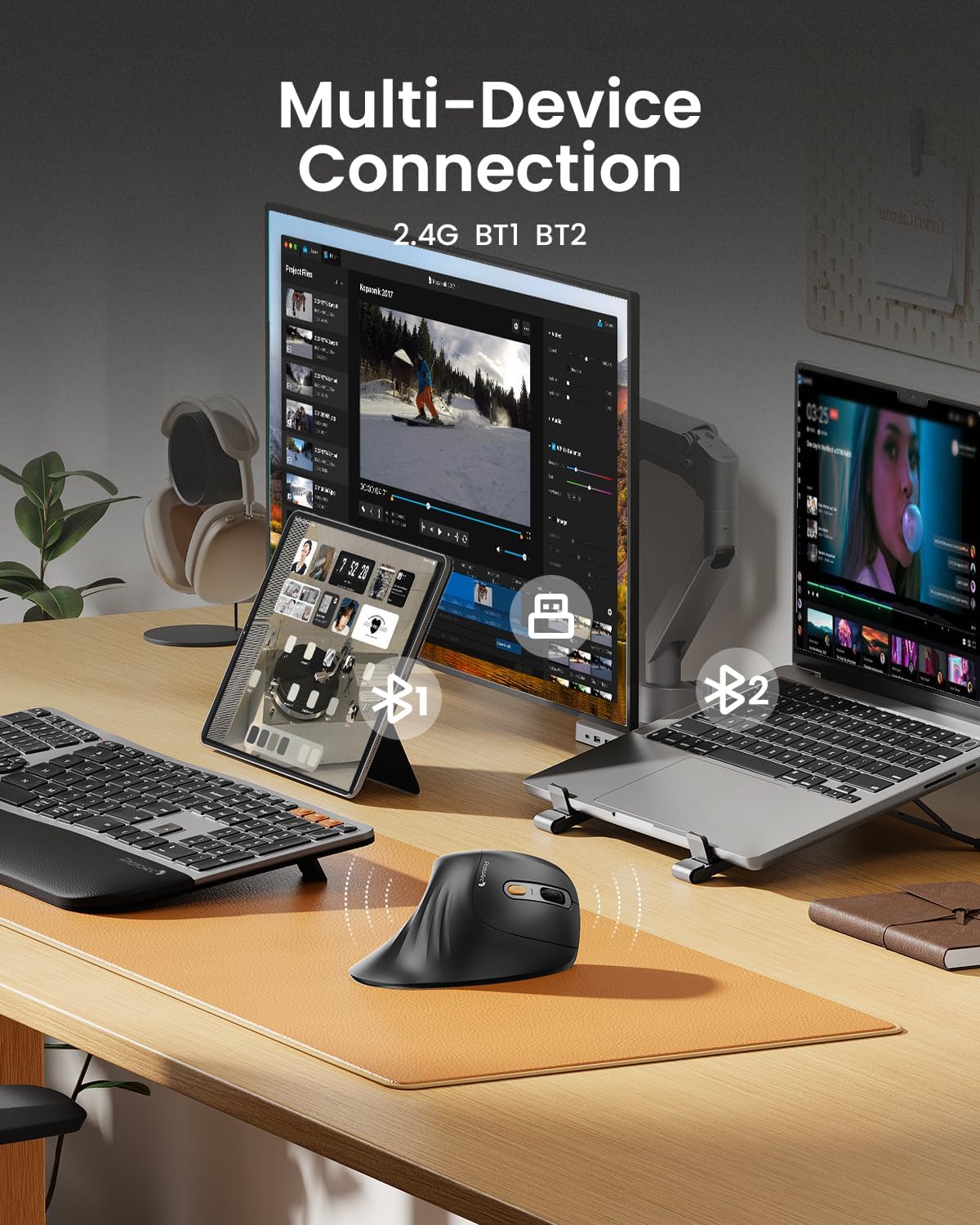
Image: A user's hand comfortably gripping the ProtoArc EM11 NL mouse, demonstrating the natural handshake posture that reduces wrist pressure and promotes a relaxed forearm.

Imagine: Dettagliata view of the ProtoArc EM11 NL mouse, highlighting the 3 adjustable DPI settings, the non-slip striped design, and the forward/backward navigation buttons.

Image: A comprehensive diagram labeling all buttons and indicators on the ProtoArc EM11 NL mouse, including left/right buttons, scroll wheel, DPI button, forward/backward buttons, USB receiver, power switch, switch button, and various indicators.
Mantenimentu
1. Carica
Charge the mouse when the low-battery indicator is active. A full charge takes approximately 2 hours and provides up to 100 hours of use or 200 days of standby time.
2. Pulizia
To clean the mouse, use a soft, dry cloth. Avoid using harsh chemicals or abrasive materials that could damage the surface. Ensure no liquids enter the mouse.
3. Cura di batterie
To prolong battery life, avoid fully discharging the mouse frequently. If storing the mouse for an extended period, charge it to about 50% before storage.
Risoluzione di prublemi
- Mouse not connecting via 2.4G receiver:
- Ensure the USB-A receiver is securely plugged into a working USB-A port. Check that the mouse is powered on and set to 2.4G mode. Try plugging the receiver into a different USB-A port.
- Mouse not connecting via Bluetooth:
- Verify the mouse is powered on and set to the correct Bluetooth channel (BT1 or BT2). Ensure the Bluetooth indicator is flashing rapidly, indicating pairing mode. Check your device's Bluetooth settings to ensure Bluetooth is enabled and the mouse is selected for pairing. If previously paired, try unpairing and re-pairing the device.
- U muvimentu di u cursore hè erraticu o ùn risponde micca:
- Check the battery level and charge the mouse if necessary. Ensure the mouse is on a clean, non-reflective surface. Adjust the DPI setting to see if it improves responsiveness.
- I buttoni Avanti/Indietro ùn funzionanu micca in Mac OS:
- This is expected behavior. The forward and backward buttons are not compatible with Mac OS systems.
- Discomfort when first using the ergonomic mouse:
- An adaptation period of 1-2 weeks is common for vertical ergonomic mice. Continue using the mouse to allow your hand and wrist to adjust to the new posture. If discomfort persists, discontinue use and consult a professional.
Specificazioni
| Numero di mudellu | EM11 NL |
| Dimensioni di u produttu | 5.91 x 5.91 x 0.04 inch |
| Pesu di l'articulu | 10.8 once |
| Batterie | 1 Batteria Non Standard (inclusa) |
| Tecnulugia di cunnessione | 2.4G USB-A Receiver, Bluetooth 5.0 |
| Funzioni spiciali | Ergonomic Design, Multi-Device, Rechargeable, Vertical Design, Wireless |
| Rilevazione di u Muvimentu | otticu |
| Livelli DPI | 1000/1600/2400 |
| U fabricatore | ProtoArc |

Image: A hand measurement guide indicating recommended hand sizes for the ProtoArc EM11 NL mouse. It suggests the mouse is ideal for small to medium hands (under 7.5 inches / 19.05 cm).
Garanzia è Supportu
Per infurmazioni nantu à a garanzia è l'assistenza tecnica, vi pregu di cunsultà u situ ufficiale di ProtoArc. website or contact ProtoArc customer service directly. Details can typically be found on the product packaging or the manufacturer's websitu.