Introduzione
This manual provides essential information for setting up, operating, maintaining, and troubleshooting your Lenovo ThinkPad T490 laptop. The ThinkPad T490 is a 14-inch laptop designed for productivity, featuring an Intel Core i7-8665U processor, 16GB DDR4 RAM, and a 1TB NVMe SSD. It comes pre-installed with Windows 11 Pro and includes a 1080p Full HD touchscreen display, USB-C Thunderbolt 3, HDMI, and an integrated webcamma.
Please read this manual thoroughly to ensure proper use and to maximize the performance and longevity of your device.
Chì ci hè in u Box
Upon unboxing your Lenovo ThinkPad T490, verify that the following items are included:
- Lenovo ThinkPad T490 Laptop
- Adattatore di alimentazione AC
Istituisci
1. Cunnessione di l'adattatore di alimentazione
- Connect the AC power adapter to the USB-C power port on your laptop.
- Inserite u cordone di alimentazione in una presa di muru.
- Allow the battery to charge sufficiently before first use, or use it while connected to power.
2. Accensione iniziale è installazione di Windows 11
- Aprite a tapa di u laptop.
- Appughjà u buttone di accensione, chì si trova generalmente in cima à diritta di u deck di tastiera.
- Segui l'istruzzioni nantu à u screnu per compie a cunfigurazione iniziale di Windows 11 Pro, cumprese a selezzione di a lingua, a cunnessione di rete è a creazione di u contu utilizatore.
3. Identificazione di u portu
Familiarize yourself with the various ports and connectors on your ThinkPad T490:
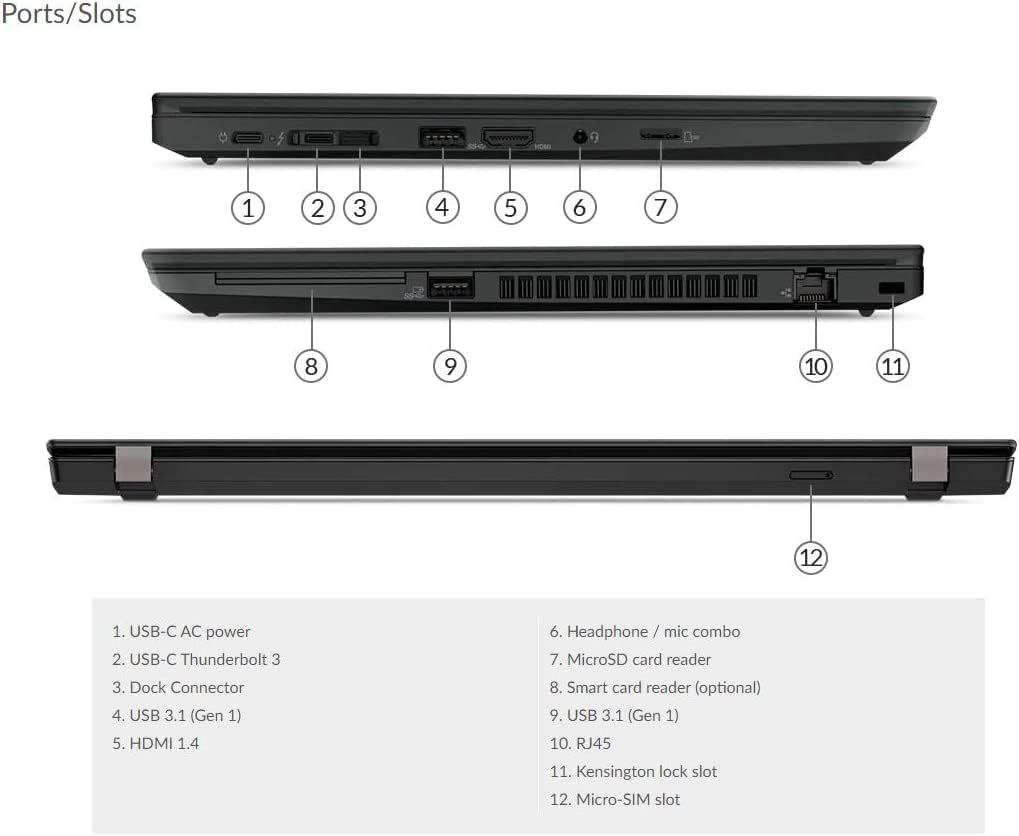
Detailed diagram illustrating the location and type of each port and slot on the ThinkPad T490, including USB-C, HDMI, USB 3.1, RJ45, and more.
- 1. USB-C AC power: Per cunnette l'adattatore di corrente.
- 2. USB-C Thunderbolt 3: Trasferimentu di dati à alta velocità, output video è erogazione di putenza.
- 3. Dock Connector: Per cunnette si à una stazione di docking cumpatibile.
- 4. USB 3.1 (Gen 1): Porta USB standard per periferiche.
- 5. HDMI 1.4: Per a cunnessione à schermi esterni.
- 6. Headphone / mic combo: Per l'entrata/uscita audio.
- 7. MicroSD card reader: For reading microSD memory cards.
- 8. Smart card reader (optional): For smart card authentication.
- 9. USB 3.1 (Gen 1): Another standard USB port.
- 10. RJ45: Porta Ethernet per cunnessione di rete cablata.
- 11. Kensington lock slot: Per assicurà u laptop cù una serratura cumpatibile.
- 12. Micro-SIM slot: Per a cunnessione mobile à banda larga (s'ella hè dotata).
Funziunamentu di u laptop
1. Gestione di l'energia
- Power On: Press u buttone di putenza.
- Modu Sleep: Chjude u coperchio o appughjà brevemente u buttone di accensione.
- Chjodi: Cliccate nant'à u buttone Start di Windows, dopu nant'à Power > Shut down.
- Riavvia: Cliccate nant'à u buttone Start di Windows, dopu nant'à Power > Restart.
2. Tastiera è Dispositivi d'Input
- Tastiera: Use the integrated keyboard for typing. Function keys (Fn) combined with F1-F12 provide additional controls (e.g., volume, brightness).
- TrackPoint: The red pointing stick in the center of the keyboard allows for precise cursor control. Use the three buttons below the spacebar for left-click, right-click, and scroll functions.
- Touchpad: The multi-touch touchpad below the keyboard supports gestures for navigation and control.
- Touchscreen: Interact directly with the display using touch gestures for navigation and input.
3. Cunnessu i dispusitivi esterni
- Dispositivi USB: Connect USB drives, mice, or keyboards to the USB 3.1 ports.
- Mustrà Esternu: Use the HDMI port or a USB-C Thunderbolt 3 adapter to connect an external monitor or projector.
- Dispositivi audio: Plug headphones or external speakers into the headphone/mic combo jack.
- Rete: Connect an Ethernet cable to the RJ45 port for a wired internet connection.
- Bluetooth: Enable Bluetooth in Windows settings to pair with wireless devices like headphones or mice.
4. Webcamma è microfonu
U integratu webcam and microphone are located at the top of the display. They are ready for use with video conferencing applications and voice recording. Ensure the camera shutter (if present) is open for video calls.
Mantenimentu
1. Pulizia di u laptop
- Screen: Aduprate un pannu morbidu, senza pelucchi dampLavatu cù acqua o un detergente per schermi. Ùn spruzzate micca u liquidu direttamente nantu à u schermu.
- Tastiera è Casing: Aduprate un pannu dolce è asciuttu. Per a sporcizia ostinata, un pocu damp Si pò aduprà un pannu cù una suluzione di sapone dolce, assicurendusi chì nisun liquidu ùn entre in l'aperture.
- Porti: Aduprate aria compressa per sguassà delicatamente a polvera da i porti.
2. Cura di batterie
- Evitate di scaricà cumpletamente a batteria spessu.
- Conservate u laptop in un locu frescu è asciuttu s'ellu ùn hè micca adupratu per periodi prolungati.
- Per una salute ottimale di a batteria, evitate l'esposizione prolungata à temperature estreme.
3. Updates Software
Verificate è installate regularmente l'aghjurnamenti di Windows per assicurà a stabilità, a sicurezza è e prestazioni di u sistema. Andate à Impostazioni > Aggiornamentu di Windows per gestisce l'aghjurnamenti.
4. Storage Management
Periodicamente riview è sguassà innecessariu files to maintain optimal performance of your 1TB NVMe SSD. Utilize Windows Disk Cleanup or Storage Sense features.
Risoluzione di prublemi
This section addresses common issues you might encounter with your ThinkPad T490.
1. U laptop ùn s'accende micca
- Assicuratevi chì l'adattatore CA sia cunnessu currettamente à u laptop è à una presa di corrente funzionante.
- Verificate chì a presa di corrente funziona cunnettendu un altru apparechju.
- Sè a batteria hè cumpletamente scarica, lasciatela carica per almenu 30 minuti prima di pruvà à accendela.
2. Problemi di schermu (Nisuna visualizazione, sfarfallamentu)
- Ajustate a luminosità di u schermu cù i tasti di funzione (Fn + F5/F6).
- Connect an external monitor to the HDMI port to check if the issue is with the laptop's internal display or the graphics output.
- Riavvia u laptop.
3. Wi-Fi or Bluetooth Connectivity Problems
- Ensure Wi-Fi or Bluetooth is enabled in Windows settings.
- Riavviate u vostru router/modem per i prublemi di Wi-Fi.
- Update network adapter drivers through Device Manager.
- Forget and reconnect to the Wi-Fi network or re-pair the Bluetooth device.
4. Prestazione lenta
- Chiudi l'applicazioni inutili chì funzionanu in background.
- Verificate u Task Manager per i prucessi chì cunsumanu assai CPU o RAM.
- Assicuratevi chì Windows è i driver sianu aggiornati.
- Run a disk cleanup and defragmentation (for HDD, though NVMe SSDs don't require defragging).
Specificazioni
Specifiche tecniche chjave per u Lenovo ThinkPad T490:
| Feature | Specificazione |
|---|---|
| Nome di mudellu | T490 |
| Size Screen | 14 inch |
| Risoluzione di u screnu | 1920 x 1080 pixel (Full HD) |
| Processore | Intel Core i7-8665U |
| RAM | 16 GB DDR4 |
| Storage | SSD NVMe da 1 TB |
| Carta Grafica | Grafica Intel integrata |
| Sistema upirativu | Windows 11 Pro |
| Connettività wireless | 802.11ac, 802.11n, Bluetooth |
| Dimensioni di u produttu (LxWxH) | 0.7 x 8.94 x 12.95 inch |
| Culore | Neru |
Garanzia è Supportu
This Lenovo ThinkPad T490 is a renewed product. Renewed products are fully functional and come with generic or original accessories and packaging. For specific warranty details and support, please refer to the seller's policy or contact the seller directly. Typically, renewed products come with a limited warranty or return period, such as the 90-day return policy mentioned for this product.
For technical assistance or service inquiries, please reach out to the vendor from whom you purchased this renewed laptop. They will be able to provide specific support related to your purchase.


