1. Introduzione
Thank you for choosing the TECKNET TK-MS007 Ergonomic Wireless Vertical Mouse. This manual provides detailed instructions for setting up, operating, and maintaining your mouse. This device is designed to enhance comfort and productivity with its ergonomic vertical design, multi-mode connectivity, adjustable DPI, and Jiggler function.
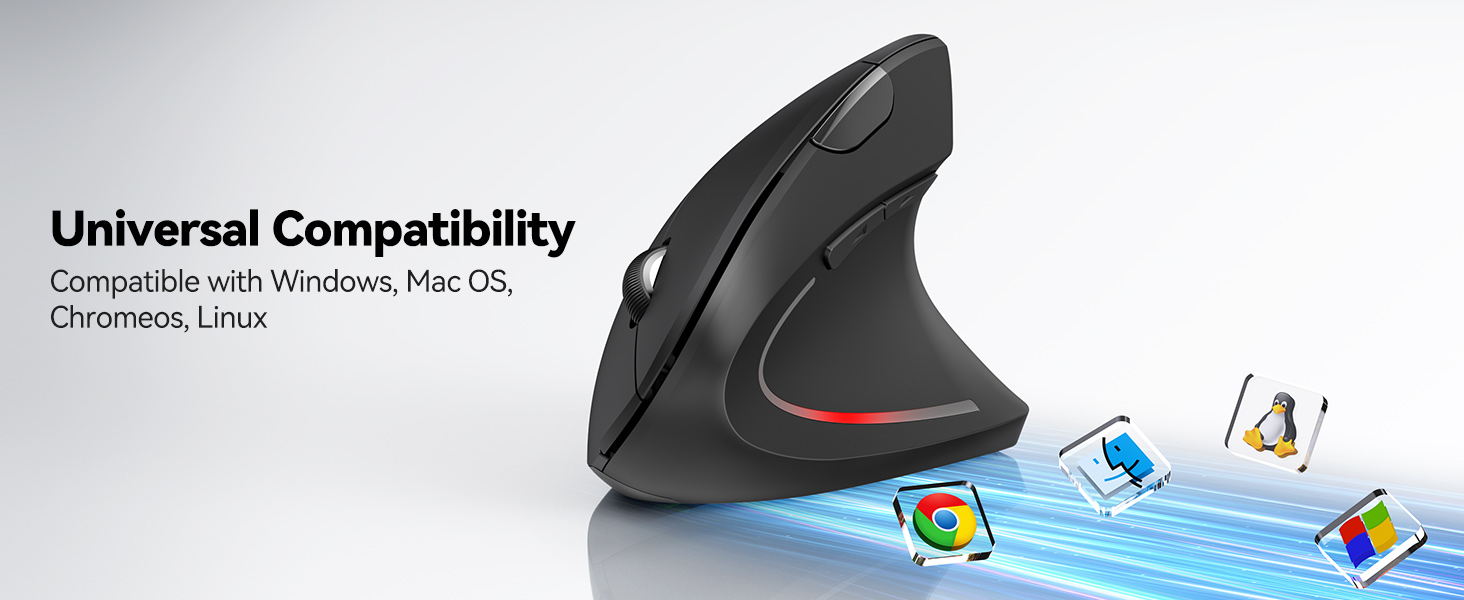
Image 1.1: Overview of the TECKNET Vertical Bluetooth Mouse with Jiggler feature.
2. Cuntenutu di u pacchettu
Verificate u pacchettu per i seguenti elementi:
- TECKNET TK-MS007 Ergonomic Wireless Vertical Mouse
- Ricevitore USB-A (cunservatu in u compartimentu di a batteria di u mouse)
- Adattatore USB-C
- Manuale d'usu
3. Produttu Finituview
Familiarize yourself with the mouse components and their functions.

Image 3.1: Labeled components of the TECKNET TK-MS007 mouse, including DPI Switch, Scroll Wheel, Forward/Backward buttons, Bluetooth Pairing Button, ON/OFF switch, AAA Battery compartment, and USB Receiver storage.
- Buttone di cliccà sinistro: Standard left-click function (silent).
- Buttone di cliccà drittu: Standard right-click function (silent).
- Rotella di scorrimentu: For scrolling up and down.
- Pulsante di cambiamentu DPI: Adjusts cursor sensitivity (DPI) and activates/deactivates Jiggler mode.
- Pulsante avanti: Naviga in avanti in web navigatori o file explorers (not functional on macOS).
- Pulsante in daretu: Naviga in daretu in web navigatori o file explorers (not functional on macOS).
- Pulsante di accoppiamentu Bluetooth: Avvia l'accoppiamentu Bluetooth.
- Interruttore ON / OFF: Accende o spegne u mouse.
- Compartimentu di batterie: Holds two AAA batteries.
- Memoria di u ricevitore USB: Securely stores the 2.4GHz USB-A receiver.
4. Setup è Installazione
4.1. Installazione di batterie
- Aprite u coperchiu di u compartimentu di a batteria situatu in fondu à u mouse.
- Insert two AAA batteries (not included), ensuring correct polarity (+/-).
- Chiudere a tappa di u compartimentu di a batteria.
- Girate l'interruttore ON/OFF in a pusizione "ON".
4.2. Cunnettendu u Mouse
The mouse supports two connection modes: 2.4GHz Wireless (via USB receiver) and Bluetooth (5.0/3.0).
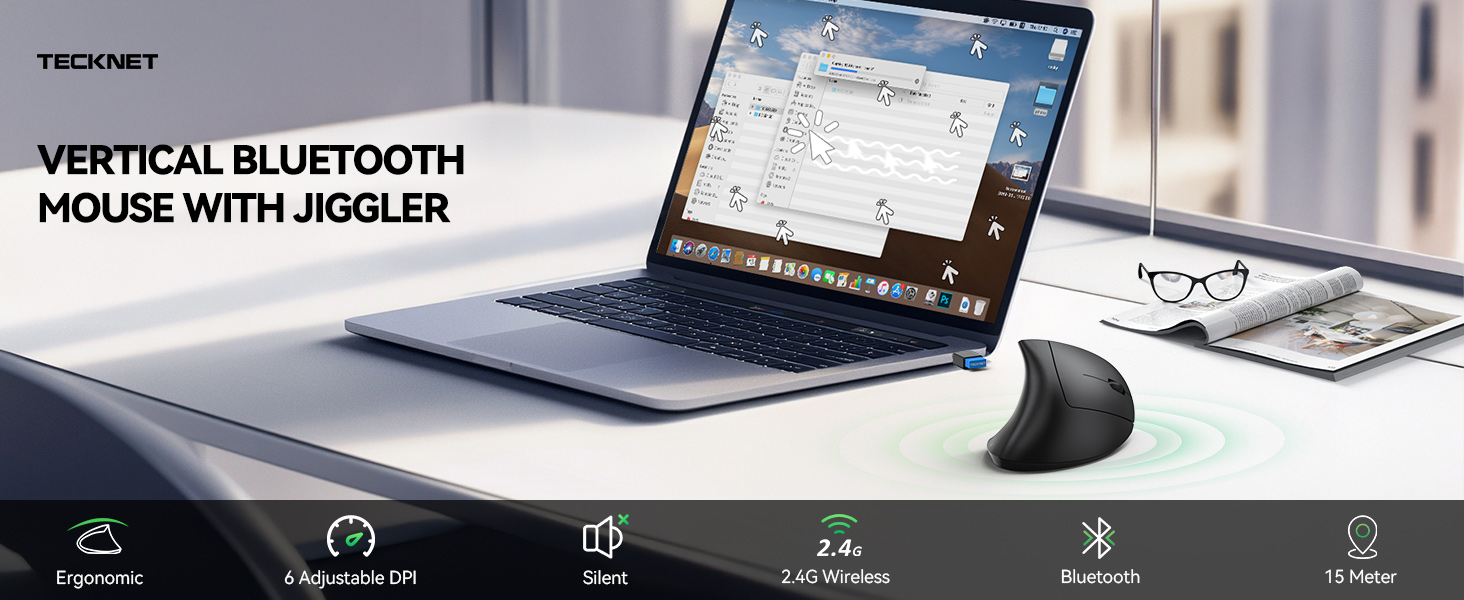
Image 4.1: The TECKNET TK-MS007 mouse offers versatile connectivity options for various devices and operating systems.
4.2.1. Modu senza filu 2.4GHz
- Remove the USB-A receiver from its storage slot on the bottom of the mouse.
- Plug the USB-A receiver directly into an available USB-A port on your computer. If your computer only has USB-C ports, use the provided USB-C adapter.
- The mouse should connect automatically. No additional software installation is required.
4.2.2. Bluetooth Mode (BT 5.0/3.0)
The mouse can connect to two Bluetooth devices simultaneously.
- Assicuratevi chì u mouse hè alimentatu.
- Press the Bluetooth Pairing Button on the bottom of the mouse. The indicator light will flash, indicating it's in pairing mode.
- Nant'à u vostru apparechju (urdinatore, tableta, ecc.), andate à i paràmetri Bluetooth è cercate novi apparechji.
- Select "TECKNET Mouse" from the list of available devices to pair.
- Repeat steps 2-4 to pair a second Bluetooth device if desired.
5. Operating Instructions
5.1. Ajustamentu DPI
The mouse features 6 adjustable DPI levels (800/1200/1600/2400/3200/4800) for precise cursor control.
- Press u Pulsante DPI Switch (Button 4 in Product Overview) to cycle through the DPI levels.
- The indicator light will flash to confirm the selected DPI level (e.g., one flash for 800 DPI, two flashes for 1200 DPI, etc.).
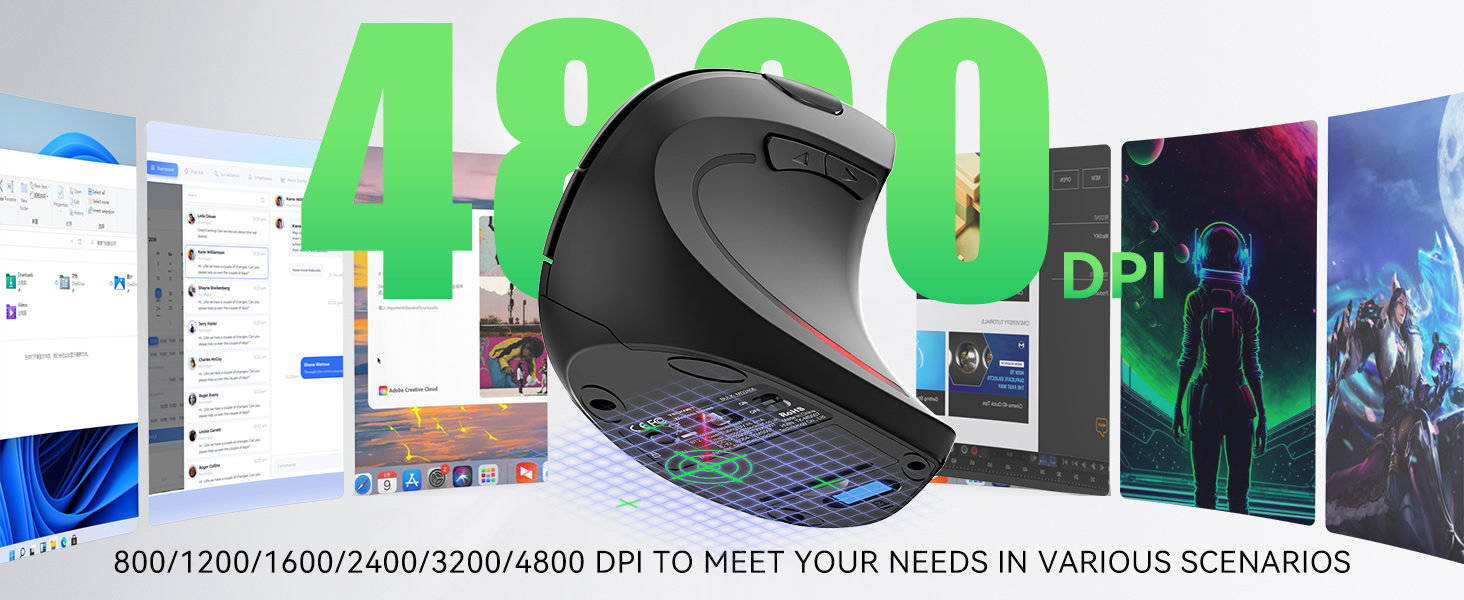
Image 5.1: Visual representation of the 6 adjustable DPI levels (800-4800) for varied usage scenarios.
5.2. Jiggler Mode
The Jiggler mode prevents your computer from going to sleep by simulating mouse movement.
- Activate Jiggler Mode: Appughjà è tene premutu Pulsante DPI Switch for 3 seconds. The mouse cursor will begin to move randomly on the screen.
- Interrupt Jiggler Mode: Move the mouse normally. The Jiggler mode will pause and resume after 10 seconds of inactivity.
- Deactivate Jiggler Mode: Appughjà è tene premutu Pulsante DPI Switch per 3 seconde di novu.
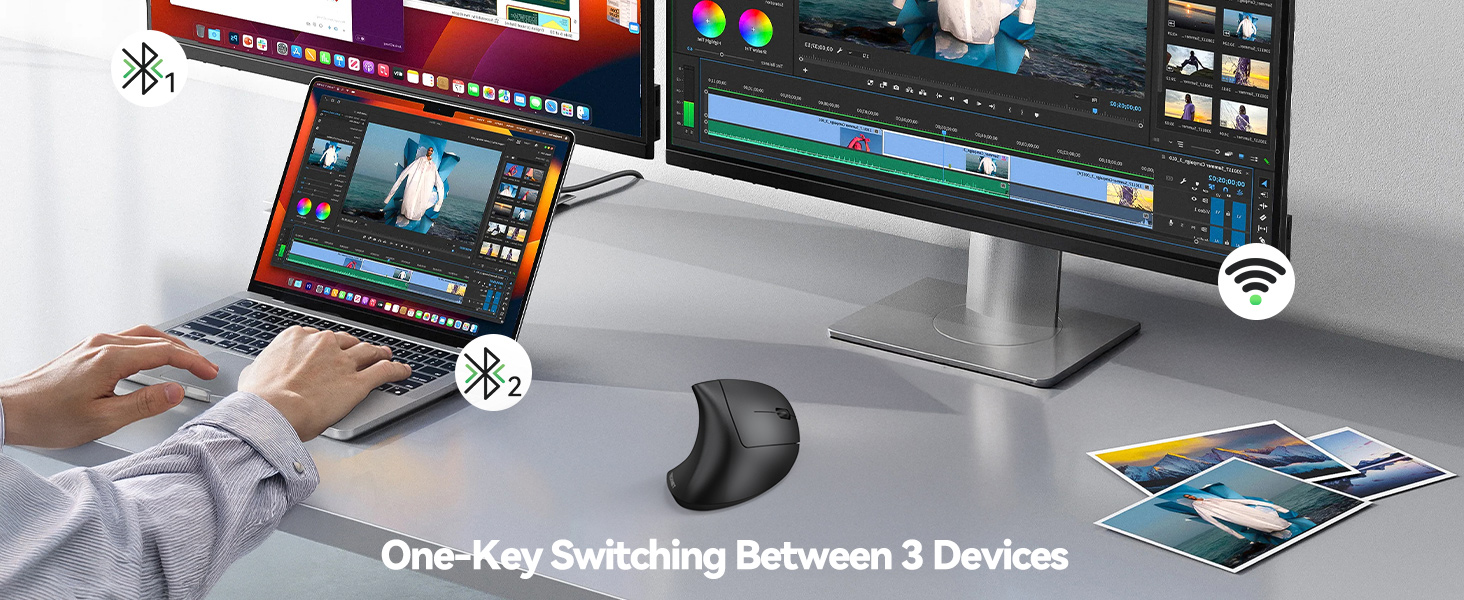
Image 5.2: The mouse's Jiggler mode keeps your screen active, preventing sleep or lockouts.
5.3. Commutazione multi-dispositivu
Easily switch between up to three connected devices (one 2.4GHz, two Bluetooth).
- Press u Pulsante di accoppiamentu Bluetooth on the bottom of the mouse to cycle through the connected devices.
- The indicator light will show which channel is active.
Image 5.3: The mouse allows seamless switching between three connected devices with a single button press.
5.4. Design ergonomicu
The vertical design positions your hand at a natural angle (approximately 52 degrees), reducing wrist strain and discomfort associated with prolonged mouse use.

Image 5.4: Comparison showing how the ergonomic vertical design reduces wrist pressure compared to a traditional mouse.
5.5. Silent Clicks
The left and right click buttons are designed for quiet operation, minimizing disturbance in quiet environments.
- Nota: Only the left and right click buttons are silent. Other function buttons produce audible clicks.

Image 5.5: The mouse features whisper-quiet clicks for a peaceful work or leisure experience.
5.6. Cumpatibilità
U mouse hè cumpatibile cù una larga gamma di sistemi operativi.
- Sistemi operativi supportati: Windows, Mac, Chrome OS, Linux.
- Nota: The side buttons (Forward/Backward) are not functional on macOS.

Image 5.6: The mouse offers universal compatibility with Windows, Mac OS, Chrome OS, and Linux systems.
6. Mantenimentu
6.1. Pulizia
Per mantene prestazioni ottimali, pulite u vostru mouse regularmente:
- Spegne u mouse prima di pulisce.
- Aduprate un panno morbido e senza pelucchi leggermente dampfinitu cù acqua o una solu suluzione di pulizia.
- Evite l'usu di sustanzi chimichi duri o materiali abrasivi.
- Clean the optical sensor on the bottom of the mouse with a dry cotton swab.
6.2. Battery Replacement and Low Battery Alert
The mouse is powered by two AAA batteries. For best performance, use quality branded batteries.
- When the battery is low, the LED indicator light on the mouse will blink to notify you.
- Replace both AAA batteries when the low battery alert appears to ensure uninterrupted operation.
- The mouse automatically enters power-saving mode after 8 minutes of inactivity. Press any button to wake it up.
7. Risoluzione di prublemi
If you encounter issues with your TECKNET TK-MS007 mouse, refer to the following common solutions:
| Prublemu | Soluzione |
|---|---|
| U mouse ùn risponde micca (2.4 GHz) |
|
| U mouse ùn risponde micca (Bluetooth) |
|
| U muvimentu di u cursore hè erraticu o lentu |
|
| I buttoni laterali ùn funzionanu micca in macOS | This is a known compatibility limitation. The Forward/Backward buttons are not supported on macOS. |
| Jiggler mode not activating/deactivating | Ensure you are pressing and holding the DPI Switch Button for exactly 3 seconds to toggle the mode. |
8. Specificazioni
| Feature | Detail |
|---|---|
| Numero di mudellu | TK-MS007 |
| Tecnulugia di cunnessione | 2.4GHz Wireless (USB-A Receiver) & Bluetooth (5.0/3.0) |
| Livelli DPI | 800 / 1200 / 1600 / 2400 / 3200 / 4800 (Ajustabile) |
| Bottoni | 6 (Left/Right Click, Scroll Wheel, DPI Switch, Forward, Backward) |
| Clic silenziosi | Buttuni di cliccà à manca è à diritta |
| Funzioni spiciali | Ergonomic Design, Jiggler Mode, Multi-Device Switching, Low Battery Alert |
| Rilevazione di u Muvimentu | otticu |
| Fonte d'energia | 2 x Batterie AAA (micca incluse) |
| Dimensioni di u produttu | 4.74 x 2.49 x 0.1 inch (12.04 x 6.32 x 0.25 cm) |
| Pesu di l'articulu | 4.2 ounces (119 grammi) |
| Cumpatibilità | Windows, Mac, Chrome OS, Linux (side buttons not on macOS) |
9. Garanzia è Support
TECKNET furnisce una 36 Mesi di Garanzia per stu pruduttu.
If you encounter any problems during the use of your TECKNET TK-MS007 mouse, please do not hesitate to contact our professional customer service team. For support, please visit the official TECKNET websitu o riferitevi à l'infurmazioni di cuntattu furnite nantu à l'imballu di u vostru pruduttu.


