1. Introduzione
This manual provides essential information for the safe and efficient use of your MESWAO 15.6 Inch Pro Android 14 Tablet. Please read this manual thoroughly before operating the device and retain it for future reference.
2. Informazioni di sicurezza
- Ùn espone micca a tableta à temperature estreme, luce solare diretta o alta umidità.
- Evitate di lascià cascà o di sottumette a tableta à impatti severi.
- Use only the provided power adapter and Type-C cable for charging.
- Mantene a tableta luntanu da l'acqua è altri liquidi.
- Ùn pruvate micca di smuntà o riparà a tableta da per voi. Cuntattate l'assistenza clienti per assistenza.
- Assicuratevi una ventilazione adatta quandu aduprate a tableta per periodi prolungati.
3. Cuntenutu di u pacchettu
Verificate chì tutti l'articuli sò presenti in u pacchettu:
- 1 x MESWAO 15.6 inch Android Tablet
- 1 x Adattatore d'alimentazione
- 1 x Cable Type C
- 1 x Manuale d'utilizatore
- 1 x adattatore Type-C à USB
- 1 x Stuck pin
4. Dispositivu Finituview
Familiarize yourself with the physical components of your MESWAO tablet.
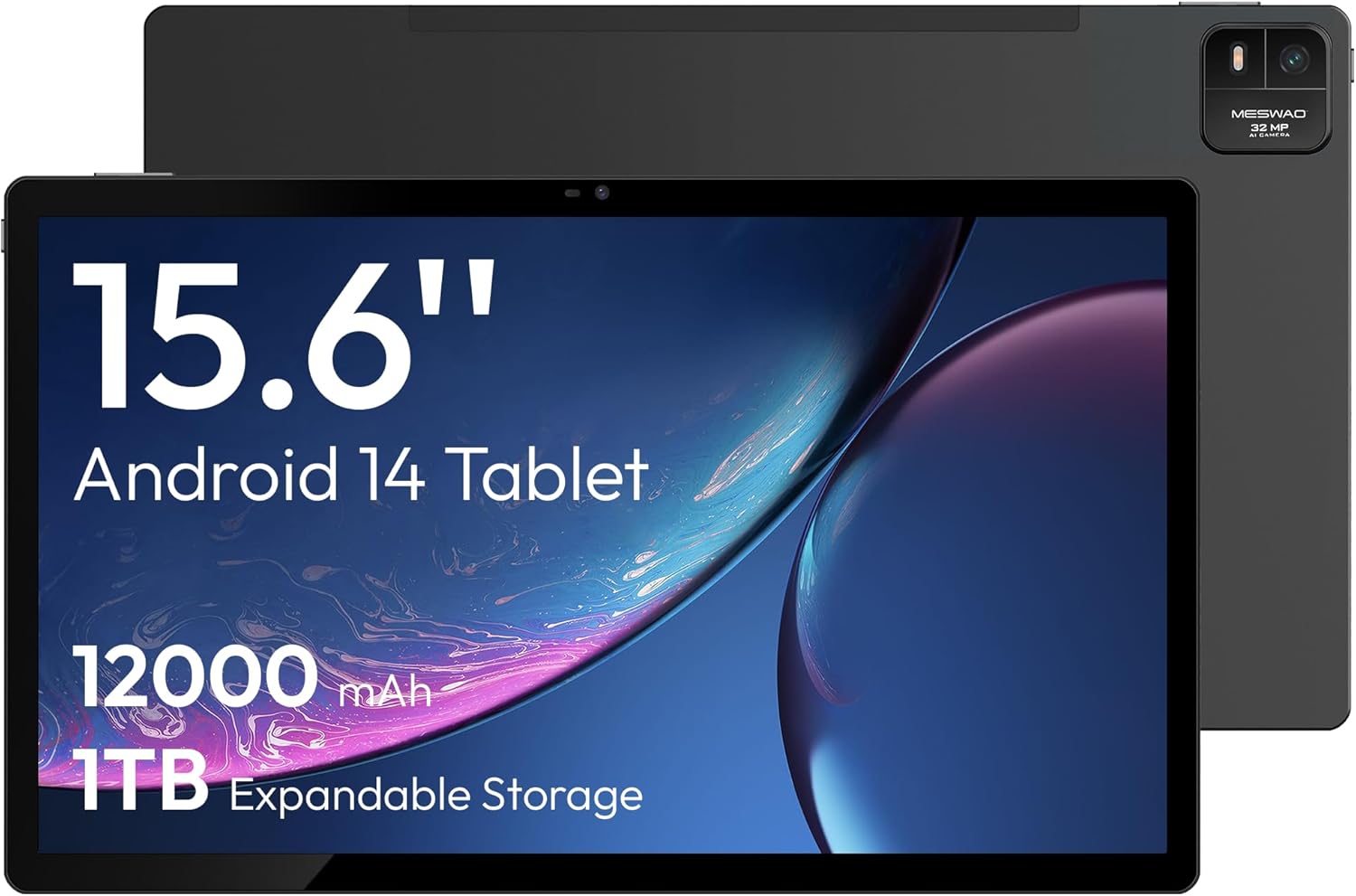
Figura 4.1: Fronte view of the MESWAO 15.6-inch Android 14 Tablet, highlighting the large display and key specifications such as 12000mAh battery and 1TB expandable storage.
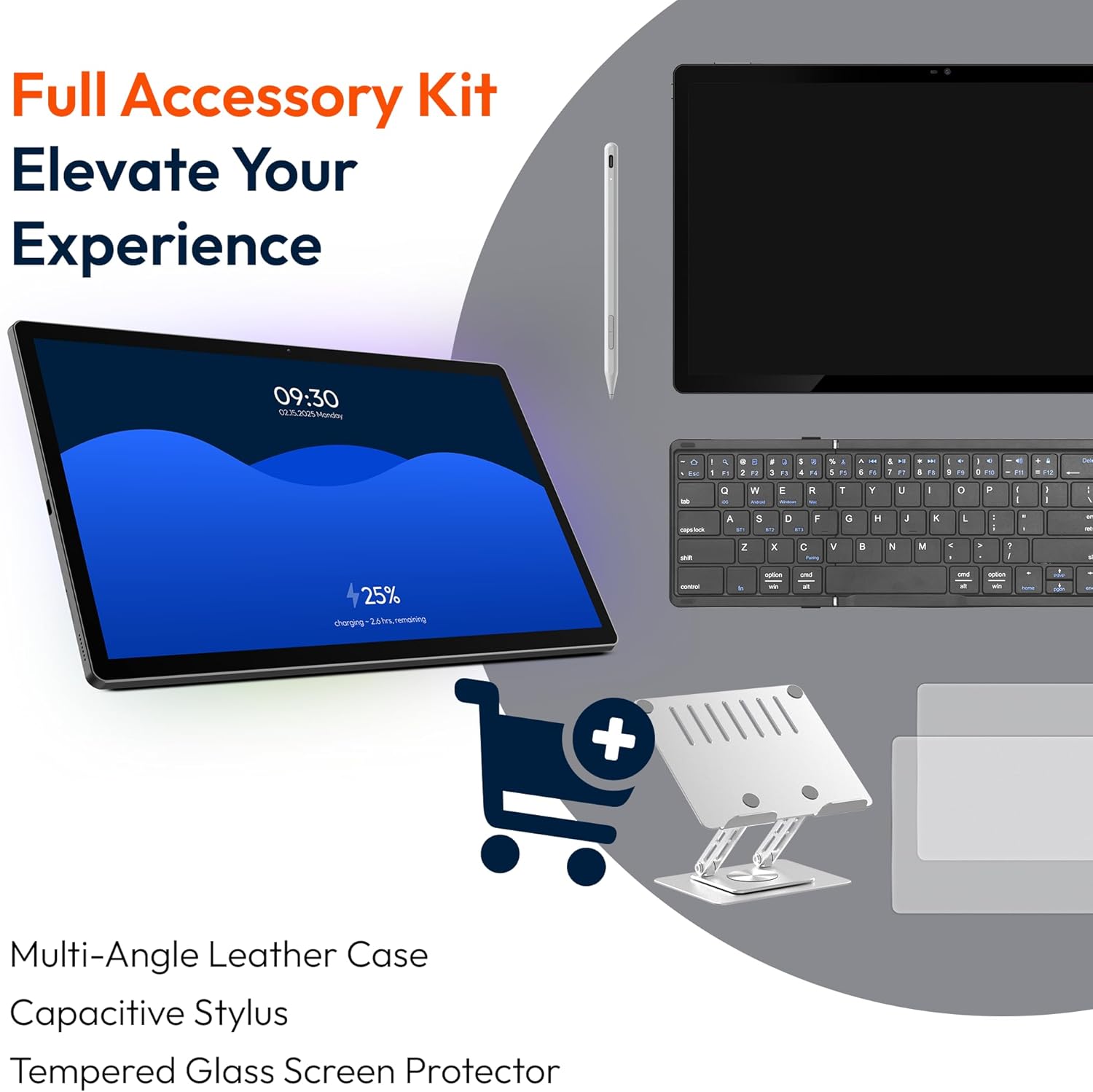
Figura 4.2: Latu è daretu view of the tablet, indicating the location of the quad speakers, Type-C port, TF card slot, power button, volume controls, and front/rear cameras.
Cumpunenti chjave:
- Schermu IPS FHD di 15.6 pollici: Large screen for immersive viewing.
- Camera frontale: Per e videochiamate è i selfie.
- Camera posteriore (32MP): Per catturà foto è video.
- Pulsante di putenza: To turn the tablet on/off or put it to sleep.
- Pulsanti di volume: Per aghjustà i livelli audio.
- Tip-C Port: Per carica è trasferimentu di dati.
- Slot per Carta TF: For expandable storage (MicroSD card).
- Quadrupli altoparlanti: Per l'output audio.
5. Setup
5.1 Carica iniziale
Before first use, fully charge the tablet. Connect the provided Type-C cable to the tablet's Type-C port and the power adapter to a wall outlet. The tablet supports 30W fast charging.

Figura 5.1: The tablet connected to its charger, showing the charging indicator on the screen.
5.2 Power On/Off
- Per accende: Pulsà è manteneu u buttone Power finu à chì u schermu s'illumina.
- Per spegne: Tenite premutu u buttone di accensione, dopu selezziunate "Spegne" da l'opzioni nantu à u screnu.
- Per dorme/svegliarsi: Appughjà brevemente u buttone Power.
5.3 Configurazione iniziale
Upon first power-on, follow the on-screen prompts to set up your Android 14 operating system. This includes selecting your language, connecting to Wi-Fi, and signing in with your Google account.
5.4 Cunnessione Wi-Fi
- Andà à Settings > Rete è Internet > Wi-Fi.
- Attivà/disattivà u Wi-Fi On.
- Selezziunate a rete desiderata da a lista.
- Inserite a password se vi hè dumandatu è toccate Cunnette. The tablet supports dual-band Wi-Fi (2.4GHz and 5GHz).
5.5 Inserimentu di una carta MicroSD
To expand storage up to 1TB, insert a MicroSD card:
- Truvate a fessura di a carta TF nant'à u latu di a tableta.
- Use the provided stuck pin to gently press into the small hole next to the slot to eject the tray.
- Pone a carta MicroSD in u cassettu cù i cuntatti d'oru rivolti in ghjò.
- Rimette cù cura u vassoio in a tableta.

Figura 5.2: Illustration of the tablet's internal storage and the option for expandable storage via MicroSD card.
6. Funziunamentu di a Tablet
6.1 Navigazione basica
The Android 14 operating system uses touch gestures for navigation:
- Tap: Selezziunate un articulu o aprite una applicazione.
- Swipe: Scorri trà schermi o liste.
- Pizzicà: Zoom avanti o indietro nantu à l'imagine è web pagine.
- Pressa Longa: Accede à i menu cuntestuali o move l'icone.
6.2 Display Features
The 15.6-inch FHD IPS display offers a resolution of 1920 x 1080 pixels, providing clear and vibrant visuals for various applications.
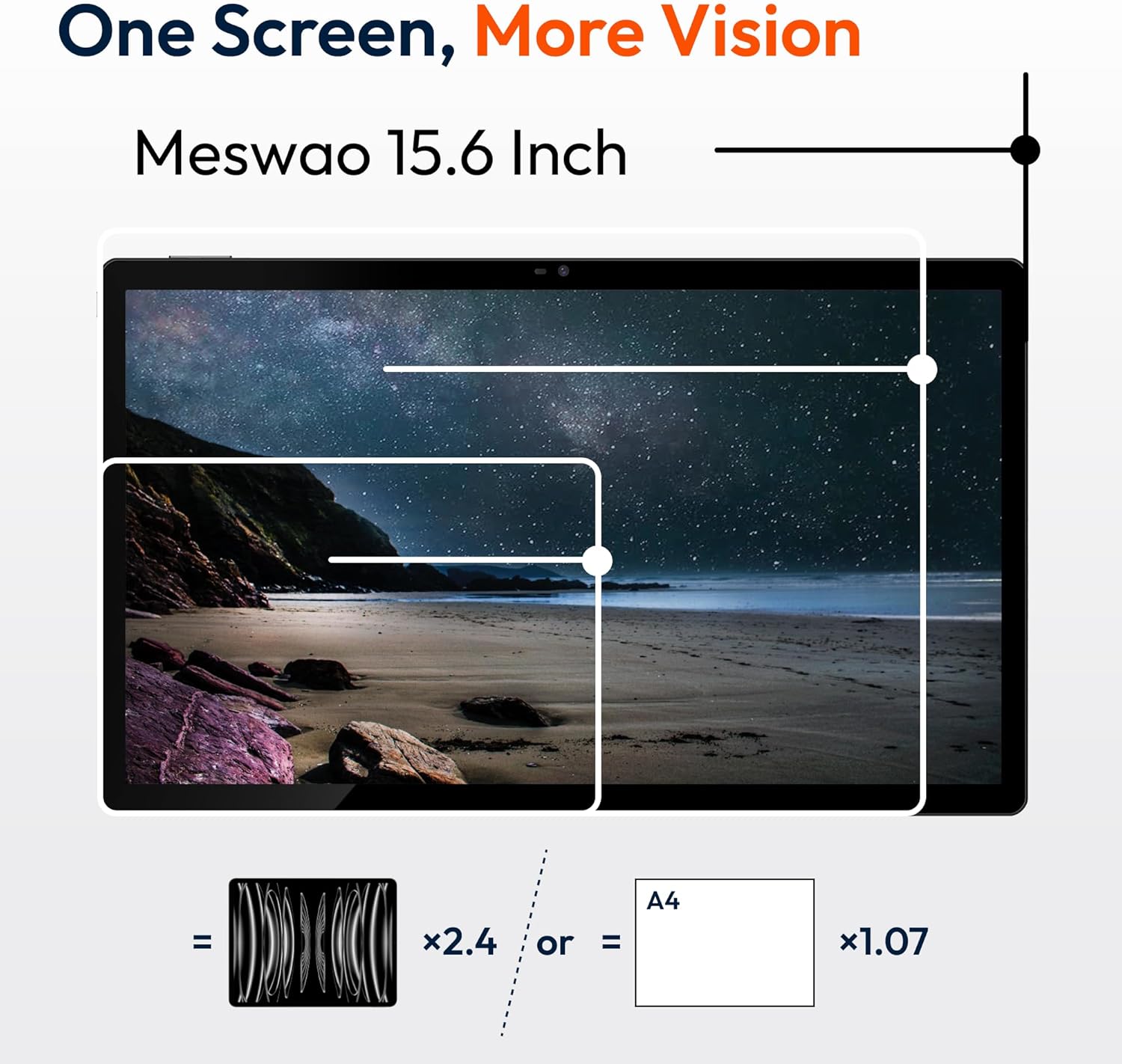
Figura 6.1: Comparison of the MESWAO 15.6-inch display size to an A4 sheet of paper and a smaller tablet, emphasizing its expansive viewa zona.
6.3 Prestazione
Powered by the Helio G99 octa-core processor and 8GB RAM, the tablet delivers efficient performance for multitasking, gaming, and media consumption.
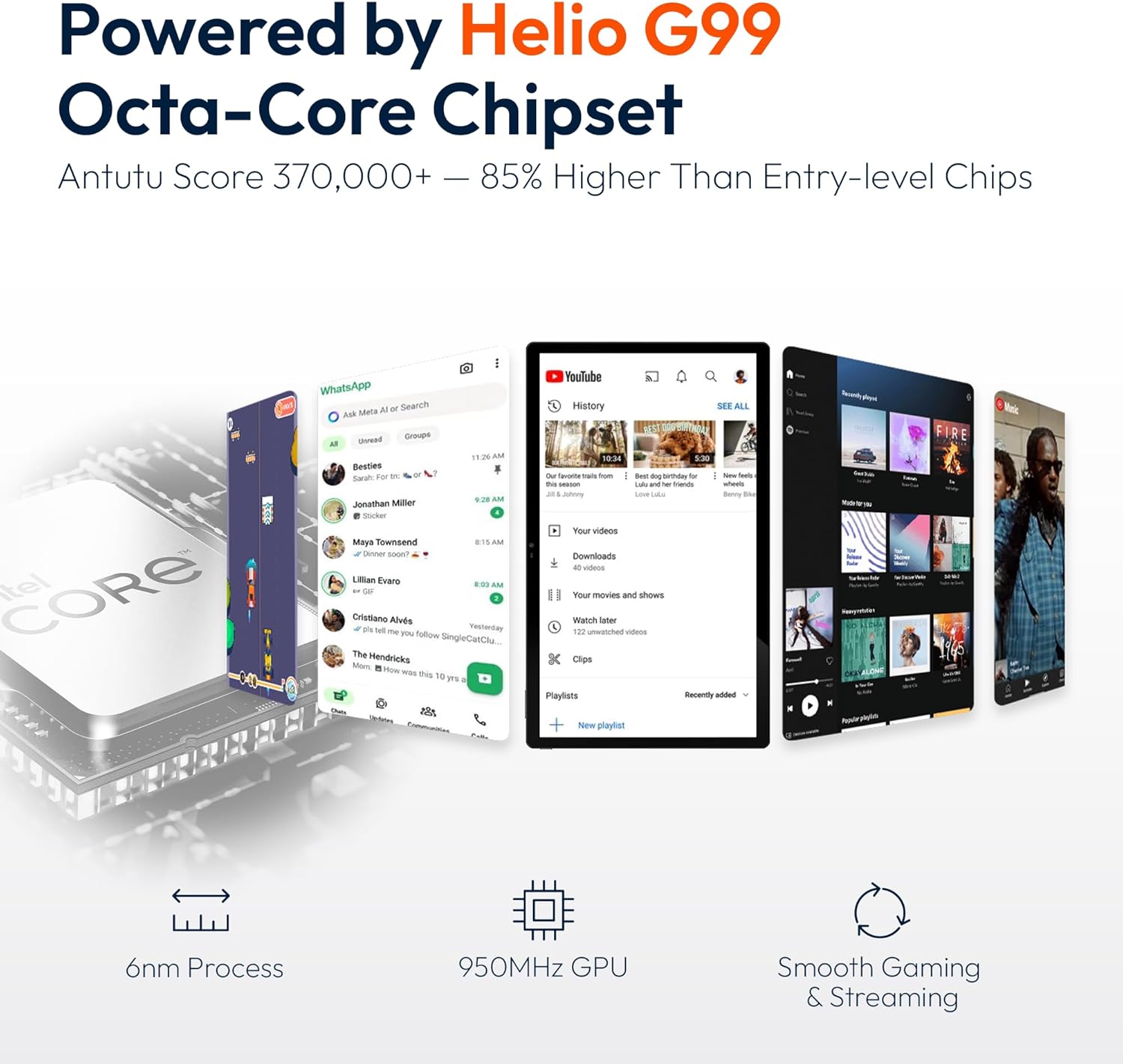
Figura 6.2: An illustration of the Helio G99 Octa-Core chipset, detailing its technical specifications and performance benefits.
6.4 Usu di a Camera
The tablet features a 32MP rear camera and a 5MP front camera. Open the Camera app to capture photos and videos.
6.5 Audio
The quad speakers provide clear audio. You can connect Bluetooth headphones or use the Type-C port for audio output with a suitable adapter.
6.6 Funziunalità d'Android 14
The tablet runs on Android 14, offering features such as:
- Smooth Multitasking: Efficiently switch between applications.
- Controlu parentale: Manage content and usage for children.
- Enhanced Privacy & UI: Improved security and user interface experience.

Figura 6.3: The Android 14 operating system interface, showcasing various applications and system features.
7. Mantenimentu
7.1 Pulizia di u dispusitivu
Aduprate un pannu dolce è senza pelu per pulisce u schermu è u corpu di a tableta. Evitate l'usu di prudutti chimichi aggressivi o materiali abrasivi.
7.2 Actualizazioni di u Software
Regularly check for system updates to ensure optimal performance and security. Go to Settings > Sistema > Actualizazione di u sistema.
7.3 Cura di a batteria
Per prolongà a vita di a bateria:
- Evitate di scaricà cumpletamente a batteria spessu.
- Do not expose the tablet to high temperatures.
- Scollegate u caricatore una volta chì a batteria hè piena.
8. Risoluzione di prublemi
A tableta 8.1 ùn si accende micca
- Assicuratevi chì a batteria sia carica. Cunnette u caricatore è aspettate uni pochi di minuti prima di pruvà à accende.
- Appughjà è tene premutu u buttone di accensione per almenu 10-15 secondi per furzà un riavviu.
8.2 Prublemi di cunnessione Wi-Fi
- Riavviate u vostru router Wi-Fi.
- Dimenticate a rete in i paràmetri di a tableta è ricunnettetevi.
- Assicuratevi chì a tableta sia in portata di u signale Wi-Fi.
8.3 Prestazioni lente
- Chiudi l'applicazioni di fondo inutili.
- Sguassà i dati di a cache per l'applicazioni.
- Assicuratevi chì ci sia abbastanza spaziu di almacenamentu liberu.
8.4 Schermu chì ùn risponde micca
- Riavvia a tableta.
- Assicuratevi chì u schermu sia pulitu è senza detriti.
9. Specificazioni
| Feature | Specificazione |
|---|---|
| Nome di mudellu | MES-B3 |
| Sistema upirativu | Android 14 |
| Size Display | 15.6 inch |
| Risoluzione di u screnu | 1920 x 1080 pixel (FHD) |
| Processore | MediaTek Helio G99 Octa-Core |
| Coprocessore graficu | Mali-G75 |
| RAM | 8 GB |
| Memoria interna (ROM) | 256 GB |
| Storage espansibile | Finu à 1 TB via carta MicroSD |
| Camera posteriore | 32 MP |
| Camera frontale | 5 MP |
| Capacità batterie | 12000 mAh |
| Carica | Carica rapida 30W |
| Connettività wireless | Dual-Band Wi-Fi (802.11a/b/ac/ad/ax), Bluetooth |
| Pesu di l'articulu | 4.55 liri |
| Dimensioni di u produttu | 14.49 x 8.66 x 0.39 inch |
10. Garanzia è Support
10.1 Garanzia infurmazione
Your MESWAO tablet comes with a guaranzia di 12 mesi chì copre i difetti di fabricazione. Per piacè cunservate a vostra prova d'acquistu per e richieste di garanzia.
10.2 Assistenza Clienti
For technical assistance, troubleshooting, or warranty inquiries, please contact MESWAO customer support. Our support team is available to assist you.
- Assistenza Clienti 24 ore: L'assistenza hè dispunibule 24 ore su 24.
- Local After-sales Centers: Service centers are available in regions including the US, Germany, Japan, and more.
- Quick Response Flow: Issues reported receive a team response within 24 hours, aiming for prompt problem resolution or replacement.


