1. Introduzione
This manual provides detailed instructions for the setup, operation, maintenance, and troubleshooting of your Phomemo D520BT Bluetooth Thermal Label Printer. Please read this manual thoroughly before using the device to ensure proper functionality and to extend the product's lifespan.

Figure 1: Phomemo D520BT printer in purple, printing a shipping label, with a smartphone displaying a label design connected via Bluetooth. This image illustrates the printer's compact design and wireless printing capability.
2. Cuntenutu di u pacchettu
Verificate chì tutti l'articuli elencati quì sottu sò inclusi in u vostru pacchettu. Sè qualchì articulu manca o hè dannighjatu, cuntattate l'assistenza clienti.
- Phomemo D520BT Thermal Printer
- Roll Label (sample)
- Guida Quick Start
- Guida di l'Usuariu (stu documentu)
- Cordone d'alimentazione
- Cavu USB
- Adattatore Type-C
- Adattatore di putenza

Figure 2: All components included in the Phomemo D520BT product package.
3. Setup Guide
3.1 Unpacking
- Eliminate cù cura a stampante è tutti l'accessori da l'imballu.
- Remove any protective films or packing materials from the printer.
3.2 Caricamentu di l'etichette
The Phomemo D520BT supports both roll paper and folding paper labels.
- Aprite u coperchiu di a stampante alzendulu delicatamente.
- For Roll Paper: Place the label roll into the internal paper holder, ensuring the labels feed from the bottom and the printing side faces upwards. Guide the first label through the output slot until it is slightly visible.
- For Folding Paper: Place the stack of folding labels behind the printer, ensuring the labels feed smoothly into the rear input slot and the printing side faces upwards. Guide the first label through the output slot until it is slightly visible.
- Chiudere a tappa di l'impresora in modu sicuru.

Figure 3: The Phomemo D520BT printer supports both folding paper and roll paper labels.
3.3 Cunnessu a Printer
The D520BT offers both USB and Bluetooth connectivity.
3.3.1 USB Connection (Windows, Mac, Chrome OS, Linux)
- Connect one end of the USB cable to the printer and the other end to your computer.
- Cunnette l'adattatore di alimentazione à l'impresora è inserisci in una presa di corrente.
- Accende a stampante.
- Install the necessary printer drivers for your operating system. Drivers can typically be found on the official Phomemo websitu.
3.3.2 Bluetooth Connection (Android, iOS, iPad)
- Cunnette l'adattatore di alimentazione à l'impresora è inserisci in una presa di corrente.
- Accende a stampante.
- Scaricate è installate u “Labelife” app da l'app store di u vostru dispositivu.
- Open the Labelife app and follow the in-app instructions to pair your device with the D520BT printer via Bluetooth.

Figure 4: The Phomemo D520BT supports both Bluetooth and USB connectivity for various devices and operating systems.
4. Operating Instructions
4.1 Power On/Off
- Power On: Press the power button located on the printer. The indicator light will illuminate.
- Spegnimentu: Appughjà è tene premutu u buttone di accensione finu à chì a luce indicatrice si spegne.
4.2 Stampa di una etichetta
- Ensure the printer is powered on and connected to your device (computer via USB or mobile device via Bluetooth).
- Aprite u documentu o l'applicazione da a quale vulete stampà.
- Select the Phomemo D520BT as your printer.
- Adjust print settings as needed (e.g., label size, orientation). The printer supports a width range of 1 to 4.6 inches.
- Initiate the print command.
The Labelife app provides various free templates for customizing shipping labels, address labels, barcode labels, and thank-you stickers.
4.3 Funzioni chjave
- High Speed Printing: The D520BT can print up to 72 labels per minute (150mm/s), suitable for high-volume printing tasks.
- Alta risoluzione: Prints at 203 DPI, ensuring sharp and precise details on each label.
- Wide Printing Range: Supports label widths from 1 inch to 4.6 inches, accommodating various label types including 4x6 inch shipping labels.
- Tecnulugia Termica Senza Inchiostru: Utilizes direct thermal printing, eliminating the need for ink or toner cartridges.
- Disegnu di risparmiu di spaziu: Features a built-in paper holder, reducing the need for external label racks and optimizing desktop space.
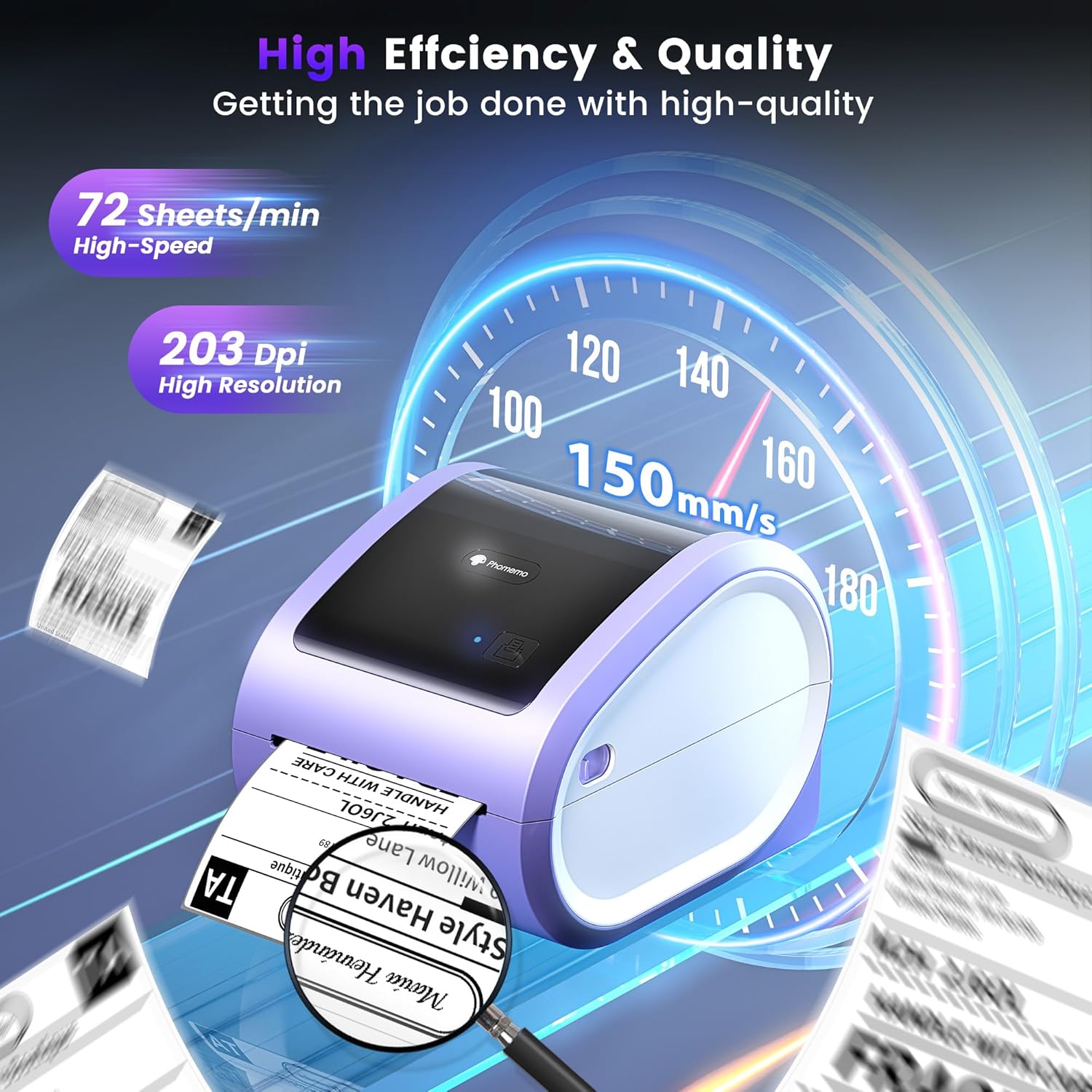
Figure 5: The Phomemo D520BT offers high efficiency and quality with a print speed of 150mm/s and 203 DPI resolution.

Figure 6: The Phomemo D520BT is compatible with various label sizes, from 1 inch to 4.6 inches wide.

Figure 7: The Phomemo D520BT supports multi-scenario applications for various labeling needs.

Figure 8: The Phomemo D520BT is compatible with all major shipping and sales platforms.
5. Mantenimentu
5.1 Pulizia di a Testa di Stampa
Regular cleaning of the print head ensures optimal print quality and extends the printer's life.
- Spegne l'impresora è scollega u cordone di alimentazione.
- Aprite a tappa di l'impresora.
- Gently wipe the print head with an alcohol swab or a soft, lint-free cloth lightly dampfinitu cù alcolu isopropilico.
- Lasciate asciugà cumpletamente a testina di stampa prima di chjude u coperchiu è accende a stampante.
5.2 Storage
Store the printer in a cool, dry place away from direct sunlight and extreme temperatures. Avoid exposing the printer to dust or moisture.
6. Risoluzione di prublemi
If you encounter issues with your Phomemo D520BT printer, refer to the following common problems and solutions:
- A stampante ùn s'accende micca:
- Assicuratevi chì l'adattatore di corrente sia cunnessu currettamente à a stampante è à una presa di corrente funzionante.
- Verificate s'ellu u buttone di accensione hè statu premutu fermamente.
- Labels not printing or feeding incorrectly:
- Verify that labels are loaded correctly with the printing side facing up.
- Ensure there are no obstructions in the label path.
- Check if the label roll or stack is depleted.
- Poor print quality (faded, streaky, or blank labels):
- Pulite a testa di stampa cum'è descrittu in a Sezione 5.1.
- Assicuratevi di utilizà etichette termiche di alta qualità.
- Check print density settings in your printer preferences.
- Prublemi di cunnessione Bluetooth:
- Ensure Bluetooth is enabled on your mobile device and the printer.
- Riavviate sia a stampante sia u vostru dispositivu mobile.
- Ensure you are within the Bluetooth range.
- Re-pair the printer through the Labelife app.
- Problemi di cunnessione USB:
- Verify the USB cable is securely connected to both the printer and the computer.
- Ensure the correct printer drivers are installed.
- Pruvate un altru portu USB o cable.
For further assistance, refer to the detailed video tutorials and user manuals available online, or contact Phomemo customer support.
7. Specificazioni
| Feature | Specificazione |
|---|---|
| Marca | Phomemu |
| Nome di mudellu | D520BT |
| Tecnulugia di cunnessione | Bluetooth, USB |
| Tecnulugia di stampa | termale |
| Funzione speciale | Portable, Built-in Holder |
| Output Printer | Monocromu |
| Velocità massima di stampa | 150 mm/s (72 labels/min) |
| Risoluzione di stampa | 203 DPI |
| Larghezza massima di stampa | 4.6 inch |
| Pesu di l'articulu | 2.4 liri |
| Dimensioni di u produttu | 10.31 "D x 10.31" W x 7.87 "H |
8. Garanzia è Support
Phomemo provides customer support to assist with any questions or issues you may encounter. For detailed warranty information, please refer to the warranty card included with your product or visit the official Phomemo website. Our customer support team is available via phone, email, or remote support.
For additional resources, including video tutorials and updated user manuals, please visit the Phomemo support page.


