1. Introduzione
This manual provides essential information for setting up, operating, and maintaining your HP OMEN 31.5 inch UHD 144Hz Smart Gaming Monitor. This monitor is designed to deliver an immersive visual experience with its 4K UHD display, high refresh rate, and smart features.
Key features include a 4K UHD (3840 x 2160) IPS panel, 144Hz refresh rate, VESA DisplayHDR 400, 1ms GtG response time with Overdrive, and NVIDIA G-SYNC compatibility. It also offers smart functionalities for streaming and multi-device connectivity.
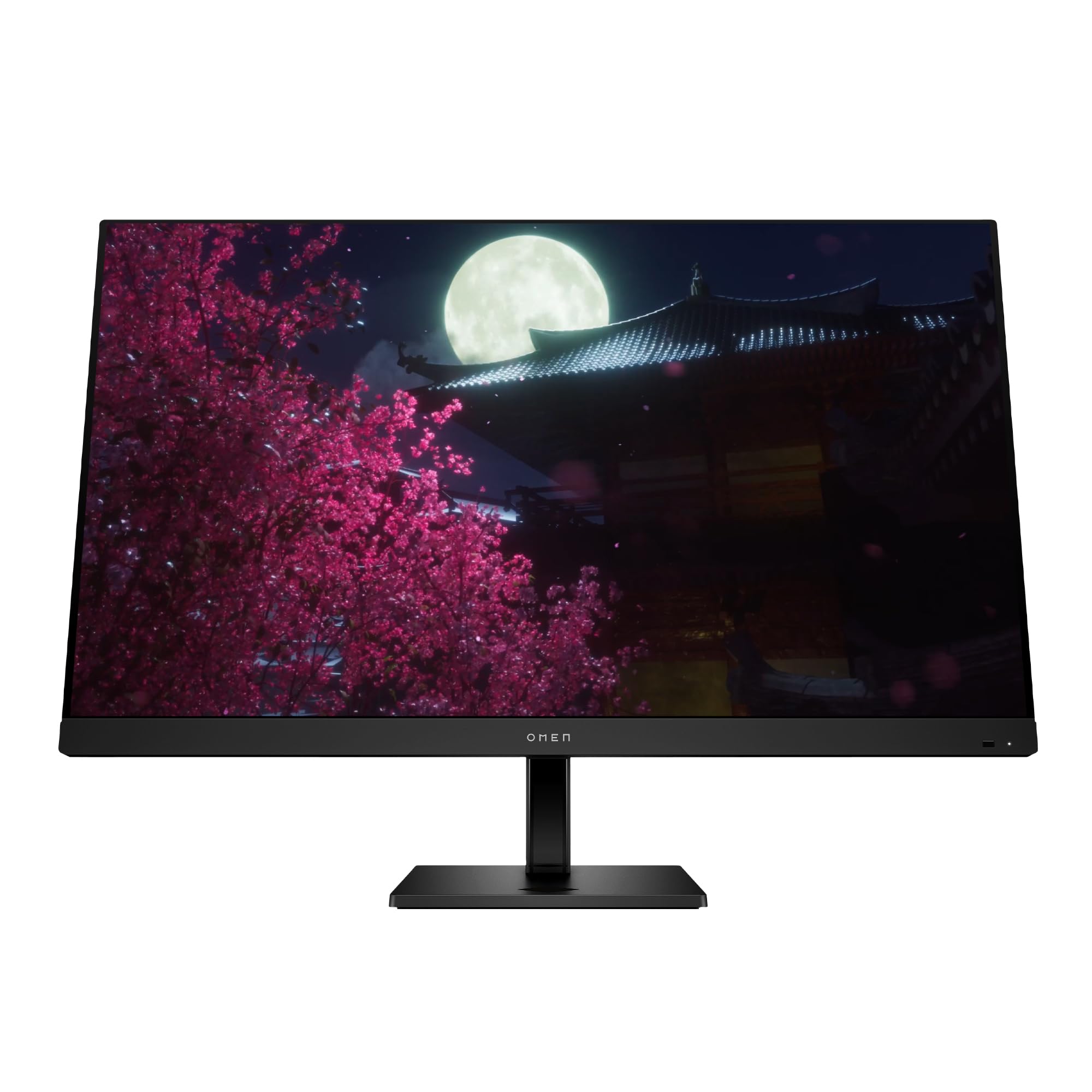
Image 1.1: The HP OMEN 31.5 inch UHD 144Hz Smart Gaming Monitor, highlighting its 4K UHD display, VESA DisplayHDR 400, integrated 3W speakers, and NVIDIA G-SYNC compatibility.
2. Ciò chì hè in a scatula
Verificate chì tutti i cumpunenti sò presenti in l'imballu prima di cuntinuà cù a cunfigurazione.
- HP OMEN 31.5 inch UHD 144Hz Smart Gaming Monitor
- Supportu di Monitor (Base è Collu)
- Cavu DisplayPort
- cavu HDMI
- Cavo USB Type-C à Type-C
- Cavu di alimentazione AC
- IR and Bluetooth remote control
- 2 batterie AAA (per u telecomandu)
- Supportu di cable
- Quick Setup Poster
- Documentation (including Warranty card)

Image 2.1: Visual representation of the items included in the product packaging, such as the monitor, cables, remote, and documentation.
3. Setup
3.1 Assemblaggio di u Supportu di u Monitor
- Eliminate cù cura i cumpunenti di u monitor è di u supportu da l'imballu.
- Attach the stand neck to the monitor panel, ensuring it clicks securely into place.
- Attach the stand base to the stand neck, tightening any screws if necessary.
- Pone u monitor assemblatu nantu à una superficia stabile è piana.
3.2 Cunnessu u Monitor
Cunnette i cavi necessarii à u monitor è à u vostru urdinatore o à altri dispusitivi.
- putenza: Connect the AC power cable to the monitor's power input and then to a wall outlet.
- Video Input: Connect either the DisplayPort cable, HDMI cable, or USB Type-C cable from your computer/device to the corresponding port on the monitor. The monitor supports 2 HDMI 2.1 ports, 1 DisplayPort 1.4, and 1 USB Type-C port.
- Dispositivi USB: Connect USB peripherals to the 2 USB 2.0 Type-A ports on the monitor.
- Output audio: If desired, connect external speakers or headphones to the 3.5 mm Audio Jack (Audio Out).
- Rete: For smart features, connect an Ethernet cable to the RJ-45 port (100 Mbps, for Android TV OS use only).

Image 3.1: The rear panel of the monitor, illustrating the location of the 2 HDMI 2.1 ports, USB Type-C port, 2 USB 2.0 Type-A ports, 3.5 mm Audio Jack, DisplayPort 1.4, and RJ-45 port.
3.3 Accensione iniziale
- Assicuratevi chì tutti i cavi sò cunnessi in modu sicuru.
- Press the power button on the monitor or use the remote control to turn on the monitor.
- Follow any on-screen prompts for initial setup, such as language selection and network connection for smart features.
4. Operazione di u Monitor
4.1 Cuntrolli basi è navigazione OSD
The monitor can be controlled using the physical buttons located on the monitor or the included IR and Bluetooth remote control. The On-Screen Display (OSD) menu allows you to adjust various settings.
- Use the remote control's directional buttons to navigate the OSD menu.
- Press the 'OK' or 'Enter' button to select an option.
- Use the 'Back' or 'Exit' button to return to the previous menu or exit the OSD.
4.2 Impostazioni è Funzioni di u Display
Ottimisate u vostru viewsperienza aghjustendu i seguenti paràmetri:
- Risoluzione: The monitor supports 4K UHD (3840 x 2160) resolution. Ensure your connected device is configured to output at this resolution for optimal clarity.
- Frequenza di rinfrescante: Set your device's display settings to 144Hz for smooth motion and responsive gameplay.
- VESA DisplayHDR 400: Enable HDR settings on your device and in the monitor's OSD for enhanced contrast and color depth in compatible content.
- Compatibile cù NVIDIA G-SYNC: For NVIDIA graphics card users, enable G-SYNC in your NVIDIA Control Panel to synchronize the monitor's refresh rate with your GPU's frame rate, reducing screen tearing and stuttering.
- Dolby Vision è Dolby Atmos: Experience enhanced visuals and immersive audio with Dolby support. Ensure your content and connected devices are compatible.
- HP Eye Ease with Eyesafe Certification: This feature reduces blue light emissions to help minimize eye strain during extended use, without compromising color accuracy.

Image 4.1: The monitor features HP Eye Ease with Eyesafe Certification, designed to provide comfortable viewing by reducing blue light while maintaining color quality.
4.3 Funzioni intelligenti è cunnessione
The OMEN 32x monitor offers advanced smart functionalities:
- multi-View: Split your screen to display content from two different sources simultaneously. For example, use a wired connection on one side and wireless casting on the other.
- Multi-Platform Streamer Honors: Stream content directly from your screen to multiple platforms. Refer to the monitor's smart OS interface for configuration.
- Shared Keyboard/Mouse (KB/M): Easily switch your keyboard and mouse control between multiple connected devices, simplifying your setup.
- Home Panel Integration: Control smart home devices like lights and thermostats, view doorbell notifications, and full-screen camera feeds directly from the monitor's home panel.

Image 4.2: The monitor's capability to live stream to multiple platforms and utilize a split-screen Multi-View feature for enhanced multitasking.

Image 4.3: The monitor's smart home panel, allowing control of lights, temperature, and displaying doorbell notifications and full-screen camera views.
4.4 Aggiustamenti ergonomichi
Aghjustate u monitor per ottimali viewcunfortu:
- Ajustamentu di l'altezza: The stand allows for a 100mm height adjustment range.
- Inclinazione: The monitor can be tilted from -5° to +20° to find your preferred viewing angulu.

Image 4.4: Illustration of the monitor's ergonomic adjustments, including its tilt range (-5° to +20°) and 100mm height adjustable range.
5. Mantenimentu
5.1 Pulizia di u Monitor
- Spegne sempre u monitor è scollega u cavu di alimentazione prima di pulisce.
- Aduprate un pannu morbidu, senza pelucchi dampinumiditu cù acqua o un pulitore di schermi non abrasivu.
- Ùn spruzzate micca u detergente direttamente nantu à u schermu.
- Evitate l'usu di prudutti chimichi aggressivi, solventi o materiali abrasivi, postu chì questi ponu dannà u schermu o u casing.
5.2 Cura Generale
- Evitate di mette oggetti pesanti nantu à u monitor o i so cavi.
- Ùn bluccate micca l'aperture di ventilazione di u monitor.
- Mantene u monitor luntanu da a luce diretta di u sole, da fonti di calore è da l'umidità eccessiva.
6. Risoluzione di prublemi
Sè avete prublemi cù u vostru monitor, cunsultate e seguenti suluzioni cumuni:
| Prublemu | Soluzione Possibile |
|---|---|
| Nisun putere | Assicuratevi chì u cavu d'alimentazione sia cunnessu currettamente à u monitor è à una presa di corrente funzionale. Verificate se u buttone d'accensione hè premutu. |
| Nisun signale / Schermu biancu | Verify that the video cable (DisplayPort, HDMI, or USB-C) is correctly connected to both the monitor and your computer. Ensure the correct input source is selected in the monitor's OSD menu. Try restarting your computer. |
| Image flickering or distortion | Check the video cable for damage. Ensure your graphics drivers are up to date. Adjust the refresh rate in your computer's display settings. Disable G-SYNC temporarily to see if the issue persists. |
| I culori parenu sbagliati | Adjust color settings in the OSD menu. Perform a factory reset of the monitor settings. Ensure your graphics card color settings are correctly configured. |
| U cuntrollu remoto ùn funziona micca | Check and replace the AAA batteries. Ensure there are no obstructions between the remote and the monitor's IR receiver. Re-pair the Bluetooth remote if necessary. |
If the problem persists after trying these solutions, contact HP customer support.
7. Specificazioni
| Feature | Detail |
|---|---|
| Numero di mudellu | 99Z68AA#ABA |
| Size Screen | 31.5 inch |
| Tipu di pannellu | IPS |
| Risoluzione | 4K UHD (3840 x 2160) |
| Frequenza di rinfrescante | 144 Hz |
| Tempu di risposta | 1ms GtG (with Overdrive) |
| Supportu HDR | Display VESA HDR 400 |
| Compatibilità G-SYNC | Compatibile cù NVIDIA G-SYNC |
| Rapportu di cuntrastu | 1000: 1 |
| Luminosità | 400 nits (piccu) |
| Viewing Anguli | 178 ° (H) / 178 ° (V) |
| I parlanti | Four integrated 3W speakers |
| Porti di Input Video | 2 x HDMI 2.1, 1 x DisplayPort 1.4, 1 x USB Type-C |
| Porti USB | 2 x USB 2.0 Type-A (Battery Charging 1.2) |
| Output audio | Jack Audio 3.5 mm |
| Port di rete | 1 x RJ-45 (100 Mbps, for Android TV OS only) |
| Ergonomia | Height adjustable (100mm), Tilt (-5° to +20°) |
| Dimensioni (LxPxH) | 28.11 x 9.58 x 16.93 pollici (cù supportu) |
| Pesu | 23.3 libbre (cù u supportu) |
| Culore | Neru |
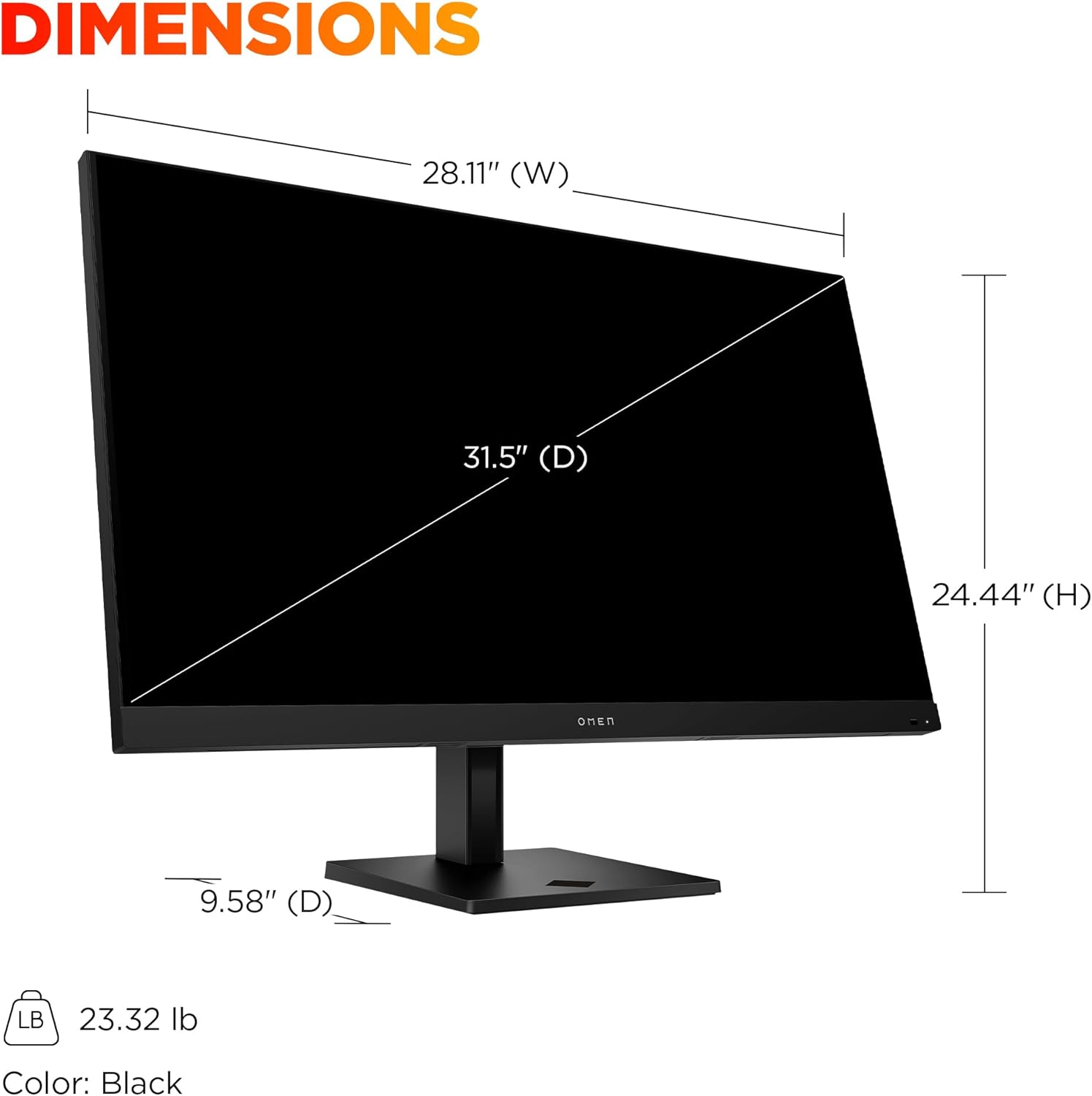
Image 7.1: Detailed dimensions of the HP OMEN 31.5 inch monitor, including width, height, and depth, along with its weight.
8. Garanzia è Support
8.1 Garanzia infurmazione
This HP OMEN monitor comes with a HP 3-year limited warranty. Please refer to the warranty card included in your product packaging for full terms and conditions. Keep your proof of purchase for warranty claims.
8.2 Assistenza Clienti
For technical assistance, troubleshooting beyond this manual, or warranty service, please contact HP customer support. You can find support contact information on the official HP website or through the documentation provided with your monitor.
Online resources, drivers, and FAQs may also be available on the Support HP websitu.