1. Impurtante Information Safety
Please read this section carefully before using your Veidoo W40 tablet to ensure safe and proper operation. Keep this manual for future reference.
Precauzioni generale
- Evitate d'espone a tableta à temperature estreme, luce solare diretta o alta umidità.
- Do not drop, bend, or puncture the tablet.
- Keep the tablet away from water and other liquids. If it gets wet, power it off immediately and allow it to dry completely before use.
- Use only accessories approved by Veidoo. Unauthorized accessories may damage the tablet or pose safety risks.
- Do not attempt to disassemble, repair, or modify the tablet yourself. Contact customer support for assistance.
Sicurezza di a batteria
- The tablet contains a non-removable lithium-ion battery. Do not attempt to replace it yourself.
- Ùn espone micca a bateria à u focu o à u calore estremu.
- Dispose of the tablet and its battery responsibly, following local regulations.
Sicurezza di carica
- Charge the tablet using the provided USB-C cable and a compatible power adapter.
- Do not charge the tablet in damp cundizioni.
- Unplug the charger when the tablet is fully charged or not in use.
2. Produttu Finituview
The Veidoo W40 is an 11-inch Android tablet designed for versatile use, featuring an Octa-Core processor, ample storage, and modern connectivity options.
Funzioni chjave
- Display: 11-inch In-Cell HD Touch Screen with 1280x800 resolution.
- Processore: 2.0 GHz Octa-Core processor for smooth performance.
- Memoria è almacenamiento: 8GB RAM (4GB + 4GB expandable) and 128GB internal storage, expandable up to 1TB via MicroSD card.
- Sistema Operativu: Android 14.
- Cameras: Camera frontale di 2MP è camera posteriore di 5MP.
- Connettività: WiFi 6 (802.11ax) and Bluetooth 5.0.
- Batteria: Capacità di 5000 mAh.

Image: Veidoo W40 Tablet configuration summary, highlighting key features like Android 14, 11-inch In-Cell display, 1280x800 resolution, Octa-Core processor, 8GB RAM, 128GB ROM, 5000mAh battery, WiFi 6, Bluetooth 5.0, and dual cameras.
3. Ciò chì hè in a scatula
The standard package for your Veidoo W40 tablet typically includes the following items:
- Veidoo W40 11-inch Android Tablet
- Cavu di carica USB-C
- Adattatore di putenza
- Manuale d'usu
Note: Contents may vary slightly depending on region or retailer.
4. Primi passi (Configurazione)
4.1 Caricamentu di a tableta
- Connect the USB-C cable to the tablet's charging port.
- Cunnette l'altra estremità di u cavu USB-C à l'adattatore di alimentazione.
- Inserite l'adattatore di corrente in una presa murale.
- Allow the tablet to charge fully before first use. The battery indicator on the screen will show charging status.
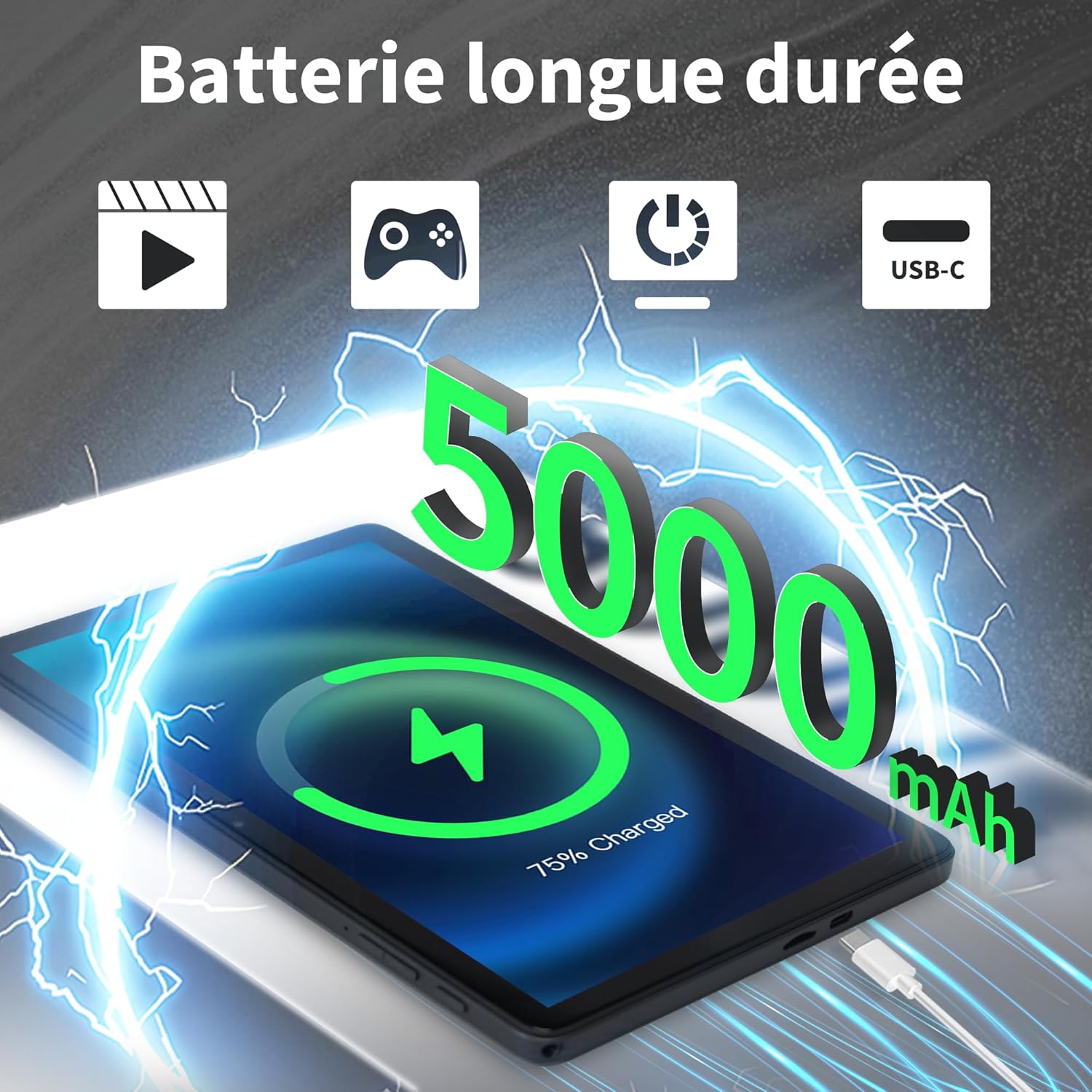
Image: Veidoo W40 Tablet connected to a USB-C charger, showing the battery icon and 5000mAh capacity.
4.2 Accensione / spegnimentu
- Per accende: Press and hold the Power button until the Veidoo logo appears on the screen.
- Per spegne: Appughjà è tene premutu u buttone d'alimentazione finu à chì appare u menu di l'opzioni di alimentazione. Selezziunate "Spegne" è cunfirmate.
- Per riavvià: Da u menù di l'opzioni di putenza, selezziunate "Restart" è cunfirmate.
4.3 Assistente di cunfigurazione iniziale
Upon first power-on, the tablet will guide you through an initial setup process:
- Sceglite a vostra lingua preferita.
- Cunnette vi à una reta Wi-Fi.
- Accetta i termini è e cundizioni.
- Cunnettatevi cù u vostru contu Google o create un novu. Questu hè necessariu per scaricà l'applicazioni da Google Play Store.
- Set up screen lock (PIN, pattern, or password) and other security features.
- Review and adjust other settings as prompted.
4.4 Inserimentu di una carta MicroSD
The tablet supports expandable storage up to 1TB using a MicroSD card.
- Truvate u slot per a carta MicroSD nant'à u latu di a tableta.
- Inserite delicatamente a carta MicroSD in u slot cù i cuntatti d'oru rivolti in ghjò finu à chì si sente un clic.
- The tablet will detect the card and may prompt you to format it for use as portable or internal storage. Follow the on-screen instructions.
5. Funzionamentu Basic
5.1 Touch Gestures
- Tap: Touch the screen once to select an item or open an app.
- Touch & Hold: Appughjà è tene premutu un elementu per accede à i menu cuntestuali o trascinà l'elementi.
- Swipe: Trascinate u ditu nantu à u screnu per scorrere e pagine o e liste.
- Pizzicà: Aduprate dui dite per zoomà in o in zoomà e foto è web pagine.
5.2 Cunnessione à Wi-Fi
- Andà à Settings > Rete è Internet > Wi-Fi.
- Attivà/disattivà u Wi-Fi On.
- Selezziunate a rete Wi-Fi desiderata da a lista.
- Inserite a password se vi hè dumandatu è toccate Cunnette.
5.3 Cunnessu à i dispusitivi Bluetooth
- Andà à Settings > Dispositivi cunnessi > Preferenze di cunnessione > Bluetooth.
- Toggle Bluetooth On.
- Assicuratevi chì u vostru dispositivu Bluetooth sia in modalità di accoppiamentu.
- Selezziunate u dispusitivu da a lista di dispusitivi dispunibili è seguitate tutte l'istruzzioni nantu à u screnu per compie l'accoppiamentu.
5.4 Utilizà e Camera
The tablet features a 2MP front camera and a 5MP rear camera.
- Aprite u Camera app.
- Toccate l'icona di a camera per cambià trà e camere anteriori è posteriori.
- Toccate u buttone di l'otturatore per piglià una foto o inizià / fermà a registrazione video.
- Access photos and videos in the Gallery app.

Image: Tablet cameras (2MP front, 5MP rear) with example photos, demonstrating its capability to capture moments.
5.5 Gestione di u almacenamentu
The tablet comes with 128GB of internal storage and supports up to 1TB expandable storage.
- Andà à Settings > Storage à view usu di almacenamiento.
- You can free up space by uninstalling unused apps, deleting old photos/videos, or moving files to a MicroSD card.

Image: Tablet storage illustration, showing how photos, videos, and music can be stored on the 128GB ROM and expanded with 8GB RAM.
5.6 Installing/Uninstalling Apps
- Installa Apps: Aprite u Google Play Store app, cercate l'app desiderata è toccate Installa.
- Disinstalla l'applicazioni: Touch and hold the app icon on the home screen or app drawer, then drag it to "Uninstall" or select "App info" and tap "Uninstall". Alternatively, go to Settings > Apps > select the app > Disinstalla.

Image: Tablet in use for various activities such as watching movies, playing games, working, and video calls, demonstrating its versatility.
6. Mantenimentu è Cura
6.1 Pulizia di a Tablet
- Aduprate un pannu dolce è senza pelu per pulisce u schermu è u corpu di a tableta.
- Per e macchie ostinate, leggermente dampLavate u pannu cù acqua o un pulitore di schermu cuncepitu per l'elettronica.
- Evitate l'usu di prudutti chimichi aggressivi, detergenti abrasivi o spray aerosol.
6.2 Ottimizazione di a batteria
To maximize battery life (5000mAh):
- Reduce a luminosità di u screnu.
- Disattivate u Wi-Fi è u Bluetooth quandu ùn sò micca in usu.
- Chjude l'applicazioni in fondu.
- Enable battery saver mode in Settings.
- Avoid extreme temperatures during charging and use.
6.3 Actualizazioni di u Software
Verificate è installate regularmente l'aghjurnamenti di u software per assicurà prestazioni è sicurezza ottimali.
- Andà à Settings > Sistema > Actualizazione di u sistema.
- Segui l'istruzzioni nantu à u screnu per verificà è installà qualsiasi aghjurnamenti dispunibili.
6.4 Reset di fabbrica
Un reset di fabbrica cancellerà tutti i dati da a vostra tableta è a restaurerà à i so paràmetri di fabbrica originali. Fate una copia di salvezza di i dati impurtanti prima di cuntinuà.
- Andà à Settings > Sistema > Resettate l'opzioni.
- Selezziunà Sguassà tutti i dati (resettore di fabbrica).
- Cunfirmate a vostra decisione è inserite u vostru PIN / mudellu / password se dumandatu.
7. Risoluzione di prublemi
If you encounter issues with your Veidoo W40 tablet, try the following solutions:
Tablet Not Turning On
- Ensure the tablet is sufficiently charged. Connect it to a power source and wait a few minutes before attempting to power on.
- Appughjà è tene premutu u buttone di accensione per 10-15 secondi per furzà un riavviu.
Problemi di cunnessione Wi-Fi
- Assicuratevi chì u Wi-Fi sia attivatu in i paràmetri.
- Riavviate u vostru router Wi-Fi.
- Dimenticate a rete in i paràmetri di a tableta è ricunnettetevi.
- Assicuratevi di esse in portata di u signale Wi-Fi.
Slow Performance or App Crashes
- Chjude l'applicazioni in sfondate micca aduprate.
- Clear the cache of problematic apps (Settings > Apps > [App Name] > Storage & cache > Clear cache).
- Riavvia a tableta.
- Assicuratevi chì ci sia abbastanza spaziu di almacenamentu dispunibule.
- Check for system and app updates.
U screnu ùn risponde micca
- Riavviate a tableta tenendu premutu u buttone di accensione.
- Assicuratevi chì u schermu sia pulitu è senza detriti.
8. Specificazioni
Below are the technical specifications for the Veidoo W40 11-inch Android Tablet:
| Feature | Specificazione |
|---|---|
| Mudellu | W40 |
| Size Display | 11 inch |
| Risoluzione di u screnu | 1280 x 800 pixels (In-Cell HD Touch Screen) |
| Processore | 2.0 GHz Octa-Core (Allwinner) |
| RAM | 8GB (4GB + 4GB Expand) |
| Memoria interna (ROM) | 128 GB |
| Storage espansibile | Finu à 1 TB via carta MicroSD |
| Sistema upirativu | Android 14 |
| Camera frontale | 2 MP |
| Camera posteriore | 5 MP |
| Wi-Fi | WiFi 6 (802.11ax) |
| Bluetooth | Bluetooth 5.0 |
| Capacità batterie | 5000 mAh |
| Dimensioni (LxPxH) | 9.57 x 6.34 x 0.31 inch |
| Pesu | 1.13 liri |
| Culore | Grisgiu |

Image: Octa-Core processor illustration, highlighting the 2.0 GHz speed and performance benefits.
9. Garanzia è Support
Infurmazioni di Garanzia
Your Veidoo W40 tablet is covered by a standard manufacturer's warranty. Please refer to the warranty card included in your package or visit the official Veidoo websitu per i termini è e cundizioni dettagliate riguardanti a copertura di a garanzia, a durata è u prucessu di reclamu.
Assistenza Clienti
If you require technical assistance, have questions about your product, or need to report an issue, please contact Veidoo customer support. For inquiries, you may consult via email. Contact details are typically available on the official Veidoo websitu o per mezu di a vostra piattaforma di compra.


