OPPO Reno 13 5G PKM110 Dual SIM Smartphone
Manuale d'istruzzioni
Introduzione
This manual provides essential information for the safe and efficient use of your OPPO Reno 13 5G PKM110 Dual SIM smartphone. Please read this guide thoroughly before operating your device to ensure optimal performance and longevity. Keep this manual for future reference.
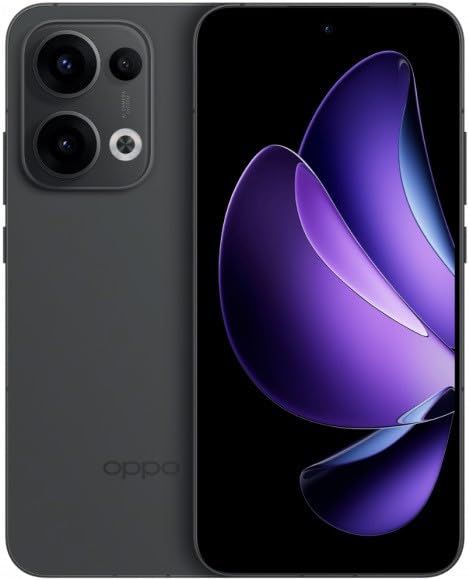
Figure 1: OPPO Reno 13 5G PKM110 Dual SIM Smartphone. This image displays the front and back of the device, highlighting its sleek design and camera module.
Istituisci
1. Unboxing è Inspection Initial
Eliminate cù cura tutti l'articuli da l'imballu. Verificate chì i seguenti cumpunenti sianu presenti:
- OPPO Reno 13 5G PKM110 Smartphone
- Cable USB Type-C
- Adattatore di putenza
- Strumentu di espulsione SIM
- Guida d'iniziu rapidu (stu documentu)
Inspect the device for any visible damage. If any components are missing or damaged, contact your retailer.
2. Installazione di a carta SIM
- Truvate u cassettu di a carta SIM à u latu di u vostru dispositivu.
- Insert the SIM ejector tool into the small hole on the SIM tray and press gently until the tray pops out.
- Place your Nano-SIM cards into the designated slots on the tray. Ensure the gold contacts face downwards and the cut corner aligns correctly. This device supports Dual SIM functionality.
- Reinserite cù cura u cassettu di a carta SIM in u telefunu finu à chì si sente un clic.
3. Accensione iniziale è cunfigurazione
- Appughjà è tene premutu u buttone di accensione (situatu à diritta) finu à chì appare u logu OPPO.
- Segui l'istruzzioni nantu à u screnu per compie a cunfigurazione iniziale, cumprese a selezzione di a lingua, a cunnessione Wi-Fi, a cunfigurazione di u contu Google è i paràmetri di sicurezza.
4. Charging u dispusitivu
Before first use, it is recommended to fully charge your device. Connect the USB Type-C cable to the phone's charging port and the other end to the power adapter. Plug the adapter into a wall outlet. The charging indicator will appear on the screen.
Istruzzioni di funziunamentu
1. Navigazione basica
- Gesti di u schermu tattile: Toccate per selezziunà, scorri per scorrere, pizzicà per zoomà.
- Pantalla di casa: Accede à e vostre app è widget. Scorri à manca o à diritta per navigà trà e schermate.
- Panel di notificazione: Swipe falà da a cima di u screnu à view notificazioni è paràmetri rapidi.
- Apps recenti: Swipe up from the bottom of the screen and hold (or tap the recent apps button, if configured) to view applicazioni usate recentemente.
2. Fà chjame è mandà missaghji
- Fà una Chjama: Open the 'Phone' app, enter the number, and tap the call icon.
- Mandatu un messagiu: Open the 'Messages' app, tap the new message icon, enter the recipient's number or select from contacts, type your message, and tap send.
3. Connecting to Networks
- Wi-Fi: Andà à Settings> Wi-Fi, turn Wi-Fi on, select your desired network, and enter the password if required.
- Dati mobili (5G): Andà à Impostazioni > Rete Mobile, ensure 'Mobile data' is enabled. Your device supports 5G connectivity where available.
- Bluetooth: Andà à Settings> Bluetooth, turn Bluetooth on, and pair with compatible devices.
4. Camera Usage
Open the 'Camera' app. Tap the shutter button to take a photo. Swipe left or right to switch between different modes (e.g., Photo, Video, Portrait). Tap the camera icon to switch between front and rear cameras.
5. Funzioni di sicurezza
- Sbloccare l'impronta digitale: Registrate e vostre impronte digitali in Settings > Password & Biometrics > Fingerprint.
- Face Unlock: Cunfigurà u ricunniscenza faciale in Settings > Password & Biometrics > Face.
- Lock Screen: Choose a PIN, pattern, or password for screen lock in Settings > Password & Biometrics > Lock screen password.
Mantenimentu
1. Updates Software
Verificate regularmente l'aghjurnamenti di u software per assicurà chì u vostru dispositivu abbia l'ultime funzionalità è patch di sicurezza. Andate à Impostazioni > À propositu di u dispusitivu > Aghjurnatu per verificà è installà l'aghjurnamenti.
2. Pulizia di u vostru dispositivu
Aduprate un pannu dolce è senza pelu per pulisce u schermu è u corpu di u vostru telefunu. Evitate l'usu di prudutti chimichi aggressivi o materiali abrasivi. Ùn espone micca u dispusitivu à una umidità eccessiva.
3. Cura di batterie
- Evite temperature estreme.
- Do not let the battery drain completely too often.
- Aduprate solu caricabatterie è cavi appruvati da OPPO.
4. Storage Management
To free up storage space, regularly clear cache data, uninstall unused apps, and transfer large files (photos, videos) to cloud storage or a computer. Go to Settings > About device > Storage per gestisce u almacenamentu di u vostru dispositivu.
Risoluzione di prublemi
1. U dispusitivu ùn risponde micca
Sè u vostru apparechju ùn risponde più, tene premutu u buttone d'accensione per circa 10-15 secondi per furzà un riavviu.
2. Problemi di cunnessione di rete
- Nisun signalu: Ensure your SIM card is properly inserted. Try restarting the device. Check if airplane mode is off.
- Problemi di cunnessione Wi-Fi: Restart your router and your phone. Forget the network in Wi-Fi settings and reconnect.
3. L'applicazioni si bloccanu o si congelanu
Svuotate a cache è i dati per l'applicazione problematica (Settings > Apps > App management > [App Name] > Storage usage > Clear cache/Clear data). Sè u prublema persiste, disinstallate è reinstallate l'applicazione.
4. Reset Factory
WARNING: A factory reset will erase all data on your phone, including apps, photos, and settings. Back up your data before proceeding.
Per fà un reset di fabbrica, andate à Impostazioni > Impostazioni di u sistema > Copia di salvezza è reset > Reset di u telefunu > Sguassà tutti i dati. You will need to confirm your screen lock password.
Specificazioni
| Feature | Specificazione |
|---|---|
| Marca | OPPO |
| Nome di mudellu | Oppo Reno 13 5G PKM110 |
| Capacità di almacenamiento di memoria | 256 GB |
| Dimensione installata di a memoria RAM | 12 GB |
| Tipu di visualizazione | AMOLED |
| Tecnulugia cellulare | 5G |
| Numeru di slot di carta SIM | Dual SIM |
| Fattore di forma | bar |
| Culore | Neru |
| Fornitore di servizii wireless | Sbloccatu |
Garanzia è Supportu
1. Garanzia infurmazione
Your OPPO Reno 13 5G PKM110 is covered by a limited warranty. Please refer to the warranty card included in your product packaging for detailed terms and conditions, including warranty period and coverage specifics. Keep your proof of purchase for warranty claims.
2. Assistenza Clienti
For technical assistance, troubleshooting beyond this manual, or warranty service, please contact OPPO customer support. Visit the official OPPO website for contact information, service center locations, and online support resources.