1. Introduzione
The CarpodGo T3 Pro is a portable 8.9-inch wireless CarPlay and Android Auto display designed to enhance your in-car entertainment and navigation experience. Featuring a fully laminated 1920x720 IPS touch screen, it offers seamless integration with your smartphone, supporting both wireless CarPlay and Android Auto functionalities. Its innovative design includes a magnetic base for flexible mounting and a Display-Only Bluetooth Mode for optimized audio routing through your vehicle's existing sound system.

Figure 1.1: CarpodGo T3 Pro Portable Display with CarPlay Interface.
2. Informazioni di sicurezza
- Always ensure the device is securely mounted and does not obstruct your view o interferiscenu cù i cuntrolli di u veiculu.
- Ùn pruvate micca di smuntà o mudificà l'apparechju. Questu puderia annullà a garanzia è presentà un risicu per a sicurezza.
- Evitate d'espone u dispusitivu à temperature estreme, à a luce diretta di u sole per periodi prolungati o à umidità eccessiva.
- Use only the provided power adapter and cables to prevent damage or fire hazards.
- Operate the device responsibly. Distracted driving can lead to accidents.
3. Ciò chì hè in a scatula
Disimballate cù cura a scatula è assicuratevi chì tutti l'articuli sianu presenti è in bonu statu. Sè qualchì articulu manca o hè dannighjatu, cuntattate l'assistenza clienti.

Figure 3.1: Package Contents of CarpodGo T3 Pro.
- CarpodGo T3 Pro Portable Display Unit
- Base Magnetica
- Fixed Console Mount
- 9V Power Cord (Car Charger)
- Adattatore OTG
- Manuale d'usu
- Central Control Seamless Mounts (complementary)
- Suction Cup Mount (for glass)
- Accessori opzionali (ponu esse venduti separatamente): Backup Camera, Bluetooth Aux Receiver
4. Setup
4.1 Muntà u dispusitivu
The CarpodGo T3 Pro features a strong magnetic base for secure attachment. It is compatible with a 17mm ball head mount and includes complementary central control seamless mounts and a suction cup mount for glass surfaces.
- Sceglite un locu di montaggio: Select a location on your dashboard or windshield that does not obstruct your view of the road, airbags, or vehicle controls.
- Attaccà a muntagna:
- For Dashboard (Seamless Mounts): Clean the dashboard surface thoroughly. Attach the central control seamless mount to the desired location.
- For Windshield (Suction Cup Mount): Clean the windshield surface. Press the suction cup firmly against the glass and engage the lever to secure it.
- For Fixed Console Mount: Secure the fixed console mount to a suitable flat surface using adhesive or screws (if applicable and safe).
- Attach the Magnetic Base: Connect the magnetic base to the chosen mount (e.g., 17mm ball head).
- Secure the T3 Pro Display: Align the back of the T3 Pro display with the magnetic base. The strong magnets will firmly hold the display in place. Ensure it is stable and does not wobble.

Figure 4.1: Magnetic Base and Mount.
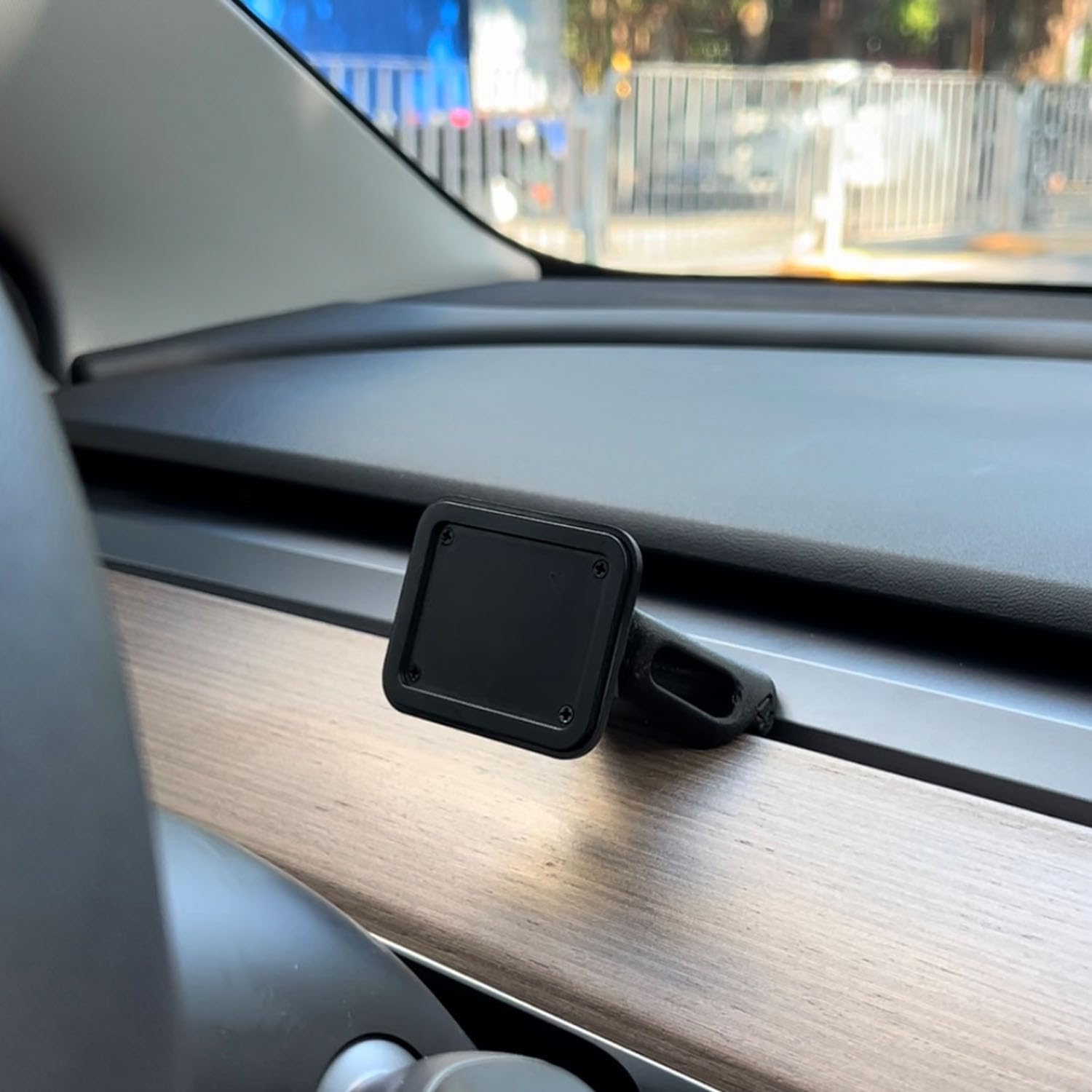
Figure 4.2: Magnetic Base Installed on Dashboard.
4.2 Cunnessione di putenza
Connect the provided 9V power cord to the "Power" port on the side of the T3 Pro unit and plug the other end into your vehicle's 12V accessory outlet (cigarette lighter socket).
4.3 Avvio iniziale
Once powered, the device will automatically boot up. The multi-core Linux system is designed for fast startup, typically displaying the CarPlay interface within 12 seconds.

Figure 4.3: Fast Boot-Up and Connectivity.
5. Operating Instructions
5.1 Cunnessione CarPlay / Android Auto senza filu
The T3 Pro supports wireless CarPlay and Android Auto for seamless smartphone integration.
- On the T3 Pro, navigate to the CarPlay or Android Auto icon on the main screen.
- Nant'à u vostru smartphone, attivate Bluetooth è Wi-Fi.
- Cerca the T3 Pro's Bluetooth name (usually "CarpodGo T3 Pro" or similar) on your phone and pair with it.
- Once paired via Bluetooth, your phone will automatically establish a Wi-Fi connection for CarPlay/Android Auto.
- The T3 Pro supports 60fps wireless CarPlay for smoother scrolling and responsiveness. This can typically be adjusted in the device settings if needed.
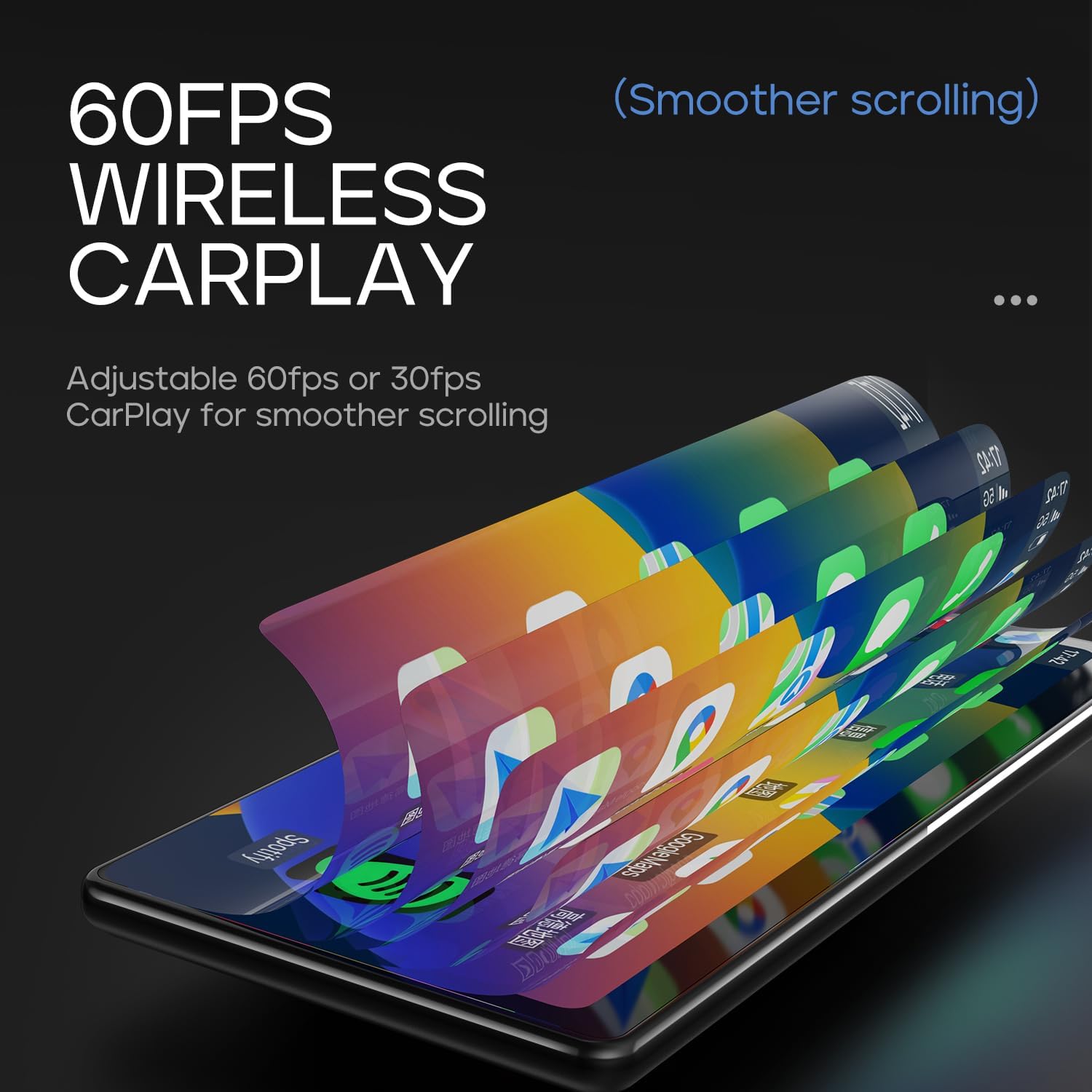
Figure 5.1: 60fps Wireless CarPlay for Smooth Operation.
5.2 Display-Only Bluetooth Mode
This mode allows you to route audio (maps, music, calls) through your car's existing Bluetooth system, utilizing your car's speakers and microphone, while the T3 Pro handles the display.
- On the T3 Pro, activate "Display-Only Bluetooth Mode" in the settings. Refer to the on-screen interface for the exact location of this setting.
- Connect your smartphone directly to your car's Bluetooth system.
- The T3 Pro will continue to display CarPlay/Android Auto, but all audio will be managed by your car's Bluetooth connection. This mode also supports steering wheel controls for audio and calls, provided your car's Bluetooth system is compatible.

Figure 5.2: Display-Only Bluetooth Mode Configuration.
5.3 User Interface (UI) Navigation
The T3 Pro features a new Carpod interface UI with a line neomorphism style, designed for intuitive use. Navigate through menus and applications using the touch screen. Swipe gestures and taps are used for interaction.

Figure 5.3: CarpodGo T3 Pro User Interface Examples.
6. Mantenimentu
- Pulizia: Use a soft, lint-free cloth to clean the screen and body of the device. Do not use abrasive cleaners, alcohol, or solvents.
- Conservazione: Sè vo almacenate u dispusitivu per un periodu prolongatu, scollegatelu da a rete elettrica è cunservatelu in un locu frescu è asciuttu, luntanu da a luce diretta di u sole.
- Actualizazioni di u software: Verificate periodicamente u fabbricante website or the device settings for available firmware updates to ensure optimal performance and new features.
7. Risoluzione di prublemi
| Prublemu | Causa Possibile | Soluzione |
|---|---|---|
| U dispusitivu ùn accende micca. | Nisuna cunnessione elettrica o cavu di alimentazione difettuosu. | Ensure the 9V power cord is securely plugged into the device and the car's 12V outlet. Check if the car's outlet is functioning. |
| CarPlay/Android Auto senza filu ùn si cunnetta micca. | Bluetooth/Wi-Fi issues, phone settings. |
|
| Nisun audio o una qualità audio scarsa. | Audio routing issue, volume settings. |
|
| U schermu ùn risponde micca o hè bluccatu. | Errore di software tempurale. | Perform a soft reset by disconnecting and reconnecting the power. If the issue persists, contact customer support. |
8. Specificazioni
| Feature | Detail |
|---|---|
| Numero di mudellu | T3 Pro |
| Size Display | 8.9 inch |
| Risoluzione di u screnu | 1920 x 720 IPS |
| Tecnulugia di visualizazione | Fully Laminated Screen, 16.7 million colors, 700nit highlight |
| Connettività wireless | Wireless CarPlay, Wireless Android Auto, Wi-Fi, Bluetooth |
| Modu Bluetooth | Modu Bluetooth Display-Solu |
| Frame Rate | Supports 60fps Wireless CarPlay |
| Muntà | Magnetic design, compatible with 17mm ball head mount, central control seamless mounts, suction cup mount |
| Tipu di cuntrollu | Push Button, Steering Wheel Controls (via Display-Only BT Mode) |
| Modu Output Audio | Stereo |
| Tipu di cunnessu | 3.5mm Jack, HDMI, USB |
9. Garanzia è Support
CarpodGo products are designed for reliability and performance. For warranty information, technical support, or service inquiries, please refer to the warranty card included in your package or visit the official CarpodGo websitu. Conservate a vostra ricevuta d'acquistu cum'è prova d'acquistu per e richieste di garanzia.
Informazioni di cuntattu: Please refer to the contact details provided in your product packaging or on the official CarpodGo websitu per l'infurmazioni di supportu più aggiornate.


