1. Produttu Finituview
This manual provides detailed instructions for the Gamrombo Wireless Controller, designed for use with Xbox One, Xbox Series X|S, PC, and Windows 10/11 operating systems. Please read this manual carefully before use.
1.1 Cuntenuti di u pacchettu
- Gamrombo Wireless Controller (x2)
- 2.4GHz USB Adapter (x2)
- Cavo di carica USB Type-C (x2)
- Manuale d'uso (stu documentu)
1.2 Disposizione di u Controller
The Gamrombo Wireless Controller features a standard layout with responsive buttons, joysticks, and triggers for an enhanced gaming experience.

Image 1.1: Front view of the Gamrombo Wireless Controllers and 2.4GHz USB Adapters.

Imagine 1.2: Dettagliata view of controller buttons, joysticks, and triggers.
2. Setup è Connection
2.1 Connecting to Xbox Consoles (Xbox One, Xbox Series X|S)
- Assicuratevi chì a vostra cunsola Xbox sia accesa.
- Insert the 2.4GHz USB adapter into an available USB port on your Xbox console.
- Press and hold the Home button on the controller for 3 seconds to power it on. The indicator light on the controller will flash rapidly.
- Once the controller connects to the adapter, the indicator light will become solid, indicating a successful connection.
2.2 Connecting to PC (Windows 10/11)
- Assicuratevi chì u vostru PC hè alimentatu.
- Insert the 2.4GHz USB adapter into an available USB port on your PC. The system will automatically install the necessary drivers.
- Press and hold the Home button on the controller for 3 seconds to power it on. The indicator light on the controller will flash rapidly.
- Once the controller connects to the adapter, the indicator light will become solid. You can now use the controller for PC games.

Image 2.1: Controller compatibility with various platforms.
2.3 Caricà u Controller
To charge the controller, connect the included USB Type-C cable to the charging port on the controller and the other end to a USB power source (e.g., console, PC, or USB wall adapter). The indicator light will show charging status and turn off when fully charged.
3. Operating Instructions
3.1 Power On/Off
- Power On: Mantene premutu u buttone Home per 3 seconde.
- Spegnimentu: Press and hold the Home button for 5-8 seconds. The controller will automatically power off after 5 minutes of inactivity.
3.2 Funzione Turbo
The Turbo function allows for rapid, repeated input of a button press, which can be beneficial in certain games.
- Mantene premutu u buttone Turbo.
- While holding the Turbo button, press the desired action button (e.g., A, B, X, Y, LB, RB, LT, RT). The Turbo function is now activated for that button.
- To deactivate Turbo for a specific button, repeat the process: press and hold the Turbo button, then press the action button again.

Image 3.1: Instructions for activating the Turbo function.
3.3 Doppia Vibrazione
The controller features dual motors for vibration feedback, providing an immersive gaming experience. Vibration intensity can vary based on game support and in-game settings.

Image 3.2: Dual-motor vibration feedback levels.
3.4 Audio Jack and Volume Control
The controller includes a standard 3.5mm stereo audio jack for connecting headsets. Volume can be adjusted directly on the controller.
- Aument du volume : Push the volume slider to the right (+).
- Volume Imbruglia: Push the volume slider to the left (-).
- Mute: Press and hold the middle of the volume slider to mute audio.

Image 3.3: Audio jack and volume control details.
4. Mantenimentu
- Pulizia: Aduprate un pannu dolce è asciuttu per pulisce u controller. Evitate l'usu di prudutti chimichi aggressivi o materiali abrasivi.
- Conservazione: Conservate u controller in un locu frescu è asciuttu, luntanu da a luce diretta di u sole è da temperature estreme.
- Cura di a batteria: To prolong battery life, avoid fully discharging the controller frequently. Charge the controller regularly, even if not in active use.
5. Risoluzione di prublemi
5.1 Prublemi di cunnessione
- U cuntrollore ùn si cunnetta micca: Ensure the 2.4GHz USB adapter is securely plugged into the console/PC. Make sure the controller is charged. Try re-pairing by powering off and on the controller.
- Cunnessione intermittente: Ensure there are no strong wireless interference sources nearby. Try moving closer to the console/PC.
5.2 Controller Firmware Upgrade
If you experience persistent connection issues, particularly with Xbox consoles, a firmware upgrade may be required. The upgrade process is performed on a Windows PC.

Image 5.1: Information regarding controller firmware upgrade for connection issues.
- Upgrade Program Download: we.tl/t-I78iIsdPhP
- Video Upgrade Steps: youtu.be/2Q_x2bhtcUU
- The upgrade typically takes 2-3 minutes and ensures continued compatibility with Xbox devices.
5.3 Altri prublemi
- I buttoni ùn rispondenu micca: Ensure the controller is powered on and connected. Restart the controller and try again.
- A vibrazione ùn funziona micca: Verificate i paràmetri di u ghjocu per assicurà chì a vibrazione sia attivata.
6. Specificazioni
| Feature | Detail |
|---|---|
| Connettività | Wireless 2.4GHz |
| Cumpatibilità | Xbox One, Xbox Series X|S, PC (Windows 10/11) |
| Capacità batterie | 650 mAh |
| Tempu di carica | 2-3 ore |
| Tempu di operazione | 8-10 ore |
| Jack Audio | Stereo 3.5mm |
| Vibrazioni | Dual Motors |
| Sensor di muvimentu | 6-Axis (for supported games/platforms) |
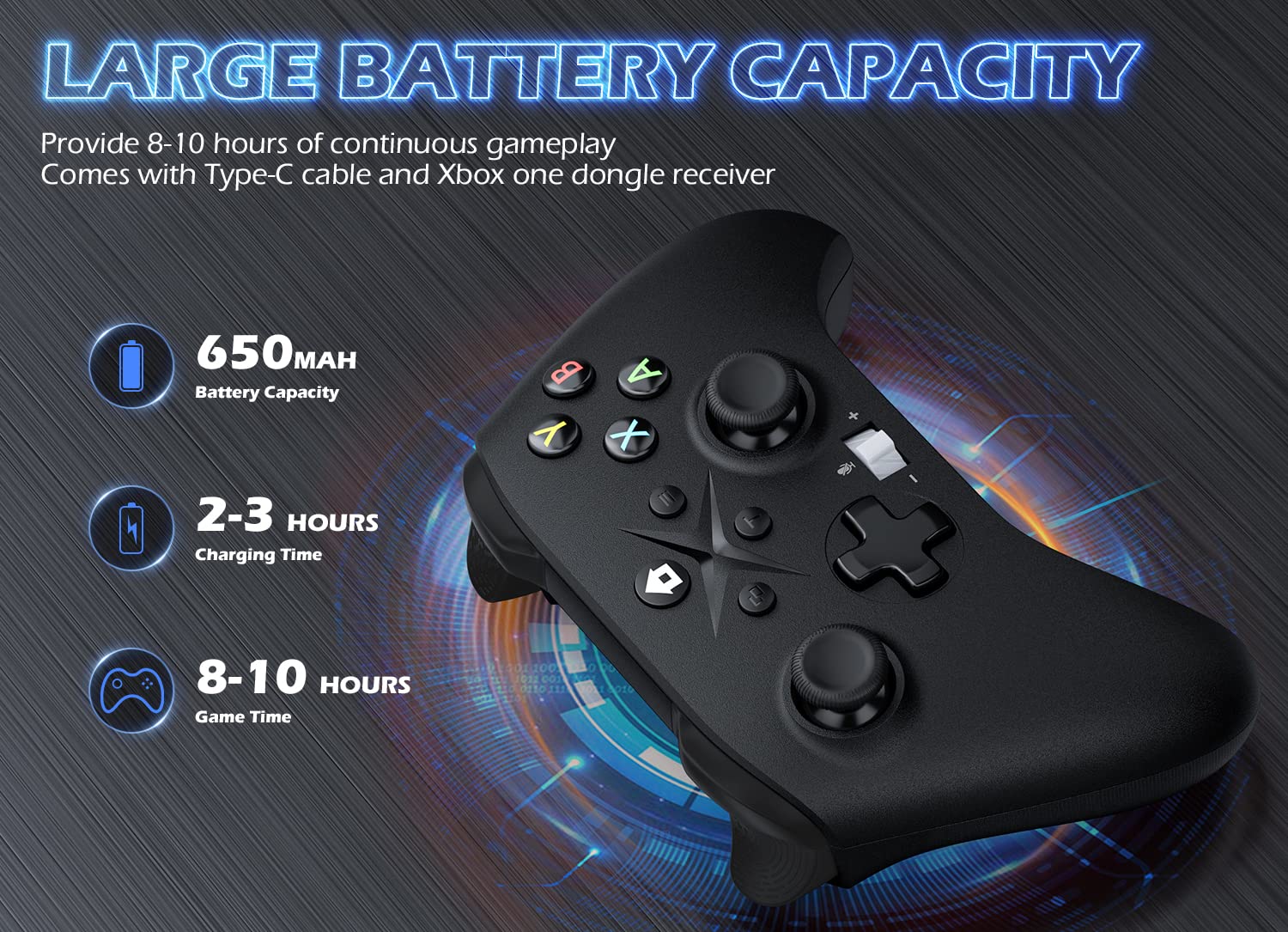
Image 6.1: Battery specifications.
7. Impurtante Information Safety
- Ùn espone micca u controller à temperature estreme, umidità o luce solare diretta.
- Evitate di lascià cascà o di sottumette u controller à impatti forti.
- Do not attempt to disassemble or modify the controller. This may void the warranty and cause damage.
- Keep the controller and its accessories out of reach of small children.
- Aduprate solu u cavu di carica furnitu o un equivalente certificatu.
8. Assistenza Clienti
For further assistance or inquiries, please contact Gamrombo customer support through the retailer's platform or the official Gamrombo websitu.


